

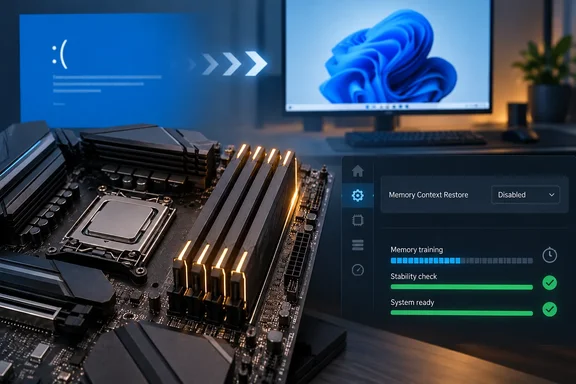
This is one person's system, not a lab study. It is still a useful troubleshooting lead for anyone running DDR5 at high speeds, especially with all four slots filled.
The symptoms: crashes that got worse over time
Sherback says the trouble built up over several weeks. His system hadn't changed, but he saw:
- Full system lockups
- Games freezing and then closing
- Blue screens (BSODs)
The crashes started in Escape from Tarkov, so he blamed the game at first. When they began happening during ordinary desktop work too, he started looking at the hardware.
He suspected memory. Lowering his 64GB of DDR5 from 6000 MT/s to 5600 MT/s stopped the crashes, but it also cost him some memory performance. Months later he tried a different theory. The problem might be the way the board handled memory training at boot, not the speed itself.
Section summary: The problem appeared under gaming first, then on the desktop. Lowering the memory speed stopped it, which pointed toward a problem with how stable the memory setup was, not a failing part.
What Memory Context Restore actually does
Every time an AM5 system cold boots, the firmware can train the memory. It runs a series of reads and writes to tune signal timings and reference voltages until it finds settings the modules can handle. With DDR5, especially at high capacities or with four DIMMs installed, this takes a while. It's a big reason early AM5 builds got a reputation for slow boots.
MCR shortens that wait. Memory Context Restore is meant to shorten that wait by reusing previously trained memory parameters instead of retraining from scratch on every boot. One system-builder guide describes it as saving DDR5 training results to flash memory. On the next boot, the system loads cached data instead of retraining from scratch. The same guide says that on ASUS hardware it is off by default on many ASUS boards, so many owners have switched it on themselves.
One caveat about that description: MCR reuses previous training results "when possible," which is how motherboard manuals tend to put it. Retraining can still happen. After a BIOS update, a memory change or an EXPO profile change, the first boot after a BIOS, memory, or profile change can still retrain.
Sherback is clear that MCR doesn't create bad training results. If the first training run found settings with comfortable safety margins, you get fast boots with no downside. The risk is when the saved result was only barely stable. MCR then keeps reusing it instead of letting the board find better settings on the next cold boot.
Section summary: MCR trades full retraining for faster boots. That's fine if the saved training result was solid. It can hurt you if the result was only barely good enough.
Why this system was an obvious candidate for trouble
Sherback's hardware explains a lot. His system uses a Ryzen 7 7800X3D with two separately purchased Crucial DDR5-6000 kits (2x16GB each), so four DIMMs in total, running at 6000 MT/s through an EXPO profile.
That setup has two risk factors.
1. Four sticks at 6000 MT/s is an overclock
Four DIMMs on AM5 means two DIMMs per channel, which is the hardest load for the CPU's memory controller. Sherback cites AMD's official 7800X3D memory spec: DDR5-5200 with two DIMMs, and only DDR5-3600 with four. Running four modules at 6000 MT/s is well above what AMD guarantees, even though EXPO makes it a single setting in the BIOS.
Other builders say the same thing. One guide notes that running four DIMMs on AM5 stresses the memory controller far more than two DIMMs. Training takes longer, and stability is harder to achieve at high speeds. It recommends that if you are running four DIMMs at 6000 MT/s and experiencing slow or failed training, try dropping to 5600 MT/s or 5200 MT/s. That's essentially the workaround Sherback used first.
2. Two kits are not one four-stick kit
Buying two matching 2x16GB kits instead of one 64GB kit sounds harmless. Memory makers don't treat them as the same thing, though. Kingston's support documentation says it only puts modules with matching components into its multi-module kits. It adds that modules bought at different times may use different components, and recommends buying a single kit for multi-channel systems. Kingston calls real problems from this unlikely.
To be fair, Sherback didn't publish part numbers, production dates or SPD data, so there's no proof his two kits actually differ. What we can say is that his four modules were never validated together as one kit. On a memory setup that's already running near its limits, that's one more variable.
Section summary: Four DIMMs at 6000 MT/s from two separate kits is well above AMD's guaranteed spec. It's the kind of setup where a barely stable training result is most likely.
Why the memory tests came back clean
Sherback ran TestMem5 and OCCT for a few hours each, not overnight, and both passed. Tarkov still crashed, sometimes every 30 minutes and sometimes not at all.
His explanation is that Tarkov leans heavily on RAM and streams assets constantly, which loads memory differently from a synthetic test pattern. That's plausible, but he didn't prove it. The safer lesson is one he states himself: a pass in TestMem5 or OCCT is strong evidence of stability, not proof. Training has the same limit. Training finds usable parameters; it does not guarantee that an XMP or EXPO overclock is stable under every workload.
Section summary: A few hours without errors in a stress test doesn't prove an overclocked memory setup is stable in every workload.
Other users report both outcomes
MCR has a mixed reputation among enthusiasts. In a long AnandTech forum thread on the subject, users say that for many users, enabling it turns long black-screen waits into much faster restarts and cold boots. For others, it introduces intermittent instability: failed boots, blue screens, sleep or wake problems, USB oddities, memory errors, or crashes that only appear after the system has been fully powered off. The same discussion notes that results depend on the motherboard, BIOS version, memory kit, CPU memory controller, and related options such as Power Down Enable, EXPO, XMP, and memory training behavior.
Plenty of people have no trouble with it. One Steam forum user running four 16GB DDR5-6000 CL30 sticks with MCR reported about 15-second boots and said "I know some people have issues with MCR but it's always worked fine for me."
ASUS community guidance on its ROG forum reflects the same view. The advice there is to enable MCR only after the initial successful training, and if you change memory kits or related settings, it's recommended to disable it temporarily to allow full retraining. A later reply in that thread puts it more simply: "Enable Memory Context Restore. Ensure the DRAM is stable first, though."
The key word there is stable. MCR works best as a convenience on a memory setup that's already confirmed stable. Sherback's four-DIMM setup running above spec may never have been fully stable.
The cost: slower cold boots
With MCR off, Sherback says it takes about 60 seconds from pressing the power button to reaching the Windows login screen. About five of those seconds are his Limine bootloader waiting to select Windows. He estimates the extra memory training adds roughly 30 seconds to a cold boot. Later in the piece he puts the cost at about 25 seconds, so treat those as rough figures for his machine, not a general AM5 number.
For him, the trade-off was easy. His PC is usually on, idle or asleep, so he only sits through a full cold boot after changing settings, switching operating systems or coming back from time away. If you shut down every night, you'll notice the extra wait more.
How to test this on your own AM5 system
If your AM5 PC has random crashes that memory tests don't catch, here's a sensible order to work through. Change one thing at a time:
- Write down your current setup. Record your BIOS version, EXPO profile, memory speed, voltages and how many DIMMs are installed. Take photos of the BIOS screens if that helps.
- Update to a stable BIOS. Memory compatibility and training get better across AGESA releases. Kingston lists a BIOS update as its first troubleshooting step for DDR5 problems.
- Find the MCR option in your board's manual. Menu names and locations differ between ASUS, MSI, Gigabyte and ASRock, and between BIOS versions. Check your own manual rather than following someone else's menu path. ASUS's B650-series manual lists Auto, Enabled and Disabled as the choices.
- Set MCR to Disabled and keep your current EXPO speed. Let the system finish POST. The first boot will take longer while it retrains. Don't interrupt it.
- Use the PC the way you normally do. If your crashes only showed up in one game, play that game over several sessions. A single clean evening doesn't prove anything when the crashes were intermittent to begin with.
- If crashes continue, lower the memory speed (for example 5600 or 5200 MT/s with four DIMMs), or go back to default settings.
- If crashes continue at default settings, stop blaming memory. Check GPU drivers, power delivery, temperatures, storage and Windows crash dumps.
What stable looks like: no lockups, game crashes or BSODs over a stretch of use that would have triggered them before. You'll also have a slower but consistent cold boot.
Bottom line
Sherback's report doesn't show that MCR causes crashes on typical AM5 builds. Most people running a single two-stick kit within spec can probably leave it on. What his experience does suggest is useful: if you run four DIMMs or mixed kits above AMD's rated speed and have crashes that stress tests miss, try disabling MCR before you give up your EXPO speed. It costs nothing, you can switch it back, and for him it fixed a PC he'd stopped trusting, in exchange for about half a minute on each cold boot.
References
- I disabled the AM5 BIOS setting everyone uses, and my random crashes finally stopped XDA · 2026-09-29T11:00:17+00:00
- Discussion - DDR5: Experiences with enabling Memory Context positioniseverything.net
- How to Fix Slow Boot Times on AMD AM5 Motherboards (Memory Context Restore BIOS Guide) rampricesusa.com