

This version keeps all ten fixes. It adds Apple's official qualifiers and puts more weight on the Windows PC path, which is where the guide was thinnest.
Before anything else: is the problem on Apple's side?
The original guide says the problem "could very well be due to an issue on Apple's side," and that's a fair place to start. Nothing in the evidence confirms an actual Apple TV outage, though. Apple's System Status page is live, so check it yourself when the problem happens.
Fix 1: Check Apple's System Status
- Open a browser and go to Apple's System Status page.
- Find the Apple TV entry.
- If it shows an outage, wait. Nothing you do on your device will fix a problem on Apple's servers.
- If everything is green, move to the next fix.
Apple's own support guidance says the same thing. If there's a service interruption, try streaming later. If you're watching through a third-party provider, check that provider's website as well.
Summary: Thirty seconds of checking can save you an hour of troubleshooting something that isn't broken on your end.
Network checks: the most common culprit
Fix 2: Check your internet connection
The guide suggests playing a few seconds of video in another streaming app. If that also struggles, restart your router, wait about 30 seconds, reconnect to Wi-Fi and open Apple TV again.
Apple's support documentation adds a few specifics:
- Speed: Apple says HD streaming needs 8 Mbit/s or faster, and slower Wi-Fi tiers may not keep up.
- Isolate the problem: Try watching on another device on the same Wi-Fi or cellular connection. If that fails too, Apple suggests contacting your internet provider.
- Cellular vs. Wi-Fi: If your cellular signal is poor, switch to Wi-Fi.
- Congestion: If the picture is poor or playback keeps stopping, Apple suggests asking other people on your network to pause their activity for a while. Big game downloads on the same router can eat your bandwidth.
- Router compatibility: Apple says your router should be 802.11a/g/n/ac compatible.
Fix 7: Turn off your VPN
In the original guide this is step seven, but it belongs with the network checks. Disconnect the VPN, close Apple TV, reopen it and try playing something. If it works, the VPN was probably the cause.
Apple's general streaming guidance doesn't list this step. Treat it as a sensible test, not an official fix.
Summary: Test another device, check your speed against Apple's 8 Mbit/s HD figure, and take the VPN out of the picture before you blame the app.
Quick resets: close, reopen, restart
Fix 3: Close and reopen the app
The app may just be stuck. Close it completely, and on a phone or tablet remove it from the recent apps list. Wait a few seconds, reopen it and try the same content. Microsoft's guidance for Store apps also starts here: select the Close (X) button in the upper-right corner, then reopen the app.
Fix 4: Restart your device
Save your work, restart the phone, PC, smart TV or streaming box, wait until it has fully started, then try again. Apple's guidance agrees: turn a smart TV or streaming device off and on, and restart an Apple device or PC.
Updates: where Windows users need different steps
Fix 5: Update the Apple TV app
How you update depends on the platform:
- iPhone/iPad: Settings > General > Software Update. The Apple TV app comes with iOS and iPadOS, so it updates with the operating system rather than separately.
- Mac: Apple menu > System Settings > General > Software Update, then install any macOS update.
- Android: Open Google Play, search for Apple TV and tap Update if it's offered. Apple says to update Android itself first.
- Smart TVs, streaming devices and consoles: Apple says the app should update automatically on compatible, internet-connected devices. If it doesn't, contact the device maker.
- Windows: Open Microsoft Store and go to Library > Get updates. Microsoft documents that path for Windows 11.
There's a detail for Windows 10 users here. Microsoft's support page gives a different Store path on Windows 10: See more > Downloads and updates > Get updates. The labels differ by Store version, so if your menu doesn't match, look for the equivalent rather than assuming the guide is wrong.
Apple also confirms that Microsoft Store is how you get and update its Windows apps, including Apple TV, iCloud, Apple Music and Apple Devices. The Store updates them automatically, or you can check by hand. On a PC running Windows 10 or later, you don't need the old Apple Software Update tool. The exception is Windows running on a Mac through Boot Camp, where Apple says to use both.
Fix 6: Update your device
The original guide gives a generic sequence: open Settings, find Software Update or System Update, install, restart and test again. Apple's advice for PCs is more specific: update Windows and your device drivers first, then update Apple TV in Microsoft Store.
On Windows 11, Microsoft's path is Start > Settings > Windows Update > Check for updates, then Install now. On Windows 10 it's Settings > Update & Security > Windows Update > Check for updates.
Summary: On a PC, update in this order: Windows, then drivers, then the Store app.
Account problems vs. app problems
Fix 8: Sign out and back in
If the app opens but your subscription or library is missing, the guide suggests signing out from your account or profile settings, closing the app, reopening it and signing back in with your Apple Account.
That's worth trying, but keep the problems separate. If you can't sign in at all, Apple's guidance points you to resetting your Apple Account password or its help on two-factor authentication. Apple also lists some account-side limits that can look like app bugs:
- Simultaneous streams: If other people are watching on the same Apple TV subscription or Apple TV channels, you may be over the limit for streaming on several devices at once.
- What the subscription covers: Apple says it doesn't include third-party-branded subscription services or rentals and purchases in the app. If a title has no play button, that may be the reason.
- Region: Availability varies by country or region.
Summary: Check whether it's a sign-in problem, a subscription limit or a regional restriction before you assume the app is broken.
Cache clearing: Android and Windows work differently
Fix 9: Clear the app cache
The guide's steps are for Android: Settings > Apps > Apple TV > Storage (or Storage & cache) > Clear cache. It warns, correctly, against Clear storage unless you need it, because that removes locally stored app data.
The guide doesn't mention that the Windows app has its own cache control. According to Apple's Windows user guide, you select the Sidebar Actions button at the top of the sidebar, choose Settings, then select a settings pane, and the Advanced pane lets you reset options to forget remotes, clear cache, clear play history, and more.
Be careful which option you click. Apple says the "clear what you've watched" option removes information about what you've watched (information that's synced with the Apple TV app on other devices). This also removes TV shows and movies from your Watchlist and Continue Watching rows. That synced history covers your other devices too, so don't use it as a general repair button.
Last resorts: reinstalling, and resets that erase data
Fix 10: Reinstall Apple TV
Uninstall the app, restart, reinstall it from the official store, sign in and test. On Windows, Microsoft's Store troubleshooting order puts two steps before reinstalling:
- Repair or reset the app using Windows' built-in options, which Microsoft covers in its "Repair or Remove programs" guidance.
- Reinstall from the Store: on Windows 11, open Microsoft Store, select Library, find Apple TV and select Install.
Windows 10 also has a built-in troubleshooter: Settings > Update & Security > Troubleshoot > Windows Store apps > Run the troubleshooter.
On smart TVs, streaming devices, game consoles and cable or satellite boxes, Apple documents an in-app reset at Settings > Reset > Reset. Apple warns that this erases accounts, settings and personal content. It isn't for iPhone, Mac, Windows or Android, and it's a much bigger step than clearing a cache.
Diagnostic tricks the original guide skipped
- Download instead of streaming: On devices that support downloads, Apple suggests downloading the title instead. If the download works and streaming doesn't, the problem is more likely your network than the content.
- Refunds for purchases: If purchased movies or shows still won't play, Apple says you can request a refund at reportaproblem.apple.com. That only covers purchases, not subscription streaming.
The bottom line
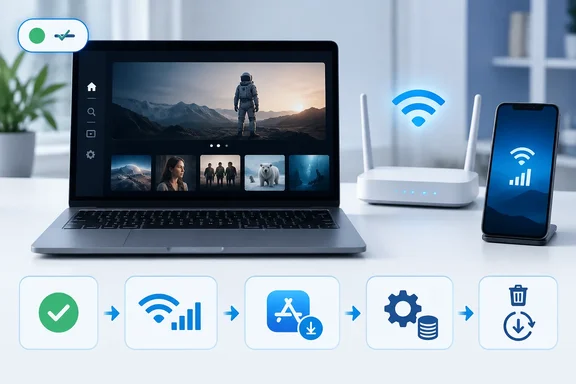
The ten fixes hold up, and the order (status, network, restart, update, then bigger changes) is right. Windows users can do better than the generic steps:
- Check Apple's System Status.
- Test another device and check your speed against the 8 Mbit/s HD figure.
- Update Windows and drivers, then use Microsoft Store's Get updates.
- Clear the cache from the Advanced pane in the app's own settings.
- Repair, then reset, and only then reinstall.
If you've hit a specific Apple TV error code on Windows, share it in the forum threads on Microsoft Store apps and streaming on Windows 11. An error code narrows things down much faster than a description like "it just spins."
References
- Is Apple TV App Not Working? 10 Quick Fixes to Try Windows Report · 2026-10-01T13:25:06+00:00
- If you can't watch or stream movies, TV shows, or sports in the Apple TV app - Apple Support support.apple.com
- Update Apple software for Microsoft Windows - Apple Support support.apple.com