

What polling rate actually measures
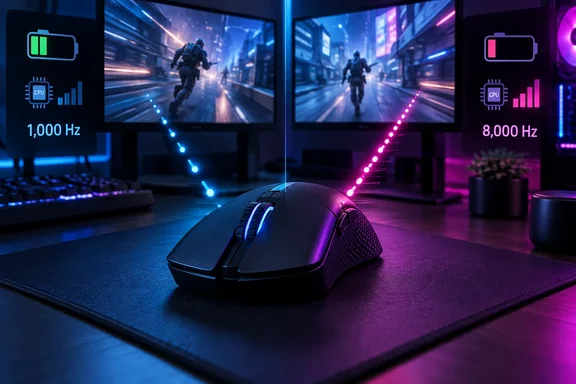
Polling rate is how often a mouse reports movement and clicks to the PC. The interval between reports is simply 1 divided by the rate:
| Polling rate | Interval between reports |
|---|---|
| 125 Hz | 8 ms |
| 500 Hz | 2 ms |
| 1,000 Hz | 1 ms |
| 2,000 Hz | 0.5 ms |
| 4,000 Hz | 0.25 ms |
| 8,000 Hz | 0.125 ms |
Many articles, including the Tom's Hardware piece, call that interval "latency." That is a shortcut. The interval is the longest a click or movement waits for the next report. Total delay also includes the sensor and switch, the USB or wireless link, the OS, the game engine and the display. So 8,000 Hz does not mean your system has 0.125 ms of latency. It means one slice of the pipeline got narrower.
Moving from 125 Hz to 1,000 Hz takes the wait from 8 ms to 1 ms, which most people can feel. Moving from 1,000 Hz to 8,000 Hz saves at most 0.875 ms. That is the same eightfold factor but a much smaller absolute gain.
Where the marketing comes from
Razer launched the Viper 8KHz in January 2021 and called it the first esports mouse with a true 8000Hz polling rate in its own announcement. That announcement argued that faster reports line up better with high-refresh monitors and reduce micro-stutter. That is a manufacturer claim, not independent proof.
Tom's Hardware's review of that mouse was more measured. It said the benefit depends on having a powerful enough setup, and it listed an inconsistent high polling rate among the drawbacks. It also advised turning Adaptive-Sync off.
The costs
CPU load and frame pacing
An 8,000 Hz mouse generates 8000 USB interrupts per second instead of 1000. Reported overhead varies a lot between systems. One hardware-coverage roundup stresses that the consistent finding is about frame time consistency, not average CPU usage. In CPU-bound games, the extra interrupt load can degrade 1% lows and introduce stutter. How-To Geek likewise warns that 8K polling is surprisingly demanding on your CPU.
There is an irony here. If a CPU-limited system stutters because of the extra reports, your effective latency can get worse, not better. Treat any single "X% CPU" figure with suspicion. The impact depends on the game, the CPU and the other USB devices on the system.
Wireless battery life
This is the clearest, most measurable trade-off. Manufacturer ratings are "up to" figures that depend on settings and conditions.
- Corsair Sabre v2 Pro Wireless MG: Tom's Hardware's review reports up to 120 hours of battery life over 2.4GHz at 1,000 Hz. The submitted article says this falls to 21 hours at 8,000 Hz. Those figures apply to the magnesium model, so don't assume they hold for every Sabre v2 Pro variant.
- Razer DeathAdder V4 Pro: Razer's current product page says up to 150 hours. Its separate listing for 8,000 Hz is 22 hours. The submitted article gave 28 hours for a different Razer mouse, so check the exact model's spec sheet. Razer also says the 150-hour figure is an update from the 120 hours on the original packaging, and it requires the latest firmware.
- Turtle Beach Burst II Pro: The submitted article cites 150 hours at 1,000 Hz and 40 hours at 8,000 Hz. I could not corroborate those numbers against Turtle Beach's own materials, so verify them before relying on them.
Other coverage points the same way. How-To Geek says 8K polling can leave you with roughly a quarter (or even less) of the battery life compared to 1,000Hz. It also notes that some ultralight mice with small batteries can drop to a few hours.
Receivers and charging mats
A mouse's maximum polling rate is often tied to a specific receiver. Razer's own listing for the DeathAdder V4 Pro says its HyperSpeed Wireless Gen-2 dongle can run true 8000 Hz polling, with LED indicators that show the current rate. Older Razer mice need a separately sold HyperPolling Wireless Dongle or Mouse Dock Pro to get there. Tom's Hardware's 2023 coverage of Razer's firmware update lists those mice and the accessories they need.
Charging mats are where it gets tricky:
- Logitech POWERPLAY 2: Logitech says it supplies power without a wireless receiver. Connectivity stays with the mouse's own receiver, so the mat is not an 8K receiver.
- Razer HyperFlux V2: Razer says the mat has a built-in receiver that replaces the mouse's dongle. The submitted article says that built-in receiver tops out at 1,000 Hz. Razer's support listing for it, as summarized in my research notes, is consistent with that. Check your exact mouse before assuming a mat can do 8K.
In practice, if you want 8,000 Hz wirelessly, you probably need the dongle. That means giving up the mat's dongle-free convenience.
Who might benefit
Mouse makers pitch 8K at esports players, and that is the only group where the argument is reasonable. The case is strongest with a fast monitor, a strong CPU with headroom, and a game that is not CPU-bound. Coverage of Razer's firmware update notes that esports screens now reach 500 Hz, up from the 60 Hz that was standard when 1,000 Hz became the norm. A higher-refresh display gives faster reports more chances to affect what you see.
The monitor thresholds vary by source. Redragon's guide recommends a 360Hz+ monitor, a high-end CPU for 8,000 Hz. The Tom's Hardware article suggests at least 240 Hz. These are rules of thumb, not hard limits. Refresh rate and polling rate are separate measurements, and neither mechanically caps the other.
How to decide
- Start at 1,000 Hz. It is the established baseline, and a mouse you are happy with does not need an 8K upgrade.
- Test higher rates in your own games. Compare 1,000, 2,000, 4,000 and 8,000 Hz in the software for your mouse. Watch for stutter, cursor jitter and worse 1% lows, not just average frame rate.
- Consider 4,000 Hz as a compromise. Several buying guides treat it as the middle ground. It halves the report interval again versus 2,000 Hz while costing less battery and CPU than 8K.
- Check the battery spec for the polling rate you plan to use. Look for the rating at that rate, over that connection type, on your exact model.
- Use wired mode if you want 8K. It avoids the battery penalty entirely, though it doesn't remove the CPU question.
- Don't pay extra just for the label. Several 8K mice need separately sold dongles or docks. Prices and sales change quickly, so I haven't quoted any here.
The bottom line
Eight thousand reports per second is a real technical feature. The most it can shave off is under a millisecond, and the costs can include battery life, CPU headroom and frame-time stability. Competitive players with fast displays and capable PCs can reasonably experiment. For everyone else, 1,000 Hz, or 4,000 Hz at most, is the sensible default. As the Tom's Hardware piece says of keyboards, the case for 8K is even weaker there.
References
- Do you need a mouse with an 8K polling rate? Tom's Hardware · 2026-10-07T21:10:00+00:00
- Razer DeathAdder V4 Pro: Fastest Gaming Mouse | Razer United States razer.com
- Razer introduces HyperPolling Technology to power the world's fastest gaming mouse - Razer Newsroom razer.com