

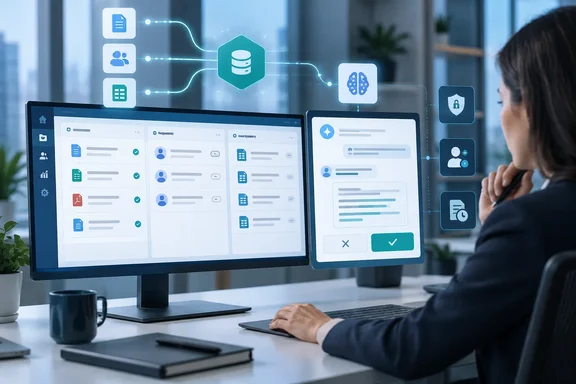
Windows and Microsoft 365 shops should pay attention to the Copilot part. AuditDashboard ships a Microsoft 365 Copilot and Teams agent package, so this is something an IT administrator installs and governs. Accountants can't just turn it on themselves.
What AuditDashboard actually shipped
AuditDashboard's own press release is dated September 24, 2026. CPA Practice Advisor covered the launch on September 30. Both describe the same product: connectors built on the Model Context Protocol (MCP), an open standard for securely connecting AI models to software, which let firms' AI agents read from and write to their AuditDashboard engagements.
The words "read from and write to" matter here. The AI can change records, not just look at them. The company's launch examples include:
- Account administration: adding client companies, and inviting or deactivating users
- Engagement setup: creating or rolling forward engagements and assigning teams
- Portfolio overview: summarizing status and performance, and spotting engagements at risk
- Evidence review: flagging missing, incorrect, or internally inconsistent evidence
- Client follow-up: drafting follow-up questions and requests
- Fieldwork: pulling populations, selecting and uploading samples, and drafting working papers from PBC files for an auditor to review
These are the vendor's examples of what customers are doing. Nobody has independently measured how well they work. AuditDashboard says the connectors are available to customers now.
One small inconsistency: the press materials name three AI tools, but the company's product page mentions a fourth, promising to connect Copilot, Claude, Gemini or ChatGPT to live engagement data. The help center's prerequisites list only Claude, ChatGPT and Microsoft Copilot. Firms that use Gemini should confirm support with the vendor before planning around it.
Section summary: This is a two-way MCP connection that lets three mainstream AI assistants act on audit engagement data, within limits described below.
The Microsoft 365 Copilot and Teams angle
AuditDashboard's help center documentation sets out who does what in each AI tool:
| AI tool | One-time firm-level setup | Per-user step |
|---|---|---|
| Microsoft 365 Copilot / Teams | A Teams administrator installs the AuditDashboard agent package | Each user signs in on first use |
| Claude | An organization Owner adds the connector | Each user connects their own account |
| ChatGPT | A workspace owner or admin uploads the plugin package | Each user connects their own account |
Once the package is deployed, staff find the agent in the Agents pane in Microsoft 365 Copilot or under Apps in Teams. The overview article refers to separate, more detailed deployment guides for Copilot and Teams. It doesn't repeat those steps, and neither will we.
This isn't AuditDashboard's first Copilot integration. About a year ago, its Version 8.0 release added a Microsoft Copilot Integration that let firm users securely and confidently access the AI-powered functionality they're already approved to use while reviewing PBC documents submitted by their clients. The same release lets firms view Word, Excel, PowerPoint, and PDF files directly in their browser using the Microsoft licenses they're already paying for. The difference is where the work happens. Version 8.0 put Copilot inside AuditDashboard. The new connectors put AuditDashboard inside Copilot, Claude and ChatGPT.
Setup: prerequisites, connector address, and first sign-in
AuditDashboard's help center lists three prerequisites:
- An AuditDashboard account with live engagement data.
- API access enabled for the firm's AuditDashboard portal.
- An AI tool that supports MCP: Claude, ChatGPT, or Microsoft Copilot.
The second one will catch people out. The launch says "immediately available," but that doesn't mean a firm can connect without any setup. If API access isn't turned on for the portal, the connector won't work.
The connector address. Each AI tool asks for the connector's address. The documented pattern is the firm's portal address with /mcp on the end. A firm that signs in at [url]https://yourfirm.auditdashboard.com[/url] would use [url]https://yourfirm.auditdashboard.com/mcp[/url].
Leave the OAuth fields empty. The instructions say to leave any client ID, client secret or authorization URL fields blank, because the portal handles sign-in itself. Admins used to typing credentials into every box should resist the urge.
First connection. Users sign in with their normal AuditDashboard credentials, including multifactor authentication if the firm requires it.
How to tell it worked. The help center suggests asking something simple, such as "list my active engagements." A correct answer means the connection is working. If the assistant says it doesn't have access, the user should contact the firm administrator.
Troubleshooting the common failure points
AuditDashboard's help center covers three failures:
- The connection fails immediately or finds no tools. API access isn't enabled for the portal. The fix is to contact the firm's Customer Success Director or open a support ticket.
- Sign-in opens but never finishes. Check that the address uses the firm's exact subdomain and ends in
/mcp, and allow pop-ups for the AI tool. - It connects but says it can't do something. The user's AuditDashboard role doesn't include that permission. A firm administrator has to change it; the AI can't get around it.
The documentation also notes that file downloads come as a one-time link that expires after a few minutes. Users who ask Copilot for this morning's trial balance should open the link promptly.
Permissions, confirmations, and the audit trail
Security is the main selling point. The AI Connectors are built on AuditDashboard's role-based architecture. Users sign in via OAuth with their existing AuditDashboard credentials, and agents can only see and do what their role already allows. In addition, this control is enhanced by an AI client's fine-grained permissions, which specify what agents can read, write, and execute.
For accountability, AuditDashboard says every action is logged in the audit trail and visible in engagement activity feeds. The help center explains that the connector acts as the signed-in user, so that person's name appears in the Activity Feed next to every action they approve. Before the assistant changes anything, it says what it's about to do and waits for the user to confirm. The documentation describes this confirmation step for changes. It doesn't say reads need confirmation.
AuditDashboard's API documentation shows how far the connector could reach. Its developer portal says the hosted MCP endpoint is generated from its current API v2. That API covers clients, users, engagements, files, requests, activity feeds, and even restoring items from the trash, and agents are only offered the tools the acting user is allowed to use. That doesn't mean every API operation is available in every AI client or firm setup. The portal also says the older API v1 is in maintenance mode, gets no new features, and will be retired at a date it hasn't announced. Firms with custom integrations should note that.
On data handling, AuditDashboard doesn't use firm data to train AI models. How the AI handles data is governed by the firm's agreement with its AI provider, the company says. Those are two separate promises. AuditDashboard is describing only its own practices. What happens to engagement data after Claude, ChatGPT or Copilot receives it depends on the firm's contract with OpenAI, Anthropic or Microsoft, so IT and compliance should review those terms, not the vendor's press release.
Section summary: The controls look sound on paper: the AI inherits the user's role, asks before changing anything, and logs actions under the user's name. The AI provider's data terms are still the firm's responsibility.
The pitch and where it falls short
Dave Mundy, AuditDashboard's founder and CEO, summed up the strategy: "Firms don't want another AI tool... What they want is a secure AI connection to the tool they already use." The company's product page makes a sharper argument against competitors that resell the same frontier models inside their own interfaces. It promises no bolt-on middleware, no more third parties, no overpriced wrapper.
The company gives three reasons the approach should appeal to firms:
- Better context, better output. A model connected to live request lists, statuses, history and PBC files should draft better than one working from a stale export.
- More value from existing AI spending. Firms can build repeatable workflows instead of relying on one-off prompts.
- Flexibility. Because MCP is an open standard, firms can switch models without rebuilding the connection to their engagement data.
All three are reasonable, but none has been measured. Some caveats:
- Better context doesn't guarantee accurate output. A model with live data can still misread a bank statement. AuditDashboard's own help center says the connectors are fast but they aren't the reviewer.
- Prompt injection is a real risk. The documentation warns that if a client document contains instructions, users should read those instructions themselves before acting on them. That's sensible advice, because a model that reads client-supplied files and can also write back to the engagement is exposed to malicious text hidden in those files. Our view, based on how MCP-connected agents generally work, is that the confirmation-before-change step is the most important protection here.
- Portability has limits. MCP does make the connection reusable, but each AI tool still needs its own admin setup and package. Switching assistants means less work than before, not no work.
- Competitors are doing the same thing. CPA Practice Advisor reported on the same day that Canopy is building an MCP (Model Context Protocol) server, which will let AI assistants like Claude connect directly to Canopy. MCP support is quickly becoming a standard feature of accounting software.
A practical checklist for IT admins
For firms running AuditDashboard on Microsoft 365, the documentation suggests a sensible order:
- Confirm API access is enabled for the portal before anyone tries to connect.
- Choose the approved AI tool(s) and review the provider's data-handling terms.
- Have the right administrator do the one-time setup: a Teams admin for Copilot and Teams, an organization Owner for Claude, a workspace owner or admin for ChatGPT.
- Test with representative roles. Sign in as a staff auditor, a manager and an admin, and check that each sees only what they should.
- Confirm logging. Make a test change and check that it appears in the Activity Feed under the right name.
- Train staff to check the AI's work and to treat instructions inside client documents with suspicion.
Bottom line
AuditDashboard's AI Connectors are a practical MCP deployment. They connect Microsoft 365 Copilot, Claude and ChatGPT to live audit engagement data, and they keep the controls firms already have: existing user roles, confirmation before changes, and activity logging. For Microsoft 365 firms, the Teams admin installs the package once and then users sign in individually. The productivity claims come from the vendor and haven't been tested, and the AI can make changes as well as read. Test with real roles before rolling it out. As Mundy put it, "Getting started is easy because firms are enabling the connectors in AI tools that their IT teams have already approved." Even so, the auditor remains responsible for reviewing and signing off on the work.
References
- AuditDashboard Links AI Agents to Live Engagement and PBC Data - CPA Practice Advisor CPA Practice Advisor · 2026-09-30T17:38:11+00:00
- Overview of the AuditDashboard AI Connectors – AuditDashboard Help Center auditdashboard.zendesk.com
- AuditDashboard Connects AI Agents to Live Engagement and PBC Data auditdashboard.com