

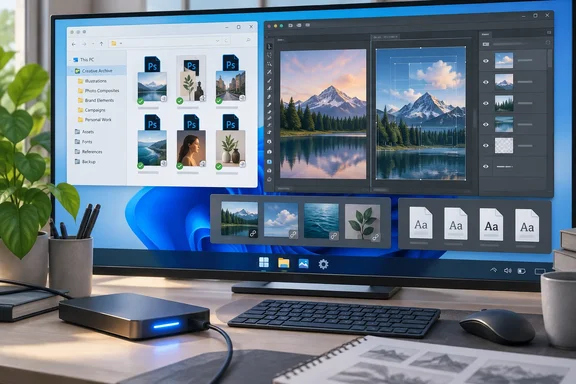
Windows users are the main audience here. The replacement apps he used run on Windows, and the risks are the same ones any PC user faces when leaving a proprietary format: cloud deadlines, missing linked files, fonts that silently get swapped, and PSD features that other editors can only approximate.
First, the deadline: Adobe's cancellation terms
Before you touch the Cancel button, read Adobe's own terms. According to Adobe's help page on account access after cancellation, access to paid apps and services ends when your current billing period finishes. After cancellation, your allowed cloud storage is reduced to 5 GB. If you are over your storage limit, you have 30 days to reduce your online usage. After 30 days, you could lose access to some or all of your files saved on the Creative Cloud servers. Adobe also warns that files in free cloud storage may be permanently deleted after a period of inactivity, and says you'll get an email before that happens.
The files don't vanish the moment you cancel. Adobe's subscription terms say your account converts to a Creative Cloud free membership, and that starter plans for some apps are still available. But if you've synced years of work to the cloud, the 30-day clock is real.
The cost of cancelling matters too. Adobe's terms page states that it applies specifically to Adobe subscribers based in the US, and that on an annual plan paid monthly, after 14 days, a cancellation fee (early termination fee) of 50% of the remaining balance of the contract applies. Business users should note that the Creative Cloud for teams documentation covers a similar storage drop. It adds that team members lose access to most Creative Cloud applications and services, including the ability to create or edit files, and tells admins to ensure team members save active files locally in a compatible format before cancellation.
Section takeaway: Check your plan type and your cloud storage usage first. Then download everything to local storage before you cancel.
Step 1: Sort your files before you move them
Abidi began by splitting his archive into two groups:
- Archival files: finished work he might need to look at, export, or use to prove authorship later. These got safe copies, previews, and backups.
- Active files: reusable templates, current projects, illustrations, and assets still in use. Each of these got individual attention.
This step matters more than it seems. Most people's PSD archives are mostly finished work that will never be edited again. Those files need to be preserved, not converted. Spending hours rebuilding a 2017 banner ad in a new editor is wasted effort.
He also copied the whole archive to a local server and made full-resolution PNG and TIFF previews of everything. The logic holds up: if some future editor renders a layer effect differently, you still have an exact pixel reference showing what the finished image should look like.
Step 2: Prepare the PSDs while Photoshop still works
Abidi says two Photoshop settings, used before his subscription ended, prevented a lot of later failures:
- Maximize PSD and PSB File Compatibility. This option is in Photoshop's File Handling preferences. It saves a flattened composite image inside the PSD alongside the layers. Other apps can then show the intended final look even when they can't interpret every feature. The composite only gives you something to look at. It doesn't make unsupported layers editable, and it only helps files saved after you turn it on.
- File > Package for linked Smart Objects. Abidi used this for projects with linked Smart Objects. It gathers the PSD and its linked source, audio, and video files into one folder. That solves the missing-link problem. It doesn't guarantee that another editor will handle Photoshop-specific Smart Object behaviour.
If you have a large archive, the order matters. Turn on Maximize Compatibility, then re-save the high-value files so they get the composite, and do all of this while your licence is still active.
Step 3: Pick replacements, and plan on using more than one
Abidi concluded that no single app fully replaces Photoshop. He ended up with a main editor plus two backups.
GIMP: free, open-source, and honest about its limits
GIMP was the obvious first choice. Its official 3.2 manual covers exporting to PSD and doesn't oversell it: Not all blending modes can be converted to an exact equivalent between GIMP and Photoshop. The manual says the legacy layer modes are often closer to Photoshop's, but they don't support composite modes. Photoshop often uses the equivalent of GIMP's Clip to Backdrop mode, which it calls "Blend Clipped Layers as Group."
GIMP 3.2's PSD export also has an Export as CMYK option. It only works if a CMYK profile is assigned to the image as its soft-proofing profile. If the option is greyed out, set a soft-proof profile first.
Abidi also notes that Krita's documentation makes the broader point that PSD is an internal Photoshop format no outside app can support perfectly. That comes from his reading of the docs and wasn't checked separately here.
Affinity: his main editor
For his mix of photo editing and design, Abidi picked Affinity. Its product page confirms the pricing: the app is listed at $0, and to download it you sign in with your Canva account (or create one for free). Affinity's FAQ says a free Canva account gives you all the vector, layout, and pixel tools. Canva's AI features inside Affinity require a premium Canva plan. The app is currently available on Windows and macOS, and it's the same app, just available on different operating systems.
You need to be online to download it and activate the licence. Affinity says that after activation there is no requirement to be online, even with extended offline periods. Help content, stock libraries, and Canva integrations still need a connection.
Affinity says it imports PSD files with structure, layers, and creative intent preserved. Abidi reports that his files kept layers, groups, gradients, blend modes, paths, masks, professional colour modes, and editable embedded PSD Smart Objects. Keep in mind that one is a vendor claim and the other is one person's result. Neither guarantees how your files will behave.
There's a format catch that anyone with older Affinity installs should know about. Affinity V1 and V2 cannot open files that are created or saved in the newer app, Affinity by Canva. The new app opens old files, but it doesn't work the other way round. If a colleague or client still uses Affinity V2, your new .af files won't open for them.
Abidi also names the non-technical downside: Affinity isn't open-source, and Canva's ownership may put some people off. That's why he keeps the backups.
Photopea: the second opinion
Abidi uses Photopea, a browser-based editor, as a compatibility check. He says it treats PSD as its main working format and processes files locally in the browser. He also relays Photopea's claim that opened files never leave your device. That privacy claim is the vendor's and wasn't independently verified. Treat it the way you'd treat any web app you give client files to.
Section takeaway: Use one main editor, one open-source fallback, and one tool for checking how files render. Relying on three apps is more resilient than relying on any one of them.
Step 4: Test your hardest files first
Abidi didn't point Affinity at hundreds of files and hope. He built a test set from his trickiest PSDs, including:
- Nested groups and clipping masks
- Editable text
- Smart Objects and files with linked assets
- Adjustment layers and layer effects
- Unusual blend modes
- 16-bit images
He opened each one next to its flattened reference and checked two things: whether it looked right and whether it could still be edited. That second check is the one people skip. A file can look perfect and still arrive as a single uneditable layer, and you won't find out until a client asks for a change at 5 p.m. on a Friday.
Step 5: Keep the PSD, and make the new file the master
For active projects, Abidi opened each PSD in Affinity, compared it with the reference, fixed any text or effects that didn't match, and saved a native .af file next to the original PSD. He never overwrote a source file. For important finished work, he also kept a layered TIFF where practical, with the caveat that Photoshop can save layers in TIFF but other apps may ignore them.
His setup has three parts, each with its own job:
| Artifact | Role |
|---|---|
| Original PSD | Untouched original, kept as evidence |
| PNG/TIFF preview | Reference for how the finished image should look |
| Native .af file | New master for editing |
The problem you can't fully solve: fonts
Fonts are the weak spot. Abidi cites Adobe's note that when a font becomes unavailable, documents can switch to a default and change how they look. Rasterised or outlined text, and formats that embed font data, will still display correctly. His fix:
- Record every typeface used in your live templates.
- Buy licences where you need to.
- Replace subscription fonts with open alternatives where you can.
- Save a flattened reference before you touch any text.
Rasterising or outlining text keeps the look but removes normal text editing. That's fine for archived work and a bad idea for a template you'll update every quarter.
What this approach does and doesn't solve
Is this worth weeks of effort? Abidi says it took him several weeks of working in Affinity before he could leave Adobe for good. He is clear that he didn't get lossless conversion of every Photoshop feature.
What he did get is backed by the evidence here. Adobe's cancellation terms create a real deadline for cloud files. GIMP's own manual admits blend modes don't map exactly. Affinity's newer file format won't open in its older versions. None of these apps solves the problem alone, and no conversion is perfect. What works is keeping the originals, visual references, and redundant backups.
If you use Windows and are thinking of cancelling, here's the short version:
- Check whether you're on an annual plan and what leaving early will cost.
- Download all cloud documents locally, well before the 30-day window.
- Turn on Maximize Compatibility and re-save the files that matter.
- Package any projects with linked Smart Objects.
- Export full-resolution previews of everything.
- Test your hardest files in your chosen editor before committing.
- Save new masters beside the original PSDs, never over them.
- Record your fonts.
Once you've done that, you can cancel knowing your work is safe.
References
- Leaving Adobe meant solving one problem first: my PSD archive MakeUseOf · 2026-09-30T17:30:16+00:00
- 5.44. Export Image as Photoshop image docs.gimp.org
- Get Affinity | Pro Power with No Strings Attached affinity.studio