

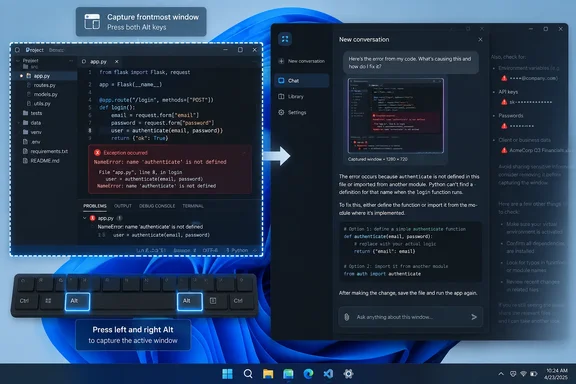
That makes Appshots a meaningful new input method for Windows users of the ChatGPT desktop app, especially developers, support staff, and knowledge workers who regularly translate a UI state into a prompt. WindowsReport highlighted the feature this week after OpenAI promoted it on September 17, while OpenAI’s own documentation and Enterprise release notes confirm that Windows support is now live.
The practical consequence is straightforward: users no longer need to create a screenshot, save or paste it, upload it, and then reconstruct the surrounding state in prose. But the feature also turns a quick keyboard gesture into a potentially broader data-sharing action than a conventional image capture. Administrators and users should treat it accordingly.
Appshots captures a window, not the entire desktop
OpenAI describes Appshots as a way to send the frontmost app window to a chat in the desktop client on Windows and macOS. On Windows, the default trigger is both Alt keys pressed together; on a Mac, it is both Command keys. The shortcut and the destination conversation can be changed in ChatGPT settings.
The scope is narrower than full-screen sharing. Appshots targets the active window only, so a second monitor, another open application, or a desktop notification outside that window should not be part of the attachment merely because it is visible on the PC.
That limitation matters for Windows users accustomed to the operating system’s own capture behavior. Alt+Print Screen has long copied the active window as an image. Appshots resembles that workflow in its focus on one window, but it sends the resulting material straight into ChatGPT and may pair the image with application-provided text. It is an AI context-capture feature rather than a replacement for Snipping Tool or the built-in Windows screenshot shortcuts.
OpenAI says an Appshot is handled in a chat as an attachment. The company’s Appshots documentation also says the desktop app stores it locally in the session file, as it does manually attached files and images. By default, ChatGPT starts a new chat after an Appshot; if the user interacted with an existing chat in the preceding 60 seconds, it adds the capture to that recent conversation instead. Consecutive Appshots continue in that same conversation.
That behavior is useful for a debugging sequence, where a user may capture an error dialog, a configuration panel, and the changed result. It also means users should look at the active chat before firing the shortcut when the work involves sensitive material.
The text layer is the feature’s real distinction
The screenshot is the obvious part of Appshots. The text is what changes the utility — and the risk calculation.
OpenAI says an Appshot can contain the image of the visible window plus text that the app makes available, including text outside the visible scroll area. In other words, ChatGPT may receive more than the pixels currently on screen. A capture of a long settings panel, support ticket, documentation page, email view, or internal dashboard could include accessible text that was not visible at the moment the user pressed both Alt keys.
For coding and IT support, that can be genuinely useful. A developer can capture an error dialog or an API reference page and ask for an explanation or a script. A help-desk technician can show a settings panel whose exact controls are difficult to describe. A designer can share a live application interface and ask for an implementation-oriented critique rather than manually inventorying components, spacing, labels, and states.
It also corrects an overly simple reading of the feature as “screen context.” The source material’s examples of debugging, UI recreation, and data analysis are plausible, but the crucial mechanism is that Appshots can bring structured or accessible text along with the window image. ChatGPT therefore has more to work with than it would from a manually uploaded screenshot alone.
OpenAI has not published a universal promise that every application’s full underlying text will be captured. The company’s wording is conditional: the attachment includes text the application makes available. Windows software varies widely in its accessibility and UI frameworks, so users should expect different results across Win32 applications, browsers, Electron apps, remote-desktop windows, virtual machines, and line-of-business software.
Alt plus Alt is separate from ChatGPT’s older Windows shortcuts
The two-Alt-key gesture is not Alt+Space, a distinction that will matter to regular users of the ChatGPT Windows app.
OpenAI’s release notes list Windows+Alt+P for its newer Quick Chat control on Windows. The Appshots shortcut is instead the simultaneous press of both Alt keys. On Windows, Appshots then open in ChatGPT’s main application rather than a floating companion control.
This design is efficient once learned, but it is unconventional. Windows users are used to modifiers combined with a key — Alt+Tab, Alt+F4, Alt+Print Screen — rather than treating the left and right instances of a modifier key as a two-key command. It is easy to confuse Appshots with the app’s older Alt+Space launcher behavior, or with a normal active-window screenshot.
For a personal PC, that may be a minor discovery problem. For enterprise support documentation, it is worth spelling out exactly: bring the intended app to the foreground, press the left and right Alt keys together, then review the attachment and ask ChatGPT for the specific task. Do not assume the feature is capturing only the visible pixels.
The convenience creates a new data-handling checkpoint
Appshots reduces friction precisely where users normally pause to consider what they are uploading. A traditional screenshot workflow includes several deliberate steps: capture, inspect, save or copy, attach, then send. Appshots condenses that process into a global gesture followed by a prompt.
The best operating rule is to treat an Appshot like a file attachment, not like a harmless local screenshot. Before taking one, switch away from password managers, HR systems, customer records, financial dashboards, source-code windows containing secrets, incident-management consoles, and email threads with personal or regulated information. If sensitive information is already in the active window, a smaller visible area is not necessarily sufficient protection when accessible text may extend beyond what is on screen.
For consumer accounts, OpenAI says chats are used to improve its models by default unless the user disables “Improve the model for everyone” in Data Controls. That setting deserves review before Appshots becomes a habitual part of daily work. OpenAI’s separate guidance for agent screenshots also makes clear that screenshots associated with a conversation remain with that conversation until it is deleted; while Appshots documentation describes local session-file storage, the company has not published a comparably detailed Appshots-specific retention explanation in the material reviewed here. Users should not infer that local session storage means the content never reaches OpenAI’s services once it is attached to a normal chat.
Business, Enterprise, Edu, and other managed-account users should not assume personal-account behavior applies. OpenAI’s managed-account documentation says organization administrators can control access to features, retention settings, sharing settings, and other account data controls. Its Enterprise and Edu release notes specifically say existing organizational Appshots settings still apply on Windows.
That is the administrative issue OpenAI’s promotional framing leaves largely untouched. Before encouraging Appshots in a managed environment, IT teams should establish whether the feature is enabled, which workspace it uses, what chat retention and compliance rules apply, whether staff are using a personal ChatGPT account beside a managed account, and what data categories must never be submitted.
A small desktop feature with a different workflow model
Appshots does not give ChatGPT continuing access to a Windows desktop. It captures the frontmost window when the user invokes it, and the user still has to provide an instruction. That is a much more bounded model than persistent screen awareness or autonomous control of local apps.
Yet it moves ChatGPT closer to being an always-available assistant that works from an application’s current state rather than from a user’s retrospective description. The change is most useful when visual state, error text, layout, or a dense configuration screen is the thing that needs explanation.
For Windows users, the immediate test is simple: use an Appshot on a non-sensitive error window or test document and inspect exactly what lands in the conversation before relying on it for real work. The feature’s speed is its benefit; the fact that it may capture more text than the visible viewport is the reason to make that inspection a habit.