

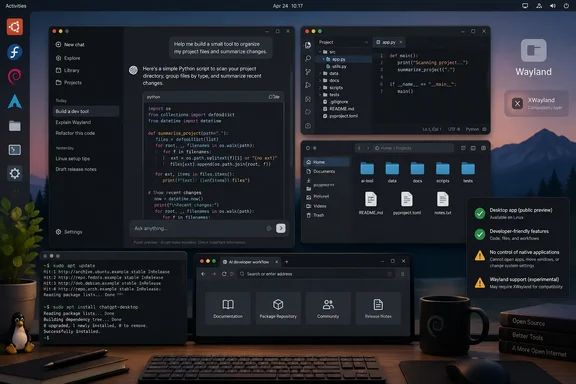
OpenAI announced the Linux support through its ChatGPT release notes and developer documentation, covering Ubuntu 24.04 LTS and 26.04 LTS, Debian 13, Fedora 43 and 44, and fully updated Arch Linux installations. The company supplies x64 and ARM64 builds, using .deb packages for Ubuntu and Debian, .rpm packages for Fedora, and an installation script for Arch.
For developers who have used ChatGPT in a browser alongside a Linux workstation, the release closes a conspicuous platform gap. But the real change is not simply a launcher icon: OpenAI is positioning the Linux client as a workspace where ChatGPT and Codex can operate around projects, authorized local files, and browser-based tasks.
The supported platform list is narrow, but the packages are official
Linux support has arrived as a public preview, not as a generic package that OpenAI promises will run across every distribution. That distinction matters for sysadmins and users of derivative distributions. Ubuntu, Debian, Fedora, and Arch are named; Linux Mint, Pop!_OS, RHEL, openSUSE, NixOS, Gentoo, and other distributions are not.
Some of those systems may run the application, particularly distributions compatible with Ubuntu, Debian, or Fedora packages. But OpenAI’s documentation explicitly frames unsupported distributions as systems where the client may work rather than systems it supports. That means an installation that succeeds is not the same thing as a configuration an organization can rely on for vendor-backed troubleshooting.
The packaging method is more consequential than it first appears. OpenAI says its Ubuntu, Debian, Fedora, and Arch installers configure a signed OpenAI package repository, so subsequent updates are delivered through the system package manager. That is a better operational model than repeatedly downloading a binary from a website, but it also means administrators should treat the repository as a new software source subject to their normal approval, mirroring, and change-control policies.
Arch users should read the installer behavior especially carefully. OpenAI’s documentation says its script detects the system architecture, configures the signed repository, installs ChatGPT, and performs a system-wide upgrade after confirmation. On a rolling-release workstation that may be ordinary maintenance; on a managed developer endpoint, it is not a trivial side effect of installing a single AI client.
The desktop client changes the local-file workflow
The reason to install the Linux app is access to the desktop-oriented workflow, not the conversational interface alone. ChatGPT has long been accessible in Firefox, Chrome, and other browsers on Linux. The official client puts ChatGPT, Codex, projects, local-file permissions, and browser actions in one application rather than making each task begin with a browser upload or a context-switch between tools.
OpenAI’s documentation says that, after signing in, Linux users can work with projects, local files, and Codex. Those features can be useful for a developer who needs help reviewing a repository, interpreting build logs, drafting documentation from local Markdown files, or working through a multi-stage coding task with project context available.
That convenience should not be mistaken for unrestricted machine access. Local-folder and project capabilities depend on permissions the user grants, and organizations should decide whether source trees, internal documents, configuration exports, and logs are appropriate to expose to a hosted AI service before encouraging staff to connect folders. A native client can make data handoff feel routine precisely because the file-selection step is less visible than a manual upload in a browser.
For Windows administrators, the arrival is also a useful signal about OpenAI’s product direction. The company is moving away from treating ChatGPT as a web page with an optional desktop shell and toward a client that can mediate between cloud AI, local work files, and controlled browser activity. Linux now joins Windows and macOS in that strategy, even if its implementation remains behind the other desktop platforms.
Linux gets browser actions, not full desktop control
OpenAI’s release notes draw a hard line between browser actions and desktop control. The Linux application can work in its built-in browser or in Chrome, but it cannot control other desktop applications in the preview.
That omission affects the practical meaning of “agentic” work on Linux. The app may be able to assist with browser-based research, web forms, and browser workflows, but it cannot yet operate a native IDE, terminal emulator, settings panel, office suite, image editor, or other desktop app on the user’s behalf. Linux users should not expect a task handed to ChatGPT to move freely across the rest of their desktop.
The limitation also avoids an easy but misleading comparison. Codex access in the desktop app is valuable for coding work, but it does not make the Linux client a replacement for normal version control, code review, test automation, CI pipelines, or endpoint management. It is a new interface for AI-assisted development, with permissions and service access that still need to be governed like any other external development tool.
OpenAI has not published a timetable for bringing desktop-app control to Linux. The company says Linux support is planned for a future release, but has not committed to a date, a distribution matrix, or the security model it would use for controlling local applications. That leaves the preview as a useful addition for file- and browser-centric work, not evidence that Linux has reached feature parity with Windows or macOS.
Wayland is the preview’s most visible technical caveat
The more revealing limitation sits below the headline feature list. OpenAI says native Wayland support is experimental and that the application uses XWayland when available. The company warns that floating windows, window positioning, focus, keyboard shortcuts, and related functions may not behave fully as expected until native Wayland support matures.
That is material for current Linux desktops, where Wayland is the default session type for many users of Fedora Workstation, Ubuntu, KDE Plasma, and other mainstream environments. An application can be “native” in the sense that it is an official packaged desktop client while still relying on the X compatibility layer rather than integrating cleanly with a modern Wayland session.
OpenAI documents a launch option to force Wayland mode, but that should be viewed as a troubleshooting or testing path rather than a universal fix. Its own warning makes clear that the native path remains under development.
Early reports support that caution, though they should not be generalized as confirmed defects on every system. In OpenAI’s developer community, users have described display and input problems under Wayland, including cases where the application appeared to fall back to X11 and where virtual-keyboard text input behaved incorrectly. A bug report in OpenAI’s public Codex repository described a reproducible crash on KDE Plasma after switching between light and dark themes on Fedora 44 and Ubuntu; the issue is marked closed, but the public record does not establish which released build contains a fix.
For managed Linux fleets, the sensible approach is to pilot the client on the actual combinations employees use: GNOME or KDE Plasma, X11 or Wayland, hardware acceleration configuration, input methods, security tooling, and proxy or TLS-inspection policies. A clean install on Ubuntu with XWayland is not enough evidence that a Wayland-heavy Fedora or KDE deployment will behave identically.
What Linux users should do before installing it
The release is worth trying for users who want an official ChatGPT and Codex client rather than a browser tab or an unofficial wrapper. It is also a reasonable candidate for a small developer pilot, particularly where browser workflows and approved local project access are already part of the team’s AI policy.
Before deploying it broadly, administrators should verify the target distribution and architecture, review the package-repository approval process, and decide which folders or project types users are allowed to authorize. They should also test the app under the organization’s standard desktop session rather than assuming its preview status refers only to unfinished features.
The practical result is clear: Linux now has an official ChatGPT desktop application, and its support for Codex, local projects, and package-managed updates makes it more useful than a simple web wrapper. But the first release is best treated as a developer-facing preview with real workflow value and real platform limits, especially for Wayland desktops and environments that require strict control over software sources and data access.