

What Meetings does
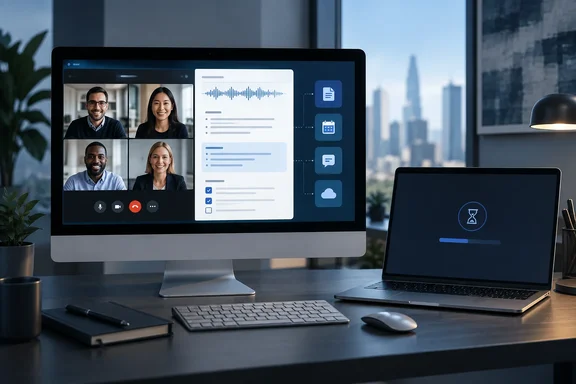
The plugin takes notes for you and saves personalized summaries with action items in ChatGPT Space. It works for online calls or in-person conversations, with no bot joining the call.
Meetings gets its material from three places:
- The transcript of what was said.
- Your own notes, which you can type into the meeting page. OpenAI says they're preserved alongside the generated summary.
- Context from connected apps you've authorized.
From those it builds a personalized summary and suggested action items on the same page. You can review and edit each suggestion, then start it with one click. OpenAI's examples are drafting an email or updating a project plan. You can also ask questions about the meeting, such as when you agreed to schedule a follow-up with someone.
Notes are private by default. If you share a page, recipients get the notes but not the transcript.
Who gets it, and who doesn't
Meetings is in beta in the ChatGPT desktop app on macOS for all Pro and Business plans. Support for iOS, Android and Windows is coming soon. Enterprise is more limited. OpenAI says it is testing Meetings with a limited group of Enterprise customers through an alpha program. Interested customers should contact their account manager.
| Platform or plan | Status per OpenAI |
|---|---|
| macOS desktop app, Pro and Business | Beta |
| Enterprise | Limited alpha through account managers |
| Windows, iOS, Android | "Coming soon," no date given |
Some coverage is looser than that. A few outlets say Enterprise is simply "coming soon." The Help Center page is the more careful source, because it describes an alpha rather than general availability.
Business admins have a job here. On a Business plan, ChatGPT Space and the Meetings plugin must both be enabled for the workspace. If either is disabled, users need to contact their workspace administrator. If a Mac user says the plugin "isn't there," check those two switches before anything else.
Setup on a Mac
- Open the ChatGPT desktop app on your Mac.
- Choose Plugins in the sidebar and install Meetings.
- Open Meetings in the sidebar and go through onboarding.
- When prompted, allow microphone and system-audio access.
- Tell everyone in the meeting you're taking notes and get their consent.
- Click Take notes, add your own notes if you like, and stop when the meeting ends.
A calendar connection is optional. Connect Google Calendar or Outlook Calendar through the matching plugin to see upcoming meetings and get reminders. OpenAI also says Meetings can detect when you're on a call and offer to take notes, even if the meeting isn't on your calendar. A Microsoft 365 shop can therefore use Outlook Calendar for reminders. Note that this is a calendar link, not a Teams integration.
Consent is your responsibility
This is the part IT and compliance teams should read twice. One catch, per the help center: getting everyone's consent is on you. OpenAI's help page says the in-app consent reminder is visible only to you. It doesn't notify other participants or obtain their consent.
"No bot in the call" is a convenience, but it also removes the visible sign that someone is recording. A bot appearing in the participant list tells everyone what's going on. A silent local capture doesn't. Organizations will want written guidance on telling attendees. Recording laws vary by jurisdiction, and OpenAI's Record guidance says users are responsible for following the local rules.
How audio is handled
- Meetings streams microphone and system audio from the Mac to OpenAI to generate the notes.
- Once the notes are ready, the audio is deleted from the Mac and OpenAI's servers, and it can't be replayed.
- If you're offline or processing is incomplete, audio may stay on the Mac temporarily while it waits to upload or finish.
The data-retention terms for the older Record feature, including model-improvement settings, are a separate matter. Don't assume they apply to Meetings. OpenAI's pages say Meetings is separate from Record.
Troubleshooting: missing parts of the transcript
Meetings needs both permissions. The microphone captures your voice and people near your Mac. System audio captures what the Mac plays, including remote participants on an online call. If remote voices are missing, check system audio first. If yours is missing, check that the microphone is connected and working.
OpenAI also says Meetings can stop on its own. That happens when you close the laptop lid, when no audio is detected for an extended period, or when a session reaches four hours. Notes can take a few minutes to appear after you stop. A Mac that was offline needs a connection to finish uploading.
Meetings vs. audio uploads
A related feature arrived in the same news cycle. OpenAI's release notes show audio file uploads in ChatGPT. You attach a recording you already have and ask for a transcript, summary, structured notes or a follow-up email draft. This isn't a live assistant. It's a way to work on a file you already have.
- Plans: Audio uploads are available with paid ChatGPT subscriptions and workspaces, including Enterprise. They aren't available on the Free plan. Availability may vary by workspace settings, region, client version and model.
- Formats: WAV, MP3/MPEG, OGG/OGA, audio-only WebM, PCM, FLAC, AAC, M4A and audio-only MP4. WebM and MP4 files identified as video aren't supported.
- Size: up to 512 MB. Longer recordings may be processed in sections, but that's best-effort and very long ones may time out.
- Accuracy: OpenAI warns that transcripts may contain errors and speaker identification may be unreliable. Check important details against the original recording.
This upload route is the practical option for Windows users now. Record on your own recorder, then upload the file. You get no live capture and no Space integration, but you also don't need a Mac.
How it compares with Teams and the Windows picture
Meetings enters a crowded field. Teams already offers AI transcripts and recaps, and dedicated note-taking services are common. Meetings' pitch is that it works across any call your Mac can hear, then connects the notes to follow-up work through ChatGPT Work and your authorized apps. Whether that beats a native Teams recap depends on how you work. Teams recaps live inside the meeting platform and its admin controls. ChatGPT Meetings is a user-installed plugin that sits outside them.
That raises a question for IT. Some Mac users may begin capturing meetings with a third-party tool that your Teams or Purview policies don't see. Whether that's a problem depends on your retention and compliance rules. It's worth deciding before the Windows version ships rather than after.
Other tools already cover the gap. One vendor's guide notes that a Windows alternative records Zoom and Teams without a bot. That's a vendor's marketing, so treat it as a pointer to the market and not a recommendation.
A small bit of context on the Mac-first rollout: OpenAI has recently shipped Windows features elsewhere. Release notes show Codex Computer Use on Windows, and a ChatGPT add-in for PowerPoint. Meetings simply isn't there yet.
What to do now
- Windows-only shops: nothing to deploy yet. Use audio uploads if you need ChatGPT summaries of recordings.
- Mixed Mac and Windows fleets: decide your consent and recording policy now. Check whether Business workspace admins have turned Space and Meetings on.
- Compliance teams: note that transcripts exist but aren't shared with recipients. Shared pages carry only the notes. Review the notes before relying on or sharing them, as OpenAI advises.
- Everyone: treat summaries as drafts. AI notes can mishear names, numbers and who said what.
Meetings is a sensible product with an obvious limit. The Windows version has been promised, but without a date, so plan around what exists today.
References
- ChatGPT can now take notes during meetings and automatically handle the follow-up Neowin · 2026-10-07T08:20:01+00:00
- Uploading files and audio to ChatGPT | OpenAI Help Center help.openai.com
- ChatGPT — Release Notes | OpenAI Help Center help.openai.com