

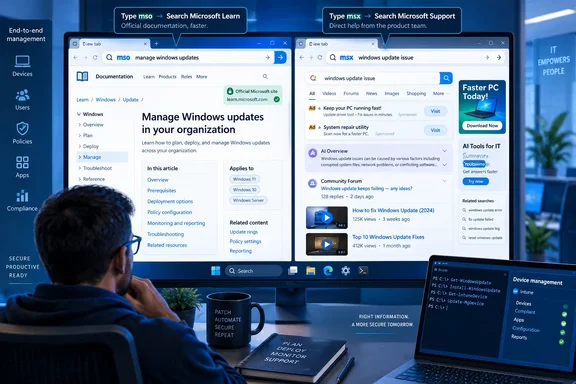
The important part is not that the feature “forces Google” to behave differently. It does not remove Google Search’s AI features, advertising, or ranking systems. It changes the query sent to Google so that results are restricted to domains you selected. That is a much narrower—and more useful—claim. For anyone troubleshooting Windows, Intune, Microsoft 365, or an unfamiliar PowerShell error, the shortcut makes source selection happen before the search, rather than after wading through results.
Bott’s ZDNET walkthrough uses short triggers such as mso for a Microsoft-only search and msx for a broader Microsoft-oriented search. Google’s own Chrome documentation confirms that site-search shortcuts support a label, a keyword, and a results address containing %s as the placeholder for what the user types. Microsoft’s Edge documentation likewise supports adding search providers, while its enterprise policy documentation makes clear that search-engine behavior can also be managed centrally.
For individual Windows users, this is a solid productivity improvement. For IT departments, it is a reminder that the browser address bar can be turned into a lightweight, repeatable research tool—provided the trusted-source list is built with more care than Bott’s “extended” example suggests.
A Domain Filter Is a Provenance Filter, Not a Truth Filter
A domain-restricted search answers one essential question: where did this result come from? It does not prove that the page is current, applicable to the installed version, or correct for the configuration in front of you.
A result from Microsoft Learn is generally a much better starting point for an Intune policy, Windows API, deployment setting, or Edge management setting than a third-party tutorial. But Microsoft’s documentation is spread across products, release channels, operating-system versions, and management models. A page written for Windows Server, for example, can appear relevant to Windows 11 while carrying different prerequisites or supported editions.
The same applies to Microsoft Support. Support articles are often the right source for consumer-facing Windows behavior and known-issue guidance, but they are not always the canonical record for enterprise deployment or security remediation. A Windows administrator investigating a Patch Tuesday issue should check the relevant Windows release-health entry, the support article for the cumulative update, and—where security is involved—the Microsoft Security Response Center record.
The practical gain from Bott’s method is that it eliminates a large amount of irrelevant material early. The practical discipline still belongs to the reader: check publication or revision dates, product version, channel, build number, and whether the instructions describe a supported configuration.
Google itself warns that its site: operator is not a complete inventory of every indexed page under a domain. A search restricted to Microsoft Learn can miss an applicable page; it can also surface an older document ahead of a newer one. Treat the shortcut as a fast first pass, not a definitive documentation index.
The “Official Microsoft” Shortcut Should Be More Specific
Bott’s core recommendation combines Microsoft Learn with Microsoft Support, which is a sensible default for everyday Windows questions. His earlier example, however, also includes the broader microsoft.com domain. That is where the distinction between official material and useful technical material starts to blur.
Microsoft.com contains product pages, sales material, campaign pages, blogs, downloads, and documentation links alongside support content. Restricting a query to the entire corporate domain can still return a polished marketing page before the deployment article or troubleshooting procedure an administrator needs.
A better approach is to create several narrow shortcuts based on the job at hand:
- Use a Windows and endpoint-management shortcut that prioritizes Microsoft Learn and Microsoft Support for settings, deployment, and supported troubleshooting.
- Use a security shortcut that includes Microsoft Security Response Center material when researching CVEs, Defender detections, or security-update guidance.
- Use a developer shortcut for Microsoft Learn and GitHub when looking for APIs, SDK behavior, sample code, issue discussions, and release notes.
- Use a Microsoft 365 administration shortcut that targets the Microsoft 365 admin documentation rather than the entire Microsoft web estate.
This division sounds fussy until a search becomes urgent. An administrator handling a failed Autopilot deployment does not need the same sources as a developer diagnosing a WinUI packaging error, and neither needs broad product marketing pages mixed into the first result set.
The shortcut should reflect the question’s risk level. For low-stakes feature discovery, a broad Microsoft documentation search is fine. For a security incident, production outage, or change-management decision, narrow the trusted source set and cross-check the result against the primary advisory or product release notes.
“Extended” Results Need a Separate Trust Model
ZDNET’s expanded Microsoft shortcut includes GitHub, Stack Exchange, Super User, and selected Reddit communities. Those sources can be excellent, especially when official documentation has not caught up with an observed bug or an edge-case deployment failure. They are also fundamentally different from vendor documentation.
GitHub may contain official Microsoft repositories, Microsoft employee comments, independent projects, abandoned scripts, issue reports, and code that was written for a different build years ago. Stack Exchange answers are often valuable because they show working commands and operational details, but the accepted answer is not necessarily current. Reddit is useful for spotting patterns—such as a sudden cluster of reports after a Windows update—but it is not evidence that a workaround is safe for a production fleet.
Putting all of those sources into one search shortcut saves time, but it removes the visual and mental distinction between vendor-supported guidance and community observations. That is the principal weakness in an all-in-one “extended” search.
The safer configuration is two shortcuts, not one. Keep an official-only shortcut for decisions that change systems, permissions, policies, registry values, update deployment, or security posture. Keep a community shortcut for discovering workarounds, comparing symptoms, and finding leads that must then be verified.
This matters especially when users search for fixes to Windows update failures, BitLocker recovery problems, Microsoft 365 authentication issues, or Intune enrollment errors. A copied command from a forum can solve an immediate problem while breaking device compliance, removing recovery options, or masking a broader issue. The browser shortcut can make community material easier to find; it cannot make that material supported.
Managed Browsers May Not Let Users Add Their Own Searches
The consumer-oriented workflow is straightforward in Chrome and Edge: open the browser’s search-engine settings, add a site-search entry, choose a memorable keyword, and use %s where the typed query belongs. Typing that keyword followed by a space or Tab switches the address bar into the saved search.
On a work-managed PC, the experience may be different. Chrome’s own help notes that administrators can manage search engines. Microsoft documents Edge policies for managed search engines and default search providers. An organization may deliberately block personal changes, deploy approved providers, or configure the address bar around an approved search service.
That limitation is not a reason to abandon the idea. It is an opportunity for endpoint teams to offer sanctioned research shortcuts themselves. A well-designed Edge policy could give help-desk and operations teams one-keyword access to internal documentation, Microsoft Learn, the organization’s ticketing knowledge base, and a vulnerability-management portal. The same approach can direct developers to internal engineering standards or a company GitHub Enterprise instance.
The policy decision should be deliberate. A corporate search shortcut that points to public community sites may create privacy, compliance, or data-leakage concerns if staff begin pasting hostnames, error messages, tenant identifiers, or configuration details into external search boxes. Official public documentation is not automatically a safe destination for production details.
This Is a Better Search Habit Than an AI-Off Switch
Google says AI Overviews appear when its systems decide generative AI is useful for a query, and Google continues to add AI-oriented search features. A domain-filtered shortcut may produce a cleaner page in many cases, as Bott observed, but it is not a supported switch for disabling AI Overviews or advertisements. Search-result layouts can change, and Google does not promise that a filtered query will always look like a traditional list of links.
The lasting value is more basic: the method puts source choice under the user’s control. Instead of asking a general-purpose search engine to decide which explanation is credible, the user starts with Microsoft Learn, Microsoft Support, a vendor advisory, or a deliberately chosen internal source.
For Windows professionals, that change is worth making. Build an official-only shortcut first, keep community sources in a separate shortcut, and use the latter to generate leads rather than settle technical decisions. The result is not a return to an older version of Google Search. It is a more disciplined way to use the one that exists now.