

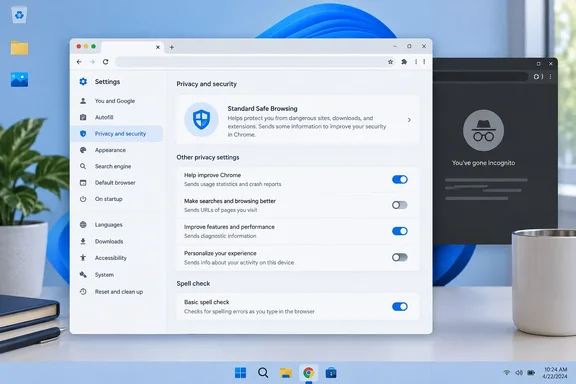
Chrome's "Help improve Chrome's features and performance" setting is on by default
The first toggle most guides start with is Help improve Chrome's features and performance, and Google is open about how it ships. Its help page on usage statistics and crash reports says Chrome sends them by default. You can turn the setting off when you install Chrome or later in Settings, and once it's off, Chrome stops sending usage statistics to Google.
Google says these statistics cover how you use the browser, your system information, browser performance, and your settings and preferences. Crash reports can include more. Google says they may contain site URLs, your activity just before the crash, and the contents of memory at the moment of the crash.
Google's stated safeguards are real but narrow. It says usage statistics aren't tied to your Google Account and use a random identifier that is regenerated each time you switch the feature off and on. The same page also says that if you're signed in to Chrome, the statistics may include the age and gender entered on your Google Account. So signing out changes what gets sent even when the toggle stays on.
The PCWorld path of Settings > You and Google is one click short of the current layout. On Windows, macOS and Linux, Google's instructions are:
- Open Chrome and select the three-dot More menu in the top-right corner.
- Go to Settings > You and Google.
- Select Google services.
- Turn off Help improve Chrome's features and performance.
On Android and iOS, the same toggle is under More > Settings > Google services. On ChromeOS, the step sends you to the operating system's privacy controls, where the equivalent setting is called Help improve ChromeOS features and performance.
"Make searches and browsing better" is the switch that sends your URLs
The second toggle does more for privacy than the first. Google's Safe Browsing help page says that when Make searches and browsing better is on, Chrome sends Google the URLs of the pages you visit to improve browsing and security. It's on the same Google services page, and PCWorld rightly tells readers to turn it off.
Google's documentation also shows how the two settings work together. Google says URL metrics are sent only when both "Make searches and browsing better" and "Help improve Chrome's features and performance" are on. That data uses a separate random identifier that Google says isn't joined to the usage-statistics identifier. Once URLs reach Google's servers, Google says it keeps URLs it already knows and throws away unknown ones. Turning either toggle off resets the identifier.
In practice, turning off either toggle stops the URL metrics. Turning off both is the cleaner choice because the features-and-performance setting controls other reporting as well.
Improve search suggestions controls what you type in the address bar
The PCWorld checklist leaves out a separate switch called Improve search suggestions. Its name looks a lot like "Make searches and browsing better," but it controls something different.
Google's help page on URL and search data explains how the address bar (the omnibox) works. With Improve search suggestions on, Chrome sends what you type to your default search engine as you type it, along with your IP address and that engine's cookies, so it can offer autocomplete suggestions. If Google is also your default search engine and "Make searches and browsing better" is on, Chrome also sends the URL of the page you're viewing to make those suggestions more relevant.
Google lists some limits. Chrome tries to spot sensitive entries such as passwords, local file names and HTTPS URLs with paths, and doesn't send those for suggestions. If your default search engine isn't Google, your suggestion requests and searches fall under that engine's privacy policy. If you sync your browsing history to your Google Account, Google uses it to personalize suggestions and keeps undeleted items for up to a year, depending on your account settings.
To turn it off, go to Settings > You and Google > Google services and switch off Improve search suggestions. Google notes that Chrome may still offer suggestions from your local browsing and search history, so the address bar keeps working with less help. Google also says Chrome may preconnect to your default search engine in the background to speed things up, so a quiet address bar doesn't mean no network activity at all.
Enhanced spell check can go without losing spell check on Windows
Here the PCWorld advice goes too far. It tells readers to turn off Enhanced spell check because it sends what you type to Google, and accepts that "It'll stop the spellchecker working." Enhanced spell check does send your text to Google, but you don't have to give up spell checking to stop it.
Google's spell check help page describes two modes. Basic spell check is handled by Chrome or your operating system and doesn't send the text you type to Google. Enhanced spell check uses the same engine as Google Search and sends what you type in the browser to Google for better suggestions. For Windows users, Google's page says the Basic provider on Windows 8 and newer is Windows itself. On Windows 7 and older, and on Linux and ChromeOS, it's Chrome.
The better fix is to switch to Basic:
- Open Chrome and go to More > Settings > Languages.
- Under Spell check, keep Check for spelling errors when you type text on web pages turned on.
- Choose Basic spell check instead of Enhanced.
You'll know it worked when misspelled words are still underlined in web forms, now checked by Windows. Turn spell checking off completely only if you don't want any checking at all. Google's enterprise documentation says text sent by Enhanced spell check isn't stored on Google's servers, but that statement is about managed ChromeOS deployments and shouldn't be taken as a promise for every consumer setup.
Chrome sign-in and Sync are separate from signing in to Gmail or YouTube
PCWorld's broadest suggestion is to sign out of Chrome and change how it handles sign-ins. Its point is that you don't need to sign in to the browser to use something like YouTube Premium, and that's correct. Signing in to Chrome and signing in to a Google website are two separate actions.
According to Google's sign-in documentation, signing in to Chrome saves bookmarks, passwords and other browser data to your Google Account so they follow you across devices. If you don't sign in to Chrome, those items are still saved locally. On desktop, you sign out by selecting your profile picture and choosing Sign out of Chrome, and the same profile menu lets you turn off Sync. When you sign in to a service like Gmail, Chrome may ask whether to sign in to the browser too. Google documents a Don't sign in option that keeps Chrome signed out while you use the website. The exact prompts depend on your Chrome version and account state.
Before you sign out, check what depends on Sync. If Chrome is where you keep passwords and bookmarks across several PCs, signing out changes your access to that synced data. Export or move anything you rely on first. Separately, Google says your account-level Web & App Activity settings, including a Chrome-related subsetting, affect how any history saved to your account is used for personalization. That setting belongs to your Google Account, not the browser.
Keep account types apart as well. This advice covers personal Google Accounts. If your Chrome profile is tied to a work or school account managed by an administrator, sign-in, Sync and some of these toggles may be set by policy and outside your control.
The Chrome Incognito settlement shows what private browsing doesn't hide
PCWorld mentions Chrome having been "caught out collecting even in incognito mode," and the record supports that. A class action filed in 2020 accused Google of misrepresenting the kind of data it collects from users who browsed the internet via "Incognito" private browsing mode in Chrome. Under the settlement terms disclosed in April 2024, Google agreed to expunge "billions" of data records that reflect people's private browsing, and the settlement includes no payment from Google.
The terms also changed how Incognito behaves. Google must maintain a change to Incognito mode, enabling users to block third-party cookies by default for five years. It must also delete the private browsing detection bits that the plaintiffs uncovered. Google called the suit meritless, and a spokesperson said the company "never associate data with users when they use incognito mode."
For readers, the most useful result is Google's own updated wording. As of January 2024, Incognito says the mode will not change "how data is collected by websites you visit and the services they use, including Google." Google's current help pages add that you can't sign in to Chrome in an Incognito window, but you can still sign in to Google websites there. Incognito keeps browsing history off your own device. It doesn't make you anonymous to the sites you visit.
Safe Browsing Enhanced protection trades more data for stronger warnings
One setting outside the PCWorld checklist also sends browsing data to Google, and it's one you shouldn't simply switch off. Chrome's Safe Browsing has two main levels, and Google's help page spells out the difference.
With Standard protection, Chrome first checks sites against a list of known-safe sites stored on your device. If a site isn't on that list, Chrome sends an obfuscated portion of the URL through a third-party privacy server that hides your IP address. Google says it sends full URLs or bits of page content only when there are signs of a security problem, such as reusing a saved password on an unusual site. Enhanced protection sends more in real time, including the URLs you visit, small samples of page content, downloads, extension activity and system information. If you're signed in, it also links protection across your Google Account.
Standard protection is the middle ground for privacy-minded users. You'll find it under More > Settings > Privacy and security > Security. Google warns that turning Safe Browsing off completely removes protection against phishing and malware sites and recommends keeping some level on. Leaving it on is sensible on any Windows PC where phishing is a bigger risk than a URL check.
What this means for you
Everyone who uses Chrome on a personal Windows PC can make these changes in about five minutes without losing anything they'd miss. The one step that needs thought is signing out of Chrome, because that affects synced passwords and bookmarks. People on managed work profiles should expect some settings to be locked and should leave policy-controlled settings alone.
The case against Chrome's defaults isn't that it collects data secretly. Google documents almost all of it on its own help pages. The problem is that the sharing is on by default, split across similar-sounding toggles, and easy to underestimate. Four switches and one spell-check choice remove the main documented flows, and nothing else in the browser needs to change. Google's menu labels move around between Chrome releases, so it's worth rechecking the Google services page after major updates instead of assuming your choices from last year still apply.