

Neowin highlighted the guidance on September 19, but the underlying details come directly from Microsoft’s current Clipchamp support articles. They apply to both personal and work-or-school Clipchamp accounts, though availability of the work version remains subject to an organization’s Microsoft 365 configuration.
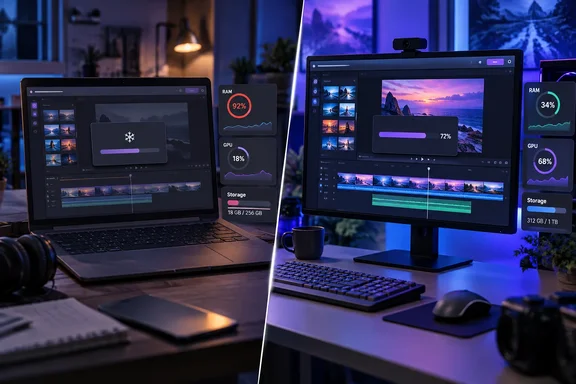
For Windows users, the important point is that these are performance recommendations for an editing workload, rather than new Windows 11 hardware requirements. Clipchamp may open on an older PC, but Microsoft says an underpowered machine can exhibit slow loading, freezing, crashes, or export problems.
The practical baseline is higher than “it runs Windows 11”
Microsoft’s published baseline is:
- At least 8GB of available RAM; 16GB or higher is recommended for a better experience.
- A 64-bit computer, operating system, and Edge or Chrome installation.
- A recent graphics card, because Clipchamp relies on both CPU and GPU resources during editing, media loading, and export.
- Free space on the internal drive exceeding the size of the media files used in the project.
The RAM wording matters. Microsoft does not frame 8GB as a configuration for demanding work; it is the minimum it recommends. A PC with 8GB can also have substantially less memory actually available once Windows, browser tabs, security software, cloud-sync clients, and other applications are running.
A Windows 11 laptop that meets Microsoft’s operating-system compatibility rules can therefore still struggle in Clipchamp, particularly with long projects, multiple source files, high-resolution footage, or large video exports. Microsoft explicitly says older processors and graphics hardware can be pushed to their limits.
Why disk space and the browser matter
Clipchamp is available as a Windows app, but its underlying editor also works through Chromium-based browsers. Microsoft recommends Edge or Chrome and notes that the service uses modern browser technologies that are not supported equally across all browsers.
Local free space is not merely a place to save the finished video. Clipchamp needs working room for temporary project files and for video processing and exporting. Microsoft’s rule of thumb is straightforward: available internal storage should be larger than the combined media files in the project.
That can catch out PCs with a small 128GB or 256GB SSD, especially when a project includes phone video, screen recordings, or several clips. A nearly full drive can contribute to media-loading and export failures even if the PC has adequate memory and a capable processor.
What to try before replacing a PC
Microsoft’s support guidance provides several low-risk steps before concluding that the computer itself is the problem:
- Update Clipchamp if using the Windows app, and update Edge or Chrome if using the browser version.
- Close other applications and unneeded browser tabs to leave more memory and GPU resources available to the editor.
- Keep the Clipchamp tab in the foreground when working in a browser, since Edge or Chrome can reduce resources for background tabs.
- Check that the internal drive has more free space than the project’s source media requires.
- Try smaller or fewer source files. Microsoft specifically suggests converting 4K footage to 1080p before importing when performance is poor.
- Test a troublesome clip by converting it to MP4 outside Clipchamp, particularly if loading or export repeatedly fails at the same point.
- Disable or whitelist privacy, translation, or ad-blocking extensions that may prevent Clipchamp components from loading.
For a long project that still will not load properly, Microsoft also suggests splitting it into several shorter projects. This reduces the amount of media and processing Clipchamp needs to handle at once.
“Unsupported hardware” does not always mean a hardware upgrade
Clipchamp can show a warning that the current hardware is unsupported. Microsoft says users should first confirm they are on a desktop or laptop rather than a mobile device, using an updated operating system and updated Edge or Chrome.
The warning can also have browser-specific causes. In Edge, enhanced web security settings may interfere with Clipchamp. Extensions can block required site components. Brave users may see an unsupported-hardware or outdated-browser notice because of the browser’s anti-fingerprinting protections, despite Brave being Chromium-based.
Microsoft also notes that browser GPU safeguards may be involved. Chrome can prevent certain older integrated Intel HD graphics configurations from initializing WebGL, a technology Clipchamp requires. Its support page describes a Chrome flag that can override the GPU blocklist, but warns that doing so can cause browser instability or crashes. That is a troubleshooting measure for a knowledgeable user, not a general performance upgrade.
What this means for Windows users
Clipchamp remains accessible: it is included on Windows 11, can be installed from the Microsoft Store on Windows 10 and Windows 11, and can run in a supported desktop browser. But “free” and “included” should not be confused with “lightweight.”
For quick trims, simple slideshows, and short clips, an older PC may be sufficient. For projects with lengthy source footage, larger files, or frequent exports, the experience will depend heavily on available RAM, storage headroom, CPU performance, and GPU support.
Microsoft’s own advice is blunt for systems that routinely freeze or crash: use a better computer if possible. Before taking that step, though, clearing disk space, reducing project size, updating the browser or app, and eliminating extension conflicts are the supported fixes most likely to separate a configuration problem from a genuine hardware limit.
References
- Microsoft confirms its free highly rated Windows 11 editor is surprisingly hard to run - Neowin Neowin · 2026-09-19T22:18:01+00:00