

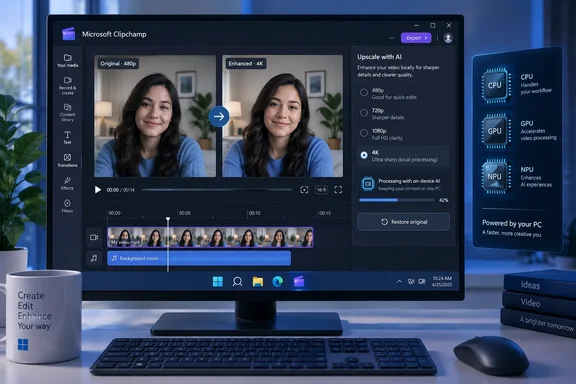
Clipchamp’s Video Super Resolution changes the clip before export
Clipchamp already supported importing, editing, and exporting 4K video. Microsoft’s existing 4K support documentation allows 4K imports across free and paid account tiers, while reserving 4K exports for qualifying subscriptions. Video Super Resolution adds something different: an AI processing step that produces a higher-resolution version of a selected video clip before the finished project is exported.
Microsoft’s support documentation explains that the feature estimates additional visual detail as it enlarges each frame. The intended benefit is greater perceived sharpness and clarity in lower-resolution or compressed footage. It does not retrieve a pristine original hidden inside the file; the additional detail comes from the model’s estimates.
The available targets are 480p, 720p, 1080p, and 4K, but Clipchamp shows only resolutions above the selected clip’s current resolution. A clip already at 4K has reached the feature’s maximum. Consequently, the choices in the Upscale panel will differ between source files; an absent lower-resolution option is not necessarily a fault.
Microsoft says the operation creates an enhanced MP4 version for the selected timeline clip and preserves its audio. The original remains available through Restore original, making it possible to judge the result within the project and undo the enhancement without deleting the source video.
That reversibility is important to the feature’s practical value. An editor can try a resolution increase on an older recording, inspect the result, and keep it only if the improvement is useful. There is no need to treat the first processed version as the new master.
The processing boundary also remains the clip. Windows Central described the absence of a whole-project upscale control; Microsoft’s current instructions additionally document selecting multiple clips and queuing them. Those statements are compatible: users can process several selected videos, but the workflow does not become a single enhancement operation on the finished, composited project.
Clipchamp’s local AI does not make an NPU compulsory
Microsoft documents Video Super Resolution for Clipchamp personal accounts and work and school accounts in the Windows desktop app. It is unavailable in the browser version. Availability also depends on Windows video upscaling being supported and enabled on the device, so having access to Clipchamp alone does not establish eligibility.
The upscaling step runs locally using a local AI model and compatible CPU or NPU hardware. An NPU, or neural processing unit, is one of the supported processing routes—not a universal prerequisite. Microsoft says users do not have to choose the processing hardware themselves.
According to Windows Central, its test laptop successfully upscaled clips with an Intel Core i9-11950H and an NVIDIA GeForce RTX 3070. That is useful evidence that the feature can work outside the Copilot+ PC category. It does not establish that every 11th-generation Intel machine qualifies, or that the GeForce GPU performed the processing. Windows Central’s configuration report is a single-outlet observation, not a second independently reproduced hardware test or a comprehensive compatibility list.
For readers deciding whether to replace a PC, the immediate implication is straightforward: try the supported workflow on the existing machine before assuming an NPU-equipped replacement is necessary. Microsoft’s documentation does not provide a minimum Clipchamp build, Windows build, or exhaustive processor list in these instructions. Those omissions prevent a reliable model-by-model eligibility judgment.
“Local” also needs to stay attached to the operation Microsoft describes. The documentation establishes that the Video Super Resolution step processes video on the Windows device. It does not establish that every Clipchamp function, account interaction, or project-storage arrangement is offline. For an organization assessing sensitive media, local upscaling is one property of the workflow, not a complete assurance about the editor’s other services.
Processing still consumes the machine’s resources. Microsoft says duration, source resolution, target resolution, and hardware all affect processing time, and the first upscale can take extra time while the local model is prepared. Longer clips and higher targets also require more temporary storage. Neither Microsoft’s instructions nor Windows Central’s report supplies comparable timings that would support a speed claim for CPUs versus NPUs.
Clipchamp’s sharper picture can contain estimated details
Windows Central reports trying clips with high contrast and objects in motion and finding that Clipchamp handled them well overall. That is an encouraging hands-on impression, but it is not a controlled quality benchmark. The report does not establish a repeatable improvement for every source type, nor does it provide measured accuracy or a quantified processing-speed comparison.
Microsoft’s own description supplies the more important boundary: AI-enhanced details are estimates rather than a factual reconstruction of the scene. Video Super Resolution may improve how footage looks, but it cannot recover the exact visual information missing from the source. It also cannot repair a corrupted or unreadable video.
This makes the feature better suited to a presentation decision than an evidentiary one. An old personal recording or a webcam clip may look more comfortable on a large display after enhancement. Whether it does depends on the source resolution, compression, and visual content, and the result needs inspection rather than automatic acceptance.
Faces and text deserve particular attention. Microsoft warns that artifacts can appear and that upscaling can alter identity or facial features. Its guidance also calls for caution around sensitive footage, including cultural and religious symbols, where estimated details could mislead.
For IT readers working with recorded demonstrations or training material, the text warning has a concrete consequence. A screen recording that appears sharper overall still needs a close look at the labels, numbers, and other details that carry the instruction. Perceived clarity is not proof that the enhanced characters faithfully represent the original.
Microsoft explicitly advises against relying on an upscaled video where faithful, unaltered footage is critical, including medical imaging, legal or forensic evidence, and identity verification. In those settings, keeping the original available is essential, but reversibility does not make the enhanced copy suitable for the authoritative task.
Clipchamp’s Upscale panel supports a reversible, clip-by-clip workflow
Start in the updated Clipchamp desktop application for Windows, with current Windows updates installed. Microsoft recommends ensuring sufficient free disk space before processing, especially for longer videos or higher target resolutions. The source must be a video Clipchamp can import and use on its timeline.
Import support comes before upscaling support. Microsoft lists common video containers including MP4, MOV, WEBM, AVI, and MKV, although some files undergo conversion during import. Its format documentation currently lists AV1-encoded video and HDR media as unsupported. An MP4 filename alone therefore does not prove that every video stored inside that container will be accepted.
Select the clips and choose a supported target
The documented procedure is:
- Open a project in the Clipchamp desktop app for Windows.
- Select Import media, choose the source video, and allow any required import conversion to finish.
- Drag the video onto the project timeline.
- Select one or more video clips on the timeline.
- Open the Upscale tab in the property panel.
- Under Quality, select one of the offered target resolutions.
- If several clips are selected, leave Match resolution enabled to apply one target to compatible clips, or turn it off to choose separate targets.
- Select Upscale for a single clip or Upscale all videos for a multiple-clip selection.
- Keep Clipchamp open while processing finishes, then preview each enhanced clip on the stage.
Multiple selections are queued and processed one at a time, according to Microsoft. Selecting several clips therefore reduces the need to start each job manually, but it does not mean the application processes them simultaneously. Compatibility still applies to the individual clips.
Success at this stage means the enhanced clip is available for preview in the project. It does not mean that a finished 4K video has been saved. Before proceeding, inspect the important portions of each processed clip, particularly faces and text, and decide whether the enhancement is worth retaining.
Cancel or restore without discarding the source
During processing, select Cancel below the clip’s progress status to stop the operation. Microsoft says canceling does not remove or change the original video.
After processing, select the enhanced clip on the timeline, reopen the Upscale tab, and choose Restore original. This removes the enhanced version from the selected timeline clip without deleting the source. To try a different target resolution, restore the original first and run the upscale again.
That gives users a supported alternative when the result is too artificial or simply unhelpful. A higher resolution is not an obligation to keep the processed version; the relevant test is whether the particular footage benefits.
Follow the failure message rather than assuming a hardware defect
If the Upscale tab is missing, Microsoft’s first checks are to confirm that the Windows desktop app is being used, install available Windows and Clipchamp updates, and restart the application. If the tab still does not appear, Windows video upscaling may be unsupported or disabled on the device. The instructions do not establish a universal setting that enables it on every PC.
If the control exists but a job fails, Microsoft documents several narrower responses:
- Follow Clipchamp’s displayed message, including a request to update Windows or try a lower Quality setting.
- Select Try again if that option is offered.
- Close other applications to free processing resources, check available disk space, and retry.
- If only one source video fails, import a new copy or convert it to MP4 before trying again.
- If Clipchamp explicitly reports that the required hardware is absent, use Video Super Resolution on a compatible Windows device.
These are different failure branches. A missing tab, an unreadable source, and an explicit hardware warning should not all be treated as the same problem. In particular, upscaling is not a repair tool for a damaged recording, and choosing 4K cannot overcome an unsupported input format.
Clipchamp’s 4K export remains a separate subscription gate
Choosing 4K in the Upscale panel does not automatically select 4K for the finished video. Microsoft explicitly separates clip enhancement from project export: when the edit is ready, select Export and choose the desired output resolution. To retain the selected upscale resolution in the final output, choose the matching export resolution.
Account entitlements remain relevant at that final step. Microsoft’s export documentation distinguishes personal accounts from work and school accounts:
| Clipchamp account or plan | Documented export availability |
|---|---|
| Free personal account | 480p, 720p, and 1080p. |
| Personal account with Microsoft 365 Personal or Family, or Clipchamp Premium | Includes 4K export. |
| Work or school account with Clipchamp Standard or Premium | Includes 480p, 720p, 1080p, and 4K export. |
Microsoft’s separate 4K support page confirms that importing 4K assets is available on free and paid tiers, while saving a finished project in 4K requires a qualifying plan. That distinction prevents a common purchasing mistake: being able to bring high-resolution media into the editor does not establish the right to export at the same resolution.
For work and school users, Microsoft lists Clipchamp Standard as an included service in Microsoft 365 Enterprise E3 and E5, Business Standard and Business Premium, and their education-license equivalents. Standard is also available as a standalone license. Those documented entitlements should not be generalized into a promise that every work account has Clipchamp or every managed device supports local upscaling.
The support documentation establishes the supported account families for Video Super Resolution and separately establishes the export-plan rules. It does not justify describing the whole process as unrestricted free 4K output. A personal user should confirm the available export choice before spending time processing a long project specifically for 4K delivery.
Higher resolution also has an operational cost beyond licensing. Microsoft warns that 4K media can be substantially larger and can slow importing and editing depending on video length, available memory, CPU, and graphics hardware. Enhanced clips consume additional local storage, and the exported result can be larger than the source.
If the delivery requirement is 1080p, there is no documented reason to assume that a 4K intermediate is automatically the best route. Clipchamp offers lower upscale targets where the source allows them, and Microsoft’s 4K guidance recommends smaller working files when 4K output is unnecessary. The sensible decision is to match the enhancement and export choices to the intended use, then judge the actual result.
What this means for Clipchamp users choosing an upscale workflow
Try Video Super Resolution on a representative clip before committing a large project, buying a subscription, or replacing hardware. The supported workflow lets you establish whether the feature is available, whether the source imports correctly, and whether the enhancement improves the footage you actually need to deliver.
For administrators, the first distinction is between editor access, device support, and export entitlement. A qualifying Microsoft 365 plan answers only part of that evaluation. The desktop application and Windows video-upscaling support must also be present, and the resulting images must be appropriate for the organization’s use.
The most concrete takeaways are:
- Use the updated Clipchamp desktop app for Windows; the browser editor does not provide Video Super Resolution.
- Do not assume an NPU is mandatory, but do not treat one reported working laptop as proof that every similar PC is compatible.
- Select eligible timeline clips and queue them as needed; Clipchamp does not document a single whole-project enhancement pass.
- Review faces, text, and other meaningful details before accepting the result, and use Restore original when the estimates are unhelpful.
- Confirm the final export resolution and account entitlement separately, because selecting a 4K upscale target does not itself produce a 4K deliverable.
- Keep faithful originals for sensitive or evidentiary uses, where Microsoft warns against relying on AI-enhanced footage.
Clipchamp’s addition is useful because it puts a reversible resolution upgrade directly into an existing Windows editing workflow. Its value will be decided clip by clip: eligible hardware can perform the processing locally, but the editor still has to judge the picture and choose the right final output. For everyday footage that benefits from the treatment, that is a practical improvement without making a new PC the starting requirement.
References
- Clipchamp can now upscale videos to 4K using local AI - windowscentral.com windowscentral.com · 2026-09-22T11:56:13+00:00
- How to upscale videos with video super resolution | Microsoft Support support.microsoft.com