

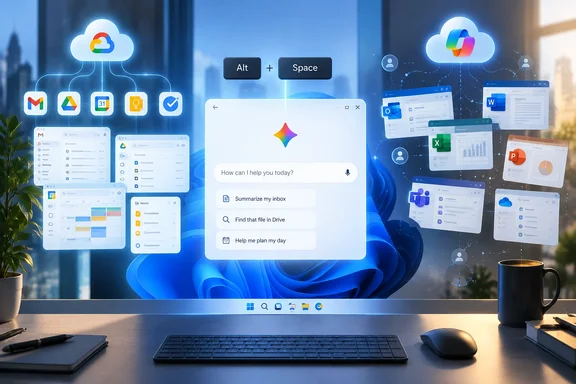
Google announced the Gemini Windows app on September 10, with an Alt + Space shortcut that calls up the assistant over the current application. XDA-Developers argues that its combination of Gemini Notebook, image and video generation, automation, and connections to Google services makes it more compelling than Copilot. The core point holds for people whose work already lives in Gmail, Google Drive, Google Calendar, Keep, and Tasks: Gemini offers a more coherent single interface for those services than Microsoft currently offers across its own consumer apps.
But Microsoft’s deficit is less about having no comparable features than about making users find them across Copilot, OneNote, OneDrive, Microsoft 365, and subscription tiers. Google’s advantage is that it is packaging a browser-centric AI service as a desktop utility at the moment Microsoft is still separating its capabilities by app, account, and license.
Gemini has a better desktop entry point, not deeper Windows control
The immediate benefit of Gemini for Windows is convenience. Alt + Space opens the assistant without switching to a browser tab, and Google says the app supports drafting, summaries, brainstorming, coding help, image analysis, images, and video generation from a dedicated desktop workspace. It runs on Windows 10 or later, requires at least 8GB of RAM, and uses an installer rather than relying on users to create a web-app shortcut themselves.
That is a meaningful usability improvement for Gemini users. TechRadar, in separate hands-on coverage, similarly described the Windows release as a notably quick and easy way to access Gemini from a PC. The shortcut is especially practical for the low-friction work AI assistants do well: rewriting a paragraph, explaining an error message, producing a rough outline, or interrogating a screenshot.
Still, Google’s own support documentation describes the app in modest terms: it works across desktop apps and the browser, rather than controlling Windows applications or exposing broad operating-system automation. The app is an always-ready Gemini client, not a replacement for Windows Search, File Explorer, Power Automate, or the app-specific commands Windows users might expect from a first-party assistant.
That distinction matters for IT administrators. Gemini’s desktop presence makes it easier for employees to send prompts and uploaded material to Google, but it does not mean the product can natively manipulate local files, folders, system settings, or arbitrary Windows applications. Google says further native desktop capabilities are planned, which is another way of saying the Windows integration is still at an early stage.
Microsoft should not take comfort from that limitation. A lightweight desktop client can be more useful than a deeper integration if the deeper integration is fragmented, hard to discover, or unavailable to the account in front of the keyboard.
Google’s service connections are the clearest practical advantage
XDA’s strongest argument concerns Google service integration. Gemini can connect to Gmail, Drive, Calendar, Google Tasks, and Google Keep, allowing users to search and summarize information, save notes, create reminders and tasks, and manage calendar events from a conversation. For someone already invested in Google’s personal productivity stack, that is a credible all-in-one workflow rather than a collection of demo features.
A user can ask Gemini to identify an itinerary mentioned in email, save a list to Keep, turn that list into a Tasks reminder, and add a calendar event. Those actions make the assistant feel like an interface to existing personal data rather than a chat window that only generates text.
Google’s documentation also sets boundaries that are easy to miss in promotional comparisons. Gemini’s connected Workspace features require the user to sign in with the relevant Google account, and a work or school administrator may need to permit the connections. Gemini cannot manage Drive content such as creating folders or moving files, and it cannot access pictures and videos stored in Drive through the Workspace connection. Certain Gmail and Docs content, including comments and images, is also outside the connection’s reach.
The privacy trade-off deserves equal attention. Google says that when Gemini is used with connected apps or with uploaded images and video, the material is handled under Gemini’s privacy terms and settings. Where Gemini Apps Activity is enabled, some shared media can be used to improve Google services with human review. That does not make the Windows app unsuitable, but it means organizations should treat it as a governed AI service, not an innocuous desktop widget.
Microsoft’s equivalent story is much weaker in the consumer Copilot experience. Microsoft has Copilot capabilities inside OneNote, Outlook, Word, Excel, PowerPoint, OneDrive, Teams, and Microsoft 365, but the experience remains shaped by app boundaries and licenses. Users can often perform the desired task somewhere in Microsoft’s product line; finding the correct place and entitlement is the recurring problem.
The notebook comparison is more complicated than XDA suggests
XDA is right that Google has a more mature research-and-learning presentation through Gemini Notebook. Google’s notebook tools can work from collected sources and generate outputs such as audio overviews, video overviews, infographics, and slide decks. That is attractive for students, researchers, and project teams who need reusable explainers instead of another prose summary.
The article overstates the gap by describing Copilot Notebook as little more than a place for OneDrive files and pasted links. Microsoft’s current Copilot Notebooks documentation says users can add individual OneDrive files, entire OneDrive folders, uploads, supported OneNote pages, SharePoint sites, document libraries, internal links, and—depending on the account—Teams and other Microsoft 365 sources. It also supports considerably more than the basic Office document types cited in the XDA piece, including PDFs, Loop files, text files, RTF documents, and OneNote pages.
Microsoft has also begun putting more structured outputs around Copilot Notebooks. Its Study Guide feature can create summaries, topic pages, flashcards, and quizzes from supported reference material. Copilot Notebooks also offers audio overviews, though Microsoft’s feature availability varies by subscription and rollout status.
So the substantive difference is not that Gemini can turn source material into learning aids while Copilot cannot. Gemini’s advantage is that it presents video, slide, infographic, and research-oriented output formats more prominently and connects them to Google’s broader AI product line. Copilot’s notebook experience remains tied more tightly to Microsoft 365 storage, SharePoint permissions, OneNote, and the licensing model that governs business data.
Microsoft also imposes practical constraints. Copilot Notebook references must be content the user has permission to access, external links cannot simply be added to every configuration, and reference limits differ between Copilot and Copilot Chat accounts. Those are reasonable enterprise controls, but they make the product feel less immediate than Gemini when a user is comparing consumer-grade AI workspaces.
Microsoft’s problem is product cohesion
Microsoft has spent years attaching Copilot to Windows and Microsoft 365, yet the company has repeatedly rearranged where the assistant lives. There have been Windows Copilot experiences, standalone Copilot apps, Microsoft 365 Copilot surfaces, in-app Copilot controls, Copilot Pages, Copilot Notebooks, and specialized agents. The company’s current effort to make Copilot more unified acknowledges the confusion rather than resolving it.
The clearest example is OneNote. Microsoft documents that Copilot Notebooks are integrated with OneNote and can reference OneNote pages, while a separate “Take notes with Copilot” feature can generate material directly onto an eligible OneNote page. But these are distinct experiences, subject to cloud-storage conditions, account eligibility, and staged rollout. A user who expects a simple command such as “create a new project section in OneNote and pull in related tasks” can easily land in the wrong Copilot surface.
Google is benefiting from lower expectations. Gemini does not own the operating system, and it does not need to reconcile decades of desktop application behavior, commercial licensing, tenant governance, and local file workflows. It only needs to become the most convenient conversational layer over Google’s cloud services.
That is exactly why this launch should concern Microsoft. Google’s app shows that a third party can build a more coherent AI starting point on Windows than the platform owner has managed for its own productivity suite.
What Windows users should do with the new app
The Gemini app is worth trying if Google Workspace is already where email, files, notes, tasks, and scheduling live. Its utility will be highest for personal users and Google-centric teams that can approve the connected-app permissions and want an Alt + Space assistant without maintaining another browser tab.
It is less compelling as a universal Windows assistant. Users should not expect broad desktop automation, local file management, or dependable control of Microsoft 365 applications. Enterprises should also test the connected-app permissions, account policies, and data-handling settings before treating Gemini as an approved workplace research tool.
For Microsoft, the release exposes a problem that has little to do with raw model quality. Copilot has notebook grounding, OneNote integration, Microsoft 365 context, generated documents, image tools, and increasingly structured research features. What it lacks is a single, obvious route that makes those capabilities feel like one product.
Google’s Windows app has made Gemini easier to reach. Microsoft now needs to make Copilot easier to understand.
Update: Reported shortcut failure undercuts Gemini’s main Windows advantage (September 21, 2026)
H2S Media reports that Gemini’s global keyboard shortcut may not work reliably on Windows 11, including after users change it from the default Alt + Space combination. In its testing on a Windows 11 Pro 25H2 PC and a clean virtual-machine installation, the outlet says Gemini appeared to claim the hotkey—disabling Windows’ normal system-menu behavior—but did not display its overlay.
That is more serious than the expected conflict with Copilot or PowerToys Run, both of which can also use Alt + Space. According to H2S Media, assigning Gemini a different unused shortcut produced the same result, suggesting a possible issue with Gemini’s shortcut handling rather than merely competing hotkey registrations.
For now, affected users can still open Gemini from its system-tray icon or Start menu. But until Google addresses the behavior, the app’s principal convenience feature is unreliable on at least some Windows 11 installations. Administrators testing the client should validate shortcut behavior alongside account permissions and connected-app controls, particularly where PowerToys or Copilot is already deployed.
References
- The Gemini app for Windows puts Microsoft Copilot to shame XDA · 2026-09-19T21:00:17+00:00
- Google Gemini Is Now on Windows 11: How to Install and Use It - H2S Media H2S Media · 2026-09-21T12:26:55+00:00