

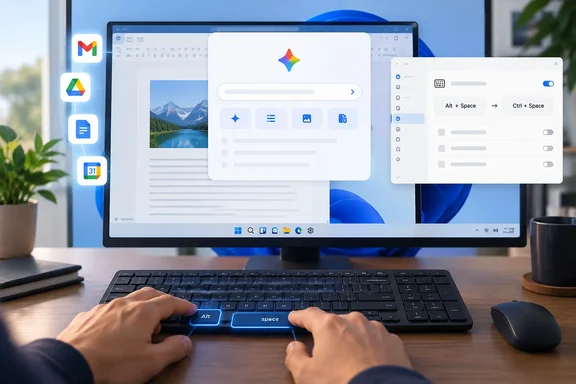
This guide covers what the app does, how to install it, what working correctly looks like, and how to fix the most common problem: Alt + Space suddenly doing something else.
What the Gemini app for Windows is
Google's launch announcement, written by Gemini app product director Erin Pettigrew, calls it a desktop app meant to sit next to your other programs so you don't have to switch to a browser. Google highlights three uses:
- Quick help over whatever you're doing. Alt + Space opens Gemini on top of the active window. Google's examples are fact-checking a document and coming up with presentation titles.
- A full workspace. This is where Gemini Spark, Google's agent for multi-step tasks, lives. You can also have Gemini pull information from Gmail and Google Drive.
- Image and video generation. Images come from Nano Banana and video from Gemini Omni.
The fine print in the announcement says some of these features need a Google AI subscription, availability varies, and those features are for people 18 and older. That does not mean the whole app is paid. Analytics Insight points out that Gemini has a free tier with a Google Account, with paid plans offering higher limits and extra features.
Google's Windows help page lists the everyday tasks: questions and answers, drafting emails and documents, summarizing articles or web pages, brainstorming, writing and debugging code, and analyzing uploaded images.
Summary: This is a real native client with a system-wide hotkey, not a pinned website. The heavier features depend on your plan, and Google says more native desktop features will come to Windows later.
Requirements before you download
Google's Windows help page lists:
| Requirement | Google's stated minimum |
|---|---|
| Operating system | Windows 10 or later |
| Memory | 8 GB RAM or more |
| Disk space | At least 200 MB free for installation |
| Network | A stable internet connection |
| Account | A personal Google Account, or a work/school account where an administrator has turned on Gemini |
Google's download page adds that the app runs on x64 and ARM64 PCs, so Snapdragon-based Windows laptops are supported. It also says the app is offered only in countries and languages where Gemini itself is available. So "available globally" in the launch post has some limits.
The account rule matters most for businesses. If you sign in with a Workspace account and Gemini doesn't work, the app is probably fine. More likely, your admin hasn't enabled Gemini or connected apps for your organization.
Step-by-step: installing Gemini on Windows 10 or 11
These steps follow Google's help documentation:
- On the PC, open a browser and go to Google's Gemini desktop page at
gemini.google/desktop. - Click Download and save
GeminiSetup.exe. Only use Google's official page. Download aggregators are a familiar way to spread malware. - Run
GeminiSetup.exeand follow the prompts. - Open the Start menu and launch Gemini.
- Sign in with your Google Account.
- Press Alt + Space to check that the overlay opens.
What success looks like: A Gemini panel opens on top of the app you're using, and closing it puts you right back in your work. Google's download page says you can also open Gemini from the taskbar or the system tray icon.
Updates: Google says a notification appears in the lower-right corner of the app when an update is ready. Click Restart to install it.
The common problem: Alt + Space conflicts
Most early reviews flagged the same issue. As How2Shout points out, Alt + Space has opened the active window's system menu, the one with Move, Size, Minimize, Maximize, and Close, since long before Windows 11. Other programs use it too. Microsoft's own PowerToys launcher claims Alt + Space as its default activation shortcut, and How2Shout says Copilot uses the same combination for its compact quick view.
So which program responds? When several programs register the same system-wide hotkey, which one answers depends on startup order and configuration, so two people with identical software can get different results. This has already happened in testing. TechRadar's hands-on testing after launch reported that installing Gemini took over Alt + Space on the reviewer's machine, replacing both the Windows system menu behaviour and PowerToys Run's hotkey, without asking first. How2Shout reported the opposite problem: no keyboard shortcut opened Gemini at all, and the app captured Alt + Space from Windows while doing so, which also cost us the window menu.
How to fix it
- Change Gemini's shortcut. Google's download page says the shortcut can be customized at any time in the Gemini app settings. DigitBin agrees: the fix sits inside Gemini's own settings, where the shortcut can be reassigned to something that does not conflict. If you use PowerToys Run or the window menu often, change Gemini's shortcut right after installing.
- Watch for window managers. Byteiota warns that if you run PowerToys with FancyZones, AltSnap, or any window manager that claims Alt+Space, you will need to remap one of them before the shortcut works.
- Skip the shortcut. The taskbar and system tray icon open Gemini without any hotkey.
- Restore your other tools. After uninstalling Gemini or changing its shortcut, if PowerToys Run or another tool still does not respond afterwards, restart it so it can re-register its hotkey.
- Don't mix up two Google apps. ExplainX notes that Google's separate Google app for Windows, a Labs search launcher, is a search launcher (files, installed apps, Drive, web, Lens on screen selections). The latter is the full Gemini assistant. Both have wanted Alt + Space, so if you have both installed, check each one's settings.
Uninstalling or turning off startup
How2Shout's steps: Open Settings > Apps > Installed apps, find Gemini in the list, click the three dots and choose Uninstall. To keep the app but stop it starting with Windows, check Gemini's own settings first, then Settings > Apps > Startup, where you can switch it off.
Summary: If Alt + Space stops working the way you expect after installing Gemini, the app probably isn't broken. Several programs are claiming the same key. Pick one owner and remap the others.
What Windows doesn't get yet
Analytics Insight lists Gemini Live and screen context among Gemini's features. On Windows, that needs a correction. Google's download page lists screen sharing for context, voice dictation across open apps, and connecting local folders to Gemini Spark as macOS features, and says more native features will come to Windows over time.
Gemini Live is also missing from the desktop app for now. Quest Review Center, citing TechRadar, says Gemini Live, the voice-driven mode available on iOS and Android, is not yet built into the Windows version. For now, users who want to analyse what is on their screen still have to take screenshots and upload them manually.
The Mac app also has more shortcuts. Google lists Option + Space for a mini chat and Option + Shift + Space for the full chat, plus a requirement for Apple Silicon and macOS Sequoia 15.0 or later.
Connected Google apps have limits
Pulling information from Gmail, Drive, Docs and Calendar is the app's main appeal for people who live in Google's ecosystem. Google's own support material lists clear limits:
- In a prompt, type @ to pick a connected app. In a new conversation, you need to ask Gemini directly to use that app.
- Gemini can't read photos and videos in Drive through this connection, and it can't move files or create folders.
- Google warns that answers can be wrong or out of date, for example relying on an older email when a newer one exists. Check the sources Gemini lists before you act on a summary.
- For work and school accounts, the admin decides whether connected apps work at all.
Google's download page also says chat history and memory sync across desktop, web and mobile when you use the same Google Account. That's handy, but it also means anything you paste into the desktop app ends up in the same account-wide history.
Gemini or Copilot?
Microsoft Copilot is built into Windows 11. Gemini is a separate download that competes for the same quick-assistant role, and as How2Shout notes, both currently default to Alt + Space, which is exactly why the conflict above exists.
My view, as an editorial judgment rather than a measured result: the choice depends more on where your data lives than on which AI model is better. If your mail, files and calendar are in Google Workspace, Gemini's connected apps make sense. If you work in Microsoft 365, Copilot's integration is closer to home. Running both is fine. Just give each one its own shortcut.
For IT administrators
- Check Workspace policy first. Work accounts only get Gemini if an admin has turned it on, and connected apps depend on the Workspace edition and admin settings.
- Expect help-desk calls about the shortcut. Users who rely on PowerToys Run or the Alt + Space window menu will notice it's gone. A short note about remapping saves tickets.
- Allow only the official installer. It's a single
GeminiSetup.exefrom Google's site. If you allow the app, block copies from unofficial download sites. - Remind users to verify output. Google itself says connected-app answers can be outdated or wrong, so treat summaries as drafts.
Bottom line
Gemini for Windows is a modest, useful app: 200 MB, a hotkey, and a direct line into Google's services, running on x64 and ARM64 PCs with Windows 10 or later. It doesn't yet match the Mac version, Gemini Live isn't available, and its default shortcut overlaps with Windows' window menu and PowerToys Run. Install it from Google's official page, change the shortcut if you need to, and double-check anything it tells you about your inbox.
References
- Google Gemini | Artificial Intelligence | App for AI Assistance & Productivity - Analytics Insight Analytics Insight · 2026-10-06T19:30:00+00:00
- Gemini for Windows 11: Install Guide and Alt+Space Shortcut Bug how2shout.com
- Google Gemini for Windows: Alt+Space and the Gaps byteiota.com