

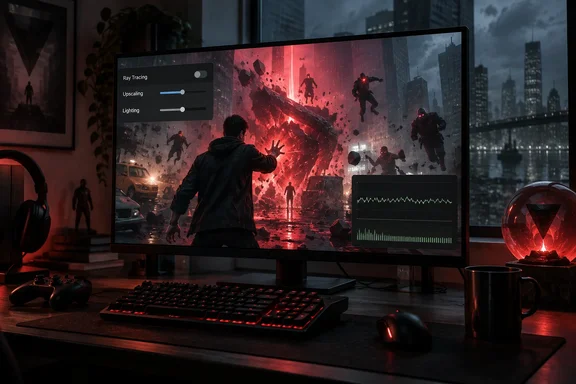
GameRant’s PC settings guide proposes a sensible starting point: disable ray tracing for performance-focused play, use upscaling where needed, and trim lighting effects before sacrificing all the detail in Manhattan. It is a starting preset, not a guaranteed 60 FPS fix. Resolution, graphics hardware and the choice to enable path tracing can change the result dramatically. Independent PC tests found rasterized play substantially easier to run than native 4K or path-traced play.
Start with a responsive baseline
GameRant recommends the following mix for players who want to retain visual detail without chasing the Ultra preset:
| Setting | Suggested starting value |
|---|---|
| Ray Tracing preset | Off |
| Upscaler | DLSS on compatible RTX GPUs; FSR as an alternative |
| Render Resolution | Balanced |
| Global Illumination | Medium |
| Volumetric Lighting / Volumetric Spotlight | Medium / Medium |
| Fog | High |
| Level of Detail / Texture Filtering | High / High |
| Shadow Map Resolution / Detail | Medium / Medium |
| Shadow Map Filtering | High |
| Screen Space Ambient Occlusion | On |
| Screen Space Reflections / SDF Reflections | Medium / Medium |
| Motion Blur / Lens Distortion | Off / Off |
That is a better experiment than changing twenty options at once. Test first with ray tracing off, then check whether your chosen resolution and upscaler deliver the responsiveness you want. If they do, raise individual effects and compare them in the same demanding area.
There is one apparent contradiction in GameRant’s list worth clearing up. It recommends Ray Tracing preset Off while also listing Direct Lighting High, Direct Lighting Denoising High and DLSS Ray Reconstruction On. Those RT-specific choices are relevant only when the corresponding ray-traced effects are active; they should not be read as additional performance gains from an RT-off configuration. The guide also notes that ray tracing can override or disable some conventional shadow, ambient-occlusion and reflection controls. If a menu option becomes unavailable, that may be an effect of the selected rendering mode rather than a fault with your installation.
The practical takeaway: establish a non-RT baseline before deciding whether enhanced lighting is worth a lower underlying frame rate.
Match textures and upscaling to your PC
GameRant suggests Low textures for 6 GB of VRAM, Medium for 8 GB, High for 10 GB and Ultra for 12 GB or more. Treat those as trial values, not tested limits for every GPU and resolution. If movement through a detailed area produces repeated hitches, lowering textures is one change to test; if performance is steady, there is no reason to reduce texture detail just to follow a chart.
The guide also suggests 2× frame generation. Generated frames can improve the displayed frame count, but they do not turn a slow underlying render rate into equally responsive native gameplay. Gizbot’s RTX 5070 test illustrates the distinction: at 4K Ultra with DLSS Quality, enabling its full RT configuration reduced the measured average from 44 FPS to about 29 FPS before frame generation. A 3× frame-generation setting then raised the displayed average to 66 FPS, while the reviewer still noticed the responsiveness of the lower base rate. Those figures describe that review system, not what another PC will achieve.
Ray Reconstruction is likewise not a general-purpose switch for rasterized play. NVIDIA describes it as technology that replaces conventional denoisers when reconstructing ray-traced imagery. Consider it when using supported RT effects, rather than treating GameRant’s “On” recommendation as essential to its RT-off preset.
What the performance reports actually show
GameRant reports roughly 85–90 FPS average and a 65 FPS 1% low on a system with a Core i9-14900HX, RTX 4080 and 32 GB of RAM. Its guide does not specify the test resolution, exact upscaling setup, game build or test scene, so that number cannot reliably predict performance on your machine.
Other tests help explain the range. DSOGaming reported that most GPUs in its selected test group exceeded 60 FPS at 1080p Ultra with ray tracing and path tracing off. Native 4K Ultra was far harder, and path tracing added another substantial cost. The outlet reported no major stuttering in the prologue and most of the first open-world area it played, which is a useful counterpoint to any suggestion that severe stutter is inevitable—but not proof that every area or PC will behave the same way.
Before tuning, check the hardware baseline too. The Steam listing specifies 64-bit Windows 10 or 11, 16 GB of RAM and a required SSD with 120 GB of available space. Its minimum and recommended GPU lists do not attach a promised resolution and frame-rate target to each tier. Meeting “recommended” specifications therefore is not a promise of Ultra settings or path-traced 60 FPS.
For a useful comparison on your own PC, keep the same resolution and gameplay area while changing one setting at a time. Start without RT, find an upscaling mode whose image quality you like, and only then try frame generation or more expensive lighting. The best-looking FPS counter is little consolation if the next melee encounter feels a beat behind your hands.
References
- Control Resonant Best PC Settings (Optimization Guide) - GameRant GameRant · 2026-09-24T14:41:29+00:00
- Control Resonant Benchmarks & PC Performance Analysis dsogaming.com
- NVIDIA DLSS | NVIDIA Developer developer.nvidia.com