

UniGetUI Turns WinGet Into the Store Microsoft Never Finished
PCMag's case starts from a familiar complaint. Setting up a new Windows 11 PC still means tracking down installers one at a time, and many popular apps are missing from the Microsoft Store. The author says he has used WinGet and UniGetUI for years and calls UniGetUI what he "always wanted the Microsoft Store to be."
The engine underneath is WinGet, Microsoft's Windows Package Manager. Microsoft's documentation describes it as a command-line tool for discovering, installing, upgrading, removing and configuring applications. PCMag compares it to Linux's APT. The example it gives is typing winget install Google.Chrome in Windows Terminal, which works even though Chrome isn't in the Store.
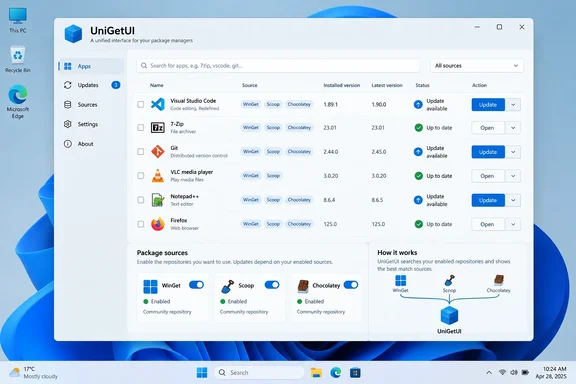
UniGetUI puts a clickable interface on top of that. In the Discover Packages view you search, tick the apps you want and click Install Selection. PCMag says everything it looked for was there, from Chrome and Steam down to Paint.NET, Windhawk and WizTree.
UniGetUI doesn't stop at WinGet. The project describes itself as a Windows-first GUI for the most common command-line package managers on Windows 10 and 11. Supported managers include WinGet, Scoop, Chocolatey, pip, npm, Bun, .NET Tool, PowerShell Gallery, Cargo and vcpkg. There are also macOS and Linux builds that work with Homebrew, APT, DNF, Pacman, Flatpak and Snap. Devolutions, the project's current steward, sums up the Windows version as bringing WinGet, Chocolatey, Scoop, pip, npm, and other package managers into a single interface for Windows.
Devolutions Now Owns UniGetUI, and the License Stays MIT
The project's ownership has changed, which matters for anyone deciding whether to trust it. On March 10, 2026, Devolutions, a global leader in secure access and IT management solutions, announced it had acquired UniGetUI. Under the terms of the agreement, UniGetUI will remain fully open under the MIT license while Devolutions provides structured development oversight, operational backing, continuity for its growing global community, and increased security rigor.
The creator, Mart?? Climent, explained the handover on the project's GitHub discussions. He said UniGetUI had been a side-project he developed in his free time, and he no longer had as much free time as when he started. According to Devolutions, the tool now serves more than 300,000 monthly active users worldwide. That figure comes from the company, not an independent audit, though Climent quoted the same 300,000 milestone before the handover.
Devolutions describes its plans in enterprise terms. CEO David Hervieux said the focus would be on strengthening trust, formalizing processes, and supporting responsible expansion into enterprise environments. Devolutions has also said the tool will keep running as a standalone app for individual users. For home users, the practical result so far is that the app is still free and the source code is still public.
The project also warns about impostors. The official README says the domains wingetui.com and unigetui.com are fake third-party sites. The only official homes are Devolutions' UniGetUI page and the Devolutions/UniGetUI repository on GitHub. Given how many people find utilities through search, that warning is worth following.
Why "Official Websites" Needs a Qualifier in the WinGet Community Repository
PCMag reassures readers that UniGetUI uses installers straight from developers' official websites, "so it's as trustworthy as finding them yourself online." That is often true, but not always, and the difference comes down to how WinGet sources work.
WinGet ships with default sources. msstore is the Microsoft Store catalog, and winget is the Windows Package Manager Community Repository. Microsoft Learn also lists winget-font, a font repository that is marked explicit by default, meaning commands must target it by name. Administrators can add private REST-based sources, and Group Policy can change which sources are configured. Microsoft's source documentation says it plainly: only use secure, trusted sources.
The community repository is made of submitted manifests, files that describe each package and point to its installer. WinGet checks the downloaded installer's hash against the hash recorded in the manifest. That confirms you received the file the manifest describes. It does not certify the software as safe, and it does not prove the URL belongs to the developer. The winget upgrade documentation lists an --ignore-security-hash switch and marks it "Not recommended". That warning is a good reason to let a hash failure stop an install rather than forcing past it.
UniGetUI itself hedges more than PCMag does. Its README says the project is not affiliated with the package managers it connects to, and that because packages come from third parties, users should review sources and publishers before installing. The app's package details view shows information such as the publisher and download URL. That is the place to check where an installer actually comes from.
Update All Covers Only the Apps WinGet Can Recognize
PCMag ranks the Software Updates page among UniGetUI's best features. It lists outdated apps, including ones installed without UniGetUI, and can update them all at once. The contrast with the Store is fair, since PCMag notes that the Microsoft Store only updates apps installed from the Store. The publication also makes a security argument: many non-Store apps don't update themselves, and it names WinRAR as an archiver with no automatic update feature.
Microsoft's WinGet documentation shows where the Update All button stops. Running winget upgrade with no arguments lists available upgrades. winget upgrade --all then tries to install every update it found. Microsoft notes two exceptions:
- Some applications don't report a version number, so WinGet can't tell whether a newer one exists and skips them unless you add
--include-unknown. - Packages pinned in WinGet are skipped by
--allunless you add--include-pinned, and even then only packages with non-blocking pins are upgraded. - Programs that no enabled source recognizes don't appear at all, so they need their own updater or a manual download.
UniGetUI adds some controls of its own. You can ignore updates for a specific app or skip a specific version, which PCMag says is useful when you have a reason to stay on an older release. That is the right place to hold back a driver utility or a tool your workflow depends on.
The result is broad but conditional coverage. Microsoft recommends previewing with winget upgrade before running --all, and the same habit applies in UniGetUI: read the list before you click. An empty updates page means none of the enabled sources has anything newer for the packages they recognize. It is not a full security audit of the machine.
Bundles and Bulk Uninstall Save Clicks, Not Whole PCs
UniGetUI's other two headline features are practical, and both have limits.
Bulk uninstall works from the Installed Packages page. It shows where each app came from, lets you select several, and removes them in one batch. PCMag notes that UniGetUI still removes them one at a time; what you save is the clicking through Windows 11's Settings app. Each removal still depends on that app's own uninstaller, so one failure or prompt doesn't cancel the others.
Package bundles are the feature most useful for setting up a new PC. UniGetUI can export a list of packages, with any installation options you specified, into a bundle file. You open that file in UniGetUI on another PC and choose which apps to install. PCMag says WinGet can do the equivalent with a single command, and that UniGetUI can also back up your app list on a schedule. The project's command-line documentation covers local backup bundles, an optional cloud backup to a GitHub account you authenticate, and bundle formats including .ubundle, JSON, YAML and XML.
A bundle is a list of apps to install. It does not copy the apps themselves, their settings, licenses or data. It may not even produce the same versions, because packages can change or disappear between export and import. Bundles save time on a new install, but you still need a real backup.
Installing UniGetUI on Windows 10 and Windows 11
UniGetUI needs Windows 10 or 11. If you want its WinGet features, WinGet has its own requirements. Microsoft's winget-cli repository lists Windows 10 version 1809 (build 17763), Windows 11 and Windows Server 2025 or later as supported. Windows Server 2019 and 2022 can run it experimentally, without support. It won't run on Server Core or on anything older than 1809. WinGet comes with Microsoft's App Installer package from the Store.
Despite the headline, the project's recommended way to install UniGetUI is the Microsoft Store. It also offers direct installers for x64 and Arm64, and a portable ZIP that keeps settings and caches next to the executable rather than in your user profile. If you prefer the command line, the README gives these commands:
- For WinGet, run
winget install --exact --id Devolutions.UniGetUI --source winget. - For Scoop, run
scoop bucket add extrasand thenscoop install extras/unigetui. - For Chocolatey, run
choco install unigetui.
Privileges affect what you see. Microsoft notes that when WinGet runs without admin rights, some installers trigger a Windows elevation prompt, and declining it makes the install fail. When WinGet runs from an elevated prompt, those prompts don't appear, so Microsoft advises caution and installing only apps you trust. On a company PC, run winget --info to see any Group Policy settings that change available sources. Your IT department may have restricted exactly what UniGetUI depends on.
WinGet also collects usage and error data and sends it to Microsoft. It follows the machine's privacy settings. In Windows 11 you can turn off Send optional diagnostic data under Settings > Privacy & security > Diagnostics & feedback. In Windows 10 you choose Required diagnostic data under Settings > Privacy > Diagnostics & feedback.
What this means for you
If you manage your own Windows 10 or 11 PC and install desktop software from several places, UniGetUI is worth installing. Your main habit should be reviewing what it proposes before you approve it. If you are on a managed work PC, check your organization's software policy first. UniGetUI doesn't replace Intune or any other deployment tool, and Group Policy may already control WinGet's sources.
- Get UniGetUI only from the Microsoft Store, Devolutions' UniGetUI page, the Devolutions/UniGetUI GitHub repository, or the WinGet, Scoop and Chocolatey commands above. Avoid wingetui.com and unigetui.com.
- Before installing an unfamiliar package, check its source, publisher and download URL in the package details.
- Treat an empty updates list as covering only recognized packages. Apps with unknown versions, pinned packages and untracked programs still need checking separately.
- Use ignore and skip-version settings for apps you deliberately keep on an older release, instead of turning bulk updates off entirely.
- Use bundles to speed up a new PC setup, and keep a separate backup of your data, settings and licenses.
- Don't bypass a hash-check failure. A mismatch is a reason to stop and look into it.
PCMag's underlying point stands: Windows still has no built-in, graphical way to update software from outside the Store, and a free open-source tool fills that gap. UniGetUI covers much of what the Store doesn't, and since the Devolutions acquisition it has a company responsible for its security process. How well it works still depends on the WinGet community repository and the other sources behind it. Keep UniGetUI itself up to date and install it only from official channels.
References
- Don't Bother With the Microsoft Store. This Free Alternative Is Way Better - PCMag PCMag · 2026-09-23T14:34:15+00:00
- README.md github.com
- Devolutions Acquires UniGetUI, Strengthening Security and Enterprise Readiness devolutions.net