

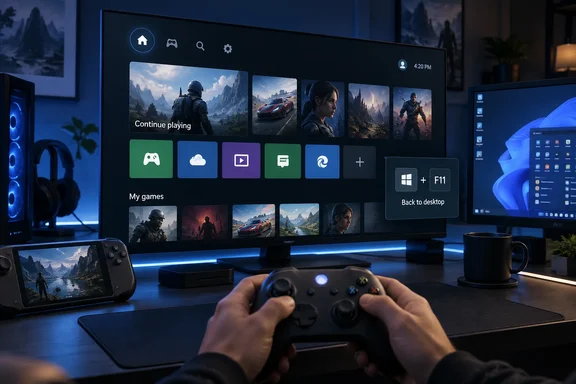
Engadget’s September 20 guide explains the basic controls, but Microsoft’s support documentation adds two important details: handheld startup settings have different behavior, and Xbox mode can limit background processes in that configuration. Here is how to enable it, navigate it, and decide which options suit your PC.
Enable Xbox mode on a desktop, laptop, or tablet
Microsoft documents a straightforward setup for PC form factors other than gaming handhelds:
- Press Win + I to open Settings.
- Select Gaming > Xbox mode.
- Turn on Enable Xbox mode.
- Optionally, turn on Show Xbox mode in Task View.
Enabling the feature makes entry points available in Game Bar and the Xbox app. The optional Task View setting adds another way to enter through Windows’ interface for switching between open apps and desktops.
The expected result is a gaming home app acting as your launcher, with games and supported apps displayed full-screen. You can then use a controller to navigate rather than repeatedly returning to the conventional Windows desktop.
Do not assume every PC will show all the options mentioned in guides. Microsoft documents Choose home app and Enter Xbox mode on startup specifically in its gaming-handheld setup, whereas its instructions for other PCs use Enable Xbox mode. Its requirements also mean that having Windows 11 alone does not establish eligibility: version and market support matter. The support page does not enumerate the supported markets, so it does not establish availability in every country.
Enter Xbox mode and return to the desktop
Once Xbox mode is enabled, Microsoft documents several entry and exit routes. Pick the one that fits how you use the PC rather than trying to configure every shortcut.
| Control | What it does |
|---|---|
| Win + F11 | Enters Xbox mode or exits back to the desktop. |
| Win + G, then Game Bar settings | Provides access to Xbox mode and a way back to the desktop. |
| Win + Tab | Opens Task View, where you can select Xbox mode when its entry point is enabled, or return to the desktop while in the mode. |
| Xbox button on a controller | Opens Game Bar, providing a controller-accessible route to its settings. |
Microsoft also confirms that enabling Xbox mode on non-handheld PCs exposes an entry point in the Xbox app. Using Win + F11 avoids having to locate that app control each time.
Returning to the desktop is especially useful when an app needs conventional window management. Xbox mode deliberately changes how windows behave, so a missing minimize action or an awkward multi-window app is a reason to switch interfaces rather than assume the app has stopped working.
Navigate games and apps with a controller
Inside Xbox mode, Task View becomes the central place to move among running games and apps. Open it with Win + Tab, a long press on the controller’s Xbox button, or a swipe up from the bottom of a touch-enabled screen. Microsoft documents these navigation controls:
- Use the controller’s left stick or LB/RB shoulder buttons to move between open items.
- Press A to bring the selected app to the foreground.
- Press X to close the selected app.
- Use the keyboard’s arrow keys to move between items if you are not using a controller.
Take care with X: in this interface it closes the selected app rather than merely switching away from it.
You can return to your gaming home app through Task View or the Home button in Game Bar. Where supported, Game Bar’s Library button can take you directly to the home app’s game library. These routes let you move between your launcher and running games without first returning to the desktop.
Why desktop apps may look different
Microsoft specifies that Xbox mode displays only one window at a time and makes apps full-screen where possible. Apps that cannot support full-screen appear against a black background, while apps that open several windows may display only their most recent window. Minimize and maximize controls do not change the window state, and some desktop keyboard shortcuts are disabled.
Those constraints explain the practical trade-off. Xbox mode suits a session centered on one game or app at a time. If you need to arrange several windows or interact with multiple dialogs, the desktop is the more suitable workspace; Win + F11 takes you back.
Gaming handhelds have a separate startup workflow
On a gaming handheld, Microsoft’s documented setup is different:
- Open Settings > Gaming > Xbox mode.
- Under Choose home app, select a supported gaming home app already installed on the device.
- Optionally, enable Enter Xbox mode on startup to launch the experience automatically after signing in.
Choosing a home app adds entry points in Game Bar and Task View. Selecting None turns Xbox mode off. The choice is therefore more than a cosmetic launcher preference: it controls whether the handheld experience is enabled.
The automatic-start option changes background activity on handhelds. Microsoft says Windows limits background processes when Enter Xbox mode on startup is enabled to improve gaming performance. Startup apps are deferred until the first switch to the Windows desktop, subject to their configured startup behavior.
For that handheld configuration, Settings > Apps > Startup provides three documented choices:
| Startup choice | Consequence |
|---|---|
| Start at log in | Allows the app to run in Xbox mode. |
| Start when exiting to desktop | Delays the app until you switch to the desktop. |
| Off | Prevents automatic startup, including when switching to the desktop. |
Before deferring an app, consider whether you need it during gaming. These settings change when software starts, so the appropriate choice depends on whether it belongs in your gaming session or only in your desktop workflow.
After you have used the desktop, re-entering Xbox mode with automatic startup enabled can trigger a prompt to restart the handheld for the performance optimizations. Microsoft says you can accept the restart or continue into Xbox mode without restarting. A restart is therefore an offered optimization path, not a requirement simply to re-enter the interface.
Xbox mode and Game Mode serve different purposes
Engadget describes Xbox mode primarily as an interface change and says Microsoft has made no claim about under-the-hood gaming improvements. That statement needs a narrower scope: Microsoft explicitly documents reduced background processes and potential performance benefits for gaming handhelds using Enter Xbox mode on startup. It does not establish a universal frame-rate improvement from toggling Xbox mode on every PC.
Windows’ separate Game Mode setting is under Settings > Gaming > Game Mode. Microsoft describes Game Mode as a way to optimize system performance during gaming sessions; Xbox mode supplies the full-screen navigation and launcher experience. Treat the two as separate settings rather than assuming that entering the Xbox interface also configures Game Mode.
What to expect from third-party game libraries
According to Engadget’s testing, the Xbox app brought together games from Steam, Battle.net, Epic Games, Ubisoft Connect, and Humble Launcher. Engadget did not test the EA app, so its findings should not be read as a complete compatibility list. That particular launcher coverage is not independently corroborated here.
Engadget also reports that launching third-party games still started their necessary software in the background. Its testers found launches successful but not always quick or smooth, and recommended opening the relevant third-party launcher before entering Xbox mode if startup delays were inconvenient. That is an attributed workaround from its testing, not a Microsoft prerequisite.
For a desktop or laptop, start by enabling Xbox mode and trying a normal gaming session before changing your routine. On a handheld, make the additional decision about automatic startup deliberately: it affects which background apps are available immediately and when a restart may be offered. Keep Win + F11 in mind whenever a task calls for the full Windows desktop.
References
- How To Use Xbox Mode On Your Windows PC - Engadget Engadget · 2026-09-20T22:30:00+00:00
- Windows Gaming: Full screen experience | Microsoft Support support.microsoft.com