

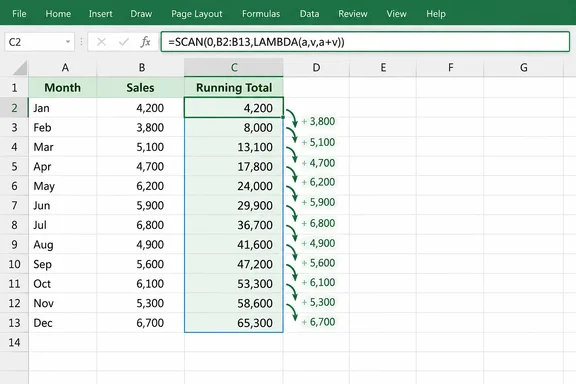
What SCAN actually does
Microsoft describes SCAN as a function that applies a custom calculation to each element in an array and returns an array containing the intermediate values. Exceljet puts the key distinction this way: it returns all intermediate values as an array, not just the final result. If you only need a final number, SUM is still the simpler tool. SCAN earns its keep when you need the sequence of values.
The syntax, per Microsoft, is:
=SCAN([initial_value], array, LAMBDA(accumulator, value, body))
- initial_value is the accumulator's starting point. It's optional. For text work, Microsoft says to set it to an empty string (
""). - array is the range, array or table column to walk through.
- accumulator is the running result carried from one step to the next.
- value is the current item.
- body is the calculation that produces the next accumulator.
An invalid LAMBDA or the wrong number of parameters returns a #VALUE! error.
The classic example: a running total
Say monthly figures sit in A2:A8. The old approach is =SUM(A$2:A2) in B2, copied down to B8. The SCAN version goes in B2 only:
=SCAN(0, A2:A8, LAMBDA(a, v, a + v))
Excel spills one running total for each input cell. A2:A8 is seven cells, so you get seven results. MakeUseOf's article says "six cells" and also refers to A2:A7 in places, so keep your own range consistent.
The Journal of Accountancy shows the same idea with a worked trace. A January net income of 5,000 and a February figure of (2,000) give running totals of 5,000 and then 3,000. That's the accumulator at work: each step feeds the next.
Variations worth knowing
Swapping the body gives you different behavior:
| Goal | Body |
|---|---|
| Running product | a * v |
| Text concatenation | a & ", " & v |
| Running count of a condition | IF(v > 100, a + 1, a) |
Microsoft's own examples use =SCAN(1,A1:C2,LAMBDA(a,b,a*b)) for a product-style scan and =SCAN("",A1:C2,LAMBDA(a,b,a&b)) for concatenation. Both start from the right neutral value: 1 for multiplication and an empty string for text.
Running maximum
=SCAN(0, B2:B9, LAMBDA(a, v, MAX(a, v)))
This works for scores that can't go below zero. If your data can be all negative, a starting value of 0 will wrongly show as the maximum. Seeding with the first data point avoids that. Spreadsheet Point's running-minimum example does this by using the first cell of the range as the initial value.
Running count of "Active" rows
=SCAN(0, C2:C9, LAMBDA(a, v, IF(v="Active", a + 1, a)))
The count goes up on Active rows and stays put otherwise. The result is the tally through each row.
Conditional product with reset
=SCAN(1, C2:C9, LAMBDA(a, v, IF(v="Active", a * INDEX(B:B, ROW(v)), 1)))
This scans the status column. On an Active row it fetches that row's score from column B using the row number. On any other status it resets the accumulator to 1, so the next Active run starts a fresh product. MakeUseOf says it "pauses" accumulation. That's inaccurate, because the product is reset, not frozen.
Two cautions apply here:
- It depends on the status and score ranges lining up row for row. Because it reaches into column B by row number, inserting or restructuring rows can quietly break the logic.
- MakeUseOf's commission-multiplier scenario is a hypothetical illustration, not evidence of how real compensation plans work.
Where the article oversells
"Automatically expands as your data changes." This is only partly true. Microsoft's dynamic-array documentation says that when you press Enter, Excel will dynamically size the output range for you, which is why one formula is enough. That sizing follows the input you give it, though. A fixed reference like A2:A8 will not pick up a new row 9. Microsoft recommends structured references because they automatically adjust as rows are added or removed from the table. Examples such as How-To Geek's use T_Profits[Profit], a table column, for this reason.
Where to put the formula. Microsoft states that spilled array formulas are not supported in Excel tables themselves. Keep the data in a table, and put the SCAN formula in the worksheet grid outside it.
Blocked output. If anything sits in the cells the result would spill into, Excel returns #SPILL!. Clear the obstruction and the formula spills as expected. Only the top-left cell of a spill range is editable.
Availability. MakeUseOf says SCAN isn't available in versions earlier than Excel 2024, but that wording is imprecise. Microsoft lists SCAN as applying to Excel for Microsoft 365, Excel for Microsoft 365 for Mac, Excel 2024 and Excel 2024 for Mac. Microsoft's SCAN page doesn't list Excel for the web, so confirm that on your own setup before relying on it. Workbooks opened in Excel 2021 or earlier won't calculate it.
"You'll never build formulas the same way." That promise is overblown. SCAN is a good fit for progressive, stateful calculations. SUM, SUMIFS and plain aggregates remain the right tool for everything else.
How to try it
- Put your numbers in a column, ideally as a table column so the range grows with the data.
- Click an empty cell in the worksheet grid, outside the table, with free space below it.
- Type
=SCAN(0, YourRange, LAMBDA(a, v, a + v)), substituting your table column or range. - Press Enter. The totals should spill downward, with a highlighted border around the spill area.
- If you see
#SPILL!, clear the blocked cells. If you see#VALUE!, check the LAMBDA has exactly two parameters plus the body.
You can name the LAMBDA parameters anything. Xelplus notes that descriptive names like previous_total and current_sales work just as well as a and v, and they make the formula easier to read later.
The rule of thumb
MakeUseOf's heuristic holds up: if you catch yourself thinking "I need the previous row's result in this calculation," SCAN is likely the right fit. Typical uses include cumulative balances, stock levels after each sale or delivery, running counts of events, and running maximums or minimums. For one-off totals, stay with SUM.
References
- Once you understand SCAN in Excel, you’ll never build formulas the same way MakeUseOf · 2026-10-03T15:45:15+00:00
- Excel SCAN function exceljet.net
- Calculate Running Total with the SCAN Function in Excel in Excel spreadsheetpoint.com