

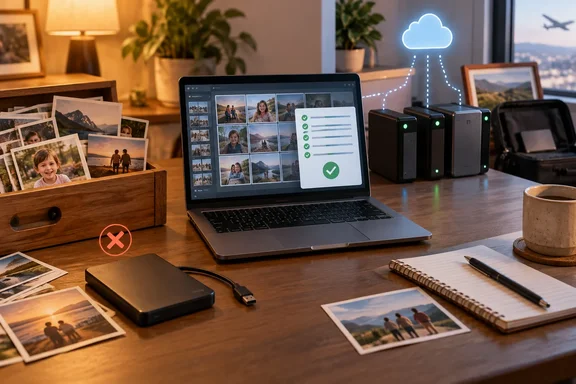
How-To Geek's bit rot warning gets the fix right but overstates the threat
How-To Geek describes bit rot, also called data degradation or data decay, as storage media slowly breaking down until the data on it is corrupted. For hard drives, it blames magnetic domains on the platter losing their orientation over time, which flips a zero to a one without the operating system asking for it. It says heat and humidity speed this up, and it points out that one flipped bit in a JPEG header or a video keyframe can make a whole file unusable, even though the file still shows the right size and creation date.
The article also claims that a hard drive's built-in error-correcting code (ECC) only protects data while the drive is powered and reading. On that view, an unplugged drive lets decay "accumulate unchecked." It goes further, saying someone whose drive hasn't been plugged in since 2015 has "a statistically significant chance" that some files are already corrupted. For people who can't manage checksum-based scrubbing, it suggests powering archive drives on once or twice a year so the firmware can refresh the data.
We could not find independent documentation for those specific hard-drive claims. We found no published retention period for consumer hard drives stored unpowered and no support for the idea that a once- or twice-yearly power-on refreshes every sector. Treat the annual plug-in as a chance to confirm the drive still mounts and the files still open. It is not a maintenance cycle with proven results. The broader point holds up, though: storage media and files can become unreadable over time, and a single unchecked copy gives you no way to notice or recover.
"Bit rot" also covers more than one cause. A file can be damaged by the storage medium, a failing controller, a filesystem problem, or a bad copy. The defences below help whatever the cause.
SSD retention under JEDEC JESD218: what the one-year figure actually means
How-To Geek says SSDs, which store data as electrical charge in flash cells, "might actually be even more prone" to loss when unpowered, because the charge leaks away. The leakage is real and documented. The widely quoted numbers need context.
The figures come from JEDEC, the standards body that sets SSD endurance and retention requirements. According to AnandTech's analysis of the JEDEC material, at 40°C active and 30°C power off temperature, a client SSD is set to retain data for 52 weeks i.e. one year. The condition people usually leave out is that these conditions must be met when the maximum amount of data has been written, i.e. if a drive is rated at 100TB, it must meet these specs after 100TB of writes. The one-year figure is a minimum for a drive that is already worn out, stored warm. It is not a prediction for a lightly used drive in a cool cupboard.
AnandTech concluded that there is absolutely zero reason to worry about SSD data retention in typical client environment, since the figures are for a drive that has already passed its endurance rating, and for new drives retention is considerably higher, typically over ten years for MLC NAND based SSDs. That analysis dates from 2015, when MLC flash was common. Newer, denser flash types were not part of it.
Temperature matters a lot. A patent filing summarising JEDEC's acceleration model says retention for a lightly used client SSD drops sharply with temperature from 404 weeks at 25° C. power-off temperature to only eight weeks at 55° C. The same filing notes these numbers describe the expected time before the first few bits in an SSD made with current technology become unreadable, not the point where the drive is wiped. Wear matters too. Flash cells degrade with repeated writes, and as the amount of data written increases, the SSD's NAND wear increases, and the shorter the remaining lifespan, the worse the data retention.
Enterprise guidance is stricter. NetApp's knowledge base, citing JEDEC, advises that SSDs in its ONTAP storage systems should not sit unpowered for more than two to three months. It adds that the time before data is at risk depends on the drive's wear and the storage temperature. That advice is for enterprise drives on a much tighter spec. JEDEC's enterprise requirement is at least 3 months at a temperature of 40°C, so it shouldn't be applied to a consumer USB SSD.
The fair summary: an old, heavily written SSD left in a hot car or attic is a real retention risk. A lightly used SSD kept at room temperature has far more margin than the scariest headlines imply. Neither kind of drive comes with a guaranteed shelf life for your files.
A single external drive fails as an archive no matter the cause
Even if you set bit rot aside entirely, the drawer-drive habit fails on basic backup principles. How-To Geek's companion material walks through the familiar 3-2-1 rule: three total copies of your data, on at least two different types of media, with at least one copy offsite. It also covers the extended 3-2-1-1-0 version, which adds one offline, air-gapped or immutable copy that ransomware can't reach, and zero errors, meaning every backup has been tested and shown to restore.
A single drive in a drawer meets none of that. It is one copy, on one medium, in one building. It is also never checked, so it fails the "zero errors" test by default. Physical decay is only one way it can fail. The drive might not spin up, its USB bridge board might die, it might be damaged in a fire or flood, or it might be lost in a house move. Having a second copy protects you from all of these at once.
The gap is detection. With one copy, you only find corruption when you open a file, maybe years after it happened, and by then nothing clean is left to restore from. Every archival practice worth using is about closing that gap: noticing damage while a healthy copy still exists somewhere.
Checksums detect bit rot, but only a second copy repairs it
How-To Geek recommends data scrubbing: reading files and checking them against checksums to confirm they haven't changed. A checksum (or hash) is a short fingerprint calculated from a file's contents. Change even one bit and the fingerprint comes out completely different. So if you record the hashes of your photo archive while you know it's good, and recalculate them later, any mismatch shows that the file has changed.
This comes with two limits that decide whether the approach works for you.
First, a checksum only means something compared with a trusted earlier value. Hashing an archive that has sat untouched since 2015 tells you nothing about whether it was already damaged, because you have no clean baseline to compare against. The best time to create checksums is when you first copy files into the archive, while they're still readable and verified.
Second, a checksum detects damage but can't undo it. A mismatch tells you a file has changed. Getting the original back requires an independent healthy copy. That is why checksums and multiple copies work as a pair. The checksum tells you which copy is bad, and the other copy is where you restore from.
On Windows, PowerShell's built-in Get-FileHash cmdlet can produce SHA-256 hashes for files, which is enough for a simple manifest you can save next to the archive and compare later. Dedicated tools and some NAS operating systems automate the same job. Whatever you use, the steps don't change: record a baseline, keep it with the data (and ideally somewhere else as well), recheck on a schedule, and restore any mismatched file from another copy.
ReFS integrity streams show what Windows Server can automate
Microsoft has built this detect-then-repair model into Windows Server's Resilient File System (ReFS), and its documentation shows clearly where detection stops and repair begins.
ReFS always checksums its own metadata, but by default it does not create or check checksums for file data. That needs an optional feature called integrity streams. You can turn it on for individual files, folders or a whole volume with the Set-FileIntegrity cmdlet, and check whether it's on with Get-FileIntegrity. Once it's enabled, ReFS checks a file's checksum every time the file is read.
What happens when the checksum doesn't match depends on the storage underneath. According to Microsoft, if ReFS sits on a bare drive or a non-resilient simple Storage Space, it returns an error instead of handing over corrupted data. If ReFS sits on a mirror or parity Storage Space, it tries to repair the file from another copy. If that works, it writes the corrected data back and the application never notices. Either way, ReFS records the corruption in the System Event Log.
ReFS also runs a background integrity scrubber that scans rarely opened data for hidden corruption, the part of an archive nobody opens for years. Microsoft says it runs every four weeks by default, and you can change the schedule in Task Scheduler under Microsoft\Windows\Data Integrity Scan. The scrubber can only check file data for files that have integrity streams turned on.
There are trade-offs. Microsoft warns that integrity streams cost performance: writes become allocate-on-write, which fragments files and slows reads, and calculating checksums can add I/O latency. It recommends leaving the feature off on performance-sensitive systems. Microsoft's integrity-streams documentation also lists Windows Server 2016, 2019, 2022 and 2025. It isn't a documented option for turning a Windows 11 PC's external USB drive into a self-healing archive. The lesson carries over anyway. Microsoft's own filesystem needs both a checksum and a second copy before it can repair anything, and your home archive does too.
What this means for you
If one unplugged drive currently holds irreplaceable photos or documents, fix that now. Waiting for decay to show up is the wrong approach, because you won't know it has until the damage is done. Anyone who already keeps several verified copies can ignore the scarier parts of the bit-rot story. Their setup already covers it.
Start by plugging the drawer drive in and copying its contents somewhere else while it still works. Create checksums straight away. They won't prove the files were never damaged, but they give you a baseline from here on. Then work toward a second, and ideally third, copy on a different kind of storage, with one kept away from home. For SSD-based archives, keep drives cool, and don't rely on heavily worn drives for long-term unpowered storage.
- One external hard drive or SSD in a drawer is a single point of failure, whatever the risk of bit rot, and should never be the only copy of irreplaceable files.
- JEDEC's one-year retention requirement for client SSDs applies to fully worn drives stored at 30°C. Lightly used drives kept cool have much more margin, while heat and wear shorten retention sharply.
- Checksums such as SHA-256 hashes from PowerShell's
Get-FileHashshow that a file has changed only when compared with a baseline you recorded while the files were known to be good. - Repair always needs an independent healthy copy. Even Windows Server's ReFS integrity streams can only fix corruption automatically on mirror or parity Storage Spaces.
- Plugging a drive in once or twice a year is worth doing to confirm it mounts and files open, but there's no evidence it refreshes or protects the data by itself.
- The 3-2-1 rule (three copies, two media types, one offsite), plus regular restore tests, covers bit rot along with the more common hazards of hardware failure, loss and disaster.
How-To Geek is right to call digital storage something that needs active maintenance. Where it's shakiest is in suggesting that a yearly power-on will do. A drawer drive holding the only copy of a family's photos is at risk because it's a single copy that nobody checks. Physics is only part of the story. The fix costs little: a second drive, a cloud copy, and a saved list of checksums. Setting it up while the old drive still spins up is what keeps a quiet flipped bit from becoming a permanent loss.