

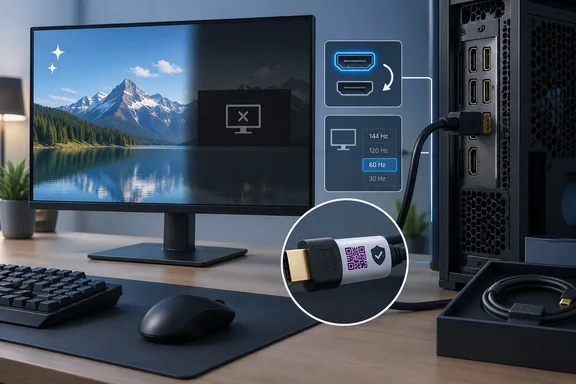
HDMI's digital link fails at a cliff, with a narrow zone of sparkles
People expect cables to age the way analog video cables did, with a picture that gets softer, noisier or ghostier over months. HDMI doesn't behave like that. XDA's point is that the display either receives data cleanly enough to decode or it doesn't, so you don't see a picture slide from 95 percent to 80 percent quality. You see a perfect image until the link starts struggling, then obvious errors or no image at all.
The electrical explanation comes from Extron, the professional AV equipment maker, in an engineering paper by its vice president of engineering Steve Somers. An HDMI cable contains four shielded twisted pairs. One carries the source clock and three carry video data using a signalling scheme called TMDS (Transition Minimized Differential Signaling). Separate wires handle power, device communication and a ground reference. For the receiver to recover the data, the shape of each data signal (engineers call it the eye pattern) and its timing relative to the clock have to stay within tolerance.
Two things push that signal out of tolerance. One is attenuation, the signal weakening over the length of the cable. The other is skew, meaning timing differences either between the two wires within a pair or between separate pairs. Extron says that excessive skew and attenuation distort the eye pattern until the receiver can't reliably detect the signal. The result is "sparkles" on screen or a complete loss of the image.
So the cliff isn't perfectly sharp. As XDA puts it, a narrow marginal zone exists where most of the picture survives but errors get through. Those sparkles are therefore useful: they are the link telling you it's running without headroom. That makes them an early warning. They don't prove that the cable in particular is at fault.
Blank screens have another possible cause. HDMI links that carry protected content go through an HDCP (High-bandwidth Digital Content Protection) authentication handshake between source and display. Extron notes that HDMI interoperability problems have historically come down to devices failing to complete the handshake needed to establish HDCP. A black screen can mean the link lost its signal. It can also mean the devices never finished agreeing to talk.
Why a new TV, GPU or console can expose an old HDMI cable
This is where HDMI fools people. XDA gives the common scenario: a cable has worked perfectly for years behind the TV, then starts sparkling or dropping out right after you buy a new TV, GPU or console and plug the old cable back in. The cable didn't change. The signal did.
A link that runs 4K at 60Hz may be perfectly stable until you enable HDR, raise the refresh rate or combine several of those demands. Resolution is only part of the bandwidth equation. Refresh rate, colour depth and chroma format all add to the data the cable has to carry. As the signal gets closer to what the cable can reliably handle, there's less room for small imperfections in the cable, connectors or ports.
The HDMI Licensing Administrator's cable ratings show how wide that range is. According to HDMI LA, a High Speed HDMI Cable is tested to 10.2Gbps, enough for 1080p and features such as 4K at 30Hz and Deep Color. A Premium High Speed cable is certified up to 18Gbps and covers 4K60, HDR and expanded colour spaces including BT.2020. The Ultra High Speed HDMI Cable, introduced with HDMI 2.1 and on the market since 2020, covers setups using up to 48Gbps, including 8K at 60Hz and 4K at 120Hz. A cable that comfortably carries a 1080p signal can therefore be asked to carry several times as much data by a new console or GPU, with no change to the cable at all.
Keep one qualification in mind. You can't assume an old uncertified cable was ever rated for the mode it appeared to handle. Some cables run beyond their rating with a thin margin, which is exactly the kind of link that fails the moment the demand goes up. What you know is that the setup changed and the link stopped being reliable. That points to margin. It doesn't point to sudden physical decay.
Length matters here as well. Extron notes that the HDMI specification defines electrical performance and does not set cable design or maximum length. It also says a short length of a given cable meeting a performance level doesn't mean a longer version of the same cable will. If you swap a 1-metre run for a 5-metre run of the "same" cable, you've changed the electrical situation.
Physical damage to an HDMI cable is real, but it is a different failure
Cables can break. XDA lists the familiar causes: repeated bending, crushed sections, damaged connectors, corrosion, and years of being unplugged by the cable rather than the plug. Any of these can compromise signal integrity, and sometimes the cable really is the culprit.
Wear and bandwidth limits are separate problems, though, and they call for different responses. A physically damaged cable tends to fail whatever mode you run. A marginal cable fails at demanding modes and behaves at easier ones. A cable doesn't need visible damage to become unreliable. As XDA frames it, what often "killed" a cable was asking the same cable to do something it had never done well.
The difference gives you a practical test. If dropping the output mode makes the symptoms stop, you're looking at a margin problem somewhere in the chain, which could be the cable, a port, an adapter or an intermediate device. If the symptoms follow the cable across modes and ports, or appear when you flex it near a connector, physical damage becomes the likelier explanation.
Isolating an HDMI fault on a Windows PC, one variable at a time
XDA's advice is to work through the free fixes before spending money: reseat both ends firmly, try another port, and power-cycle the source device to clear handshake glitches. XDA also says loose connections and failed handshakes are more often to blame than a cable that has hit its limit. No other outlet has measured how common each cause is, so treat that as a reasonable order of testing, not a statistic. The main discipline is changing one variable per test, because otherwise a result tells you nothing.
A cable-isolation sequence for TVs, monitors and PCs
- Firmly reseat both HDMI plugs, and look at the plugs and ports for bent, loose or damaged connectors.
- Move the cable to a different input on the display, or a different HDMI output on the GPU or source, and change nothing else.
- Temporarily choose a less demanding mode, such as a lower refresh rate, lower resolution, or HDR switched off. If the sparkles or dropouts stop, you have a bandwidth or signal-margin problem in the chain.
- Swap in a cable certified for the mode you actually want and keep all other settings the same. If that fixes it at the demanding mode, the original cable was the weak link.
- Where you can, connect the source straight to the display and bypass any AV receiver, switch, dock or adapter, to find out whether an intermediate device is involved.
- If the link is stuck on "No Signal", power-cycle both the source and the display, which can reset a stuck HDCP or EDID exchange. (EDID is the data a display sends to describe the modes it supports.)
Windows-specific steps for a blank external display
On a Windows PC, Microsoft's blank-screen troubleshooting page covers several of these checks. It says to make sure the monitor is connected, plugged in, and powered on, to check that all cables (HDMI, DisplayPort, VGA) are securely connected, and to try a different monitor or cable to rule out hardware issues.
Microsoft also lists two keyboard shortcuts. The first is Windows + Ctrl + Shift + B to reset the graphics driver, and Microsoft says you should hear a beep or see a screen flicker if successful. The second, for projection mode, is to press Windows + P, then tap P again and press Enter to cycle through display modes (for example, PC screen only, duplicate, extend). Windows + P matters if the PC has been set to show output only on another screen, because an external display can look dead when it has simply been switched off in Windows.
Accounts of what the first shortcut actually does differ. Windows Latest, citing a former Microsoft engineer, reported in 2023 that the combination discards the desktop's surface buffer and prompts the Desktop Window Manager (DWM) to recreate this allocation, and doesn't reset the driver in the literal sense. Either way it's a quick, low-cost recovery attempt for a PC that is still running. It can't repair a damaged cable or monitor. If the blank screen started after a driver update, Microsoft's same guidance says to select Roll back driver instead in Device Manager.
None of these Windows steps are specific to HDMI. They separate a software or display-mode problem from a hardware one, so that you only blame the cable once the other causes are ruled out.
Premium High Speed, Ultra High Speed and Ultra96: buying by certification label
If testing shows the cable is the weak link, XDA's buying advice is sound: buy for the signal you need and ignore the stickers. Big "4K", "8K" or "gaming" labels on a box are marketing. Gold-plated connectors won't sharpen a digital image, and a cable costing ten times as much doesn't carry ten times the signal. The thing to pay for is a certified performance tier.
XDA says there's no such thing as an "HDMI 2.1 cable". The official wording supports a narrower version of that claim. HDMI LA names cables by performance category, not by the specification version of the devices at each end. The current categories line up with bandwidth like this:
| Official cable name | Tested bandwidth | Example capabilities per HDMI LA |
|---|---|---|
| High Speed HDMI Cable | Up to 10.2Gbps | 1080p, 4K at 30Hz, Deep Color |
| Premium High Speed HDMI Cable | Up to 18Gbps | 4K60, HDR, BT.2020 colour |
| Ultra High Speed HDMI Cable | Up to 48Gbps | 8K at 60Hz, 4K at 120Hz |
| Ultra96 HDMI Cable | Up to 96Gbps | 8K60 and 4K240 at 4:4:4, 10-bit and 12-bit colour |
The last row updates XDA's guidance. XDA says that if you need more than HDMI 2.0 bandwidth you should buy Ultra High Speed, tested to 48Gbps. That was complete advice before HDMI 2.2. HDMI LA now lists the Ultra96 HDMI Cable as the newest category, built to support all HDMI 2.2 features at up to 96Gbps. Most setups don't need it. A 4K120 gaming link fits within Ultra High Speed's 48Gbps. Ultra96 is for buyers whose source and display actually use modes beyond that.
Certification is also something you can check yourself. HDMI LA says every Ultra96 and Ultra High Speed model must pass testing at an HDMI Forum Authorized Testing Center, and certified cables carry a label that standard phone QR-code apps can scan to confirm certification. The official cable name also has to be printed on the cable jacket. HDMI LA says it buys cables from stores and online marketplaces and sends them for re-testing, and a model that fails can lose access to certification labels. The organisation also warns that some cables on sale are counterfeits and that some websites recommend cables because of affiliate payments. That's a good reason to scan the label and not trust the listing. Premium High Speed cables have their own certification label that works the same way.
Long runs need their own planning. Extron's paper describes long HDMI runs made practical by improved cable manufacturing, active equalisation, and optical designs that build the transmitter and receiver into the connectors. It also recommends that AV designers pre-test cables for critical installations whatever the label says. XDA reaches a similar conclusion: for unusually long runs, an active or optical HDMI cable often makes more sense than an ever more expensive passive one. Extron's paper dates from the HDMI 1.3 era, so its distance figures don't apply to today's bandwidths. The underlying principle, that length eats into signal margin, still does.
What this means for you
If your HDMI link starts sparkling or dropping out, test before you buy. Anyone who recently changed their TV, monitor, GPU, console, refresh rate or HDR setting should suspect signal margin first and physical wear second. Anyone whose symptoms appeared without any change to the setup should look harder at the connectors and the cable's physical condition.
- Sparkles and brief dropouts mean the link is running near or past its limit. They don't identify which part of the chain is responsible.
- Lowering the refresh rate, resolution or HDR setting for a test is the quickest way to tell a bandwidth-margin problem from a dead connection.
- On Windows, reseat the cables, then try Windows + Ctrl + Shift + B and Windows + P before concluding a blank external display is a hardware fault.
- Buy replacement cables by official name, such as Premium High Speed (18Gbps), Ultra High Speed (48Gbps) or Ultra96 (96Gbps), and scan the certification label. Ignore "8K" or "gaming" branding on its own.
- Most 4K60 HDR setups need Premium High Speed, 4K120 and 8K60 need Ultra High Speed, and Ultra96 only matters for HDMI 2.2 modes beyond 48Gbps.
- For long runs, expect passive cables to lose margin, and consider active or optical cables rated for your mode.
HDMI makes ordinary signal problems look like dying hardware, and that fools people into blaming the TV, the GPU or a cable that was never physically damaged. The cheap diagnosis comes first: reseat, change one variable, drop the mode, and swap in a certified cable only once the other causes are ruled out. With HDMI 2.2 hardware and Ultra96 cables now arriving, bandwidth demands will keep rising, and more existing cables will run out of headroom without anything physically wrong with them. The certification label, not the box art, is how you tell whether a cable can handle the new modes.