

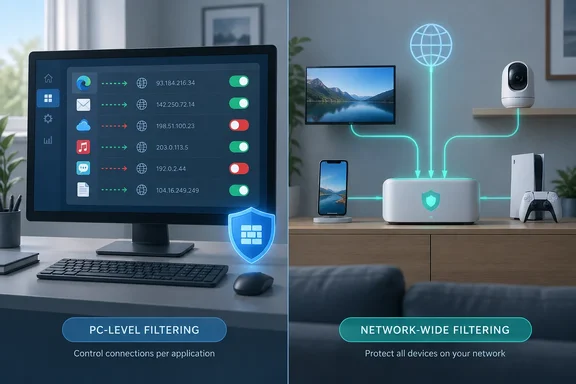
Portmaster is a firewall on the PC itself, not a DNS sinkhole
Pi-hole and Portmaster both block traffic to domains on blocklists, which is why people compare them. They do it in different places. Pi-hole runs as a DNS server for the network. You normally set the router's DHCP service to hand Pi-hole's address to every client, or let Pi-hole take over DHCP, or change each device's DNS setting by hand. After that, any device that asks Pi-hole to look up a blocked domain gets no usable answer, whether it's a phone, a console or a smart TV.
Portmaster works inside the computer's network stack. Safing's GitHub documentation says it hooks into Windows through a Windows Filtering Platform (WFP) kernel driver and into Linux through nfqueue. It intercepts traffic at the raw packet level, so every packet can be inspected and dropped. On Windows it works out which process owns each connection by combining the driver with the IP Helper API. Safing also says it handles Microsoft Store apps and system services running inside svchost.exe.
The two designs lead to very different results. Pi-hole can see that some device looked up a tracking domain. Portmaster can show that a particular executable opened a connection to a particular IP in a particular country, and it can block that app while leaving others alone. Portmaster also catches connections that never go through DNS, such as an app connecting straight to a hard-coded IP. A DNS-only filter can't see those.
Safing lists what the app does out of the box: Portmaster blocks incoming connections, filters trackers and malware hosts, and routes all DNS queries over TLS. Its documentation adds that the core service runs as a system service, the interface and notifier run in the user's session, and everything happens locally on the device apart from the optional paid privacy network.
Where Portmaster's per-app view beats a Pi-hole query log
The How-To Geek author's main praise is for the interface, and those impressions are theirs. According to their description, the dashboard lists every running app with its connection count, shows active and blocked connections, and has a map of countries contacted recently. Opening an app shows its incoming and outgoing connections, whether each was allowed or blocked, the IP addresses involved, and whether each is still active. Opening a single connection shows its start and end times, the protocol, and whether it's encrypted.
The author gives an example. They'd been using LM Studio's Bionic as an alternative to Claude. LM Studio says the open-source models it offers, including ones developed in China, are hosted in the US, and the author wanted to check that claim by looking at where Bionic's traffic actually went. That's a fair use of a per-app monitor. The article doesn't report what the check found, so it tells you nothing about LM Studio's hosting either way. It does show the kind of question a per-app monitor can answer and a network-wide DNS log can't.
Safing's own feature page describes the same capability more plainly: monitor every network connection on your computer and set per-application rules for what to block.
Blocking is quick. In the author's workflow, you select a suspicious connection and click "Block Domain", and Portmaster adds a rule that blocks that domain from then on. You can also cut off an app completely, which suits anyone who installs untested software often. Safing's settings documentation calls this per-app control Force Block Internet Access. It can be paired with a global restriction and per-app exceptions, so you can lock down the whole machine while letting one trusted app through.
Filter lists in Portmaster work like Pi-hole blocklists, with a catch
Portmaster's automatic blocking uses the same kind of blocklists Pi-hole uses. Setup asks you to turn on filter lists. If you skipped that, the author says you'll find them later under Global Settings (the gear icon in the left sidebar) in the Filter Lists section. The categories cover ads and trackers, malware, deception sites, NSFW content, Big Tech and more. Expanding a list and hovering over an entry gives a link to the full set of domains it blocks.
Safing says Portmaster does this by default and uses trusted filter lists, which are also used by Ad-Blockers, etc. Its DNS guide names the AdGuard public ads list as one of the defaults. Not every category is on by default. You opt into the more aggressive ones.
That opt-in matters because broad lists can break things, as they do with Pi-hole. The author specifically warns against enabling the Big Tech and Experiments lists, saying they can stop many websites and services from working. That's their experience rather than a documented compatibility list. Still, it's the same trade-off every Pi-hole user knows: a list that blocks a whole company's domains will also block that company's legitimate services.
Safing's documentation also supports custom text lists with one domain, IP address, country code or ASN (autonomous system number, which identifies a hosting network) per line. Safing warns that custom lists are loaded into memory, so very large ones can affect the device.
Unblocking something in Portmaster
Any blocklist will eventually catch something you need, and Safing's FAQ sets out a clear recovery path. Here's how Safing's documentation describes allowing a blocked connection:
- Open the Portmaster app, which starts on the Network Monitor. Find the app that isn't working. Apps with blocked connections show a grey section in their activity bar, and blocked connections are marked with a red dot.
- Click the blocked connection to open its details and look at the "Applied Setting" field. It names the setting or list that caused the block.
- Use the "Allow Domain" or "Allow IP" button to add an exception for that app. Safing recommends this route. The new rule then appears in the app's own settings.
- If the allow button is greyed out, an exception isn't possible and you have to change the setting responsible. Safing recommends changing it for that app only rather than globally. Most Portmaster settings add protection when switched on, so turning one off usually lets the connection through.
- If more than one setting blocks the connection, repeat these steps.
Safing adds one firm warning. Some apps need to accept incoming connections, such as game servers or local sharing tools. Allow those by turning off Force Block Incoming Connections in that app's settings. The FAQ says you should never disable that setting globally, and Portmaster will warn you once a week if you do.
Installing Portmaster on Windows 10 and 11 and removing it
Installation on Windows is simpler than a typical Pi-hole setup. There's no separate device to run and nothing to change on the router. Safing's Windows install guide covers Windows 7, 8, 10 and 11 and supports 64-bit systems only. You can run the installer or use winget:
winget install -i portmaster
Windows 7 users also need security update KB3033929 from 2015 so the driver's signature can be verified. The Windows 10 and 11 steps are the same.
Here's what the installer changes, which is useful to know when auditing a machine or fixing problems later:
- Portmaster installs to %PROGRAMDATA%\Safing\Portmaster, usually C:\ProgramData\Safing\Portmaster, and places a symlink in C:\Program Files\Safing\Portmaster.
- The core service is registered as PortmasterCore and starts automatically at boot.
- The Portmaster UI and the Notifier are added to the Start menu under Safing\Portmaster, and the Notifier is added to autostart.
- Logs for the core, app, notifier and startup components are kept in subfolders of C:\ProgramData\Safing\Portmaster\logs.
To remove it, uninstall through Windows settings or run portmaster-uninstaller.exe from the ProgramData folder. Safing says the uninstaller reverses every installation step and needs a reboot afterwards. That reboot matters because the FAQ has entries on network access breaking after shutdown or uninstall. If connectivity looks wrong after removal, restart before troubleshooting anything else.
Long-time users may remember that Portmaster versions before 0.6.7 disabled Windows' DNS Client (Dnscache) service, which broke some other software. Safing replaced that approach, and new installs don't touch the service's registry key.
"Free and open source" has limits: Plus, Pro and SPN
Portmaster is open source, and its core firewall is free. It's also freemium, and the paid tiers include features some readers would reasonably expect in a network monitor. Safing's README marks recording and searching network history, and per-app bandwidth usage, as paid features. The How-To Geek author confirms that total data sent and received, and detailed per-app history, require the Plus plan.
The higher Pro tier adds SPN, the Safing Privacy Network. Safing describes it as sitting "between" a VPN and Tor. It uses layered onion encryption across multiple hops, picks exit nodes near the destination server, and runs on nodes hosted by Safing and the community. Safing cut the price in February: the company announced a Portmaster Pro price drop: €80/year. You don't need SPN for anything in this article. The firewall, filter lists and per-app rules all work on the free tier, which the author says they've used exclusively and found sufficient.
The project is still under active development. Portmaster 2.2.1 adds Split Tunneling: the ability to route specific apps or connections through a different network interface, overriding the route your operating system would normally use. For example, you could send a game or video call over your direct connection while the rest of your traffic goes through a VPN. Per Safing's community wiki, this master switch must be enabled in Portmaster's global settings before any app-level split tunnel settings take effect. The feature is new and has at least one open bug. A GitHub issue filed about a month ago reports that the split-tunnel UDP proxy breaks games, STUN and peer-to-peer traffic. The reporter reproduced it on Linux, and the analysis in the issue notes that the proxy code is shared across platforms, so the model issue is not Linux specific. Gamers should keep split tunneling switched off until that's fixed.
On ownership, Safing announced in December 2024 that it was joining VPN provider IVPN and said Portmaster and SPN wouldn't change unexpectedly as a result.
Choosing between Portmaster and Pi-hole for your network
The choice comes down to which devices you need to protect. If they're all Windows or Linux PCs, Portmaster is the easier tool and tells you more. If the network includes devices that can't run a desktop app, Pi-hole is still the tool that reaches them. The How-To Geek author puts it as a Honda Civic against a Ford F-250: different vehicles for different jobs. That's fair, with one correction.
The original article opens by promising "the same level of security" as Pi-hole. Nothing in it tests that, and Safing doesn't claim it. The company's FAQ describes Portmaster as mainly a privacy tool. It says Portmaster doesn't do malware detection and advises against turning off your antivirus. On Windows, that means leaving Microsoft Defender in place. Safing also says its setting to stop apps bypassing its DNS resolver isn't designed to stop malware built specifically to evade it. Treat Portmaster as a privacy and visibility layer that sits on top of your security software.
The two tools can also run together. The author notes that a handful of PCs can each run Portmaster signed in to the same account. That doesn't cover a smart TV or a security camera, and Pi-hole can keep handling those at the network level.
- Choose Portmaster if you want to see which specific apps on a Windows 10 or 11 PC are connecting where, and block individual apps or domains.
- Keep Pi-hole, or add it, if you need filtering for smart TVs, cameras, consoles or other IoT devices that can't run desktop software.
- Install with
winget install -i portmasteron 64-bit Windows, expect the PortmasterCore service to start at boot, and reboot after uninstalling. - Enable filter lists one category at a time, and be careful with broad ones such as Big Tech, which can break services.
- When something breaks, check the connection's "Applied Setting" and add a per-app exception rather than weakening a global setting. Never disable Force Block Incoming Connections globally.
- Leave Microsoft Defender or your other antivirus running, because Portmaster doesn't detect malware.
For a single PC, Portmaster is a real upgrade over routing that PC's DNS through Pi-hole: it's easier to install and it shows which app made each connection. It only replaces Pi-hole if every device you care about can run Portmaster. Split tunneling in version 2.2.1 still has an open UDP bug, so how fast Safing fixes it is the next thing to watch for anyone thinking about moving VPN or gaming traffic onto Portmaster.
References
- I replaced Pi-hole with this easier, free, and open-source alternative How-To Geek · 2026-09-23T11:00:14+00:00
- Install on Windows - Safing Docs docs.safing.io
- Frequently Asked Questions - Safing Docs docs.safing.io