

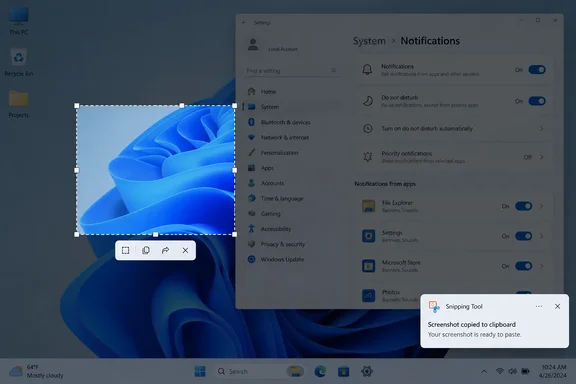
The missing Snipping Tool notification in Windows 11 is a common complaint, and it is usually easy to fix. The cause is rarely a broken capture engine. It is more often a notification switch, Do not disturb, a Focus session, or a Store app that needs repair. Below is a step-by-step diagnosis, ordered so you try the safe checks before anything that deletes data.
How the snip is supposed to work
It helps to know what normal looks like before you troubleshoot. Microsoft's support documentation says that pressing Windows logo key + Shift + S opens the snipping overlay, where you pick rectangle, freeform, window or full-screen mode. The finished capture is copied to your clipboard. A notification then appears, and clicking it opens the image in the Snipping Tool editor, where you can mark it up, save it or share it.
That gives you four separate pieces, and each one can fail on its own:
- The capture: did the overlay appear and accept your selection?
- The clipboard: did the image actually get copied?
- The notification: did a banner appear, or did a notification land quietly in Notification Center?
- The editor: does clicking the notification open Snipping Tool?
Community troubleshooters on Eleven Forum have described this design for years: after every snip there should be a notification, and clicking it opens Snipping Tool with the snip loaded; if you miss it, the notification should still be waiting in the notification area via the taskbar clock.
Section summary: a missing banner doesn't mean the snip failed. Check each piece before you start removing things.
Step 1: Confirm the capture actually works
Start with this test, because it tells you where to look next.
- Press Windows + Shift + S.
- Choose Rectangle mode and drag around a small area.
- Open Paint or another image editor.
- Press Ctrl + V.
If the image pastes, capture and clipboard are working, and the problem is in the notification path or the app interface. That is a likely explanation, not a proven root cause, but it narrows the search. If you use clipboard history, Windows + V is a quick second check. A ScreenSnap troubleshooting guide puts it this way: if the snip shows up in Win+V but no notification appears, the tool is fine.
Step 2: Check Snipping Tool's notification settings
This is the most common cause. In Microsoft's documentation, the global and per-app controls live in one place:
- Press Windows + I to open Settings.
- Go to System > Notifications.
- Make sure the main Notifications toggle at the top is on.
- Scroll to Notifications from apps and other senders and find Snipping Tool.
- Turn its toggle On, then click the entry to open its options.
- Enable Show notification banners and Show notifications in notification center.
- Take another snip with Windows + Shift + S.
The two sub-settings do different jobs. As The Windows Club explains, the first option determines whether the notification can appear as a pop-up banner and the second option allows it to appear in the Windows notification center. If you only turn off banners, the notification still arrives. It just sits in Notification Center (Windows + N) where you might not look.
These switches don't always stay where you left them. One reader commenting on a Guiding Tech guide said a Microsoft update turned notifications off, and turning them back on got the screenshot pop-up working again. That is one person's experience, but it's a good reason to recheck this page after a big update.
Exact labels can vary a little between Windows 11 builds, so treat the menu path above as the normal route rather than a promise of identical wording on every PC.
Step 3: Turn off Do not disturb and check its automatic rules
Do not disturb is the second usual suspect. Microsoft's notifications documentation says that when it is on, you only get banners for alarms, reminders and apps you have specifically allowed. Everything else goes straight to Notification Center. Snipping Tool is still sending its notification; you just don't see the pop-up.
To check it:
- Open Settings > System > Notifications.
- Turn Do not disturb off.
- Expand Turn on do not disturb automatically.
- Look at the rules that are enabled.
Microsoft lists these automatic triggers:
| Automatic trigger | Why it might catch you out |
|---|---|
| During a set time of day | A schedule you forgot you created |
| When duplicating the display | Presenting on a projector or second screen |
| When playing a game | Snipping a game moment |
| When using an app in full-screen mode | Snipping a full-screen video or app |
| First hour after a Windows feature update | A brand-new install that seems "broken" |
The full-screen and gaming rules matter most here, because those are exactly the moments people take screenshots. If you'd rather keep Do not disturb on, Microsoft's settings also let you add specific apps that can still send notifications while it is active. Look for Add apps under the priority notifications section.
Step 4: Make sure Focus isn't turning on Do not disturb
Focus sessions and Do not disturb are linked. Microsoft's Focus documentation says that starting a focus session turns on Do not disturb by default and temporarily hides taskbar badges and flashing.
- Go to Settings > System > Focus.
- If a session is running, choose Stop focus session.
- In the Focus options for future sessions, check whether Turn on do not disturb is enabled. Turn it off if you want notifications during sessions.
- Take another snip.
Microsoft adds a detail that many guides leave out: if Do not disturb was already on before the focus session started, it stays on after the session ends. Stopping Focus may not be enough, so go back to Step 3 and turn Do not disturb off separately.
Step 5: Compare with the app's New button
Open Start, search for Snipping Tool, open it, and click New. Microsoft's Snipping Tool documentation says captures made this way open in the Snipping Tool window for editing, saving and sharing.
Don't read too much into the difference in behavior. As The Windows Club notes, if you start a snip by clicking the New button inside Snipping Tool, the captured image opens directly in the app, so you may not see a separate notification. So a missing notification after clicking New is normal. What the test shows is whether the app and its editor work at all. If New works but the shortcut gives you no notification, focus on notifications, not the capture engine.
Step 6: Update Windows and Snipping Tool
Snipping Tool updates through the Microsoft Store. Microsoft's general troubleshooting order for Store apps is: close and reopen the app, check Windows Update, update through the Store, then repair or reset, then reinstall.
- Go to Settings > Windows Update > Check for updates and install anything waiting.
- Open Microsoft Store, select Library, then Get updates.
- Let Snipping Tool update if an update is offered.
- Restart and test again.
Windows updates can play a part too. On Microsoft Q&A, a Windows 11 24H2 user reported that every time they installed KB5051987 from Windows Update, the markup and share notification would not appear but the snapshot would still be saved. They said it eventually started working as it should after a later automatic install. That is a single report about one past update, not a confirmed bug. Still, if the notification vanished right after a Patch Tuesday, an interrupted or half-finished update is worth suspecting.
Step 7: Repair, then Reset
If the settings are correct and the notification still doesn't appear, use Windows' built-in app repair tools in this order:
- Open Settings > Apps > Installed apps.
- Find Snipping Tool and click the three-dot menu.
- Select Advanced options.
- Click Repair and wait for it to finish, then test.
- If that doesn't help, click Reset on the same page and confirm.
Microsoft's repair documentation says to try Repair first and use Reset only if Repair is missing or doesn't fix the problem. It also notes that not every app offers these options. Reset returns the app to its default state and can wipe app data, including your Snipping Tool preferences, so be ready to set those up again.
Step 8: Reinstall as a last resort
If nothing else has worked:
- In Settings > Apps > Installed apps, open Snipping Tool's three-dot menu and select Uninstall.
- Restart the PC.
- Open Microsoft Store, search for Snipping Tool, and install it.
- Check Settings > System > Notifications again, because a fresh install may need its notification toggles turned back on.
Microsoft says some apps can't be uninstalled from Settings, so the option may be missing on your device.
Note for IT admins: reinstalling from the Store depends on the Store being allowed. On Microsoft Q&A, a Windows 11 Enterprise 22H2 user trying this route got the error "Failed to install or update Microsoft Store package because Microsoft Store Client is blocked by policy". On managed PCs, check your app deployment and Store policies before telling users to uninstall anything.
What about the "screen snipping" default app?
Some guides suggest checking the screen-snipping association under Settings > Apps > Default apps. We found no Microsoft documentation that recommends this as a fix for a missing notification, or that says which association you should pick. Microsoft's developer documentation does describe the ms-screenclip: URI that apps use to launch Snipping Tool, but that is developer guidance, not a user fix. If you're curious, looking at that entry does no harm. Don't treat it as a proven fix.
Quick-reference checklist
- Paste-test the capture in Paint.
- Turn on Snipping Tool notifications, banners and Notification Center entries.
- Check Notification Center (Windows + N) for notifications you missed.
- Turn off Do not disturb and review its automatic rules.
- Stop any Focus session, and make sure Do not disturb isn't left on afterward.
- Update Windows and Snipping Tool.
- Repair first, Reset second.
- Reinstall only if Windows and your organization's policies allow it.
Bottom line: Microsoft hasn't confirmed a specific Snipping Tool bug or affected build that hides this notification, so no single step is guaranteed to fix it. Work through the list in order. In most cases the fix is a notification toggle or Do not disturb, and you won't need to reinstall anything.
References
- Snipping Tool notification not showing in Windows 11? Try these fixes Windows Report · 2026-10-01T09:47:10+00:00
- Fix Snipping Tool Not Working Windows 11 (2026 Guide) screensnap.pro
- Snipping tool does not show markup / save notification - Microsoft Q&A learn.microsoft.com