

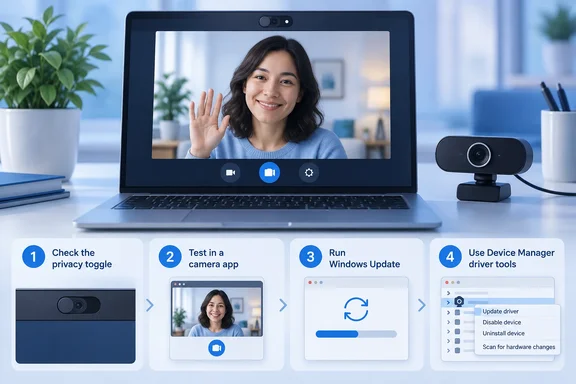
Microsoft's Windows camera troubleshooter puts Get Help ahead of Device Manager
Microsoft names the usual causes of a camera outage as missing drivers after a recent update, antivirus software blocking the camera, restrictive privacy settings, and problems inside the app you're trying to use. On Windows 11, the first step is the automated camera troubleshooter in the Get Help app, which runs diagnostics and tries to fix most camera problems by itself. The Windows 10 section also starts with Get Help. People on older versions of Windows or on mobile devices are told to skip straight to the general steps.
On Windows 11 you can also start the troubleshooter from Settings. Go to Start > Settings > System > Troubleshoot > Other troubleshooters, find the Camera entry, and select Run. The Windows 10 route is Start > Settings > Update & security > Troubleshoot, then Camera under "Find and fix other problems", then "Run the troubleshooter." If the troubleshooter doesn't fix things, Microsoft sends you to a list of common problems grouped by symptom and error code, and then to the general steps.
Those general steps go from cheap to invasive. First check the hardware, then permissions, then test in another app, then Windows Update and a restart, then security software, and only after that touch drivers. Following that order keeps you away from Device Manager until the easy explanations are ruled out.
Physical checks come before any software fix
For an external webcam, check that it's firmly plugged into the USB port and that no cables are loose. Microsoft also suggests trying the camera on another device to rule out hardware failure. For laptops and other portable devices, the guide warns about physical privacy controls. When one of these is set to off, Windows may not detect a camera at all, or may show a camera image with a slash through it.
Microsoft admits these controls can be hard to find. It lists four places to look: a keyboard key that works with the Fn key, a dedicated camera key on the keyboard, a sliding switch on the side of the laptop, and a small shutter slider built into the camera housing. A closed shutter or a switch set to off can look exactly like a missing driver, so check these before you start reinstalling software.
Windows 11 camera privacy settings treat Store apps and desktop apps differently
Permissions cause more confusion than anything else in the guide. Microsoft warns that after a recent Windows 11 update you may need to grant camera permission again, because in newer versions of Windows 11 some apps don't get camera access by default.
On Windows 11, go to Start > Settings > Privacy & security > Camera. There are three separate layers:
- Camera access for the device as a whole must be on. If it's off and greyed out, an administrator on the device has to turn it on for you.
- "Let apps access your camera" must be on.
- For individual apps, the list under "Choose which apps should have access" shows only apps installed from the Microsoft Store.
Apps installed any other way are handled by a single switch, "Let desktop apps access your camera." Microsoft notes that you can't turn off camera access for individual desktop apps. Browsers such as Microsoft Edge and many video-conferencing apps such as Microsoft Teams are desktop apps, so this switch has to be on for them to use the camera. If you're looking at the per-app list and can't find your browser, this is why. It was never going to appear there.
The Windows 10 section describes the same layers with different labels. The route is Start > Settings > Privacy > Camera. If "Camera access for this device" is off, select Change to turn it on. Then check "Allow apps to access your camera," the list under "Choose which Microsoft Store apps can access your camera," and "Allow desktop apps to access your camera." Microsoft also points out that an app you got from the internet, a disc or a USB drive, or one your IT administrator installed, may not be a Store app.
After the permissions, test in the Camera app. Open Start > Camera and check whether the preview works. If it works there but not in your meeting app, Microsoft says the problem is in that app's settings. When one app works and another doesn't, you're looking at a configuration problem, not a broken camera.
Windows camera error codes, and where Microsoft's two lists disagree
The most useful part of the guide for diagnosis is the error-code table. The Windows 11 section lists these codes:
| Error code | Microsoft's stated cause |
|---|---|
| 0xA00F4244 | The system cannot detect the camera |
| 0xA00F4243 (0xA00F4289) | Another app or process is using the camera |
| 0x80070005 | Access denied to the camera |
| 0xA00F4292 | Camera access restricted by policy |
| 0x800705AA | Insufficient system resources to run the camera |
| 0xA00F4246 | Camera locked by security software |
| 0x80070490 | Device detection error due to registry or hardware issue |
| 0xA00F4294 | Video start failed |
| 0x80004005 | General error, often due to hardware or driver failure |
The Windows 10 section of the same page has a different list. It pairs 0xA00F4243 with 0xA00F4288 instead of 0xA00F4289. It lists 0x80004003 instead of 0x80004005 as the general hardware or driver error. It also adds 0x800706BE next to 0xA00F4246 under the security-software cause. Microsoft doesn't explain the differences. If the code on your screen appears in only one list, treat the table as a pointer toward a likely cause, not a firm diagnosis.
Each code comes with a short set of fixes:
- For 0xA00F4244, Microsoft says to check the USB connection on external cameras, open Device Manager, expand Cameras, and select Enable device if it appears. If you see Disable device, the camera is already enabled. Then check the privacy settings.
- For 0xA00F4243, its alternate code, and 0x80070005, the guide says to close background apps that might be holding the camera. Right-click the taskbar, open Task Manager, and use End Task on any app that's using the camera. Then check privacy settings and make sure security software isn't blocking access.
- For 0xA00F4292, Microsoft points enterprise users to Group Policy settings and tells them to contact their IT admin if a policy restricts the camera.
- For 0x800705AA, which shows up when the camera freezes, crashes or won't open, the fix is to close unnecessary apps to free memory, restart, and update the camera driver.
- For 0xA00F4294, Microsoft blames outdated or incompatible drivers and recommends a driver update, Windows Update, a restart, and a test in the Camera app.
The not-detected error also has its own Microsoft support page. That page says 0xA00F4244 (NoCamerasAreAttached) appears when Windows fails to recognize a built‑in or external camera. This issue is most commonly linked to camera driver problems, such as outdated, missing, or corrupted drivers. Updating the camera driver is often the quickest way to resolve the error and get the camera working again. It also suggests downloading an updated camera driver directly from the camera manufacturer's website if Windows Update has nothing to offer.
Device Manager rollback, reinstall and the UVC driver fallback
Before any driver work, Microsoft wants you to run Windows Update and restart. On Windows 11, go to Start > Settings > Windows Update > Check for updates. If nothing camera-related shows up, look under Advanced options > Optional updates for a camera driver. On Windows 10, go to Settings > Update & Security > Windows Update and select View optional updates if it's offered. Microsoft stresses that waking a PC from sleep isn't a restart, so use Start > Power > Restart.
In Device Manager, the camera may be listed under Cameras, Imaging devices, or Sound, video and game controllers. If it isn't in any of them, select Action > Scan for hardware changes, let Windows reinstall drivers, restart, and test again. For external cameras, try a different USB port first.
If the camera broke after an update
Microsoft's fix for a post-update failure goes in this order:
- In Device Manager, right-click the camera, select Properties, open the Driver tab, and choose Roll Back Driver, then Yes. Not every driver offers this. If yours doesn't, go to the next step.
- Restart and test in the Camera app.
- If rollback fails or isn't available, open the Driver tab again and select Uninstall Device. The checkbox label depends on your version. The Windows 11 section says "Attempt to remove the driver for this device." The Windows 10 section says "Delete the driver software for this device." Tick whichever one your system shows.
- Select Action > Scan for hardware changes, wait for the drivers to reinstall, restart, and test again.
The error-code section for 0x80070490 and 0x80004005 gives a slightly different reinstall. It restarts right after the uninstall so Windows reinstalls the default driver, then runs Update driver > Search automatically for drivers. Both versions end the same way: if the camera still doesn't work, Microsoft sends you to the camera maker.
The Windows 10 stream.sys check for very old cameras
The Windows 10 section includes a compatibility check that the Windows 11 section doesn't have. Open the camera's Properties, go to the Driver tab, select Driver Details, and look for a file with stream.sys in its name. Microsoft says a camera with that file was designed before Windows 7 and has to be replaced with a newer one. You can run this check in a minute or two, and it can save you a long session of reinstalling drivers for hardware that will never work.
Switching an external USB webcam to the UVC driver
The last option before calling the manufacturer is to swap drivers. Microsoft says most USB webcams follow the USB Video Class (UVC) standard and work with the UVC driver built into Windows, and that switching to it may fix a misbehaving webcam. You need admin rights. In Device Manager, right-click the webcam (under Cameras or Imaging devices) and choose Update driver > Browse my computer for drivers > Let me pick from a list of available drivers on my computer > USB Video Device > Next. When it's done, the webcam shows up under Cameras.
Microsoft gives one important warning here. The in-box UVC driver may not support all of your camera's features. In particular, Windows Hello face recognition may stop working if the manufacturer's driver provided it through custom USB extensions that the in-box driver doesn't support. If you sign in with your face through an external camera, the UVC swap could trade your video calls for your sign-in method. Keep it as a diagnostic step or a fallback, not a general upgrade.
Security software, black screens and blurry video
Microsoft says some antivirus programs and firewalls block camera access. For error 0xA00F4246, it suggests opening the security app, finding the pause or disable option (usually under Settings, Tools or a Protection tab), picking a short duration such as 10 minutes or 1 hour, and testing the camera. It also recommends updating the antivirus software. Choosing a timed pause means protection comes back on by itself. If the camera works only while protection is paused, look for a camera-blocking setting in the security product before going back to drivers.
Symptoms with no error code get their own advice. Microsoft lists four possible causes of a black screen or no video: faulty hardware, outdated drivers, poor lighting, and a blocked lens. Its fix is to update the driver, test in the Camera app, and make sure the lens is clean and uncovered. For blurry or low-quality video, it suggests cleaning the lens, changing resolution in the camera or conferencing app, and checking that the internet connection is strong and stable. That last point is worth noting: blurry video in a call can be a network problem, and no driver change will fix it.
What this means for you
Work through the steps in order and don't change drivers until the free checks are done. Most readers will fix the problem with the privacy switches, a physical shutter, or by closing an app that's holding the camera. IT admins handling managed devices should treat error 0xA00F4292, or a greyed-out device-level camera toggle, as a policy question to answer centrally. Users can't clear it from Settings.
Windows 10 users should know about one change in Microsoft's support position. The page notes that Windows 10 support ended on October 14, 2025. After that date Microsoft no longer provides free Windows Update software updates, technical assistance or security fixes for Windows 10. The PCs keep working, and Microsoft recommends moving to Windows 11. The camera steps still apply to Windows 10, but don't count on new camera drivers arriving through Windows Update.
- Check the shutter, the Fn or camera key, or the side switch before assuming a driver failure, because an off switch can make the camera disappear from Windows.
- Turn on "Let desktop apps access your camera" for Edge, Teams and other non-Store apps. They will never appear in the per-app list.
- Test in the Windows Camera app. If the preview works there, the problem is in the other app's settings, not the hardware.
- Use Roll Back Driver first when a camera fails after an update, and uninstall and rescan only if rollback isn't available or doesn't help.
- Avoid switching to the in-box USB Video Device driver if you rely on Windows Hello face recognition through that camera, because the UVC driver may not support it.
- Look up your error code in the list for your own Windows version, because the Windows 11 and Windows 10 lists differ for 0xA00F4288/0xA00F4289, 0x80004003/0x80004005 and 0x800706BE.
Microsoft's camera guide is a sensible triage order that happens to be published as a support page. Its value comes from the sequence: hardware first, then permissions, then a second app, then updates, and only then drivers. That order keeps you away from Device Manager until you have a reason to be there. The weak spots are the mismatched error codes between the two version sections and the Windows Hello trade-off with the UVC driver, and both are easy to handle once you know about them. When every step fails, Microsoft's last advice is to contact the camera maker.
References
- Camera doesn't work in Windows | Microsoft Support Microsoft Support · 2026-09-24T00:00:00+00:00
- Camera app shows error "0xA00F4244 NoCamerasAreAttached" | Microsoft Support support.microsoft.com