

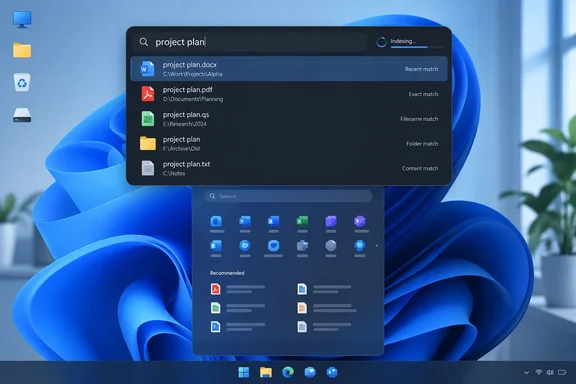
Flow Launcher 2.1.4 sits alongside the Windows 11 Start menu
In practice, "overhaul" means a change of habit. The XDA author says they stopped pressing the Windows key except out of muscle memory, because Flow gave them a quicker way to reach the apps and files they use. Start, the taskbar and Windows Search all stay installed and keep working. Flow is a separate app that waits in the background until you press its hotkey. Its main window is a floating text box, much like Spotlight on macOS, and the XDA writer, who also uses a Mac, compares it directly to Spotlight.
The project's own site calls Flow a "Quick File Search & App Launcher for Windows." Its feature list includes launching apps, finding files and file contents through Everything or Windows Search, web searches, bookmarks from several browsers, system commands such as restart and sleep, batch and PowerShell commands, a calculator, and a search for Windows and Control Panel settings. The official site and the GitHub release page both show v2.1.4, dated September 20, 2026, as the current release. It supports Windows 10 and later, so Windows 10 holdouts can use it too.
There are three ways to install it: a standard installer, a portable ZIP, or a package manager. WinGet, Scoop and Chocolatey commands are all published (winget install "Flow Launcher", scoop install Flow-Launcher, choco install Flow-Launcher). The XDA piece says the portable build can run from a USB flash drive. The project's own materials confirm that a portable package exists, but they don't describe how it behaves when run from removable media.
Version 2.1.4 is a maintenance release. Its notes list fixes for Firefox bookmark loading, for keyboard focus when Flow starts with Windows, and for acronym search when results contain numbers. It also improves handling of quoted paths and multi-word arguments in shell commands, makes launching commands through Windows Terminal more reliable, and removes insecure ftp:// URL support. There are no new headline features. The project has released regularly this year: 2.1.1 in March, 2.1.2 in May, 2.1.3 in June and 2.1.4 in September.
How Alt+Space, action keywords and fuzzy search work in Flow
After installation, Flow stays out of sight until you press its hotkey, which is Alt+Space by default and can be changed in settings. You type a query and press Enter to run the highlighted result. The project's shortcut list adds a few more:
| Shortcut | Action |
|---|---|
| Alt+Space | Show or hide the Flow search window (default, configurable) |
| Enter | Run or open the selected result |
| Ctrl+Enter | Open the folder containing the result |
| Ctrl+Shift+Enter | Run the result as administrator |
| Esc | Go back to results or hide the window |
| Ctrl+I | Open Flow's settings |
| Right arrow or right-click | Open the context menu for the selected result |
Matching is looser than a literal filename search. According to Flow's usage documentation, app search accepts acronyms and fuzzy matches, so a few letters from an app's name can be enough. What appears in a result's context menu depends on which plugin produced that result, so a file, a program and a bookmark will each offer different options.
Flow uses action keywords to decide which plugin answers a query. These are short prefixes typed before the search term, followed by a space. The XDA author prefers them to "coding-style prefixes" and gives examples from their own setup: > for command-line queries, b for browser bookmarks and s for Windows settings. Treat those as one user's configuration, not guaranteed defaults. The documentation offers a better way to find out what your install uses: type ? in the search bar to list the active keywords, and type a few more characters to narrow the list. Keywords can be changed in each plugin's settings. Some plugins use a dedicated keyword on purpose so their results don't crowd general searches.
This design is what separates Flow from typing into Start. Every result comes from a plugin, and every plugin can be reassigned, restricted or turned off. The results come from plugins rather than from one hard-coded search engine. If your Windows Search results include web suggestions you don't want, Flow lets you decide exactly which sources can answer.
The Explorer plugin decides whether Flow uses Windows Index or Everything
Most of the XDA writer's enthusiasm is about file search, and so are most of the practical decisions. Flow's file results come from its built-in Explorer plugin, which can use either of two engines. The first is the Windows Search index, the same service behind Start and File Explorer search. The second is Everything, a free Voidtools utility that keeps its own index of every file name on your drives.
Anyone who followed an older guide should know about a structural change. Flow previously had separate Explorer and Everything plugins; they were merged, and users can now choose which search engine handles which searches. The old standalone Everything plugin's repository tells users to update to the latest version of Flow and remove the standalone plugin via pm uninstall Everything. If a tutorial tells you to install an "Everything plugin" from the store, it's out of date.
The engine can be chosen separately for three jobs: ordinary filename search, searching inside text documents, and recursive directory listings. Content search matters here. The default keyword for searching within documents is doc:, because searching document contents is slow and should only trigger when you definitely want it. Filename search runs automatically as you type, while full-text search waits until you ask for it.
A fresh install does not use Everything by default. A 2024 bug report on the project's tracker notes that the default engine is Windows Index, and the Windows Mode guide says Flow ships pointed at the Windows index rather than at the fastest option. If you install Flow and conclude it searches files no better than Start, check this setting first. With the default engine, Flow is running searches against the same index Start uses.
Setting up Everything in Flow Launcher, and the v1.4.x limit
Connecting Everything takes a few steps. The XDA author reaches Flow's settings from inside the launcher: press Alt+Space, type settings, choose the option to tweak Flow Launcher's settings, and open the Plugins tab. Ctrl+I opens the same window directly.
- Open Flow's settings, go to Plugins, and select Explorer.
- Set the index search engine to Everything. You can also choose engines separately for content search and directory listings.
- If Everything isn't installed yet, run any file search. To trigger the automatic install, fire a search and click the "Warning: Everything is not running" result.
- If Everything is installed somewhere unusual, set its location explicitly. Flow will try to find an existing installation, but if you have issues or it lives in a non-standard directory, you can specify the path in the Everything settings tab.
- Choose your remaining preferences. The "Search full path" option makes Everything match the full path rather than just the filename, the same as the
path:modifier in Everything itself, and a sort option controls the order of results.
The most important compatibility limit is the Everything version. Flow Launcher currently only supports v1.4.x of Everything and not the 1.5 alpha branch. If you already run the 1.5 alpha as your main file finder, the built-in integration won't work with it, and the documentation points 1.5 users to a separate workaround. Everyone else should stay on the stable 1.4 line.
Once it was connected, the XDA author could search other drives for apps, films, TV shows and music from the Alt+Space box. What that covers on your PC depends on Everything's own configuration, meaning which volumes and folders it indexes, not on Flow. Flow sends the query and shows Everything's answer. The Explorer plugin also has an excluded-paths list, and the documentation says those exclusions override whatever Windows Indexing or Everything would otherwise return. That's useful for hiding backup folders or build directories that fill results with duplicates. Quick Access Links, added from plugin settings or a result's context menu, keep frequently used folders at the top.
If you stay on Windows Index, an "Open Windows index option" button opens the Windows Indexing system setting, so you can see and adjust exactly what the Windows Index service is doing. That's the right place to fix missing results without switching engines.
When file search fails completely, you're not alone. A June 2025 report on the tracker from a Windows 11 24H2 user describes being completely unable to find anything that is not recognized as either plugin or an app, with both engines. Before filing the report, that user had already tried restarting Flow and the PC, clearing Flow's cache, re-indexing both engines and reinstalling the Explorer plugin. Those are reasonable first checks, but none of them is a documented fix for every case. Anyone switching an entire workflow to Flow should know the file-search layer can break separately from app launching.
Plugins in Flow Launcher extend it well beyond the Start menu
The Start menu does two jobs: it shows your apps and it takes a search. Flow's plugins let the same text box do much more. The core plugins maintained by the project cover programs, Explorer file search, browser bookmarks, the calculator, the shell, system commands, URLs, web searches, Windows settings, a process killer, and a plugins manager. The Windows Mode guide counts twelve core plugins shipped with the app. The Plugins tab in settings lists them all, and each has its own keyword and options.
The Plugin Store adds community-written extensions. Flow's installation documentation says there are more than 200 third-party plugins. The official site highlights Spotify playback control, Steam library search, Obsidian note search and GitHub notifications, and says plugins can be written in C#, F#, Python, JavaScript or TypeScript. The XDA writer mentions weather, Obsidian and Spotify plugins as examples of how far the tool can go beyond work.
Community plugins are separate software, written and maintained by people outside the core team, and their quality and upkeep vary. Treat each one as a new program on your PC. Install the ones you'll actually use, and remember that a plugin controlling Spotify or reading GitHub notifications needs access to those accounts to work.
The XDA author also compares Flow with Microsoft's own launcher in PowerToys, saying PowerToys Run "comes close" but Flow offers more. That's the writer's opinion, not a measured comparison, but it's the obvious alternative for Windows users who would rather stay with a Microsoft-maintained tool. Another XDA writer, earlier in the year, noted Flow's resemblance to Apple's Spotlight Search "and, yes, PowerToys Run."
SmartScreen warnings and download hygiene for Flow Launcher
Your first Flow install may trigger a Windows Defender SmartScreen warning. The project's installation documentation says this happens because the app may not have enough downloads or reputation for Microsoft to mark it as trusted, and that antivirus tools can also produce false positives. That's the project's explanation, not an independent malware assessment. Still, it's a common experience with smaller open-source tools, and the project documents it openly.
The answer is to be careful about where you download it, not to click past warnings on autopilot. The project tells users to get Flow only from flowlauncher.com or its official GitHub repository. The Windows Mode guide adds that copies on download portals are not maintained by the project. The WinGet, Scoop and Chocolatey packages are handy for scripted or repeat installs. Whichever route you pick, confirm the version you get matches the current release, 2.1.4.
One inconsistency is worth knowing about. Flow's own plugin page for the Explorer plugin still lists version 2.1.3 with a Jun 8, 2026 release date, while the main site and GitHub both show 2.1.4 as the latest release. That looks like a lagging listing, not a sign of two competing builds. If in doubt, trust the GitHub releases page.
What this means for you
Try Flow Launcher if you mostly use Start by pressing the Windows key and typing, and you'd like to choose where those results come from. If you use Start mainly as a pinned-app grid you browse with the mouse, you can skip it. Flow doesn't change or replace that grid, and the appeal the XDA writer describes depends on working from the keyboard. On managed work PCs, check your organisation's software policy before installing. Flow is a third-party tool that runs shell commands and loads community code, and it's the kind of software IT departments often restrict.
- Flow Launcher 2.1.4, released September 20, 2026, is the current version, and it runs on Windows 10 and Windows 11 via installer, portable ZIP, WinGet, Scoop or Chocolatey.
- The default hotkey is Alt+Space, and typing
?in the search box shows the action keywords active in your install, so you don't have to rely on another person's setup. - File search uses Windows Index by default, and you switch to Everything in the Explorer plugin settings rather than installing a separate plugin.
- Flow's Everything integration supports Everything 1.4.x only, so users on the 1.5 alpha need the project's separate workaround or a stable 1.4 install.
- Content searches inside documents use the dedicated
doc:keyword by default because they're slow, and the plugin's excluded paths override both indexing engines. - Download Flow only from flowlauncher.com or its official GitHub repository, expect a possible SmartScreen warning, and judge each community plugin on its own merits.
Flow Launcher doesn't give Windows 11 a new Start menu. It gives you a faster route around the old one, and the payoff depends on one setting: switching the Explorer plugin from Windows Index to Everything 1.4.x is what turns Alt+Space into the fast file finder the XDA author describes. The project ships updates every few months, so the next release will likely matter more for the Plugin Store and Everything support than for new features. Anyone planning to move past Everything 1.4 should watch that support boundary before upgrading either tool.
References
- I gave Windows 11’s Start menu a complete overhaul with one open-source app XDA · 2026-09-25T17:31:16+00:00
- Releases: Flow-Launcher/Flow.Launcher github.com
- Explorer | Plugins | Flow Launcher flowlauncher.com