

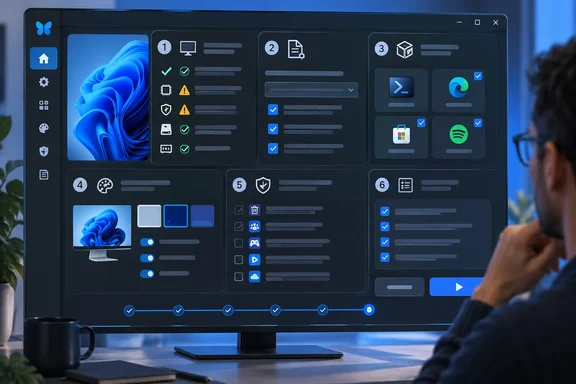
That consolidation is the substantive change in FlyOOBE 3.0. The earlier Flyby11 utility had a narrow purpose: make it easier to run a Windows 11 in-place upgrade on a computer rejected by Microsoft’s TPM 2.0, Secure Boot, processor, RAM or other compatibility checks. FlyOOBE grew into a broader Out-of-Box Experience tool with pages for debloating, personalization, browser choices and scripts. Version 3.0 tries to stop that feature growth from turning the application into another all-purpose “Windows optimizer.”
The developer’s release notes call FlyOOBE 3.0 the only maintained edition and say the old Nightly build and Flyby11 Classic are no longer distributed separately. That is a cleaner story than the version number initially suggests: 3.00.01 is a new FlyOOBE release, not a revival of the deprecated Flyby11 Classic line.
The Windows 10-to-11 bypass is now one component
The legacy upgrade path remains, including read-only preflight checks for TPM, Secure Boot, memory, storage, processor architecture and installed Windows version. A Windows 10 PC that fails Microsoft’s eligibility tests can still use the integrated path to launch an upgrade using Windows 11 installation media while bypassing setup blocks.
Readers should distinguish that technical capability from a supported deployment route. Microsoft continues to state that Windows 11 installed on hardware that does not meet its minimum requirements is unsupported, can encounter compatibility problems, and is not guaranteed to receive updates — including security updates. A successful upgrade, activation or initial Windows Update cycle does not change that policy.
For a personal machine whose owner understands the trade-off, the integrated upgrade path removes some manual installer manipulation. For an organization, it is much harder to justify as a standard deployment mechanism. An unsupported device can create an exception that must be tracked through every future feature update, driver issue and security incident, while the tool itself does not provide enterprise controls such as inventory integration, centralized policy, approval workflows or compliance reporting.
Microsoft also provides only a limited rollback window after an upgrade. Its built-in Go back option normally remains available for 10 days, assuming the relevant previous-installation files have not been removed. A tested image backup remains more useful than treating an unsupported in-place upgrade as easily reversible.
Recipes turn setup preferences into portable files
The most consequential 3.0 addition is the new recipe system. FlyOOBE can save a selection of settings, apps, personalization changes, bloatware decisions and system tasks, then import that recipe on another PC. Instead of executing imported changes immediately, the tool stages them for review and lets the operator discard them before applying anything.
That review step is a meaningful safeguard. Setup and debloat tools often fail operationally not because an individual tweak is technically difficult, but because a saved configuration quietly changes more than its recipient expects. FlyOOBE 3.0 displays a summary of staged choices and provides per-setting Apply and Restore Default actions, which makes the final change set more inspectable than a one-click “optimize” routine.
Its model is deliberately file-driven. The editable Flyoobe.ini governs Windows configuration signatures; Apps.ini supports the searchable WinGet app catalog; and Bloatware.ini supplies the matching rules used to identify preinstalled applications. Recommendations, application data, bloatware signatures and upgrade limits now live outside the executable.
That makes local customization easier, but it also shifts responsibility to the person distributing the recipe and data files. A recipe copied between systems is effectively a small configuration package. It should be versioned, reviewed in plain text, stored in a controlled location and tested against a representative Windows build before it is used widely. A setting that makes sense for a personal Windows 11 PC — taskbar alignment or a default browser preference, for example — should not automatically be imported into a business image.
The release notes say unchecked recipe entries can restore Windows defaults rather than merely being ignored. That makes it especially important to understand the imported recipe before clicking Apply: omission may now have an active effect.
A checklist replaces the old page-heavy interface
Version 3.0 also rebuilds FlyOOBE around a single native WinForms window. Navigation stays inside the main application instead of spawning a collection of separate dialogs, while a new overview groups Windows settings, installed applications, personalization, bloatware findings and system tasks in one place.
The developer says the overview separates recommendations from personal choices rather than presenting every deviation as good or bad. That may sound cosmetic, but it corrects a familiar problem with tweak utilities: a red or warning-style indicator can turn an opinionated preference into something that appears to be a defect. Many of FlyOOBE’s choices — such as dark mode, transparency, wallpaper or taskbar alignment — are preferences, not remediations.
Several functions now hand the user back to Windows rather than replicating existing Microsoft interfaces. Account, device, network and Windows Update workflows can open their corresponding Windows pages. The release notes explicitly describe this as a move away from trying to rebuild features Windows already handles.
The result is a more coherent boundary for the tool. FlyOOBE can assemble and expose choices; Windows remains responsible for the system pages, servicing stack and supported configuration mechanisms underneath. That boundary should reduce duplicated UI, but it does not make every choice reversible or benign.
Bloatware scanning still requires a human decision
FlyOOBE 3.0 automatically scans for matching preinstalled applications, counts them in the overview and flags the results for review. It can optionally remove applications that match the rules in Bloatware.ini. The developer also added browser detection, quick access to Windows’ default-app controls and a searchable WinGet installer.
This is where an “all in one” setup tool can cause the most avoidable damage. A match in a bloatware signature file means the application matches a rule; it does not establish that every installation should remove it. OEM utilities may control firmware updates, audio enhancements, wireless functions, power profiles, warranty diagnostics or device-specific keys. A stock Windows component may also be required by a workflow that is not apparent from its consumer-facing name.
The safest interpretation of FlyOOBE’s scan is as an inventory prompt, not an instruction to purge everything it finds. Before removal, administrators and enthusiasts should record the package name, identify whether it is Microsoft-, OEM- or user-installed, confirm a supported reinstallation route, and test the intended removal on a noncritical machine. The new review-oriented interface supports that cautious use better than a blind debloat button would.
WinGet installation needs similar discipline. The tool can make app selection and batch deployment more convenient, but package IDs and sources still deserve verification. A portable recipe that installs applications is only as trustworthy as the package identifiers and repositories it specifies.
Download provenance is part of the security decision
The project has repeatedly warned users about lookalike FlyOOBE and Flyby11 sites distributing unaffiliated software, modified binaries or misleading donation requests. That history matters more with version 3.0, because a tool positioned to alter setup restrictions, install software and change system settings is an attractive target for impersonation.
The developer’s stated guidance is unambiguous: obtain releases only from the official GitHub repository. Neowin’s software listing is useful as release coverage, but it should not be treated as a substitute for verifying the publisher and release asset. Users should confirm they reached the builtbybel/FlyOOBE project, inspect release notes and assets there, and avoid similarly named domains or third-party mirrors.
The project’s old status also explains why search results can be confusing. Flyby11 Classic had already been labeled deprecated while FlyOOBE became the broader successor. With 3.0, the developer says the classic and Nightly branches are no longer separately distributed, even though older mirrors and search results may continue to advertise them.
FlyOOBE 3.00.01 is therefore most useful as a reviewable personal setup and migration assistant, not a magic compatibility fix or an enterprise replacement for supported Windows deployment. It can make an unsupported Windows 11 upgrade and post-install configuration less tedious, but it cannot supply Microsoft support, guarantee future updates or turn a copied tweak recipe into a managed configuration baseline.
References
- FlyOOBE 3.00.01 - Neowin Neowin · 2026-09-19T06:26:01+00:00