

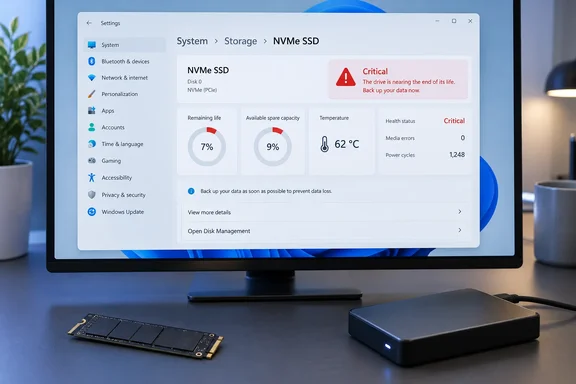
Where to find it
The route is short but buried. MakeUseOf's walkthrough and Microsoft's support page agree on the Windows 11 path:
- Open Settings.
- Go to System > Storage.
- Choose Advanced storage settings > Disks & volumes.
- Select your NVMe drive, then select Properties.
One guide notes that Win+R followed by ms-settings:disksandvolumes skips the clicking. I haven't verified that shortcut myself.
Windows 10 is different. Microsoft's support page, which covers both Windows 11 and Windows 10, gives the older route as Settings > System > Storage > Manage disks and volumes. From there you select Properties for the disk.
Some stability notes:
- Labels and layout can differ slightly between Windows versions.
- If you don't see health details, it doesn't always mean the SSD is bad.
NVMe only
This is the limit that matters most. Microsoft's support note says Windows monitors NVMe SSDs and not SATA SSDs or hard drives. One guide says a missing Drive health section on those drives reflects the drive type, not a bug. If you have a SATA SSD or an HDD, you need a third-party S.M.A.R.T. tool such as CrystalDiskInfo. Microsoft doesn't endorse any particular tool, and MakeUseOf only mentions CrystalDiskInfo as one it has used.
The panel also isn't guaranteed to look identical on every NVMe drive. What appears depends on what the drive's firmware reports.
The three readings
Microsoft's support page lists three disk health attributes: estimated remaining life, available spare and temperature.
Estimated remaining life
Microsoft's own definition is awkward. The support page describes the attribute as an "approximate percentage used" based on the manufacturer's prediction of drive life. It adds that the value is capped at 0%, but a value below 0% is possible. Consuming that estimate does not automatically mean the device has failed.
That wording is the reverse of the label, and the label says "remaining". The underlying NVMe field is called PercentageUsed. Microsoft's developer documentation describes it as a vendor-specific estimate of the percentage of life used. A value of 100 means the estimated endurance has been consumed, and the value is allowed to exceed 100.
Third-party guides read the Settings number as life remaining. One says Settings shows life remaining, while the drive's log shows the same estimate as percentage used. Another says a result such as 95% generally means about 5% of the manufacturer's endurance measure has been consumed.
My advice:
- Treat a high number in the Settings panel as the healthy end of the scale, which matches how the label reads and how the guides above describe it.
- Don't rely on that reading alone. If you cross-check with a S.M.A.R.T. tool, remember that it will probably show "Percentage Used", where 0% is a fresh drive.
- This reading comes from third-party guides and the label. It is not something Microsoft's page states plainly, so don't treat it as settled.
One point is consistent everywhere. The figure is a manufacturer-based endurance estimate, not a countdown to failure. A drive can keep working past 0% remaining, and a drive can fail early from a controller or electronics fault. MakeUseOf makes the same point.
Available spare
Microsoft describes this as a normalized percentage from 0% to 100% of the remaining spare capacity. SSDs hold back flash capacity to replace worn-out blocks. The NVMe documentation says each drive also reports an available spare threshold. When the spare figure falls below that threshold, the drive can signal an event.
That makes the manufacturer's threshold the real boundary. One guide notes that the value is normalized by firmware, and that manufacturers can use different thresholds. Treat a rule of thumb like "stay above 10%" as a loose guide only. A steady decline matters more than any single number.
Temperature
Microsoft says this is the temperature of the overall device in degrees Celsius. The NVMe documentation calls it a composite temperature covering the controller and the NVM subsystem. It also says warning and critical thresholds are reported by the controller itself.
MakeUseOf suggests 50°C to 70°C under load is reasonable. I couldn't confirm that range in Microsoft's documentation. Drive-specific thresholds vary, so check your model's specification sheet. Regular, unusually high readings are worth investigating. Typical causes are a missing heatsink, poor case airflow or a drive sitting under a hot GPU.
Critical warnings
Microsoft documents three critical warnings:
| Warning | Meaning |
|---|---|
| Spare capacity is low | Spare capacity has dropped below the manufacturer's safety threshold. |
| Reliability is degraded | Significant media-related errors or an internal NVM subsystem error. |
| Drive is set to read-only | Data can still be read, but nothing can be written. |
If you see a warning, Microsoft's advice is blunt. It strongly recommends paying attention, backing up your data and contacting Microsoft support about any further concerns. Microsoft lists slowness, freezing, longer startup times and trouble installing Windows updates as possible symptoms.
A practical response looks like this:
- Copy important files to another drive or to cloud storage.
- Open the disk's Properties and note which warning is active.
- Check the drive maker's diagnostic utility and warranty terms.
- Plan a replacement. Don't wait to see how long it lasts.
A read-only drive is the easy case, because you can still copy data off it. A degraded-reliability warning is less predictable, so back up first.
What Settings doesn't show
The panel shows a small slice of what the drive reports. Microsoft's NVMe health log structure also covers:
- host data read and written
- power cycles and power-on hours
- unsafe shutdowns
- media errors
- error log entries
- time spent at warning or critical temperature
- up to eight temperature sensors
Whether a given monitoring program displays all of these depends on the program and on the drive. Not every SSD implements every optional field.
One guide notes that PowerShell's Get-PhysicalDisk shows a HealthStatus of Healthy, Warning or Unhealthy, and Get-StorageReliabilityCounter can pull wear percentage on NVMe. That guide itself calls this surface-level data. I haven't tested those commands.
Bottom line
The Windows 11 drive health panel is a useful, free, one-minute check for NVMe owners. It is not a diagnosis. Treat warnings as a cue to back up, and treat a healthy-looking panel as a good sign rather than a guarantee. If you rely on this page, remember that Microsoft's description of "Estimated remaining life" is worded as percentage used. Check the number against your drive maker's tool if the distinction matters to you.
SATA SSD and HDD owners should install a S.M.A.R.T. monitor, because Windows won't surface this data for them. Whatever drive you have, keep backups, because an SSD can fail with little warning.
References
- SSD Health Check: Read Your NVMe SMART Data — TechFuel HQ techfuelhq.com
- NVME_HEALTH_INFO_LOG - Win32 apps | Microsoft Learn learn.microsoft.com
- What to do about a critical warning for a storage device | Microsoft Support support.microsoft.com