

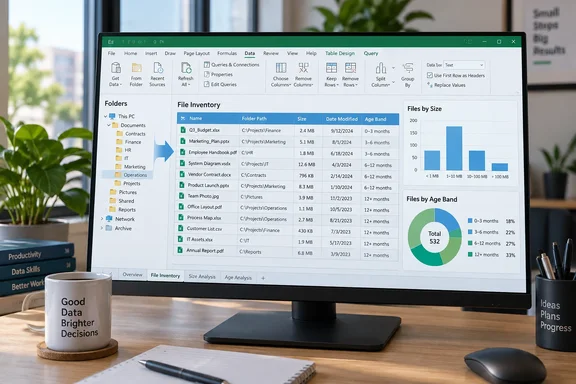
The core idea: files become rows
Phillips pointed Excel's From Folder connector at his Windows user folder. After clicking Transform Data, he got a list of every file in that folder and all the nested folders beneath it, without listing the folders themselves. Once the files are table rows, you can sort, filter, count and chart them like any other data.
The route is documented by Microsoft. In Excel, you choose Data > Get Data > From File > From Folder. Microsoft's own folder-import guidance says the file list covers the folder and any subfolders, and that you can open the Power Query Editor with Transform Data to shape it.
Step by step: building the inventory
- In desktop Excel, open Data > Get Data > From File > From Folder and pick a folder.
- Select Transform Data to open Power Query Editor.
- Drop the binary Content column. You don't need file contents for an inventory.
- Click the expand icon on the Attributes column and tick Size. Independent tutorials describe the same step. One notes that expanded columns get a prefix such as Attributes.Size, which you can remove by clearing the checkbox at the bottom of the dialog.
- Optional: label blank extensions. Phillips used Transform > Replace Values so extensionless files don't show up as a blank chart category.
- Load the result to an Excel table.
Power Query commonly returns these columns, according to an MSSQLTips walkthrough: Name, Extension, Date accessed, Date modified, Date created, Attributes, and Folder Path. Phillips' list matches: name, extension, dates, size and full folder path. Treat your exact column set as something to check on screen, not a guarantee.
Why it isn't a one-time export
Microsoft describes Power Query as a tool to connect to data, shape it and load it. It says that when you refresh a query, each step runs automatically. Hmm, more precisely, the Microsoft page states that each recorded step reruns on refresh. Refreshing also brings in additions, changes and deletes from the source.
Phillips tested this. He added a file and refreshed, and it appeared. He deleted it and refreshed again, and it vanished. That is his reported result on his own machine, and it is consistent with how Microsoft documents refresh.
One caution from Microsoft's own docs: the connection keeps the source information and the refresh settings. That means the folder path is baked into the workbook. If you move the folder, or open the workbook on another PC with a different profile path, the query will need its source updated.
Scope: pick your folder deliberately
Phillips warns that a complete inventory can make the workbook heavy. A project folder or another frequently used location may be a better start. This matters for three reasons:
- Subfolders are always included, so a user profile can pull in application and cache folders.
- Large tables slow filtering, PivotTables and refresh.
- Phillips' workbook appeared in its own inventory. He doesn't describe any problem with that, but keeping the workbook outside the scanned tree is a simple way to avoid the question.
If you want only the top level of a folder, an ExtendOffice tutorial says you can change Folder.Files to Folder.Contents in the formula bar of the Power Query Editor. That is a third-party tip, so test it on a small folder first. Also note that this is a metadata index. It doesn't open or analyze file contents, and it can't tell you what is safe to delete.
The dashboard: Copilot optional
Phillips used a Copilot prompt to build a compact dashboard from the table. It asked for:
- Cards for total files, total size, unique extensions and files not modified in six months.
- A chart of files by age band, based on Date modified.
- Charts for files by extension and the top 10 folders by file count.
- A PivotTable of the 10 largest files, with rank, extension, name, size and modified date.
His key instruction was to base every element on the underlying table instead of first analyzing the current data. Otherwise, he found, Copilot may build around whatever stands out today, which hurts a dashboard you plan to refresh. That is his experience, not a Microsoft guarantee, so check after the first refresh that the visuals still point at the table.
He is also clear that Copilot isn't required. Microsoft documents a manual route with PivotTables, PivotCharts, slicers and a timeline. Microsoft says you can quickly refresh your dashboard when you add or update data... more precisely, its dashboard guide says the report only needs to be built once and refreshed as data changes. Slicers connect only to the PivotTable they were created from, so use Report Connections to link them to others. PivotTables also can't overlap, so leave room for them to grow.
Copilot requirements to check first
Microsoft's accessibility tutorial for Copilot in Excel lists several conditions:
- An eligible subscription or organizational license.
- A workbook stored in OneDrive or SharePoint in a modern format (.xlsx, .xlsb or .xlsm). Strict Open XML isn't supported.
- Calculation mode set to Automatic.
- Connected experiences switched on.
- A supported update channel. Microsoft says Semi-Annual Enterprise Channel doesn't support Copilot.
Microsoft also says Copilot works with tables of up to 2 million cells. Its own caution applies: review and verify anything Copilot generates.
A practical wrinkle follows. The workbook must live in the cloud for Copilot, but the query reads a local folder. Copilot works on the workbook's data. It doesn't browse your PC. Whether a local-folder query refreshes cleanly in a cloud-stored workbook depends on where and how you open it, and the sources don't settle that. Test refresh on the machine that holds the folder.
What the author found (his PC, not a benchmark)
All of these numbers come from Phillips' own machine and shouldn't be read as typical Windows figures:
- Many files had no extension. R, PNG, JS, LOG and XML files also showed up often.
- Busy folders were often application and cache folders.
- Sorting by Date modified surfaced files dating back to 2019.
- Sorting by size and then using Text Filters > Ends With on the Extension column found 13 XLSX files over 1 MB, including two around 369 MB and two around 43 MB.
His workflow for investigating a row is simple: copy its Folder Path value and paste it into File Explorer's address bar. Filtering the Name column, or pressing Ctrl+F, turns the table into a searchable index.
Beyond inventory
Add slicers, or a PivotTable with a Date modified timeline, and you can ask compound questions. Examples are large files untouched for years, old PDFs in one folder, or the file types using the most space.
The same connector also supports a more focused job. Microsoft's guidance covers combining files with the same schema, such as weekly or monthly reports, into one table. It recommends a dedicated folder without extraneous files for that, because everything in the folder and its subfolders is included.
Caveats
- Mac: Phillips says Excel for Microsoft 365 on Mac supports the local folder connection, with differing steps. Microsoft's Power Query overview confirms Power Query is available on Mac, but notes there is no support on Excel 2016 and 2019 for Mac. It doesn't document the folder connector specifically, so expect differences.
- Windows prerequisites: Microsoft says Power Query in Excel for Windows needs .NET Framework 4.7.2 or later.
- Privacy: The workbook holds the full paths and names of your files. Think before sharing it or putting it in a shared library.
Bottom line
This is a low-cost way to see what is on your PC. A few Power Query steps give you a refreshable table, and sorting by size or age can show where storage went. It is an index, not a cleanup tool, so start with one folder you know and keep the workbook out of the scanned tree. Treat Copilot as a shortcut for the dashboard, and remember that PivotTables can do the same job without it.
References
- Power Query: Get a list of file names from folders and sub-folders extendoffice.com
- I turned Excel into a portal for everything on my PC and finally made sense of my files How-To Geek · 2026-10-07T11:00:14+00:00
- Retrieve file sizes from the file system using Power Query mssqltips.com