

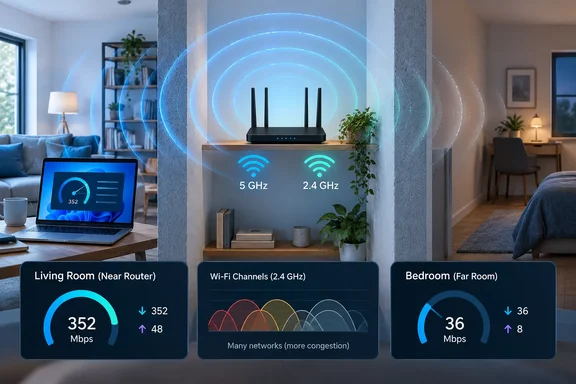
Test first, then fiddle
Microsoft's "Wi-Fi and your home layout" guide says home layout is one of the most overlooked causes of Wi-Fi problems. Its advice is to get a baseline before you change anything. Run a speed test in several rooms and write down the numbers. Repeat the tests after each change.
A speed test on one laptop in one room only tells you how the connection looks from that spot. It can't tell you whether the weak link is the broadband, the router, the radio path or the device. Use these comparisons to narrow it down:
- Fast near the router, slow far away: this points to a coverage or radio-path problem.
- One device is slow, the others are fine: Microsoft's Wi-Fi troubleshooting guide says that if another device connects fine, the problem likely lies with the first device. Check that device's adapter and driver.
- Wired Ethernet is also slow: the Wi-Fi isn't the main culprit. Look at the upstream connection or ask your ISP.
Change one thing at a time. If you change the channel, the band and the router position together, you won't know which one helped.
1. Your router is in the wrong spot
The article points out that routers usually end up wherever the installer found a socket. That means behind the TV, on the floor, or in a corner. Microsoft's guidance matches this. Put the router as close to the center of the home as possible. Keep it off the floor and away from walls and metal objects such as filing cabinets.
On interference, Microsoft names microwaves and cordless phones. It says that some networking gear shares the 2.4 GHz frequency with them, so Wi-Fi can drop briefly when a microwave runs. Not every nearby gadget is a proven culprit. If you suspect one, move the router or the device and compare results from the same spot.
Central, high and open is a good starting point, but it isn't a guarantee. Building materials and where you actually sit still matter.
2. You're on the wrong band
Modern routers can broadcast on 2.4 GHz and 5 GHz, and newer ones add 6 GHz. Microsoft's comparison table summarizes the trade-offs:
| Band | Strengths | Weaknesses |
|---|---|---|
| 2.4 GHz | Longer range, better through walls, widest device compatibility | Slower, fewer non-overlapping channels, more congested |
| 5 GHz | Faster, more non-overlapping channels, less congested | Shorter range, weaker through walls |
| 6 GHz | Very fast, low congestion, lower latency | Shorter range, doesn't go through walls as well |
The 6 GHz band has a catch. Microsoft says it needs a Wi-Fi 6E router plus a Windows PC and network adapter drivers that support Wi-Fi 6E. A Windows 10 or 11 label doesn't mean your PC can use 6 GHz. Check your router and your adapter before assuming you have it.
A practical test: give each band its own network name, or SSID. Microsoft suggests this so you know which network you're connected to. Otherwise, a single shared name lets Windows pick a band for you. The article's author sets up separate names and picks manually, which is a personal preference. Sit in the room where you actually work, connect to each band in turn, and compare the speed tests.
3. Your channel is crowded
If you live in an apartment block, your router may be competing with a dozen others. Microsoft says most consumer routers ship with a preset channel, and you should look at performance in different places in your home before changing it.
Microsoft's guidance is to use a Wi-Fi analyzer app from the Microsoft Store that can draw a network graph. For 2.4 GHz, it says to:
- Pick channel 1, 6 or 11, which don't overlap.
- Among those three, favor the one with the strongest signal from your own router and the fewest other access points on it.
- On 5 GHz, overlap matters less, so choose the channel with the fewest access points.
Microsoft also notes that an "Auto" channel setting is mixed. Some routers choose well and others don't. So test a manual channel instead of assuming Auto is always wrong. Channel numbers and options vary by router and region, so no single channel is the best.
If the signal is strong and the channel is clear but the connection is still flaky, Microsoft suggests checking the 2.4 GHz channel width setting. It says to try 20 MHz if the router is set to auto or 20/40 MHz. That's an older-adapter issue, and Microsoft calls it uncommon.
4. The router is struggling with your workload
The article makes a fair point: device count matters less than what the devices are doing. Dozens of smart bulbs are light traffic. A few 4K streams, a game download and a cloud upload at once are not.
Microsoft's Teams call-quality guidance suggests updating router and adapter drivers and firmware. It also suggests considering newer standards if heavy simultaneous use is the issue. The article adds specifics about Wi-Fi 7 routers, with quad-core processors and 2 GB or more of RAM. I couldn't verify those figures against a primary source, and they would vary by model. Treat them as a general description rather than a spec to shop by.
To check whether load is the cause, run your speed test when the house is quiet. Then run it again while other devices are busy. A big gap points at contention. It doesn't say whether the router, the airwaves or the ISP is to blame.
5. One router can't cover your home
Thick walls, several floors and long layouts can defeat a single access point. Microsoft's first suggestions are free: move the access point or reduce obstacles. If neither is possible, it mentions a network extender.
The article separates the two main fixes:
- Extender: it repeats an existing signal. It's cheap and simple, but if you place it where the signal is already weak, it rebroadcasts a weak signal.
- Mesh system: several nodes cover a larger area. This is usually the better option for large, multi-floor homes.
Neither is guaranteed to improve speeds. Microsoft's pages confirm that extenders are an option but don't compare them with mesh in detail. The mesh advice here comes from the MakeUseOf article and general industry practice.
Don't forget the client device
The article ends by noting that older phones, laptops and tablets can hold back a top-tier router. That is plausible. Microsoft's Wi-Fi guide says an adapter may only support 2.4 GHz while the network uses 5 GHz. It also says a driver can filter out a band.
To check on a Windows PC:
- Open Device Manager and expand Network adapters.
- Open your wireless adapter's properties.
- Check the Driver tab for the version and date, and compare them with the PC maker's latest driver.
- On the Advanced tab, look for a Wireless Mode or Band setting and make sure it allows your network's frequency. Not every adapter exposes one.
Microsoft also lists a router-connection test. Run ipconfig to find the default gateway, then run ping against it. A reply means you can reach the router. It doesn't prove the internet connection is healthy, so follow it up with an Ethernet test if you can.
What to do before upgrading your plan
- Record speed tests in several rooms, near and far from the router.
- Move the router, if you can, to a central, raised, open spot, and retest.
- Compare 2.4 GHz and 5 GHz, and 6 GHz if both ends support it, using separate network names.
- Use an analyzer to check channel congestion, then try a manual channel.
- Test with other devices idle and busy.
- Try Ethernet. If that's slow too, call your ISP.
- Only then consider a newer router, an extender or a mesh system.
A faster plan can't fix a bad radio path. Check the wireless side first, because the fix is often free.
References
- 5 reasons your Wi-Fi is slow even though your internet is fast MakeUseOf · 2026-10-03T18:31:15+00:00
- Setting up a wireless network in Windows | Microsoft Support support.microsoft.com