

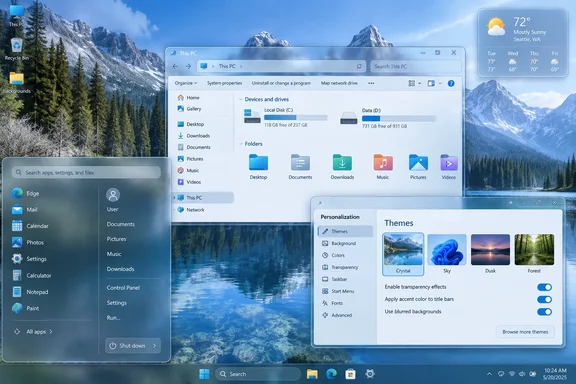
The built-in baseline
Windows 11 already has a transparency setting. Microsoft's own documentation says transparency effects make some window backgrounds and surfaces appear slightly transparent with an acrylic blur. Under Settings > Personalization > Colors, you can also apply an accent color to title bars and window borders.
That is the simplest and most reversible option, and it needs no extra software. Microsoft does not claim it reproduces Aero across the interface. The tools below go further, and they carry more risk.
Step 1: DWMBlurGlass for title bars
What it does. DWMBlurGlass's repository describes it as adding custom effects to the global system title bar, on Windows 10 and Windows 11. The project lists Blur, Aero, Acrylic and Mica (Windows 11 only). It also offers Aero reflections, Windows 7-style title bar button glow, and Windows 7-style button sizing.
Compatibility. The project supports Windows 10 2004 and newer, up to the latest Windows 11, but some blurring methods are not supported on Insider builds.
Install steps (from the project's README):
- Download the compiled archive from the Releases page and unzip it somewhere like C:\Program Files.
- Run DWMBlurGlass.exe and click Install.
- If nothing happens, open the Symbols page and click Download.
- Open the Advanced tab to choose an effect type and blur method. Khan prefers Aero or Blur for a Windows 7 feel, and keeps the CustomBlur method.
- Use the General tab for title bar glow, Aero reflection and extended borders. Khan recommends turning these on. The tool's English language file labels the border option as Windows 10 only and the reflection option as a legacy Windows 10 method. Windows 11 users may therefore see little change from some of these toggles.
Why symbols matter. The app's own help text explains that symbol files are debugging data, downloaded from Microsoft's servers because systems differ between versions. You may be asked to download symbols again after system updates. Users on GitHub have reported that new Windows builds can briefly lack downloadable symbols. In that case the tool simply waits for them to appear.
Install location. The tool's strings say DWM runs sandboxed, so the app must sit in a non-user directory. Putting it in C:\Program Files avoids that problem.
Which method to pick. The in-app descriptions rank the options:
- The recommended CustomBlur method gives the most control and efficiency, but it may break after a major Windows update until a new release arrives.
- AccentBlur is marked as not recommended.
- The DWMAPI method is more stable but offers little customization, and it needs Windows 11 22H2 or newer.
Download safety. The repository carries a pointed warning. Someone has posted a copy of DWMBlurGlass with a malicious code implant, and the developers say to download it only from their official channels. Those channels are GitHub, Bilibili and winmoes. The developers also say they have no official Discord.
Step 2: ExplorerBlurMica for File Explorer
DWMBlurGlass handles title bars. For File Explorer's panes, Khan uses ExplorerBlurMica. Its README says it adds Blur, Acrylic or Mica effects to Explorer on Windows 10 and 11, with custom blend colors and light/dark adaptation. The project says it is Explorer-only, and sends users who want a global effect to DWMBlurGlass. The README also says the two are compatible and work better together.
Install:
- Download the archive from the project's Releases page.
- Unzip it, for example into C:\Program Files.
- Run
register.cmdas administrator. - Reopen File Explorer windows.
Uninstall: run uninstall.cmd as administrator, then delete the leftover files. The README also gives a recovery tip: if something crashes Explorer, hold the Esc key to open Explorer and uninstall the program.
Configuration. The README documents an effect setting:
| Value | Effect |
|---|---|
| 0 | Blur |
| 1 | Acrylic |
| 2 | Mica |
| 3 | Blur (Clear) |
| 4 | MicaAlt |
Blur works only up to Windows 11 22H2. Blur (Clear) works on Windows 10 and 11, and Mica is Windows 11 only. Other options clear the address bar background, the scrollbar background, and the WinUI toolbar background. The scrollbar option has a catch: the program draws the scrollbar itself, so it may look different from the system's. After you edit the config, reopen Explorer windows.
Maintenance. The release history shows the project tracks Windows preview builds. Version 2.0.1 added compatibility for Canary builds 26040 and 26052. That is a useful sign of upkeep, but it does not guarantee support for any particular current build.
Step 3: TranslucentSM for the Start menu
TranslucentSM is the riskiest piece. Its README says it uses XAML Diagnostics to inject a DLL into a process and modify the XAML. It stores settings in the current user's registry under HKEY_CURRENT_USER\SOFTWARE\TranslucentSM. There are two values, TintLuminosityOpacity and TintOpacity, each accepting 1 to 9. After changing a value, you must terminate StartMenuExperienceHost.exe and relaunch the app.
Khan's procedure:
- Run the tool's setup so it creates the registry value.
- Open Registry Editor and go to
Computer\HKEY_CURRENT_USER\Software\TranslucentSM. - Set the DWORD
TintOpacityto 1. - End
StartMenuExperienceHost.exein Task Manager. - Copy the setup contents into the Startup folder (open it with
shell:startupin Run) so the tint applies at each sign-in.
The repository confirms the registry location, the 1–9 range and the process restart. It does not confirm the Startup folder step or that 1 is the best value. Treat those as Khan's experience, and try other values if the result is not what you want.
Archived project. The repository was archived by its owner on October 11, 2024, and is now read-only. That means no fixes are coming. A future Start menu update could break it, so check it carefully after any major Windows update.
Risks and a sensible approach
These tools hook into core shell and compositor processes. They are not a Microsoft-supported theme, and none of the project pages claim a security audit. Sensible habits:
- Install one tool at a time, so you know which one causes a problem.
- Get files only from the official repositories' releases.
- Create a restore point first (general best practice, not from the projects' docs).
- Keep the uninstall steps handy. Reapply or reinstall after feature updates, since symbol and compatibility problems cluster there.
- Avoid pairing DWMBlurGlass with MicaForEveryone. The DWMBlurGlass README says it does not guarantee compatibility.
- Test on a spare PC or VM before using a work machine. Managed environments should check policy first.
Verdict
The result is a layered approximation of Aero, not a restoration of Windows 7's theme. Khan himself says it is not an exact recreation. Each tool has its own scope, settings and compatibility limits. The Explorer and title bar tools show signs of ongoing development, while the Start menu tool is archived. If you want depth without the maintenance, Windows' native transparency and accent color settings are the safe starting point. If you want the full glass look, expect to redo some steps after major Windows updates.
References
- Windows 11's minimalist design looks boring until you add back what Windows 7 got right. MakeUseOf · 2026-10-03T16:00:15+00:00
- DWMBlurGlass/Languagefiles/en-US.xml at master · Maplespe/DWMBlurGlass · GitHub github.com
- Personalize your Colors in Windows | Microsoft Support support.microsoft.com