

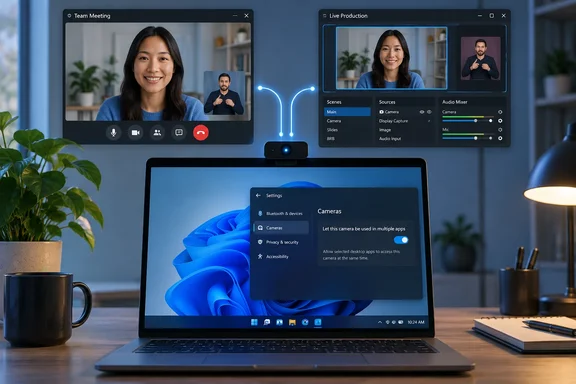
What the feature does
Windows has always let only one app use a camera at a time. Windows 11 (and other Windows versions, for that matter) only allows one app access to the camera at any one time, as TechRadar put it. Anyone who tried to share a webcam between two apps will know the result: an error like "Your webcam is being used or blocked by another application".
The fix used to be a workaround. Downloadsource.net notes that previously, the only way to pull this off required third-party software like OBS Virtual Camera, ManyCam, or other virtual webcam tools.
The setting is called Allow multiple apps to use camera at the same time. According to Neowin, once it's on, supported apps can access the camera simultaneously instead of Windows giving exclusive access to just one of them.
Who needs this?
- Streamers who broadcast on Twitch or YouTube and want to take a video call at the same time.
- People who switch meeting platforms. A Wisconsin education helpdesk guide says the setting will prevent apps from monopolizing the camera when swapping between meeting platforms.
- Accessibility users. This is the reason Microsoft built it, covered below.
Not new, and not a 26H2 feature
Neowin presents this as one of the changes arriving under the radar before 26H2. Microsoft's own records tell a different story.
December 2024: Insider debut. Microsoft announced the feature in Windows 11 Insider Preview Build 27758, released to the Canary Channel on December 4, 2024. It was one of two settings on a new "advanced camera options" page. The other was Basic camera, a troubleshooting mode meant as a last resort for a camera that isn't working. Don't confuse the two.
2025 and later: retail rollout, with conflicting build numbers. Third-party guides don't agree on when the toggle reached ordinary PCs:
- Pureinfotech reported that starting on Windows 11 build 26100.3321 (KB5052093), which is part of the March 2025 Patch Tuesday update, Microsoft is updating the camera settings with a new feature that allows the use of one camera across multiple apps.
- ElevenForum, in a more recent tutorial, says that starting with build 26100.8524 (24H2), build 26200.8524 (25H2), and build 28000.2340 (26H1), Microsoft added a new Advanced camera options section on the Cameras page in Settings.
Microsoft hasn't published one minimum build for the feature. The likeliest explanation is a phased rollout, which would mean different people saw it at different times. That's an inference, though, not something Microsoft has confirmed.
September 2026: a reliability fix. Microsoft's release notes for the September 22, 2026 optional preview update, KB5124010 (OS builds 26100.9550, 26200.9550 and 26300.9550), say it improves how reliably the "Allow multiple apps to use camera at the same time" option keeps its setting. A later change log entry added Windows 11 version 26H2 to the versions the update applies to. Microsoft doesn't call this a new feature, and the notes don't say whether the toggle was turning itself off or failing to stick. The same update also fixes an issue where the built-in camera could stop working in the Camera app and other camera apps.
In short: Microsoft has been testing this since late 2024, rolled it out to regular Windows 11 PCs through 2025 and 2026, and fixed its reliability in September 2026. It isn't a 26H2 debut.
How to turn on multi-app camera access
Neowin's steps skip the Edit button. Microsoft's original Insider post said to go to a camera under Settings > Bluetooth & devices > Cameras and click the edit button for advanced camera options. Several independent guides describe the same flow.
- Press Win + I to open Settings.
- Go to Bluetooth & devices > Cameras.
- Under connected cameras, select the camera you want to share.
- Find Advanced camera options and click Edit.
- Turn on Allow multiple apps to use camera at the same time.
- If you see an Apply button, click it. A helpdesk guide lists Select "Apply" as the last step. WindowsLoop says your settings are saved and applied immediately. The dialog may differ by build.
What success looks like: open the camera in one app, such as the Windows Camera app or OBS. Then open a second app, such as Teams, Zoom or a browser video call, and pick the same camera. Both should show live video, with no "camera in use" error.
A few more details:
- It's off by default. WindowsLoop notes that by default, this feature is disabled, and you have to enable it manually using the Settings app.
- You set it per camera. If you have a laptop webcam and a USB camera, turn it on for each one you want to share.
- You may get a resolution option. TheWindowsClub reported that when this feature is turned on, you can also choose a Media type (preferred camera resolution) like resolution and frame rate. Microsoft's 2024 post called media-type selection a planned future addition, so it may not appear on every build.
- To turn it off, go back to the same dialog and flip the toggle off.
Troubleshooting: when it doesn't work
The toggle or the Edit button is missing
- Update Windows. Go to Settings > Windows Update and install everything available, including optional updates. Microsoft says KB5124010 rolls out in two phases, a gradual one and then a broad one, so new features can reach some PCs before others.
- Check your version. Microsoft doesn't publish a minimum build, but every report above points to Windows 11 24H2 or later. If you're on an older version, upgrading is the first thing to try. Note that Windows 11 24H2 Home and Pro reach end of updates on October 13, 2026, according to Microsoft.
- Update the camera driver. Neowin suggests checking for pending camera driver updates. That's reasonable, but no source shows that a driver controls whether the toggle appears.
The toggle is on, but the second app still can't get video
- Check privacy permissions first. The multi-app toggle doesn't override Windows camera privacy settings. Microsoft's developer documentation says camera access can be turned off for the whole device, for all unpackaged (classic desktop) apps, or for individual packaged apps under Settings > Privacy & security > Camera. Make sure camera access is on, "Let apps access your camera" is on, and desktop apps are allowed if your second app is a classic Win32 program.
- Check which camera each app is using. It's easy to turn the toggle on for the built-in webcam while your apps are set to the USB camera.
- Accept that some apps won't cooperate. Neowin warns that whether two apps actually work together can still depend on how those apps handle camera access, so this doesn't guarantee that every possible combination will behave perfectly. Microsoft's description says multiple apps can access the camera stream; it doesn't promise every app will work. Try your exact pair of apps before a live stream, not during one.
- If the toggle keeps turning itself off, install KB5124010 or a later cumulative update. That's the fix Microsoft listed in September 2026.
Don't use Basic camera to fix this
Basic camera, on the same advanced options page, is a different tool. Microsoft calls it a debugging mode and a last resort for a camera that isn't working. It won't help with sharing.
Why it was built: accessibility first
Most coverage focuses on streamers, but that's not why Microsoft built this. ElevenForum, quoting Microsoft's announcement, says the feature was developed with the Hard-of-Hearing community to enable video streaming to both a sign language interpreter and the end audience at the same time.
Think of a Deaf presenter on a webinar. Their camera feed has to reach the audience in one app and a sign language interpreter in another, at the same moment. Before this toggle, that meant setting up a virtual camera, which takes some technical skill and is one more thing that can fail mid-presentation. Now it's one switch in Settings.
Analysis: a useful fix that was overstated
Calling this a hidden 26H2 feature makes it sound newer than it is. Microsoft has been working on it for almost two years. It's worth knowing about, and the per-camera setting plus the September 2026 fix show Microsoft is still maintaining it.
Will it replace OBS Virtual Camera? For simple sharing of one camera between two apps, it probably can. You don't need to install anything, and Windows handles the camera directly. Virtual cameras still do things this toggle can't, though: scenes, overlays and filters. For a basic "OBS and Teams at the same time" setup, try the built-in option first.
For IT admins: test common combinations on managed devices, such as Teams with a recording or captioning tool, before telling users this works everywhere. Neither Microsoft nor third-party guides publish a list of apps that are known to work together.
Bottom line: if you're on a current Windows 11 build, go to Settings > Bluetooth & devices > Cameras, pick your camera, click Edit next to Advanced camera options, and turn on the toggle. If it doesn't show up, update Windows. If a second app still can't see the camera, check your camera privacy settings.
References
- Windows 11 now lets multiple apps use the camera at the same time, here's how - Neowin Neowin · 2026-10-02T23:00:01+00:00
- September 22, 2026—KB5124010 (OS Builds 26300.9550, 26200.9550, and 26100.9550) Preview | Microsoft Support support.microsoft.com
- Announcing Windows 11 Insider Preview Build 27758 (Canary Channel) | Windows Insider Blog blogs.windows.com