

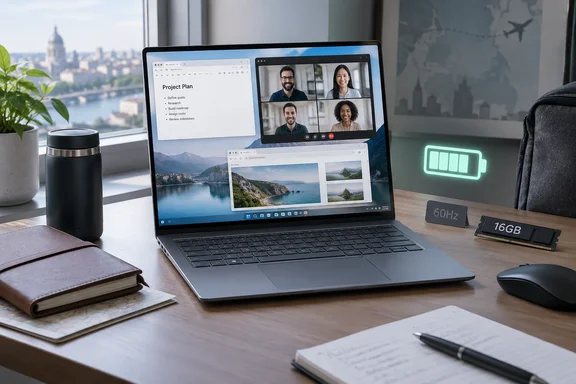
That is a meaningful endorsement for mobile Windows users—but not a universal buying recommendation. The tested configuration combines strong practical battery life and polished input devices with fixed 16GB memory, a 60Hz display and limited built-in connectivity. Its appeal depends on whether those compromises fit your workload.
Which OmniBook Ultra 14 was tested?
Digital Trends evaluated the 14-kg000 configuration with a Snapdragon X2 Plus X2P-64-100, 16GB of onboard memory, a 512GB PCIe Gen5 SSD and a 14-inch, 1920 × 1200 OLED touchscreen.
The processor designation matters. Qualcomm’s official specifications confirm that the X2P-64-100 has 10 CPU cores, speeds up to 4.0GHz, an Adreno X2-45 GPU and an 80-TOPS Hexagon NPU. “Snapdragon X2 Plus” also covers a six-core chip, so the family name alone does not establish the hardware inside a particular listing.
Likewise, the review describes an optional 2880 × 1800 OLED display with up to 120Hz refresh, higher SDR brightness and HDR capability. Those are upgrade specifications, not features of the tested 60Hz screen.
The practical lesson is simple: compare the exact processor, memory and display—not just the OmniBook badge.
Everyday performance is the strongest argument
Digital Trends reports that Firefox, WordPress, meetings, streaming and ordinary Windows multitasking remained responsive throughout testing. Wake and resume were quick, with no crashes or standby problems observed during the two-week review period.
Its plugged-in, Best Performance benchmark results included:
| Test | Digital Trends’ result |
|---|---|
| Geekbench 6 single-core | 3,155 |
| Geekbench 6 multi-core | 14,506 |
| 3DMark Time Spy | 2,609 |
| 3DMark Steel Nomad | 682 |
| CrystalDiskMark sequential read | 9,423MB/s |
| CrystalDiskMark sequential write | 6,413MB/s |
These are measurements from that review unit, not guaranteed results for every configuration. They support the reviewer’s central assessment: this is a capable productivity ultraportable, but not a machine to buy primarily for graphics-heavy work.
Gaming requires particularly careful expectations. Digital Trends recorded approximately 40–55fps in GTA V at native 1920 × 1200 resolution using the High preset without upscaling. That establishes one playable result; it does not establish compatibility or satisfactory performance across a Steam library.
The fast SSD is welcome, too, but should not distract from the fixed memory. For buyers already approaching 16GB with their normal workload, storage speed is not a substitute for additional RAM.
Windows on Arm: applications and drivers are different questions
The review’s seamless everyday experience is credible without implying that Windows on Arm compatibility is finished.
Microsoft explains that Windows 11 on Arm can run unmodified x86 and x64 applications through emulation, while native Arm applications offer the best performance and battery-life potential. That distinction helps explain why an Arm laptop can feel familiar even when not every installed application is native.
Drivers are the important boundary. Microsoft’s Windows Arm-based PCs FAQ states that hardware and software depending on drivers need compatible Windows Arm drivers. Application emulation does not remove that requirement. Microsoft also warns that games relying on unsupported anti-cheat drivers may not work.
Digital Trends found its usual applications and game launchers usable, but specifically flagged Riot Vanguard for Valorant and cautioned about older drivers, plug-ins and specialized production hardware. A launcher opening successfully is not proof that every game it manages will run.
For a prospective buyer—or an IT administrator evaluating a deployment—the useful compatibility checklist is therefore:
- Confirm support for essential applications and plug-ins.
- Verify Arm64 support for required peripherals and their drivers.
- Check individual games and anti-cheat requirements.
- Validate the complete work setup, not merely the main application.
Those checks follow directly from Microsoft’s documented limitations. They are more useful than either dismissing Arm outright or declaring compatibility solved.
Battery life without the marketing marathon
Digital Trends’ most persuasive endurance finding is its reported 10–12 hours of screen-on use during browser-heavy productivity, with Wi-Fi active, brightness generally at 40–60%, and occasional music or video playback.
The reviewer also reported roughly 5% overnight battery drain and reliable sleep behavior. These are encouraging observations, but they remain workload-specific results rather than a standardized guarantee.
There is supporting context from IT Pro, which independently reviewed the 10-core X2 Plus OmniBook and also identified battery life as a major strength. Its assessment reinforces the endurance story without making different reviewers’ workloads interchangeable.
For this class of laptop, the useful question is not whether it can survive an exceptionally long video loop. It is whether it can carry your working day without turning the charger into a permanent traveling companion.
Premium feel, less-premium compromises
According to Digital Trends, the 2.83-pound review unit feels sturdy, its keyboard is comfortable for extended writing, and its haptic touchpad delivers consistent clicks across the surface. The reviewer also appreciated the speakers, Windows Hello camera and MyHP controls for hardware settings.
Those are everyday benefits rather than specification-sheet decoration.
The screen and ports require more compromise. Digital Trends liked the base OLED panel’s contrast and colors, but found its glossy surface reflective and its 300-nit rating limiting in bright conditions. The 60Hz refresh rate was another disappointment at a premium price.
Connectivity consists of three 40Gbps USB-C ports and a headphone jack, with no built-in USB-A, HDMI or card reader. All three USB-C ports reportedly support charging, which offers flexibility, but buyers with older peripherals still need to account for adapters or a dock.
Price decides how forgiving to be
Digital Trends’ review contains two distinct price references: $1,799 MSRP and a $1,249.99 tested price. Its verdict discusses value at the higher figure. Those should not be collapsed into a single current selling price.
Our assessment is that the configuration is substantially easier to justify at the lower reported price. At the higher figure, fixed 16GB memory and a 60Hz, 1200p display deserve closer scrutiny. That is a value judgment based on the reviewed hardware—not a claim about today’s checkout price.
The strongest conclusion is configuration-specific: the Snapdragon X2 Plus OmniBook Ultra 14 looks well suited to writers, students and mobile office workers who value endurance, portability and comfortable input devices. Gamers, demanding creators and users tied to specialized drivers should be more cautious.
Windows on Arm becoming forgettable during ordinary work is progress. The remaining buying decision is decidedly familiar: make sure the screen, memory, ports and actual price suit the job.
References
- HP OmniBook Ultra (Snapdragon X2 Plus) review: I almost forgot this was a Windows on Arm laptop - Digital Trends Digital Trends · 2026-10-05T04:00:00+00:00
- Snapdragon X2 Plus qualcomm.com
- HP OmniBook Ultra 14 review | IT Pro itpro.com