

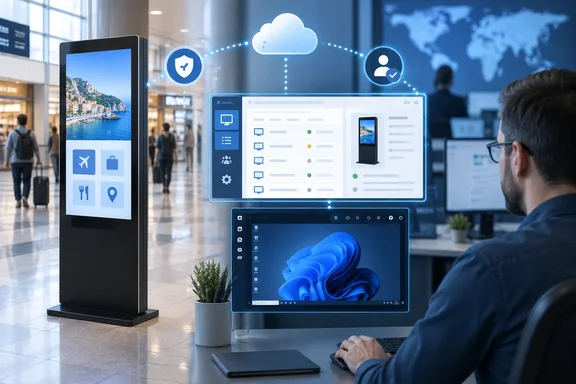
Intune Remote Sign-In removes the on-site participant from Windows support
An unattended endpoint presents an awkward problem for conventional remote assistance: there may be nobody available to request help, share a screen or approve access. A staffed office PC and a signage player behind a display have very different support arrangements, even when both run Windows and belong to the same organization.
Microsoft’s Remote Help documentation describes the new Windows mode as allowing an authorized helper to sign in to a corporate device without an end user being present or already signed in. The helper starts the capability through the Intune admin center. Unlike attended support, which exposes the participating user’s session, unattended remote sign-in creates a separate authenticated Windows session, governed by authentication, Intune permissions and auditing, according to Microsoft Learn.
That distinction explains both the opportunity and the operational boundary. A technician can obtain an interactive Windows session on an eligible device even when there is nobody available to cooperate. But operators should not assume that the technician is looking at the same desktop that a kiosk customer or signage application was using. A separate support session and an existing presentation session serve different purposes.
Sixteen:Nine describes active users as being automatically logged out. Microsoft’s product overview establishes a separate authenticated session, while its planning guidance says users are notified when unattended access is active. Those documents do not support treating the feature as an invisible takeover or assuming that an existing user’s work is unconditionally discarded. For shared endpoints, the exact interruption and return-to-service behavior belongs in the deployment pilot.
This also explains why the update deserves a narrower description than “Intune now supports digital signage.” Intune’s involvement in signage management predates this remote-access change. At NRF in January 2026, Microsoft, IAdea and MediaTek announced a digital signage solution using the Microsoft Device Ecosystem Platform, or MDEP; invidis reported Intune integration as part of that platform’s management story. That separate development should not be confused with the Windows Remote Sign-In capability now under discussion.
For organizations already managing Windows signage players through Intune, the new feature adds an interactive support route to that management relationship. It can remove the need for a person to initiate a session at the screen. It does not remove the need to keep the endpoint reachable or to understand how a support session affects its public-facing workload.
Windows unattended control has a narrower eligibility list than Remote Help
The most consequential deployment question is whether the target qualifies for this particular mode. Microsoft supports attended Remote Help across a broader set of Windows configurations than it supports unattended remote sign-in. Existing use of Remote Help therefore does not establish eligibility.
Microsoft’s planning documentation limits Windows unattended control to a physical, corporate-owned, Intune-managed device running an x64-based operating system. The device must be Microsoft Entra joined or Microsoft Entra hybrid joined. These are organizational join states; simply having a device registered with an account does not satisfy the stated requirement.
| Target configuration | Windows unattended remote sign-in |
|---|---|
| A physical, corporate-owned, Intune-enrolled x64 Windows device that is Entra joined or hybrid joined | Eligible if the remaining prerequisites are met. |
| A Windows ARM64 or x86 device | Outside the documented x64 unattended-support boundary. |
| A personally owned Windows device | Unsupported for unattended control. |
| An unenrolled Windows device | Unsupported for unattended control. |
| A Windows 365 or Azure Virtual Desktop target | Unsupported for unattended control. |
| An otherwise eligible device that is asleep, hibernating or shut down | Unable to receive unattended support in that state. |
Microsoft explicitly distinguishes these restrictions from attended support, which includes Windows x86, x64 and ARM64, Windows 365, and Azure Virtual Desktop configurations. Enabling the tenant option for assistance to unenrolled devices does not extend unattended access to them. The unattended enrollment requirement remains in force.
The software prerequisites are equally important. Microsoft requires the Intune Management Extension, which orchestrates the unattended session, plus the Azure Virtual Desktop agent and Azure Virtual Desktop agent bootloader. The documented installation order is the agent first, followed by the bootloader; Microsoft says no further configuration of those components is required after installation and that both can be deployed as Win32 apps.
The presence of Azure Virtual Desktop components can be confusing because Azure Virtual Desktop targets themselves are excluded. These are separate facts: the physical Windows endpoint needs the documented agent components, while virtual desktops remain outside the supported unattended-target category. Installing a component does not change the target’s eligibility.
Remote Desktop must also be enabled on the endpoint, which Microsoft says can be configured through an Intune settings catalog profile. The planning material distinguishes the attended and unattended Windows application paths, so deploying only an existing attended Remote Help application is not a complete readiness check. The helper and target software combination needs to match the unattended experience, according to Microsoft’s Remote Help planning documentation.
Finally, the target must be powered on, connected to the internet and able to reach the service. This is a remote-support path for a functioning, reachable Windows endpoint. A powered-off player or a site without connectivity still needs another recovery arrangement.
Intune permissions replace local consent with an administrative boundary
Removing the on-site participant changes where authorization has to be enforced. In an attended session, a user participates in granting access. With unattended remote sign-in, administrators must decide in advance which support personnel may initiate access and which devices they may target.
Microsoft provides a specific permission named Remote Help app – Windows unattended control remote sign-in. Its planning guidance recommends assigning this permission explicitly through a dedicated custom Intune role, limiting it to authorized support personnel and scoping the role to the device groups that require unattended support.
The surrounding permissions matter, too. Microsoft says providing assistance requires a combination of Remote Tasks – Offer remote assistance, Remote Assistance Connector – Read, and an appropriate Remote Help permission. The first allows assistance to be offered; the connector permission allows the helper to see whether Remote Help is configured. The unattended-control permission supplies the relevant form of access, while the role assignment’s scope determines which targets are available.
An organization should therefore treat a signage pilot as a distinct authorization project. A small group of eligible Windows players can be paired with a small group of support staff, without granting unattended access across the wider workstation fleet. Microsoft’s published built-in Help Desk Operator permission list includes several Remote Help capabilities but does not list the new Windows unattended remote-sign-in permission; administrators should inspect the assigned permissions instead of relying on the role’s name.
There is also an important qualification to the security story. Sixteen:Nine lists multifactor authentication and Conditional Access among the protections for remote access, and Microsoft’s planning page broadly recommends Conditional Access for helper accounts. However, Microsoft’s platform-specific Remote Help overview explicitly says its documented Windows Conditional Access support applies to attended sessions and does not apply to unattended access. Organizations should not represent those attended-session controls as verified protection for this new mode without resolving that scope difference.
Auditing provides a separate layer of accountability. Microsoft says Intune can show active and historical Remote Help sessions, including who helped whom, the device involved and session duration. Remote Help activity is also available under Tenant Administration > Audit Logs. These records help administrators establish who accessed a device and when, but Microsoft says the service does not store session recordings; a session log is not a visual record of everything a technician did.
Remote Help licensing and tenant boundaries shape the signage business case
The feature is most straightforward organizationally when the support team and the signage fleet already sit within the same Microsoft Entra tenant. Microsoft requires Remote Help participants and devices to share a tenant and explicitly excludes cross-tenant assistance.
That boundary matters for managed service providers and outsourced signage operators. A supplier supporting several customers cannot assume that its existing account and device in the supplier’s own tenant will provide unrestricted access to each customer’s Intune-managed fleet. Microsoft’s planning guidance acknowledges this outsourced-helpdesk issue and discusses providing helpers with devices or access environments joined to the customer’s tenant.
Licensing requires similar care. Sixteen:Nine reports that Remote Help entered certain Microsoft 365 and EMS subscriptions in July 2026 while unattended remote sign-in remained part of the paid Intune Suite. The available Microsoft planning documentation does not establish that specific entitlement split. Instead, it states that Remote Help requires an additional subscription beyond Intune Plan 1 or Plan 2 and licenses for everyone targeted to use the service, including helpers and sharers.
The practical consequence is to confirm the entitlement for the actual Windows unattended deployment before budgeting a replacement for another support product. The helper’s license alone should not be assumed to settle the target side of the arrangement. Microsoft does document a sharer-license exception for supported Samsung and Zebra Android dedicated devices, but that Android-specific rule cannot safely be carried across to Windows signage players.
Network readiness is another part of that assessment. Microsoft documents Remote Help communication over HTTPS on port 443, using TLS 1.2, and requires access to its service endpoints. Its planning guidance warns that proxies and SSL inspection can interfere with connections and says the listed Remote Help domains should be excluded from SSL inspection where applicable. Port availability and Remote Desktop enablement are distinct prerequisites; one does not replace the other.
Cloud environment also limits the possible deployment. Microsoft documents reduced support in Government Community Cloud environments and says Remote Help is unavailable in GCC High and U.S. Department of Defense tenants. Those organizations should resolve service availability before investing in endpoint configuration.
For a commercial organization with eligible devices, licenses and a same-tenant helpdesk, Intune may consolidate part of the support workflow. Sixteen:Nine compares the operational appeal with TeamViewer and points to specialist signage-management products for broader functions. The supported conclusion is about remote troubleshooting: this announcement does not establish new content scheduling, media orchestration or signage-specific analytics capabilities. Any comparison with an existing platform should separate interactive Windows support from the other jobs that platform performs.
Pilot Intune Remote Sign-In before expanding unattended access
Start with a small, explicitly scoped set of Windows signage or kiosk devices, and assess both whether support connects and whether the endpoint returns to its intended service afterward. Microsoft recommends phased deployment for Remote Help; that approach is particularly useful where the supported computer also drives a public-facing display.
A readiness review can follow the documented dependencies in order:
- Confirm that each target is physical, corporate-owned, x64-based, enrolled in Intune, and Microsoft Entra joined or hybrid joined. Remove virtual, personally owned and unenrolled targets from the unattended pilot.
- Confirm the Remote Help subscription and assignments for the intended deployment, and verify that the helpers and target devices meet the same-tenant requirement. Remote Help is disabled by default for Intune tenants, so tenant enablement is also necessary.
- Install the required Intune Management Extension and unattended-support components. Deploy the Azure Virtual Desktop agent before its bootloader, and enable Remote Desktop through the intended device configuration.
- Assign the Windows unattended remote-sign-in permission with the required supporting permissions. Scope the role to the pilot devices and the personnel authorized to support them.
- Check power state, internet connectivity and access to the required service endpoints over port 443. Review proxy and SSL-inspection handling where those controls are present.
- Exercise an unattended session and review its Intune reporting. For devices that can have an active user or presentation session, evaluate the interruption, notification and return-to-service behavior as part of the pilot.
A successful connection is only the first acceptance criterion for signage. Because the helper works in a separate authenticated Windows session, the operational check should include whether the intended display or kiosk workload is available again after support ends. This is a recommended deployment test, not a claim that WindowsForum has tested the behavior or that Microsoft guarantees automatic restoration of every signage application.
If a connection fails, the documented prerequisites provide a useful investigation order: establish eligibility, verify installation and Remote Desktop configuration, check tenant membership and role scope, then inspect connectivity. An ineligible target cannot be made eligible by widening permissions. Microsoft says devices outside the unattended boundary can still receive attended support where supported, but that alternative restores the requirement for a participating user.
The immediate takeaways are concrete:
- Use Windows unattended remote sign-in for qualifying physical, corporate-owned x64 endpoints, not as a universal Remote Help mode for every Windows device.
- Deploy the required agent components and Intune Management Extension, and keep targets powered on and reachable.
- Grant unattended access explicitly to a narrowly scoped support role instead of assuming existing helpdesk permissions are sufficient.
- Resolve Windows-specific licensing and the documented Conditional Access scope before committing to a production rollout.
- Validate the public-facing workload after support, and retain separate arrangements for content operations, offline devices and hardware faults.
Intune Remote Sign-In gives an already managed Windows signage fleet a useful new maintenance option: authorized technicians can reach an eligible endpoint without first recruiting somebody beside the screen. The next decision is operational—whether the organization’s actual hardware, identity arrangement and support process fit that model. Where they do, a controlled pilot can establish which service visits or third-party support workflows the Microsoft-native capability can replace.
References
- Remote Help on Windows: Unattended Support with Remote Sign-In Is Here | Microsoft Community Hub techcommunity.microsoft.com
- Plan for Remote Help with Microsoft Intune - Microsoft Intune | Microsoft Learn learn.microsoft.com