

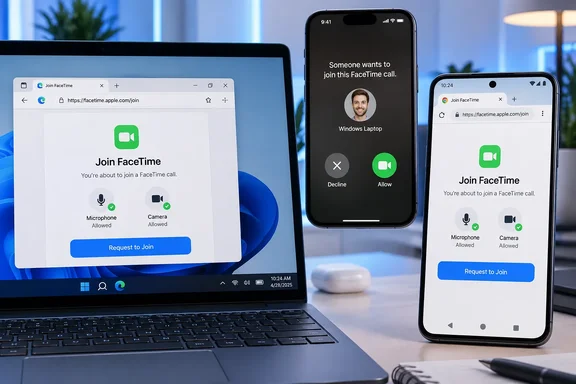
This is an existing capability introduced with FaceTime links in iOS 15 and macOS Monterey, rather than a new Windows or Android app. Engadget’s walkthrough highlights its usefulness for mixed-device groups: you can participate without switching devices, although screen sharing and SharePlay are unavailable in the browser.
What you need before joining
Apple lists three requirements for the person joining: an Android or Windows device, a strong Wi-Fi or mobile internet connection, and the latest version of Google Chrome or Microsoft Edge. Its instructions do not specify a particular Windows release, so the documented browser requirements are the useful starting point.
You also need a FaceTime invitation link from someone using a compatible Apple device. Apple supports creating these links on iPhone and iPad with the iOS 15 generation or later, and on Mac with macOS Monterey or later. According to Engadget, the Windows or Android guest does not need an Apple Account.
Arrange for the host to be available when you join. Opening the invitation and entering your name does not immediately place you in the conversation; admission is a separate step controlled by the host.
Join from Windows or Android
The browser procedure is the same on both platforms:
- Open the FaceTime invitation link in an updated version of Chrome or Edge.
- Enter the name you want to use in the call, then select Continue.
- Allow FaceTime to use your microphone and camera if the browser asks. These permissions let the call use your audio and video devices.
- Select Join.
- Wait for the host to admit you. Once admitted, you can participate through the browser.
- Select Leave when you want to exit the call.
No FaceTime app installation is part of this workflow. Keep the distinction between requesting entry and actually joining in mind: if you are still waiting after selecting Join, ask the host to let you in before treating it as a browser or connection fault.
Controls available during the call
Apple documents the following controls for web participants:
- Use the Microphone button to mute or unmute yourself.
- Use the Camera button to turn your video off or on.
- Use the Full Screen button, if shown, to expand the call.
- Use the Flip Camera button, if shown, to switch between front- and rear-facing cameras.
- Open the Participant List and Settings Menu, then select Grid Layout to arrange Group FaceTime participants in tiles. Select it again to turn the grid off. The current speaker’s tile is highlighted automatically.
The conditional controls matter: Apple says “if you see” the full-screen and camera-switching buttons, so you should not expect every device to present an identical interface.
You can also pass the invitation to another person from the web call. Select More, then Copy Link or Share Link and choose how to send it. Sharing an existing invitation does not give a Windows or Android participant the ability to originate a new FaceTime call.
If joining or audio and video do not work
Start with the requirements Apple actually documents, rather than installing an unofficial FaceTime client:
- If you have not entered the conversation, confirm that the host has approved your request.
- If your microphone or camera is unavailable, check whether you granted the browser permission to use it. Apple explicitly notes that this permission may be required.
- If you opened the invitation in another browser, use the latest Chrome or Edge, the two browsers Apple specifies.
- If audio or video is unstable, check the connection. Apple calls for strong Wi-Fi or mobile internet; these checks are starting points, not a guarantee of call quality.
There is also a regional restriction: Apple says FaceTime links are not supported in mainland China, and creating a FaceTime link is not supported on iPhone models purchased there. This can affect the person generating the invitation, not merely the guest’s setup.
When the browser option is enough
Browser access is useful when an Apple user is hosting an ordinary conversation and you need to join from your PC or phone. It provides microphone, camera and group-view controls without requiring an Apple device.
Screen sharing and SharePlay are unavailable in FaceTime on the web, according to Apple. For a Windows troubleshooting session that requires showing your desktop, or an activity that depends on SharePlay, choose a service that supports the required feature on every participant’s device before starting the call.
References
- How to join a FaceTime call with your Android phone or Windows PC Engadget · 2026-09-20T23:00:00+00:00
- Join a FaceTime call from an Android or Windows device support.apple.com
- Apple FaceTime Calls on an Android or PC? Yes, You Can - CNET cnet.com