

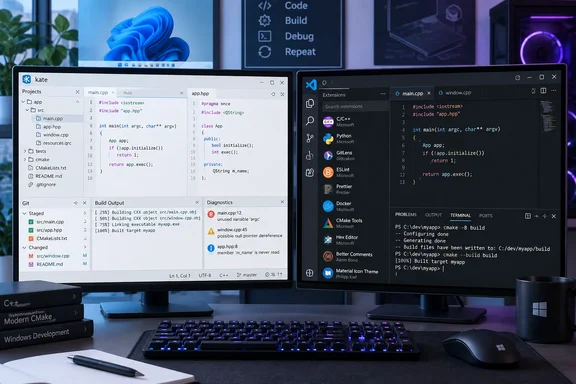
In XDA Developers’ account of using Kate, the appeal was immediate: a free, open-source editor that felt quick to launch and less cluttered than VS Code. Those are reasonable reasons to try a different editor, particularly when learning to program. They are personal observations, however, and the author’s experience on an M1 Pro Mac does not establish a performance advantage on an older Windows PC.
The useful question is whether Kate can handle the work you already do. Its documented capabilities make it a serious candidate for source editing, navigating projects and running established build commands. The decision turns on the tools around those activities: the language server that understands your code, the compiler or interpreter that executes it, and any specialized integrations you currently obtain through VS Code extensions.
Kate brings substantial programming tools to a focused editor
KDE describes Kate as a multi-document, multi-view text editor for programmers. Its official application listing includes Language Server Protocol support, projects, Git integration, multiple cursors, folder-wide search and horizontal or vertical splits. Kate is available for Windows, Linux, BSD and macOS, so this is a genuine choice for Windows developers, not a Linux recommendation with an incidental Microsoft comparison.
That description also helps set expectations. Kate’s foundation is an editor, with application plugins adding development functions. You can work with several documents, split the window to compare files, fold sections of code and search across a directory without first building an elaborate development workspace.
These features have a practical relationship to one another. Split views keep a definition visible while you edit a caller. Search across files helps locate repeated configuration values or references that extend beyond the current document. Multiple cursors let you make coordinated edits in several places. They are useful editing operations independently of whether a language server has been installed.
KDE’s detailed feature page also documents sessions, scripting, regular-expression searches, multiline replacement and recovery-oriented features such as backups on save and swap files. The application therefore has considerably more depth than an editor intended only for occasional single-file changes. Its relatively restrained presentation should not be mistaken for a narrow set of editing functions.
The same is true of plugins. XDA’s comparison concentrates on LSP Client, Project, Build and Terminal, but KDE’s handbook lists many more: a simple GDB frontend, CTags integration, SQL tools, formatting, snippets, keyboard macros, external tools and a Compiler Explorer interface, among others. Calling those four the complete plugin offering understates Kate’s capabilities.
For a prospective switcher, the distinction is between an editor that already supplies many common development components and an editor whose value depends on a particular combination of extensions. Kate deserves evaluation on that basis. Neither the word IDE nor the size of its feature list tells you whether your own workflow will fit.
Kate’s LSP Client needs a language server behind it
The most important correction to the easy-setup argument concerns code completion. Syntax highlighting and language-aware completion are different capabilities. XDA’s discussion blends them together when it describes completion in hundreds of languages and then explains how colors distinguish variables, comments and other syntax.
KDE’s detailed feature page lists syntax highlighting for more than 400 languages. That is a statement about recognizing and displaying text in supported formats; it is not a promise of semantic completion, project diagnostics or reliable navigation for every one of those languages. A file can look correctly highlighted while the editor has no language server running for it.
Kate’s LSP Client supplies the connection to those more sophisticated functions. The Language Server Protocol is the interface through which the editor requests language information from a separate server. KDE documents completion, finding references, navigating to definitions and declarations, hover information, rename operations, formatting and diagnostic displays through this plugin.
The external server determines which of those requests it can answer and how well it understands the project. KDE’s handbook explicitly notes that results and filtering can vary with the server implementation. Enabling the client consequently gives Kate the means to communicate with a server; it does not install every language’s tooling or guarantee every listed operation.
Kate separates editor setup from language-tool setup
The documented configuration route is Settings → Configure Kate → Application → Plugins. Enabling LSP Client adds its own configuration page. That page includes default server configuration and supports user configuration specifying the command used to start a server.
KDE documents that the configured executable is searched for through the usual executable-search locations, such as PATH. A server installed somewhere else may require a corresponding path adjustment or explicit configuration. This is the concrete dependency behind the otherwise vague advice to “set up language support.”
It also explains why Kate can be easy to install yet take longer to prepare for programming. The editor, the LSP Client and the language server are separate pieces. A working compiler or interpreter is another requirement when you want to build or execute the program. Turning on an editor plugin does not replace any of them.
The claim that completion and error checking need no additional downloads is therefore too broad. It may describe a machine that already has the appropriate server and dependencies available. It should not be used as an expectation for a fresh Windows installation.
Kate’s project environment determines what its server can see
A server also needs access to the environment relevant to the code. KDE gives the example of Python projects with separate virtual environments: a server launched using a general default configuration may not know about the dependencies in a particular project’s environment.
That has an immediate implication for troubleshooting. If navigation or diagnostics behave unexpectedly, check which environment the language server is using before concluding that the editor cannot support the project. KDE documents project-level LSP configuration and approaches for running a server within a separate environment.
The handbook goes further, describing execution prefixes and path mappings for environments such as containers or remote hosts. An execution prefix launches the server through the chosen environment; path mappings translate between file locations visible to the editor and locations visible to the server. These are substantive capabilities, although they also demand more configuration than the beginner-friendly presentation might suggest.
For an initial evaluation, keep the boundary simple: choose a project whose dependencies you understand and verify a few language-aware operations. A successful go-to-definition action should take you to the expected declaration or implementation, and reference searches should return meaningful project results. Colored text alone is not a useful test of the LSP setup.
Kate’s Project and Build plugins support real development work
Kate’s project model provides a structured view of the files belonging to a project, quick file access, project switching, search and replacement, and connections to build tooling. KDE documents automatic loading using version-control information, as well as manual configuration through a .kateproject file.
With the Project plugin enabled, opening a file allows Kate to inspect its containing directory and parent directories for a project definition. The project becomes active without requiring a separate project-opening ritual. When you move to a document belonging to another project, the plugin can switch the active project accordingly.
The .kateproject format makes that behavior explicit. KDE’s handbook shows a JSON definition containing a project name and a file list obtained from Git. It also supports defining files through directories and filters, with options controlling recursion, hidden files and exclusions.
For a Git-based project, a minimal definition following KDE’s documented structure could look like this:
{
  "name": "Example project",
  "files": [
    {
      "git": 1
    }
  ]
}
This describes a project; it does not supply a compiler, language server or build system. Keeping that boundary visible makes the configuration easier to understand. The project definition tells Kate which files belong together, while other tools perform language analysis and execution.
Kate can use existing build commands
The Build plugin is documented as supporting compilation or Make operations and parsing error messages. The Project plugin can provide its build configuration, including named targets, build commands, run commands and the directory in which those commands execute.
Those fields are operationally important. build_cmd identifies the command that builds a target, while run_cmd identifies the command that runs it. The configured directory determines the working location for those commands. A command that works in one directory may not be appropriate in another, so the working directory belongs in the evaluation alongside the command itself.
KDE also documents a precedence rule worth preserving when adapting a configuration: if the targets array is specified, the older build, clean and install entries are ignored. Mixing the two approaches and assuming both remain active would make the resulting behavior difficult to interpret.
This is enough to establish that Kate supports project-level build workflows. XDA’s observation that it lacks the more advanced automation a developer might expect should be read as a limitation of depth or integration, not an absence of build support. Kate can invoke an existing build process and help navigate its output.
A .kateproject.local file provides another useful separation. KDE documents that its contents take precedence over .kateproject, allowing workspace-specific adjustments without changing the shared project definition. For a team evaluating Kate, that offers a way to distinguish common configuration from a developer’s local setup.
Kate has debugging and terminal integrations, with boundaries
KDE’s plugin list describes GDB support as a “simple GDB frontend.” That establishes a debugging capability, but it does not justify assuming that any debugger or language-specific workflow you use in VS Code will be available in the same form.
The terminal needs similar care. KDE documents the Terminal tool view as using its Konsole widget, and the Project plugin documentation describes a terminal panel starting in the project root. Those facts explain how the documented integration works; they do not establish that every Windows and macOS package contains an identical terminal experience.
For Windows readers, cross-platform availability is not a guarantee of plugin parity. The available plugin list in the installed package is the relevant check before making the embedded terminal central to a migration plan. The evidence here establishes Kate’s Windows availability, but not a release-by-release matrix of terminal and debugger components.
This is particularly important when interpreting the Mac-based account in XDA. A successful experience on one operating system supports that author’s recommendation for their setup. It cannot settle whether the same components are present and configured on a different platform.
VS Code’s extension advantage matters only when your work depends on it
XDA acknowledges that VS Code has a substantially broader extension offering. That is a meaningful reason to keep it when a particular extension supplies an essential part of your development process. It is less persuasive as an abstract argument against an editor that already handles the operations you need.
The most useful comparison starts with concrete activities. If your routine consists of editing files, navigating symbols, searching a repository and running an existing build command, Kate’s documentation establishes relevant tools for each activity. If your routine depends on a specific debugger interface or specialized extension workflow, that integration becomes a separate requirement to evaluate.
The assertion that Kate has “no support for external plugins” is also too sweeping to carry the comparison. KDE documents application plugins, scripting and an External Tools plugin. Those are different forms of extensibility, and their presence should not be collapsed into a claim that Kate cannot be extended.
At the same time, the existence of those mechanisms does not make Kate a destination for an existing VS Code extension collection. No evidence here establishes compatibility with those extensions. The sound migration question is whether a required function has a suitable Kate workflow, not whether both applications use the word “plugin.”
A similar discipline applies to performance. XDA’s author reports that Kate starts almost instantly on their M1 Pro Mac and feels lighter than VS Code. There are no documented timings, memory measurements, extension configurations or matching project conditions in that account. It is useful firsthand experience, not a benchmark.
That leaves room for Kate to be an excellent choice on a particular machine without supporting the much larger claim that it runs comfortably on practically any hardware. A meaningful comparison would include the tools used during development, especially language servers and build processes. An editor evaluated before those components start is being assessed in a different operating state from a fully configured workspace.
The practical inference is to prioritize workflow fit before chasing an unmeasured resource saving. A simpler interface may be valuable even if the performance difference is small. Conversely, a quicker launch will not compensate for losing an integration you use throughout the day.
A Kate trial should prove the workflow before replacing VS Code
Keep VS Code available while evaluating Kate with one representative project. This is a workflow trial, not a recommendation to remove a working environment and rebuild everything around a new editor. The aim is to establish that Kate can support the operations you actually need on your own operating system.
Because the documentation covers broad capabilities rather than one identified Kate release and package, the installed application is the starting point. In particular, verify that its plugin list includes the components your trial requires. Do not plan around the terminal or GDB frontend merely because they appear in the general handbook.
Establish Kate’s editing and project setup first
- Open Settings → Configure Kate → Application → Plugins and enable the Project plugin. Enable LSP Client if the trial requires language-aware completion or navigation, and Build if you intend to use integrated build commands.
- Open a file in the selected project. Where supported version-control auto-loading is enabled, Kate can obtain the project file list from that system. For an explicit definition, place a
.kateprojectfile at the project root using KDE’s documented JSON structure. - Confirm that the project view contains the expected files. Use the file filter to locate a known file, and use the Search and Replace tool’s current-project mode to check the search scope before performing replacements.
- Configure build targets only around commands appropriate to the project. Check the working directory as well as
build_cmdandrun_cmd, and remember that specifyingtargetsoverrides the legacy build entries described earlier.
Success at this stage means Kate identifies the intended project, exposes the right file set and runs the expected build operation where you configured it. It does not require completing every optional plugin setup. Separating these checks makes it easier to identify whether a problem belongs to project discovery, command configuration or language tooling.
For a shared project, use .kateproject.local when an adjustment should apply to your workspace instead of changing the common definition. This is especially useful during an evaluation, when experimenting with local configuration should not become an accidental change to everyone else’s setup.
Verify Kate’s language support separately
Once the project view works, inspect the LSP Client configuration. Confirm that the selected language server is available and that the configured command matches its installed location. Where the project uses a separate dependency environment, confirm that the server runs with access to that environment.
Then exercise a small set of supported language operations. Use LSP Client → Go to Definition on a symbol with a known destination, try Find References, and inspect available diagnostics. These checks evaluate the server connection and its understanding of the project more directly than the presence of a completion popup.
If the server repeatedly attempts to start, KDE identifies the Output tab as a source of high-level status messages. The handbook also explains that detailed diagnosis may require the language server’s own logging options. Those options vary by server, so there is no single verified command that can safely serve as a universal Windows troubleshooting recipe.
Kate provides Restart LSP Server for the current document’s server and Restart all LSP Servers for stopping servers that will restart as needed. These are useful controls after configuration changes; they do not repair a missing executable or supply missing project dependencies.
Formatting deserves a deliberate choice as well. KDE warns that LSP format-on-typing and editor indentation scripts can try to affect the same text. If you enable server-driven formatting, account for the editor’s indentation behavior instead of assuming that two automatic mechanisms will always cooperate.
The decision can then be reduced to five concrete checks:
- Kate is a strong candidate when its documented editing, project navigation, search and build features cover the work you perform regularly.
- Language-aware completion and diagnostics require a suitable language server and access to the project’s dependencies; enabling LSP Client alone is insufficient.
- Windows users should verify the plugins in their installed package before relying on terminal or debugger integration.
- Developers who depend on a particular VS Code extension should establish an acceptable replacement workflow before switching.
- Performance expectations should come from a representative local workload, not from an unmeasured launch-speed impression on a different computer.
Kate earns a place in the developer-tool shortlist because KDE documents a capable editor with meaningful project and language-tool integration. Its strongest recommendation is conditional and practical: try it where those capabilities match your work, and let a functioning project determine whether it becomes your main editor. For developers whose trial succeeds, the result can be a simpler workspace without giving up the operations they need; for everyone else, Kate can remain a useful companion to VS Code without becoming its replacement.