

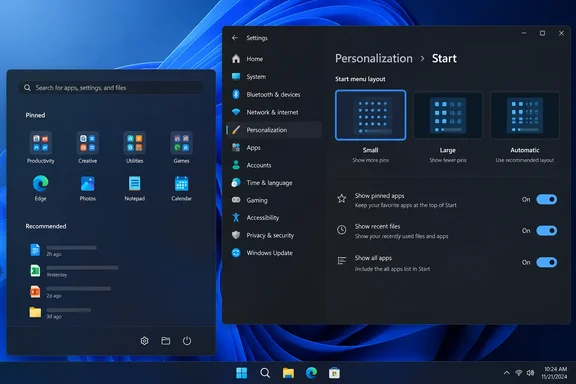
Neowin’s new guide correctly identifies the Settings app as the center of this cleanup work, but its “25H2 and 26H2” framing needs an important correction. Microsoft’s KB5120998 record lists Windows 11 24H2 and 25H2, not 26H2, as the supported releases for this preview package. Windows Central has reported that the same Start work is expected to feature in Windows 11 26H2, but users should not treat a future-version label as evidence that every 26H2 installation already has these controls.
There is a second practical catch: KB5120998 is an optional preview update with a gradual feature rollout. Installing the package can make a PC eligible for the new Start experience, but Microsoft does not promise that every eligible machine sees each control immediately. If the Start settings page does not offer size choices, individual section switches, or the profile-hiding option, that can be a rollout issue rather than a configuration mistake.
KB5120998 changes the menu’s structure, not just its contents
The most consequential change is not the Small, Large, and Automatic Start-menu-size selector. It is the new ability to independently show or hide the Pinned, Recent, and All sections under Settings > Personalization > Start.
That breaks a long-standing limitation in Windows 11’s Start design. Previously, a user could reduce the amount of activity-based material displayed, but the basic structure remained largely dictated by Microsoft. Now, somebody who launches everything through Search can hide Pinned and keep All; somebody who wants a compact app launcher can keep Pinned but remove Recent; and somebody who uses neither app tiles nor recent-document suggestions can make All the primary interface.
Microsoft has renamed the old Recommended section to Recent in this release. The name change is more than cosmetic in one respect: it makes the section’s function clearer. It remains a surface for recently used files, apps, and related activity, so turning it off is the cleanest choice for shared computers, presentation machines, and users who do not want document history visible when Start opens.
The size presets help, but they are not freeform resizing. Small reduces the footprint of the entire menu, including icon and text scale; Large expands it; Automatic leaves Windows in control. Windows Central noted that Microsoft still does not allow users to drag Start’s edges or recreate Windows 10’s full-screen Start layout. Anyone expecting the old resizable Start behavior will not find it here.
The useful sequence is simple:
- Open Settings > Personalization > Start and select Small, Large, or Automatic under Start menu size.
- Switch off Pinned, Recent, or All only after deciding which workflow replaces it; hiding All makes Search and the remaining sections more important.
- Enable the option to hide the account name and profile picture if Start may be visible in meetings, demonstrations, classroom screens, or streamed sessions.
The last option is a modest privacy feature, but it solves a real annoyance. Screen sharing often exposes the signed-in account’s name and avatar even when no sensitive file is open. Hiding them does not turn Start into an anonymous environment—recent documents and app names can still reveal information—but it removes one persistent identifier from the screen.
A clean Start menu begins with deciding what Start is for
The easiest way to make Start look less crowded is to stop asking it to perform every possible job at once. Windows 11 now permits a deliberate choice between three familiar patterns.
For a launcher-first setup, leave Pinned enabled, remove Recent, and curate the pins aggressively. Keep the apps that must be reachable with a click and use the All section or Search for everything else. This is the best compromise for users who want a Start menu that opens quickly without presenting a running log of their work.
For a search-first setup, hide Pinned and Recent and keep All visible. The result is close to an application directory rather than a dashboard. The trade-off is that the Windows key becomes less useful for visual muscle memory; users need to type an app name or browse a longer app catalog instead.
For a privacy-first or shared-device setup, remove Recent first, then consider hiding profile information. That configuration is particularly sensible on conference-room PCs, reception kiosks, lab systems, and personal machines that are often projected. It avoids exposing recently opened file names, but administrators should remember that the new individual section switches are user-interface preferences, not a security boundary.
Microsoft’s documentation still describes the Start experience as a set of functional areas: pins, the app list, account controls, pinned folders, and power controls. The new menu settings make more of those areas visible—or invisible—at the user level, but they do not replace organization-level controls where the device must be consistently configured.
Pins are where clutter returns
Removing the Recent section will not help much if Pinned has become a warehouse for every application installed since the PC was set up. The practical rule is to retain pins only for software opened often enough that visual launch is faster than pressing the Windows key and typing a few letters.
Right-clicking an unwanted tile and selecting Unpin from Start is still the fastest cleanup method. For the remaining pins, drag one item onto another to create a folder, then add related apps to it. A folder for Windows utilities, remote-access tools, development software, games, or media applications is more useful than a large field of individually pinned icons.
Folders provide a middle path for people who genuinely use many apps. They preserve direct access while avoiding the visual sprawl that comes from placing every icon on the first screen. They are also less disruptive than hiding Pinned altogether: a user can retain a compact launcher while moving low-frequency tools into named folders.
The All section offers Category, Grid, and List views. Microsoft’s own current Start documentation confirms those three modes, with Category grouping applications automatically and Grid and List organizing them alphabetically. List is usually the least visually dense choice for a large application inventory, while Category can reduce scrolling if Windows’ grouping happens to match the way software is used.
Neither view changes the underlying app inventory. Removing an app from All requires uninstalling it or, in managed environments, controlling its installation and visibility through the appropriate administrative tools. The new Start controls are about presentation, not application governance.
The lower-right shortcuts deserve the same scrutiny
Start’s bottom row is a common source of small but persistent clutter. Under Settings > Personalization > Start > Folders, Windows can display shortcuts for Documents, Downloads, Music, Pictures, Videos, Network, the user profile folder, File Explorer, and other locations next to the power button.
Most people do not need all of them. A laptop user who works primarily in OneDrive may keep File Explorer and Downloads; an administrator may prefer File Explorer and Network; somebody who opens folders from the taskbar may disable the lot. The goal is to reserve this small area for destinations that are actually faster to reach from Start than from elsewhere.
This setting should not be confused with the Pinned section. Pinned folders beside the power button are shortcut controls, while Pinned is the configurable app-and-folder area at the top of Start. Microsoft treats them as separate Start components, and they solve different problems.
Activity settings determine how much Start remembers
The new Recent toggle is the broadest cleanup control, but Windows also has related settings for recently added apps, frequently used apps, and recent files. Disabling those reduces activity-driven material in Start without removing the ability to search for installed software.
Users who do not want Windows to use app-launch behavior to tailor Start and Search should also check Settings > Privacy & security > Recommendations & offers. The relevant setting, Improve Start and search results, controls whether Windows uses app-launch activity for that personalization. Turning it off is appropriate for people who value a stable, predictable menu over adaptive shortcuts.
Do not assume that removing Recent erases all traces of work from the computer. It changes what Start displays; it does not delete recent-file records, browser history, application histories, cloud activity, or audit logs. On a work-managed device, retention and visibility can also be governed by policies beyond the user’s control.
Managed PCs need policy, not a one-off cleanup session
For IT administrators, the main lesson is that a carefully configured Start menu can be undone by users, new software, and profile changes unless policy enforces the intended layout. Microsoft’s current documentation supports configuring Start pins through Configuration Service Provider settings and Group Policy on Windows 11 version 24H2 with KB5062660 or later.
A managed Start layout can use a JSON configuration to set the pinned list. Microsoft supports an applyOnce behavior that applies the initial layout and then lets users adjust it, as well as an enforced configuration that reapplies at sign-in. Those are very different deployment choices: the first establishes a clean starting point; the second preserves a standardized support or frontline-device layout.
Administrators can also use Start policies to hide the recommended section, suppress personalized website recommendations, control pinned-folder visibility, and constrain pinning behavior. Those controls remain relevant even with the new consumer-facing section toggles because a user setting is not a reliable compliance control.
The right deployment model depends on the machine. A call-center image may need a fixed, minimal Start menu. A general knowledge-worker device benefits more from an initial curated pin set that users can personalize afterward. Treating both scenarios the same is how clean Start layouts become another source of help-desk friction.
KB5120998 finally makes Windows 11 Start meaningfully easier to pare down, but it is not a universal release and it does not give users unlimited layout control. On Windows 11 24H2 and 25H2 systems that have received the staged experience, the quickest win is to disable Recent, select the smallest workable menu size, remove unnecessary power-menu folders, and make Pinned earn its space one icon at a time.
References
- How to clean up and declutter the Start menu in Windows 11 (25H2 and 26H2) Neowin · 2026-09-20T12:00:01+00:00
- How to Hide or Show Name and Profile Picture in Windows 11 Start Menu Windows Report · 2026-09-25T10:18:03+00:00