

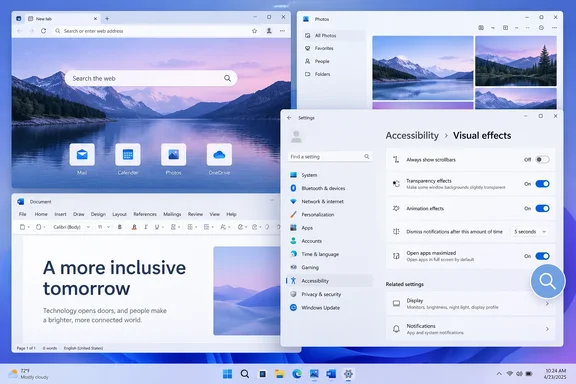
KB5124010 brings Open apps maximized to Windows 11 24H2 and 25H2
Microsoft's release notes describe the feature plainly. This update introduces Open apps maximized, an accessibility setting that automatically maximizes app windows as they open. Microsoft's support page lists KB5124010 as a preview cumulative update for Windows 11 versions 24H2 and 25H2, all editions, with OS builds 26100.9550 and 26200.9550.
Neowin covered the setting in a quick how-to, and other outlets reported it independently. Pureinfotech notes that Windows 11 builds 26200.9550 and 26100.9550 (KB5124010) are rolling out to the Stable channel as a non-security preview. Pureinfotech calls the release the "October 2026 update (preview)", while Microsoft's page and Neowin call it the September 22 preview. It's the same KB and the same builds. The label just depends on whether you count by release date or by the Patch Tuesday it leads into.
Microsoft's stated reason is modest. The setting removes a bit of everyday friction whether you use a screen reader or magnification, work in tablet mode, or simply prefer a consistent, full-screen workspace. It sits in the Accessibility section, but you don't need Narrator, Magnifier or any other assistive tool running to use it. Anyone can turn it on.
"Maximized" has a specific meaning here. Microsoft says it maximizes app windows, which means they fill the desktop area as normal windows. Nothing in the documentation says apps switch to borderless or exclusive full-screen mode, so expect the taskbar and title bars to stay put.
Where the Open apps maximized toggle lives and how to turn it on
The procedure is short and matches Microsoft's own instructions:
- Open Settings.
- Select Accessibility.
- Select Visual effects.
- Turn on Open apps maximized.
From then on, Windows maximizes app windows as they open. To undo it, turn the same toggle off. Microsoft doesn't document any other rollback, and you don't need one because this is a per-user preference, not a system component.
Early testers report no problems so far. On the Release Preview build, a member of the Eleven Forum community said they tried the new "Open apps maximized" including from boot up and it seems to work well with no bugs on this build. That's one user's experience on an Insider build, not a compatibility test. Still, nobody has reported problems in the public threads so far.
Why Magnifier users benefit most from the maximized-at-launch setting
The accessibility case is easy to see. A window that opens small forces a zoomed-in Magnifier user to hunt for its edges before they can do anything, and a maximized window avoids that. As the earlier WindowsForum analysis of KB5124010 noted, the setting also fits tablet-style use and anyone who manually maximizes every window.
Tablet and small-screen use is the second audience. On a 2-in-1 held in portrait orientation, or a small laptop display, a floating window rarely helps. Neowin notes that people on smaller displays often want every app full-size anyway. For them, the toggle replaces a double-click on the title bar or a Win+Up press every time they open an app.
The same update also refreshes the Magnifier toolbar. Microsoft says Magnifier's toolbar icons align with Windows 11 visual design, giving the tool a cleaner, more modernized feel. That change is cosmetic and separate from the maximize setting. Microsoft says Magnifier's views, zoom controls, keyboard shortcuts and Read Aloud work as before.
The road from Insider Beta to the KB5124010 gradual rollout
The feature followed Microsoft's usual path through the Insider program. The Windows Insider Blog announced it on August 21, 2026, for the Beta and Experimental channels, in builds 26220.9223 and 26340.9233. In that post, Microsoft described it as removing the need to maximize windows yourself every time, and asked Insiders for feedback.
On September 10, 2026, it reached the Release Preview channel. Microsoft issued KB5124010 to the Windows 11 Insider Release Preview Channel as builds 26100.9539 and 26200.9539. The September 22 public preview uses builds ending in .9550, so the .9539 numbers belong to the earlier Insider flight. Eleven Forum's release thread also lists a 26300.9550 build for 26H2. Microsoft's support page, however, scopes KB5124010 to 24H2 and 25H2, so that's the scope this article uses.
| Milestone | Date | Builds |
|---|---|---|
| Insider Beta and Experimental announcement | August 21, 2026 | 26220.9223, 26340.9233 |
| Release Preview (KB5124010) | September 10, 2026 | 26100.9539, 26200.9539 |
| Public optional preview (KB5124010) | September 22, 2026 | 26100.9550, 26200.9550 |
Gradual rollout means KB5124010 alone may not show the toggle
This is where people are likely to get confused. Microsoft releases KB5124010 in two phases. A gradual rollout sends features to devices over time, so availability differs from PC to PC. A normal rollout is the broad release to all eligible devices, usually at general availability. Open apps maximized is in the gradual list.
Pureinfotech gives the general rule: Usually, Microsoft doesn't release new features immediately. When a feature is announced as part of an update, it usually signals the start of a gradual rollout using the Controlled Feature Rollout (CFR) technology. It isn't the only feature being held back. Almost every headline item in KB5124010 is in the gradual list, including Emoji 17.0, the Tips widget, the new touchpad gestures and the Copilot key remapping setting.
So if a PC has build 26100.9550 or 26200.9550 but the toggle is missing from Visual effects, that's expected. The PC has the code, but Microsoft hasn't enabled the feature for it yet. Microsoft's notes also say that feature availability depends on the device and market.
Neowin mentions that the third-party utility ViVeTool can force the feature on. ViVeTool toggles Windows' hidden feature flags. However, neither Microsoft's release notes nor the Insider announcement lists a feature ID or approves that method, and we haven't verified a flag. This article therefore doesn't give commands for it. Waiting is the supported option.
What this means for you
The decision is whether to install an optional preview update now for a convenience setting, or wait for it to arrive with the regular monthly update. To install the preview, go to Settings > Windows Update > Advanced options > Optional updates, where KB5124010 appears among the available optional updates. Businesses using Windows Update for Business get these changes in the next security update rather than through the optional preview.
Consider the rest of the package before you install. Microsoft's page for this release lists known issues that began with the September 8 security update, KB5124008, and continue in later updates, including this one. Some Credential Guard-protected, domain-joined machines can lose their trust relationship with Active Directory. Some USB Audio Class 1.0 devices can show a Code 10 error in Device Manager or produce no sound. Installing the preview for a window-sizing option won't avoid those problems, because they come from the security baseline. It also doesn't guarantee you'll get the toggle.
Home and Pro users on 24H2 should also note a date. Microsoft says Windows 11 version 24H2 Home and Pro editions reach end of updates on October 13, 2026, while Enterprise and Education editions stay supported until October 12, 2027. If you're on 24H2 Home or Pro, a feature upgrade to 25H2 is more pressing than this setting.
- Open apps maximized is under Settings > Accessibility > Visual effects on Windows 11 24H2 and 25H2 PCs that have KB5124010 and have received the feature.
- The toggle is part of a gradual rollout, so a PC on build 26100.9550 or 26200.9550 without the option is normal and not broken.
- Microsoft describes the result as maximized app windows, not exclusive full-screen mode, and doesn't publish a list of supported apps or exceptions.
- Magnifier and screen-reader users, tablet users and anyone who maximizes every window by habit benefit most. Others can ignore the setting.
- Turning the toggle off is the documented way to return to normal window sizing.
- ViVeTool can reportedly force the feature on early, but Microsoft doesn't document or support that route.
Microsoft doesn't answer some practical questions in its notes. It doesn't say whether dialogs and secondary windows get maximized, how the setting handles apps that request a fixed size, or whether an app's remembered size is kept for when you turn the toggle off. If those edge cases matter to your workflow, try the setting on your own apps before relying on it. Otherwise, it's a simple toggle that does what it says.
The practical result is small but clear. Windows 11 now lets you set "open maximized" once instead of doing it on every launch, and for Magnifier users that saves real effort many times a day. Once the gradual rollout finishes and the change moves into the normal monthly update, the toggle should show up in Visual effects on every supported 24H2 and 25H2 PC without anyone installing a preview.
References
- Quick tip: How to make Windows 11 apps always open maximized - Neowin Neowin · 2026-09-22T20:38:01+00:00
- September 22, 2026—KB5124010 (OS Builds 26200.9550 and 26100.9550) Preview | Microsoft Support support.microsoft.com
- Announcing new builds for 21 August 2026 | Windows Insider Blog blogs.windows.com