

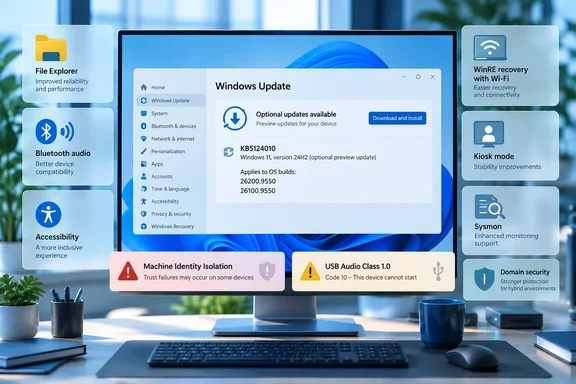
KB5124010 Is the Early Look at October's Patch Tuesday for Windows 11 25H2 and 24H2
KB5124010 is the fourth-week "optional" cumulative update, the non-security release Microsoft ships between monthly Patch Tuesdays. Microsoft's release notes say it applies to all editions of Windows 11 version 25H2 and version 24H2, and it "includes production-quality improvements". It is cumulative. A device that already has earlier updates downloads only the new content in this package.
The monthly pattern explains why the preview matters. Microsoft's own IT pro blog described the August cycle this way: "New features and improvements are coming in the September 2026 security update. You can preview them by installing the August 2026 optional non-security update for Windows 11, versions 25H2 and 24H2." The September preview works the same way. For organizations using Windows Update for Business, Microsoft's release notes say "these changes will appear in the next security update." That next security update should arrive on October 13, 2026, the second Tuesday of the month. That date is an inference from the Patch Tuesday calendar, and Microsoft has not announced the October package itself.
The security update this preview builds on is KB5124008, released September 8, 2026. Microsoft's Windows message center lists the September 2026 security update as available. KB5124010 therefore contains everything from KB5124008 plus the preview material, including the side effects that shipped on September 8. The known issues below are described as starting with "the September 8, 2026, Windows security update (KB5124008), or later updates", so installing the preview neither causes those problems for the first time nor fixes them.
The package also includes servicing stack update KB5124009, Build 26100.9539. The servicing stack is the component that installs Windows updates, and Microsoft says this revision "improves the reliability of the Windows update installation process." Microsoft ships the SSU and the latest cumulative update (LCU) together, so installing KB5124010 updates both.
This release is limited to the 24H2/25H2 servicing branch. On September 11, Microsoft's Windows Insider team announced a separate Windows 11 version 26H1 Release Preview build, 28000.3079, along with Beta and Experimental 26H1 builds in the 28020 and 28120 series. Those are different codebases. Build numbers beginning with 26200 or 26100 identify the machines KB5124010 targets.
How to get KB5124010 through each channel
Microsoft lists four channels, and they behave differently:
- On a personal or unmanaged PC, open Settings > Windows Update > Advanced options > Optional updates, then use the download and install link in the "Optional updates available" area. The update does not install automatically.
- Windows Update for Business does not offer the preview as a separate deployment. Its changes arrive with the next security update.
- The Microsoft Update Catalog provides standalone MSU packages for x64 and Arm64. They must be installed in a specific order, as explained in the deployment section below.
- Windows Server Update Services (WSUS) is listed as a delivery channel for the release.
After installation, you can confirm the update with winver or Settings > System > About. A 25H2 device should show OS Build 26200.9550, and a 24H2 device should show 26100.9550. Those are the numbers Microsoft publishes for this release.
Gradual Rollout Means KB5124010 Features Arrive Device by Device
KB5124010 uses two release phases, and they affect what you should expect after rebooting. Microsoft defines a gradual rollout as one that "delivers an update in phases, so features reach devices over time instead of all at once, meaning availability varies by device." A normal rollout is "the broad release to all eligible devices at the same time, usually when it reaches general availability."
In practice, the fixes in the normal-rollout list apply once the update is installed. The features in the gradual-rollout list may not appear yet. Two PCs with identical builds can look different because Microsoft enables the gradual items over time. Microsoft adds that "feature availability depends on your device and market."
This affects troubleshooting. A help desk that reads about the new Copilot key remap and cannot find it on a freshly updated machine has not found a bug. The build supports the setting, and Microsoft has not enabled it for that device yet. Almost every headline item in KB5124010 is in the gradual list, including the File Explorer preview change, Emoji 17.0, the Tips widget, Open apps maximized, touchpad gestures, the Copilot key setting, Camera roll backup, the WinRE Wi-Fi capability, the kiosk shortcut changes and the removal of PC-to-PC Migration.
The normal-rollout list is short and consists entirely of fixes for the camera, File History and Sysmon. If one of those three problems is affecting you, the preview has a clear reason to install. Otherwise, it is mostly an early look at features you will receive through the monthly security cycle.
File Explorer, Emoji 17.0 and the Copilot Key Remap Lead KB5124010's Consumer Changes
Most visible changes in KB5124010 are small usability fixes. Several address long-standing annoyances.
File Explorer's preview pane handles downloaded files differently
The most consequential File Explorer change affects the preview pane and files downloaded from the web. Microsoft says the update "adjusts how the preview pane handles files downloaded from the web." For HTML files, a new Preview anyway button "lets you acknowledge the warning and preview the file." Non-HTML files, "such as PDFs, are now previewed automatically."
The release notes indicate that downloaded files previously faced a warning in the preview pane. HTML now gets an explicit override that requires the user to acknowledge the warning. Other file types, with PDF as Microsoft's example, skip that step. HTML remains the type that still triggers a warning. The notes do not say why, and they do not list which other types are included beyond PDFs. Organizations that rely on the preview-pane warning should test the file types that matter to them before the change reaches the broad October release.
The other File Explorer items are simpler:
- File Explorer Home now preserves whether sections are expanded or collapsed, so the view you left is the view you get next time.
- The Details pane gets more reliable thumbnail previews for cloud files and a reorganized layout that makes file properties "easier to find and review at a glance."
- Microsoft fixed an issue that could clear the address bar when a user clicked near its right side to enter edit mode.
Emoji 17.0 and new script support in Ebrima
KB5124010 adds Emoji 17.0, and Microsoft names distorted face, fight cloud and hairy creature among the new characters. They are available from the emoji panel with Windows + period. The update also redesigns several existing emoji "for better consistency across platforms": saluting face, face with peeking eye, goose, lotus and kissing cat.
The font changes matter to a smaller but real group of users. The Ebrima font gains support for the Garay and Beria Erfe scripts. Microsoft says Ebrima is "the first Microsoft font to support both," and notes that Garay was encoded in Unicode 16.0 and Beria Erfe in Unicode 17.0. Ebrima's Adlam glyphs are also redesigned to match the current Unicode standard. Users writing in those scripts gain a system font that renders them, which matters for text in apps that fall back to installed system fonts.
The Copilot key can become Right Ctrl or the Context Menu key
For keyboard users, the most practical change is a Windows 11 setting that remaps the Copilot key to Right Ctrl or the Context Menu key. Microsoft says the remap helps "preserve familiar keyboard shortcuts and accessibility workflows".
This addresses a specific complaint. On keyboards where the Copilot key replaced the right-hand Ctrl or menu key, users lost a key some shortcuts and assistive tools depend on. The new setting restores either function without third-party remapping software. The release notes list the setting but do not give its exact Settings path. Because it is a gradual-rollout item, it may not appear on every updated device immediately.
Touchpad gestures, the Tips widget and Camera roll backup
Precision touchpads get two gesture options under Settings > Bluetooth & devices > Touchpad. Single-finger scrolling lets you scroll vertically with one finger starting from the left or right edge. Automatic scrolling keeps a scroll going when you move your fingers near the edge of the touchpad, so you do not need to lift and reposition them. These continue work from July. Microsoft notes that controls for scroll and zoom speed and accelerated scrolling "were released in the July 2026 update (KB5101684)."
The new Tips widget offers short guidance about Windows features. You can add it to the Widgets board through Add widgets > Tips, or to the lock screen through Settings > Personalization > Lock screen. Camera roll backup, available to "eligible users," backs up phone photos to OneDrive. You start it from the Settings Home or Accounts page and finish setup on a phone by scanning a QR code. Microsoft marks Camera roll backup with a footnote and applies its general caveat that availability depends on device and market. The published notes do not define eligibility.
Personalization and Settings fixes
Desktop backgrounds get a batch of reliability work. Microsoft lists improvements to the Personalization > Background page, slideshow transitions on newly created accounts, higher-resolution previews when choosing a background, better preview display on portrait-mode monitors, and more reliable handling of wallpaper changes made in quick succession. Two items add capabilities: DIB image files can now be used as desktop backgrounds, and slideshow wallpapers work with multiple desktops "so that it won't automatically switch you back to Picture."
The Settings app gets several changes:
- The Printers & Scanners page under Settings > Bluetooth & Devices is more reliable.
- Settings > Apps > Installed apps now shows the version number at the top level for packaged apps, "as it already does for other apps."
- Time pickers follow your 12-hour or 24-hour preference in places such as active hours and Night light scheduling.
- The "Allow multiple apps to use camera at the same time" option under Camera settings persists more reliably.
The Installed apps change is small but useful for support staff. Checking the version of a packaged Store-style app from Settings no longer requires opening its details, which makes packaged and conventional desktop apps look the same when you are checking whether an app updated.
Accessibility, Bluetooth and Camera Fixes Address Everyday Breakage in KB5124010
Several items in this release are fixes for things that were broken, which is often why people install an optional update early.
Open apps maximized and a restyled Magnifier
The new accessibility setting, Open apps maximized, does what its name says. It maximizes app windows as they open. Microsoft describes it as removing "a bit of everyday friction whether you use a screen reader or magnification, work in tablet mode, or simply prefer a consistent, full-screen workspace." To enable it, go to Settings > Accessibility > Visual effects and turn on Open apps maximized.
For magnifier users, the benefit is concrete. A window that opens at a small default size forces a zoomed-in user to search for the window edges, and a maximized window avoids that. The setting also fits tablet-style use and anyone who manually maximizes every window.
Magnifier's taskbar toolbar gets a visual refresh with icons that match Windows 11's design, plus adjusted spacing and padding. Microsoft states that "views, zoom controls, keyboard shortcuts, and Read Aloud all behave exactly as they did in earlier versions." The change is cosmetic, and users who depend on Magnifier keep their existing muscle memory. The Bluetooth quick settings page also gets improved navigation with keyboard, gamepad and Narrator input.
A long Bluetooth fix list, including a 0x139 crash
Bluetooth receives the most detailed section of the release notes. Microsoft lists these changes:
- During voice calls, the Windows volume flyout now appears when you change volume from a Bluetooth Classic Audio accessory's own controls, so you get visual feedback on the new level.
- Windows shows a more accurate connection state for accessories that have disconnected from the PC.
- The Bluetooth and devices page in Settings is more stable when managing Bluetooth and audio devices.
- An issue is resolved where the Bluetooth radio could be off while the Settings toggle still showed it as on.
- Microphone compatibility improves with certain Bluetooth Classic audio accessories.
- An issue is resolved that could cause a crash with error code 0x139 while streaming Bluetooth audio.
- Reliability and performance improve with LE Audio accessories.
- Shared audio reliability improves.
The 0x139 crash is the most serious item. A system crash during audio streaming affects the whole machine, not only the headset. The radio-toggle mismatch is worth knowing for support calls. A user who reports that Bluetooth is "on" but nothing connects may have been seeing a toggle that did not reflect the radio state. All of these Bluetooth items are in the gradual-rollout list, so installing the update does not guarantee that a given machine has them enabled yet.
Camera and File History fixes arrive for everyone who installs
Two fixes in the normal-rollout list apply to every device that installs KB5124010. The first addresses "an issue where the built-in camera might stop working in the Camera app and other apps that use the camera." The second fixes File History, which "might fail to back up or restore files to an external drive or network location." Affected devices might show a "Reconnect your drive" message "even when a compatible backup drive is connected and working properly."
The File History bug deserves attention because it causes silent data risk. A backup tool that falsely reports a disconnected drive leaves users to either ignore it, stopping their backups, or keep reconnecting a drive that is already connected. Anyone who has seen that message with a working drive has a clear reason to install the preview rather than wait for October. The camera fix is equally direct: if the built-in webcam has stopped working across apps, this release addresses that symptom.
The update also improves "display and performance in certain scenarios where a plugged-in laptop incorrectly detects a transition from AC power to battery power." That is a gradual-rollout item, and Microsoft does not describe the exact symptom beyond that sentence.
WinRE Wi-Fi Reuse, Kiosk Lockdowns and Sysmon Fixes Are KB5124010's IT Changes
Behind the consumer features, KB5124010 includes changes that affect how managed fleets recover, how kiosks behave and how endpoint monitoring works.
WinRE can now connect using Wi-Fi profiles saved in Windows
The Windows Recovery Environment (WinRE) is the minimal environment Windows boots into for repair. Microsoft says the update "enables WinRE to automatically reuse eligible Wi-Fi profiles already saved in Windows, including supported certificate-based networks." Devices can now get online automatically during recovery scenarios "such as quick machine recovery or cloud rebuild, without preconfiguring Wi-Fi credentials in WinRE."
This is the most operationally significant feature in the release. Cloud-based recovery needs a network connection, and a laptop without Ethernet has previously depended on Wi-Fi credentials being provisioned in WinRE separately. Reusing the profiles Windows already has, including certificate-based enterprise networks where supported, removes a setup step and lets more devices reach remote repair services on their own.
Microsoft states that this capability "is on by default, and IT admins can disable it." Security teams should decide deliberately whether they want saved network profiles reused outside the full operating system. The release notes do not name the policy or setting used to disable it, or define which profiles are "eligible." Administrators who need to turn it off should get the exact control from Microsoft's WinRE documentation rather than guess.
The update also adds "a recovery remote management plug-in for extending WinRE management capabilities for MDM providers." The notes give no further detail. The practical reading is that mobile device management platforms get a hook for managing recovery-environment behavior, which fits the rest of the WinRE work.
Kiosk shortcuts get tighter
Kiosk deployments get two keyboard restrictions. Windows + Tab is now disabled in a restricted UX kiosk. Windows + A and Windows + C are now disabled in single-app kiosk mode.
Both changes close shortcuts that could let a kiosk user reach system UI outside the locked-down experience. Organizations that rely on kiosk mode for public terminals, check-in stations or shared devices get stricter defaults without changing configuration. Organizations that deliberately allowed any of those shortcuts in a kiosk flow should test before the change reaches the October security update.
Sysmon fixes that affect detection quality
KB5124010 includes three fixes for System Monitor (Sysmon), all in the normal-rollout list, so they apply once the update is installed:
- Header validation for executable files is fixed. Previously, truncated or malformed files "could cause unpredictable memory use and result in unreliable tampering detection."
- The Sysmon file system filter driver no longer risks a stop error when the archive directory fails to open during file monitoring. Previously, "closing an uninitialized handle could cause a stop error."
- Process tampering detection no longer generates false Event ID 25 alerts for the Windows Session Manager process, smss.exe.
For security operations teams, these fixes affect the reliability of their data. A monitoring driver that can crash the host is an availability risk, and false Event ID 25 alerts on a core Windows process create noise that analysts either investigate or learn to ignore. The first fix also affects detection coverage, because Microsoft says malformed executables could make tampering detection unreliable. Teams that forward Sysmon events into a SIEM should expect the smss.exe alerts to stop after installation, and should not treat their disappearance as a gap in collection.
PC-to-PC Migration is gone from Windows Backup
One item removes a feature. "PC-to-PC Migration is no longer available," Microsoft says. The feature, introduced through a phased rollout, let users transfer files and settings directly from an old PC while setting up a new one. Microsoft now points users to Windows Backup to "back up and restore your files, settings, and other supported items when moving to a new PC."
The release notes do not give a reason. The practical effect is clear: anyone planning to use a direct PC-to-PC transfer during new-PC setup should plan instead to back up the old machine with Windows Backup and restore on the new one. Because this is a gradual-rollout item, some devices may still show the old option for a while. Treat it as going away and do not build a migration plan around it.
AI components update on Copilot+ PCs only
The release updates four on-device AI components to version 1.2608.951.0: Image Search, Content Extraction, Semantic Analysis and Settings Model. Microsoft says these components "are applicable only to Copilot+ PCs and will not install on other Windows client PCs or Windows Server." On ordinary hardware, nothing changes here.
The Machine Identity Isolation Trust Failure Is the Known Issue That Matters in KB5124010
The most important part of KB5124010 for enterprise administrators is a known issue that began with the September 8 security update and that this preview does not fix.
What breaks, and for whom
Microsoft says that after installing KB5124008 "or later updates," which includes KB5124010, "some Credential Guard protected machine accounts might lose their secure channel with an on-premises Active Directory (AD) domain." Users might then be unable to sign in interactively with valid domain credentials and might see a message stating that the trust relationship between the device and the domain failed. Offline sign-in with previously cached credentials might still work. Microsoft says AD replication and AD services on the domain controllers are not affected.
The secure channel is the authenticated connection a domain-joined computer maintains with its domain using its machine account. When it breaks, the domain stops trusting the PC, and interactive domain sign-in fails even with a correct password. That is why cached credentials can still work: they do not require the domain to vouch for the machine at that moment. The problem is on the client side. Domain controllers are healthy, and the affected workstations are the ones that need attention.
Why it happens: Windows now honors an existing setting
Microsoft's explanation is specific. KB5124008 and later updates "enable the Machine Identity Isolation feature." The update "does not directly enable Machine Identity Isolation enforcement," but "it does cause Windows to begin honoring any existing or policy-provisioned settings that enabled Machine Identity Isolation enforcement."
The requirement is clear. Machine Identity Isolation "is only supported for environments connected to domain controllers running at a Windows Server 2025 Domain Functional Level (DFL) and above. The feature should be disabled elsewhere." Microsoft states directly: "Any devices previously configured to use Machine Identity Isolation that are not connected to Windows Server 2025 domain controllers will experience this issue and will need to disable the feature."
This scopes the risk. A domain-joined PC that never had Machine Identity Isolation enforcement configured is not in the described failure path. The exposed group is devices where someone previously enabled the setting through Intune, Group Policy or the registry, in a domain below Windows Server 2025 DFL. Before September 8, that setting had no effect. Now Windows acts on it. An organization that tested the setting early, perhaps in a pilot baseline, could find those machines losing domain trust after the September security update.
The workaround: disable it the way it was enabled
Microsoft's rule is to disable Machine Identity Isolation "using the same management method that was used to enable it." That rule matters. If a policy pushed the setting, changing the registry locally would likely be overwritten by the next policy refresh, so the fix belongs at the source.
- Find out how Machine Identity Isolation was enabled on the affected devices: through Intune policy, Group Policy, or a direct registry change.
- If Intune enabled it, disable Machine Identity Isolation in the Intune policy.
- If Group Policy enabled it, disable Machine Identity Isolation in the Group Policy object.
- If it was set directly in the registry, back up the registry first. Microsoft's workaround begins with a warning to back up the registry and know how to restore it before making changes.
- On the Windows 11 version 24H2 or 25H2 device, check these two locations:
HKEY_LOCAL_MACHINE\SYSTEM\CurrentControlSet\Control\Lsa\MachineIdentityIsolationandHKEY_LOCAL_MACHINE\SOFTWARE\Policies\Microsoft\Windows\DeviceGuard\MachineIdentityIsolation. - At either location, if the
MachineIdentityIsolationvalue is set to2, change it to0. - Restart the device.
- Reset the secure channel by running
Test-ComputerSecureChannel -Repair -Credential (Get-Credential)in PowerShell. TheGet-Credentialportion prompts for the credentials used to perform the repair.
Success means a user can sign in interactively with domain credentials again, without the trust-relationship error. The order matters. The repair command comes after the feature is disabled and the device has restarted. Repairing the channel while enforcement is still active in an unsupported domain would, by Microsoft's explanation, leave the underlying cause in place.
On devices already showing the trust error, users cannot sign in with domain accounts. Cached credentials may still work, according to Microsoft. Administrators need a path to run the registry and PowerShell steps on those machines, whether through a cached sign-in, a local administrative account or their management tooling. The release notes do not prescribe one.
The permanent fix is a temporary stop
Microsoft says it "plans to resolve this issue in a future Windows update by temporarily preventing Machine Identity Isolation enforcement while improvements are made to the feature." No date is attached, and KB5124010 does not include it.
So the preview does not help here, and installing it does not make things worse either, since KB5124008 already introduced the behavior. The action is to audit. An administrator with no Machine Identity Isolation configuration anywhere in the estate can mark this issue as not applicable. One with that configuration in a domain below Windows Server 2025 DFL should remove it now, through the original management method, instead of waiting for Microsoft's fix.
USB Audio Class 1.0, Secure Boot Certificates and boot.stl Complicate KB5124010 Deployment
The second known issue and two deployment notes round out what administrators need to check.
USB Audio Class 1.0 devices fail with Code 10 and no fix yet
After the September 8 security update, "some USB Audio Class 1.0 devices might fail to start or produce audio," Microsoft says. Symptoms include a Device Manager error reading "This device cannot start (Code 10)," no audio output, volume controls that are unresponsive or stuck at zero, and sound settings that are unresponsive or unavailable. Microsoft states that "this issue is limited to USB Audio Class 1.0 devices" and that it "is working on a resolution."
No workaround is published, and KB5124010 does not claim to fix it. The practical step is inventory and triage. If a user's USB headset, DAC or speaker stopped working after September 8 and shows Code 10, this known issue is the likely cause, and reinstalling drivers is not a documented fix. Microsoft's notes do not explain how to identify whether a given device uses USB Audio Class 1.0. Admins with a mixed USB audio fleet may need the device manufacturer to confirm which class a product uses.
Secure Boot certificate expiration continues in the background
KB5124010's notes repeat an ongoing notice: Secure Boot certificates used by most Windows devices "started to expire in June 2026." Microsoft has been updating those certificates "on consumer and non-managed business devices over the past several months." Devices that have not received the newer certificates "will continue to start and operate normally, and standard Windows updates will continue to install." Updated certificates "will continue to be delivered through Windows Update in the coming months."
That is reassuring for home users: an unpatched certificate does not stop a PC from booting or updating. The distinction in Microsoft's wording is that consumer and non-managed business devices are the ones Microsoft has been updating through Windows Update. Managed estates should not assume they have been covered the same way. The KB5124010 notes do not explain how to check certificate status, and administrators should rely on Microsoft's dedicated Secure Boot certificate guidance for that.
boot.stl and error 0xc0430001 in updated installation media
For teams that service Windows images, Microsoft adds a deployment warning. When you deploy dynamic updates such as KB5124010 into an existing Windows image, "ensure the boot.stl file is included as part of the installation media." If it is missing, devices might fail to start from the installation media, with error code 0xc0430001. Microsoft says boot.stl "is used during Secure Boot validation and must match the Windows version and architecture of the image you are updating."
Microsoft gives two options:
- Use the Update WinPE script to update the existing image. Microsoft marks this as recommended.
- Manually copy boot.stl from the device's
Windows\Boot\EFIfolder to the corresponding folder on the installation media before deploying the update.
Microsoft also advises that additional Dynamic Update packages should come from the same release month as the cumulative update. If a Safe OS Dynamic Update or Setup Dynamic Update is not available for that month, use the most recent version. The specific failure to watch for is a rebuilt USB installer or deployment image that refuses to boot with 0xc0430001, which points to a missing or mismatched boot.stl.
Offline installation requires checkpoint KB5043080 first
Administrators downloading from the Microsoft Update Catalog will find more than one file. Microsoft explains that the Catalog "may include one or more required checkpoint cumulative updates and the target cumulative update," and that checkpoints must be installed first. For KB5124010, the required checkpoint is KB5043080. On Arm64, the files are windows11.0-kb5043080-arm64_df540a05f9b118e339c5520f4090bb5d450f090b.msu and then windows11.0-kb5124010-arm64.msu. Microsoft publishes separate x64 instructions.
Microsoft documents two methods. First, download all MSU files for KB5124010 into one folder that contains nothing else, such as C:\Packages:
- For manual installation, double-click each MSU in order, checkpoint first and target second. If the checkpoint is already installed, a message says so and you can move on.
- For a single command, use DISM, which "automatically scans the folder specified in the PackagePath folder and installs any required checkpoint cumulative updates." On a running Arm64 PC, from an elevated Command Prompt:
DISM /Online /Add-Package /PackagePath:c:\packages\windows11.0-kb5124010-arm64.msu. The PowerShell equivalent from an elevated window isAdd-WindowsPackage -Online -PackagePath "c:\packages\windows11.0-kb5124010-arm64.msu".
The empty-folder requirement comes from the same DISM behavior. DISM scans the folder for checkpoints, so unrelated MSUs in that folder can cause confusion. For mounted installation media, Microsoft refers to its separate Dynamic Update media guidance, and the boot.stl warning above applies.
Windows 11 24H2 Home and Pro End Updates on October 13, 2026
KB5124010's release notes also carry a lifecycle deadline. Windows 11 version 24H2 Home and Pro "will reach end of updates on October 13, 2026." After that, devices running those editions "will no longer receive fixes for known issues, time zone updates, technical support, or monthly security and preview updates containing protections from the latest security threats." Enterprise and Education editions of 24H2 remain supported until October 12, 2027. Microsoft's IT pro blog also flagged the October 13 date in its August roundup.
The calendar makes this concrete. The fourth-week preview for October would come after October 13. By our reading of the schedule, KB5124010 is therefore the last optional preview that 24H2 Home and Pro machines will receive. Microsoft has not labeled it that way. Its notice sets the end date without describing the final package.
The editions matter more than the version number. A 24H2 machine running Enterprise or Education has another year. A 24H2 machine running Home or Pro, including a Pro machine in a small business, is the one at risk. Microsoft's instruction is to "upgrade to the latest version of Windows 11." For this servicing family, that means version 25H2. The notes do not describe the upgrade mechanics, so this article does not offer a procedure.
Two open issues complicate the timing for some users. A 24H2 Pro machine in a small domain that is hit by the Machine Identity Isolation problem, or a home PC with a USB Audio Class 1.0 device affected by the Code 10 bug, is dealing with a regression close to the deadline. Microsoft's planned fixes for both issues have no dates. If a fix ships after October 13, 24H2 Home and Pro machines will not receive it on their current version. Moving to 25H2 is the way to stay in line for those fixes.
What this means for you
For most home users, KB5124010 can wait until October. For PCs hit by the camera or File History bugs, it is worth installing now, and 24H2 Home and Pro owners need an upgrade plan this month. The preview's fixed items apply on installation. Its features arrive gradually, and they reach managed fleets through the next security update anyway. The known issues come from the September 8 update, so the real work for administrators is auditing Machine Identity Isolation settings and USB audio hardware, not deciding about the preview itself.
Enterprise teams should pilot KB5124010 on a representative ring now, because that is effectively testing October. The priority areas are domain-joined Credential Guard devices with any Machine Identity Isolation configuration, USB Audio Class 1.0 hardware, camera-dependent apps, File History destinations, Sysmon rules and SIEM parsing, kiosk shortcuts, WinRE recovery workflows, and custom installation images.
- Install KB5124010 now through Settings > Windows Update > Advanced options > Optional updates if your built-in camera stopped working or File History falsely reports "Reconnect your drive." Both fixes apply on installation.
- Search your Intune policies, Group Policy objects and registry baselines for Machine Identity Isolation. If you find it in a domain below Windows Server 2025 Domain Functional Level, disable it through the same method that enabled it, restart, and run
Test-ComputerSecureChannel -Repair -Credential (Get-Credential). - Treat a Code 10 error on a USB Audio Class 1.0 device after September 8 as a known Microsoft issue that has no published fix yet, and do not spend time on driver reinstalls that Microsoft has not recommended.
- Move Windows 11 24H2 Home and Pro machines to 25H2 before October 13, 2026. Enterprise and Education editions of 24H2 have until October 12, 2027.
- Decide whether you want WinRE's default Wi-Fi profile reuse, check kiosk deployments for the removed Windows + Tab, Windows + A and Windows + C shortcuts, and stop planning migrations around PC-to-PC Migration.
- When updating installation media, include a matching boot.stl to avoid error 0xc0430001, and install checkpoint KB5043080 before KB5124010 when using Catalog packages.
KB5124010 is a large list of polish items combined with a short list of changes that determine whether some domain PCs can sign in. October 13 is the next milestone. On that day, the preview's gradual features are expected to reach the broad security release, Windows 11 24H2 Home and Pro get their last update, and administrators who have not removed unsupported Machine Identity Isolation settings will still be waiting on a Microsoft fix with no date.
Update: Reports link KB5124010 to crashes in Battlefield and other anti-cheat games (September 23, 2026)
Neowin reports that some players are experiencing crashes shortly after launching Battlefield 6 following installation of KB5124010. User reports cited by the outlet describe crashes to the desktop within roughly 15 to 30 seconds, often without an error, with some users saying the issue stopped after they uninstalled the optional update.
The reports also mention Battlefield 2042 and Wardogs, including a Wardogs launch failure with the WD-L020-95bc94d86a0d error. The apparent common factor is anti-cheat software: Battlefield uses EA???s Javelin Anti-Cheat, while other affected reports reference Easy Anti-Cheat. Microsoft has not acknowledged a game-crash issue in KB5124010???s known-issues list.
Because this is based on community reports rather than a Microsoft advisory, the scope and root cause remain unconfirmed. Players whose games began crashing immediately after installing KB5124010 may want to defer the optional preview update, or uninstall it if the timing and rollback test clearly identify it as the trigger.
Update: WinRE saved Wi‑Fi reuse reportedly moved out of KB5124010 (September 23, 2026)
Techgenyz reports that Microsoft has revised KB5124010’s feature listing: Windows Recovery Environment support for automatically reusing eligible Wi‑Fi profiles has reportedly been moved to a future rollout.
That means the feature should not be treated as available merely because KB5124010 is installed. The previously described benefit—letting WinRE connect to saved Wi‑Fi, including supported certificate-based networks, for cloud recovery or remote repair—remains planned, but its release timing is now unclear.
For administrators, this changes immediate recovery planning. Do not assume Wi‑Fi-only devices will gain unattended network connectivity in WinRE through this preview or October’s corresponding security update. Existing WinRE network provisioning and recovery procedures should remain in place until Microsoft publishes the feature again as broadly available.
Update: Team17 reportedly confirms Wardogs crash and rollback workaround (September 23, 2026)
TechSpot reports that a Team17 representative has acknowledged Wardogs crashes linked by players to KB5124010, including the WD-L020 error. According to the outlet, the developer said there is no immediate remedy and advised uninstalling the optional Windows update as the current workaround.
That is a more direct vendor acknowledgement than the earlier player reports, but it applies specifically to Wardogs. Microsoft still has not added game or anti-cheat crashes to KB5124010’s official known-issues list.
For affected players, uninstalling KB5124010 remains a reasonable short-term test when crashes began immediately after the preview was installed. Because it is optional, users who have not installed it can defer it while Microsoft, EA and affected game developers investigate.
Update: Microsoft acknowledges black-screen virtual desktop issue after sign-in (September 25, 2026)
Microsoft has acknowledged a new Windows 11 known issue in which some virtual desktops fail to load after sign-in, leaving users at a black screen. According to The Register, the problem affects devices running the August 2026 optional preview update or later releases, which includes KB5124010.
The issue has been observed primarily on Azure Virtual Desktop hosts using FSLogix, and may be more common with some existing user profiles. Affected machines can log Windows Explorer crashes in the Application event log.
As a temporary recovery step, users can open Task Manager and run explorer.exe as a new task to restore the desktop. Microsoft has also issued a Known Issue Rollback that administrators can deploy through Group Policy to disable the problematic change while it works on a permanent fix.
For IT teams using AVD and FSLogix, this adds another validation point before deploying KB5124010 or its October security-update successor broadly. Check affected hosts for Explorer crash events, prepare the rollback policy, and ensure support staff know the Task Manager workaround for users stranded at a black screen.
References
- The September 2026 Windows non-security preview update is now available Microsoft - Message Center · 2026-09-22 10:00 PT