

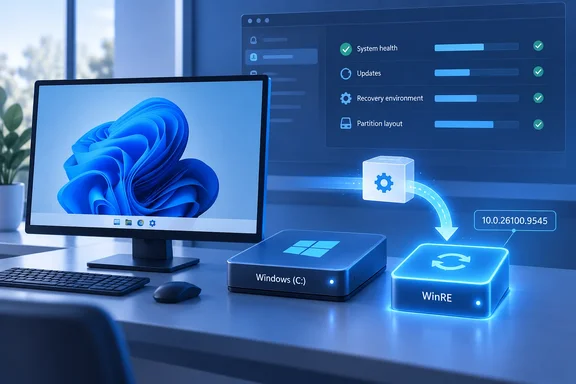
KB5125758 Replaces KB5124015 in the Windows 11 24H2 and 25H2 Recovery Image
Microsoft's support article limits KB5125758 to Windows 11 version 24H2 and version 25H2, all editions. Here are the documented facts:
- The update has no prerequisites.
- No restart is needed after it is applied.
- It cannot be removed once it has been applied to a Windows image.
- It replaces the previously released KB5124015.
- After installation, the WinRE version on the device should read 10.0.26100.9545.
Microsoft also publishes a CSV file that lists every file in the package. It notes that the U.S. English package may include files for other languages.
NinjaOne's patch catalog lists the same details independently. It describes KB5125758 as a Safe OS Dynamic Update released on September 22, 2026, for Windows 11 versions 24H2 and 25H2 that replaces the previously released KB5124015 and does not require a device restart after installation. The catalog also frames the update as improving WinRE "functionality and reliability," but that is its own description. Microsoft's note does not say which recovery problems, if any, the update fixes. Don't assume it fixes a specific failure you've seen in WinRE.
NinjaOne also notes that this is a maintenance-focused update with minimal public discussion, which is typical for Safe OS Dynamic Updates targeting the recovery environment. At publication time, no known issues had been reported for KB5125758.
Safe OS Dynamic Updates Keep WinRE in Step With Monthly Servicing
WinRE is the small recovery operating system Windows boots into when the main installation fails to start, or when you choose Startup Repair, Reset this PC or advanced startup options. It is stored as a separate image file, winre.wim, usually in its own recovery partition. Because it is a separate image, regular cumulative updates to the running OS don't automatically update it. A Safe OS Dynamic Update is the package Microsoft uses to service that recovery image, and the same packages are used to refresh installation media.
Microsoft's WinRE servicing documentation separates two kinds of update to winre.wim. One is a latest cumulative update (LCU). The other is a Safe OS Dynamic Update (DU) package. This distinction affects how you verify each one, as covered below.
KB5125758 is one of a regular series. Microsoft has published earlier Safe OS Dynamic Updates for the same two Windows 11 releases, including KB5077180 on February 10, 2026, KB5079270 on February 24, 2026, KB5083826 on April 14, 2026, and KB5089593 on May 12, 2026. Each one carries the same one-line summary about WinRE improvements. Each new package supersedes the previous one, so a device only needs the latest. KB5125758 is now that package, replacing KB5124015.
Microsoft sometimes lists specific fixes in these notes. KB5062688, a July 2025 Safe OS update for Windows 11 24H2 and Windows Server 2025, stated that it fixes an issue in which USB-C was not working correctly on Arm64-based devices because of a missing UCMUCSI device. The KB5125758 note lists no fix of that kind.
Windows Update Installs KB5125758 Automatically; the Update Catalog Serves Image Builders
Microsoft lists three release channels for KB5125758, and they suit different audiences.
| Channel | Status for KB5125758 | Who it suits |
|---|---|---|
| Windows Update | Available; downloads and installs automatically | Home users and unmanaged PCs |
| Microsoft Update Catalog | Available as a standalone package | Admins servicing WinRE by hand or building images and media |
| Windows Server Update Services (WSUS) | Not offered; Microsoft points to the other channels | Admins must use Windows Update or the Catalog instead |
The WSUS entry is the one most likely to catch out administrators. The support page sends WSUS users to the other channels, so don't expect KB5125758 to show up in a WSUS console. Organizations that rely on WSUS and want the updated recovery image on their devices will have to use the Catalog package or let those devices reach Windows Update.
The Catalog package is also the one image builders use. Microsoft's guidance covers adding a Safe OS DU to an offline Windows image, which means mounting install.wim and then the winre.wim inside it. It also covers servicing the recovery image on a running PC. Both approaches are described below.
Verifying WinRE 10.0.26100.9545 With Event Viewer, DISM and ReAgentC
Microsoft names 10.0.26100.9545 as the expected WinRE version after KB5125758 installs. Its general verification guidance offers three ways to read that version: a PowerShell script called GetWinReVersion.ps1, the WinREAgent event log, and DISM.
Check the WinREAgent servicing event
When Windows Update services the recovery image, WinREAgent logs it. Microsoft says to look for Event ID: 4501 Servicing succeeded events. These events are generated when WinRE is updated through Windows Update.
- Open Event Viewer.
- Expand Windows Logs and select System.
- Under Actions, choose Find, type
WinREAgent, and click Find Next. - On the event's General tab, look for a message saying servicing succeeded, followed by the new Windows Recovery Environment version.
If the update worked, that message should show 10.0.26100.9545.
This method has limits. Microsoft says that if you service WinRE by using DISM commands to apply a Safe OS Dynamic Update (DU) package, or if WinREAgent servicing events are unavailable due to space limitations in your environment, we recommend using the DISM command to confirm the installed WinRE version.
Read the version from winre.wim with DISM
- Open Command Prompt as administrator.
- Run
reagentc /infoand note the Windows RE location. It will look like\\?\GLOBALROOT\device\harddisk0\partition5\Recovery\WindowsRE. The disk and partition numbers depend on the machine. - Run
Dism /Get-ImageInfo /ImageFile:<that path>\winre.wim /index:1, replacing the placeholder with the path from step 2. - Read the version fields in the output.
Microsoft notes that the image file is usually named winre.wim with index 1, but either can differ on some installations. In the output, the ServicePack Build field is the number after 26100 in the full version string. For KB5125758 it should be 9545 or higher. Microsoft's rule is that a build equal to or higher than the target is up to date, and a lower build means the recovery image is behind.
When the version number does not move
Microsoft's own documents disagree on one point. The KB5125758 page says to expect WinRE 10.0.26100.9545 after installation. Microsoft's general guide on adding updates to Windows RE says the WinRE version number changes only after you add an LCU. For DU packages, it says to use DISM /Get-Packages to confirm the package is in the image.
In practice, a device updated through Windows Update should report 9545. If you service the image manually with the Catalog package and the version doesn't change, check the package list before concluding the install failed. Look for an entry that includes KB5125758 with its State shown as Installed.
Manually Servicing winre.wim Includes a BitLocker Step
Most PCs never need manual servicing, because Windows Update applies KB5125758 automatically. Manual servicing is for devices outside Windows Update, including WSUS-managed fleets for this particular package. For a running PC, Microsoft's documented process is:
- Open Command Prompt as administrator and create a mount folder, for example
md c:\mount. - Mount the recovery image with
ReAgentC.exe /mountre /path c:\mount. - Add the downloaded Catalog package with
Dism /Add-Package /Image:C:\mount\ /PackagePath:"<path to package>". - Confirm the package is present with
Dism /Image:C:\mount\ /Get-Packages. The KB number should appear with State: Installed. - Clean up superseded components with
dism /image:C:\mount /cleanup-image /StartComponentCleanup /ResetBase. - Commit the changes and unmount with
ReAgentC.exe /unmountre /path c:\mount /commit. - If the disk is protected by BitLocker or Device Encryption, run
reagentc /disableand thenreagentc /enable. Microsoft says this makes sure the updated image is turned on and correctly configured for the installation.
Don't skip step 7 on encrypted devices. It is the one step in the procedure that depends on the device's configuration. For offline images, the process is similar: mount install.wim, then mount the winre.wim inside it under Windows\System32\Recovery, add and verify the package, then unmount both images with /Commit, WinRE first.
Before servicing, remember that this update can't be rolled back. Microsoft says it cannot be removed once applied to an image, so test it on a copy of your reference image before changing the master.
Free space in the recovery partition matters too. Microsoft's WinRE servicing guidance recommends about 250 MB of free space in the recovery partition for WinRE updates to install successfully. It publishes a sample PowerShell script that grows the partition by 250 MB. The script can shrink the OS partition to make room, so Microsoft tells users to reboot first and create a backup folder before running it. This is general WinRE guidance and isn't listed as a requirement on the KB5125758 page. Still, if the recovery image on some devices never seems to update, low partition space is a documented cause worth ruling out.
The Secure Boot Notice on the KB5125758 Page Is a Separate Deadline
The KB5125758 page ends with a banner saying that Secure Boot certificates used by most Windows devices began expiring in June 2026. The same banner appears on earlier Safe OS updates in the series. The February and April 2026 notes, for example, said that Microsoft has been updating these certificates on consumer and non-managed business devices for the past months. It is a standing notice, and it isn't part of what KB5125758 changes. Nothing on the page says this WinRE update renews certificates.
The deadline itself is real, and one date is coming up soon. Microsoft's certificate guidance lists three dates:
- Microsoft Corporation KEK CA 2011 expired June 24, 2026.
- Microsoft UEFI CA 2011 expired June 27, 2026.
- Microsoft Windows Production PCA 2011, which signs the Windows boot loader, expires October 19, 2026.
According to Microsoft, devices without the newer 2023 certificates will keep starting and receiving standard updates. However, they will stop receiving new early-boot protections, including updates to Windows Boot Manager, the Secure Boot databases and revocation lists.
Microsoft's advice on earlier notes is that you can check your PC status on the Windows Security app. If you are an IT administrator, follow the guidance on the Secure Boot Playbook for Windows clients and Windows Server. Handle that as its own project, separate from KB5125758.
What this means for you
Your action depends on how your devices get updates. Unmanaged Windows 11 24H2 and 25H2 PCs on Windows Update should pick up KB5125758 automatically without a reboot, and only need a quick version check. WSUS-managed fleets and teams that maintain deployment images need to fetch the package from the Microsoft Update Catalog themselves.
- KB5125758 applies only to Windows 11 versions 24H2 and 25H2 (all editions). It replaces KB5124015 and should bring WinRE to 10.0.26100.9545.
- WSUS does not offer this update. Use Windows Update or the Microsoft Update Catalog package instead.
- To verify, look for Event ID 4501 from WinREAgent in the System log, or run
reagentc /infoand thenDism /Get-ImageInfoagainstwinre.wimand check that ServicePack Build is 9545 or higher. - If you service the image manually and the version string doesn't change, use
Dism /Get-Packagesto confirm KB5125758 shows as Installed. - On BitLocker or Device Encryption systems serviced manually, run
reagentc /disableand thenreagentc /enableafter committing the image. - The package cannot be removed after it is applied, so test it on a copy of your reference image first. Track the October 19, 2026 Secure Boot certificate expiry as a separate task.
KB5125758 is a routine recovery-environment refresh, the latest in a series of 2026 Safe OS updates for Windows 11 24H2 and 25H2, and for most PCs it will install unnoticed. Managed environments need to do a little more: supply the package themselves where WSUS doesn't offer it, confirm that winre.wim actually reports build 9545, and add the re-enable step on encrypted machines. The more pressing date on the same support page is October 19, when the Windows Production PCA 2011 boot-loader certificate expires. Admins who have been putting off the Secure Boot certificate work have about four weeks left.
References
- KB5125758: Safe OS Dynamic Update for Windows 11, versions 24H2 and 25H2: September 22, 2026 | Microsoft Support Microsoft Support · 2026-09-22T00:00:00+00:00
- KB5125758 - Details, Issues, & Feedback - NinjaOne ninjaone.com
- Methods to verify the WinRE version installed | Microsoft Support support.microsoft.com