

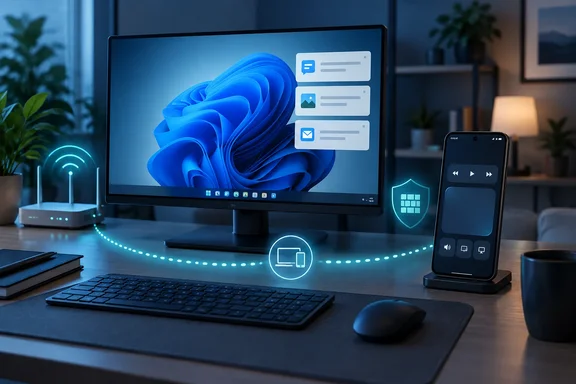
PCWorld recommended the app on September 30. Its assistant editor Sam Singleton wrote that he uses it to control music on his PC and that the virtual trackpad "can be useful." Below is what KDE's own documentation says about setting it up on Windows, what works on Android versus iPhone, and where people usually get stuck.
What KDE Connect actually does
The project comes from the KDE community, which is best known for the Plasma desktop on Linux. The Windows version is a full release, not a hobby port. According to KDE's download page, you can get it for Windows from the Microsoft Store or through Chocolatey or an offline installer. There are also versions for Android, iOS, macOS and Linux.
The features in PCWorld's roundup that matter most to Windows users:
- Notification mirroring. Phone notifications appear on the desktop. PCWorld points out that this helps when you're busy at work and can't pick up your phone.
- Text replies from the PC. PCWorld says this works on supported devices. KDE's wiki confirms you can receive your phone notifications on your desktop computer and reply to messages.
- Media control. Play/pause, previous/next, skipping back or forward five seconds, and system volume, according to KDE's feature documentation.
- Virtual trackpad and keyboard. KDE calls this Remote input. The phone screen works as a touchpad (one tap is one click), and a keyboard icon lets you type on the PC from the phone.
- Presentation remote. Next and previous slide, a laser-pointer-style dot that follows the phone's movement, and a menu to go full screen (F5) or quit (Esc).
- Custom commands. Buttons on the phone that run commands you've set up on the PC, such as locking the screen or shutting down.
It also shares files and links, syncs the clipboard (text only, not images), shows the phone's battery level and can ring a lost phone. PCWorld calls file sharing probably the most common use, but it's honest about it: if all you want is file transfer, Singleton suggests LocalSend because it's easier for quick jobs. KDE Connect earns its place with the remote-control and integration features.
Bottom line: it's a Swiss Army knife for connecting phone and PC. File transfer is the corkscrew. You probably came for the other blades.
Setting it up on Windows
KDE's documentation describes a short pairing process:
- Install both apps. Get the desktop app from the Microsoft Store, Chocolatey or KDE's offline installer. Get the phone app from Google Play, F-Droid or Huawei AppGallery on Android, or the App Store on iPhone.
- Put both devices on the same network. Discovery happens over the local network.
- Open KDE Connect on both devices. Each one should show the other's name.
- Request pairing from either device and accept the prompt on the other. Once you accept, the devices are paired.
- Choose which features to enable. Each feature is a separate plugin, so you can switch off the ones you don't want.
KDE's Google Play listing adds one thing to watch: keep the desktop version up to date with the Android version, or the newest features may not work. The Store version on Windows updates itself, which helps. If you used the offline installer, you'll need to check for updates yourself.
On privacy, KDE's Play Store listing says the app sends data directly between devices over the local network, never through the internet or through KDE or third parties, and encrypts it end to end with TLS. Google Play's data-safety section says no data is collected or shared. That comes from the developer, not an independent security audit. The open-source code does at least make those claims checkable.
When the devices can't see each other
This is by far the most common problem, and it's usually the firewall. KDE's wiki says the app needs firewall ports opened in some setups. Specifically, it uses dynamic ports 1714–1764 over both TCP and UDP, and it relies on UDP broadcast packets for automatic discovery. KDE's advice is to open that port range for both protocols, or otherwise make sure your network isn't blocking UDP broadcasts.
On Windows, allowing the app through Windows Defender Firewall isn't always easy. In a thread on Microsoft Q&A, a user said KDE Connect doesn't appear in the list of apps available to let through the firewall, and that they couldn't browse for it or paste its path either. Microsoft's community moderator replied that, in their testing, they could allow the Microsoft Store version through the Windows 10 firewall. So if the offline installer gives you trouble, try switching to the Store build first.
Here's a general troubleshooting order for Windows. It's based on common practice plus KDE's guidance, not a KDE-written procedure:
- Check the network profile. When Windows first joins a network, it asks whether it's private or public. KDE's own firewall advice warns against running the app in a "public" zone. On Windows, the rough equivalent is keeping your home Wi-Fi set to Private and never opening ports on the Public profile.
- Allow the app or the port range. If app-based rules don't work, create an inbound rule for TCP and UDP ports 1714–1764, and limit it to the Private profile.
- Check for guest-network isolation. Many routers, hotel Wi-Fi networks and office guest networks stop devices from talking to each other, so discovery fails even with a perfect firewall setup.
- Refresh and reconnect manually. openSUSE's documentation for the app suggests refreshing the device list, and notes that if notifications stop, one or the other may device have fallen asleep. Battery optimisation on Android phones is a common reason.
- Reset a corrupt configuration. KDE says a damaged config file can make the app crash during pairing, and deleting it can help. On Linux that folder is
~/.config/kdeconnect. KDE's wiki notes that On Windows, the path resolves to %LocalAppData%. Close the app before you touch anything there.
There's also a way around blocked networks. KDE documents running the app over OpenVPN, for example on public Wi-Fi where devices can't talk to each other and you need your phone as a presentation remote. Automatic discovery needs a bridged (TAP) OpenVPN setup. With the more common TUN setup, you can still add devices manually by IP address.
Bottom line: if pairing fails, it's almost always the firewall or the network, not the app. Check the Private profile, the port range and your router's isolation settings.
Android and iPhone aren't equal
PCWorld's line about text replies working "on supported devices" is doing a lot of work. Android gets the most complete experience. KDE's download page labels the iOS version a native port and points users to its README for known limitations. iPhone owners should read that before expecting full notification sync or text replies on the PC. Apple's background restrictions tend to limit this kind of app.
Android has a few extras. On Android 11 and later, KDE says your custom commands show up in the system Device Controls panel, so you can lock the PC from the quick settings area without opening the app. KDE also lists a "pause media during calls" feature. One Google Play reviewer called it a favourite: media on the PC pauses when a call arrives and resumes when the call ends.
Be careful with media control on Windows. KDE's Play Store listing describes the phone as a remote for Linux media players. PCWorld says it works for music on a PC, but don't assume every Windows media app will respond. Test the players you actually use.
As for permissions, the Google Play listing says Accessibility access is needed only if you want another device to control your Android phone with Remote Input. That's the opposite direction from phone-controls-PC. Background location is needed only for the Trusted Networks feature, because Android treats reading the Wi-Fi network name as location data. You don't have to grant either one just to use your phone as a trackpad for the PC.
Custom commands: powerful, so be careful
This is the feature power users will like most, and the one to set up with the most thought. KDE's tutorial is simple: open KDE Connect settings, click the phone you want to allow, enable Run commands, then open its settings and add commands. Each command is a name and a shell script. KDE's website advertises shutting down the desktop from your phone or locking the screen with one tap.
Two things to keep in mind:
- KDE's example command list mostly assumes Linux. Don't paste those examples onto a Windows machine. You'll need Windows equivalents. Windows has its own
shutdownutility, for example, but test anything in a harmless way before you rely on it. The Android app's recent changelog added a "Clear Output" option to Run Command, which suggests you can see command output for exactly this kind of check. - Every command is an action a paired phone can trigger. Pair only devices you control, add only commands you understand, and think twice about anything destructive. A "shutdown" button in your pocket is handy until a toddler finds it.
Should you install it?
Microsoft's own Phone Link covers some of the same ground on Windows. KDE Connect's selling points are that it's open source, works across platforms (the same phone can pair with a Windows desktop, a Linux laptop and a Mac), and offers features Phone Link doesn't, such as custom commands and a presentation remote. The downside is setup: if your firewall or network gets in the way, expect a bit of troubleshooting.
Bottom line: if you're on Android and happy to spend ten minutes on firewall settings, KDE Connect is one of the most useful free utilities for a Windows PC. If you're on iPhone, try it too, but read the iOS limitations before you expect the full experience.
References
- Control your PC from your phone with this free app PCWorld · 2026-09-30T10:30:00+00:00
- KDE Connect play.google.com
- Download | KDE Connect kdeconnect.kde.org