

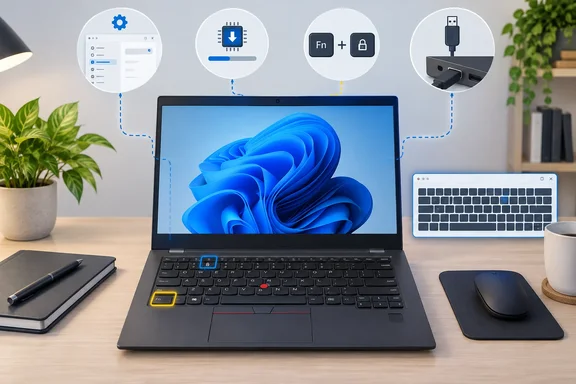
Windows Report’s seven-fix guide offers a sensible starting framework, but “universal” needs a qualification. These checks apply broadly to Windows PCs; BIOS entry keys, Fn Lock behavior, and Lenovo Vantage controls vary by model. Lenovo’s corresponding keyboard troubleshooting article explicitly covers ThinkPad and IdeaPad systems running Windows 10 or Windows 11—not every Legion laptop or standalone Lenovo keyboard.
Here is how to work through the seven checks without turning a keyboard problem into an unnecessary firmware adventure.
1. Restart Windows and test in Notepad
Save your work, then select Start > Power > Restart. Microsoft documents restarting Windows as part of its device-driver recovery procedure. Once you are signed in again, open Notepad and test the affected keys.
Try those same keys in another application. Lenovo recommends this comparison because keys that work in Notepad but fail in one particular program point toward that program’s settings or software rather than a keyboard-wide failure.
Success looks like: normal typing returns after the restart, or the comparison identifies a single application to investigate.
2. Test the keyboard outside Windows
BIOS/UEFI setup provides a useful comparison with Windows, but getting there requires the correct instructions for your model. Lenovo documents these common entry methods:
- ThinkPad: repeatedly press F1 at the startup logo.
- Some ThinkPad systems: press Enter to open the Startup Interrupt Menu, then F1.
- IdeaPad: press F2, or Fn+F2 where required.
- Lenovo desktops and all-in-ones: commonly F1.
For a Legion or another model not covered by those instructions, confirm the method in its user guide rather than guessing.
If startup-key timing is difficult, Lenovo also documents a Windows route:
- Windows 11: Settings > System > Recovery > Advanced startup > Restart now.
- Windows 10: Settings > Update & Security > Recovery > Advanced startup > Restart now.
Then choose Troubleshoot > Advanced options > UEFI Firmware Settings > Restart, where available.
Use the keyboard to navigate setup, then leave without changing configuration. Interpretation: responding keys outside Windows make Windows-side troubleshooting more promising. They do not certify that every key works or exclude an intermittent fault; merely entering setup tests only a small part of the keyboard. Lenovo’s documented firmware navigation provides a comparison, not a comprehensive hardware test.
3. Use the on-screen keyboard to regain access
Troubleshooting is considerably easier when you can type. Microsoft’s On-Screen Keyboard, or OSK, works with a mouse or another pointing device; a touchscreen is not required.
Open it through:
- Windows 11: Settings > Accessibility > Keyboard > On-Screen Keyboard.
- Windows 10: Settings > Ease of Access > Keyboard > Use the On-Screen Keyboard.
- At sign-in: select the Accessibility or Ease of Access button in the lower-right corner, then choose On-Screen Keyboard.
One easily missed detail: Microsoft says OSK remembers its last layout. If it displays only navigation keys rather than a full keyboard, select General to restore the typing layout. Closing and reopening it does not reset that choice.
Success looks like: you can enter your password and type while investigating the physical keyboard.
4. Check Fn Lock before treating hotkeys as broken
If letters and numbers work but the top row changes volume instead of sending F1–F12 commands, investigate function-key behavior first.
On supported Lenovo keyboards, Fn+Esc toggles Fn Lock. Other models offer Hotkey Mode in BIOS, while some use Lenovo Vantage’s My Device Settings > Input & Accessories controls. These are alternatives—not menus guaranteed to exist on every Lenovo PC.
Lenovo describes Hotkey Mode this way:
- Enabled: pressing the top-row key directly performs its special function; Fn+key supplies the conventional function-key action.
- Disabled: pressing the key directly supplies the conventional function-key action; Fn+key performs the special function.
Test the behavior after changing the setting. If Fn+Esc works but the preference does not survive a restart, Lenovo recommends checking applicable BIOS or hotkey-software updates.
5. Update, roll back, or reinstall the keyboard driver
Before changing drivers, keep a mouse and OSK available. Microsoft’s procedure also calls for saving work and closing applications before reinstalling a device.
To check for an update:
- Right-click Start and select Device Manager.
- Expand Keyboards.
- Identify the affected device, right-click it, and select Update driver.
- Choose Search automatically for drivers.
Microsoft recommends Windows Update as the usual driver-update route; Device Manager is another supported option, not a guarantee that a newer driver exists.
If the failure began immediately after a driver update, Lenovo documents Properties > Driver > Roll Back Driver, when available. A grayed-out button means there is no earlier installed version to restore through that control.
For reinstallation, right-click the affected keyboard entry, select Uninstall device, confirm, and restart. Windows then attempts to reinstall the driver. That wording matters: Microsoft does not promise automatic recovery in every case.
6. Check model-specific Lenovo software and firmware
Lenovo directs users to identify their product on its support site, then open Drivers & Software to check applicable packages. Function-key problems may also warrant checking hotkey software.
Treat BIOS or embedded-controller updates as model-specific, not as a compulsory keyboard cure. Lenovo’s BIOS guidance says to identify the correct device, review the update’s README, and follow its instructions. There is no evidence here establishing a particular firmware fix for your machine.
Before a BIOS update:
- Confirm that the package matches your exact model.
- Read its prerequisites and installation instructions.
- Use reliable power; Lenovo advises a fully charged battery for portable devices.
- Follow the documented procedure rather than improvising.
Lenovo warns that interrupted or unstable power during flashing can corrupt BIOS and leave a computer unusable. Firmware deserves more caution than a settings toggle.
7. Inspect connections, power, and physical condition
For an external keyboard, Microsoft recommends unplugging the USB connection, waiting briefly, and reconnecting it. Try another USB port. If a hub is involved, check its power or bypass it by connecting directly to the PC. Inspect the cable for damage.
For wireless models, check battery charge and the wireless connection, and repeat pairing where the keyboard requires it. Lenovo also recommends trying a different keyboard.
For a built-in laptop keyboard, shut down before cleaning. Lenovo advises checking for lodged objects and gently turning the computer over to dislodge debris. Do not turn a basic inspection into an improvised teardown.
Interpretation: a working spare keyboard helps narrow the investigation toward the original keyboard or its connection, but it does not identify the exact failed component. If the original remains unresponsive after these checks, Lenovo recommends further diagnosis through support.
Know when to stop
The objective is not to complete every step—it is to restore input and identify the likely problem with the least disruption. Lenovo explicitly advises stopping its troubleshooting sequence once the issue is resolved.
Keep a short record of which keys fail, which applications are affected, whether firmware navigation works, and whether a spare keyboard responds. Those comparisons follow the diagnostic approach above and give a technician something more useful than “it sometimes stops typing.” The keyboard may be silent; your troubleshooting evidence should not be.
References
- Lenovo Keyboard Not Working? Try These 7 Universal Fixes Windows Report · 2026-09-30T20:11:41+00:00
- Keyboard keys do not work on Lenovo PC - Lenovo Support US support.lenovo.com
- Recommended ways to enter BIOS - ThinkPad, ThinkCentre, ThinkStation - Lenovo Support UU support.lenovo.com