

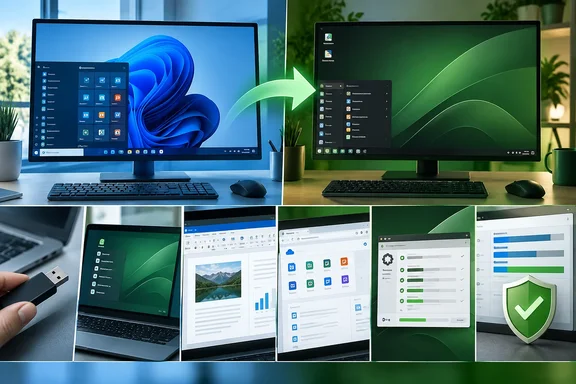
For someone considering a move from Windows, the practical question is how far that familiarity extends. Mint’s documentation supports several of the review’s positive findings, including its live-session trial, optional multimedia codecs, and graphical update tools. Those features make evaluation easier; application compatibility still needs a separate decision.
A familiar desktop, with a choice of interfaces
The reviewer’s strongest observation concerns everyday navigation. According to How-To Geek, Mint’s Xfce edition places its main panel at the bottom of the screen, making the desktop immediately recognizable to someone accustomed to Windows. The reviewer also found the installer’s explanations approachable, despite the potentially unfamiliar choices involved in setting up an operating system.
There is an important terminology correction: Xfce is a desktop environment, rather than a separate Linux distribution. Mint’s edition guide distinguishes Cinnamon, MATE, and Xfce by their interfaces, configuration tools, features, and resource requirements. The project describes Xfce as its lightest desktop option and recommends Cinnamon as the starting point for people unsure which to choose.
That gives prospective users two reasonable starting points. Follow the review’s Xfce choice if a lightweight interface is the priority, or start with Cinnamon if you want Mint’s recommended default experience. The review supplies no memory-use measurements or comparative performance benchmarks, so its positive experience should not be read as a measured speed advantage over Windows.
Try the desktop before making a disk decision
Mint’s live session is particularly useful for cautious Windows users. Booting its installation USB starts a working desktop with an installer available, rather than immediately committing the computer to an installation. Mint warns that this session is slower than an installed system, does not retain ordinary session changes, and handles some applications—including Update Manager and Timeshift—differently.
Use that environment to judge navigation and try the tasks that matter to you. Treat the result as an initial evaluation: the documented live-session limitations mean it cannot fully represent the installed experience. The How-To Geek review’s virtual-machine installation likewise does not establish how Mint will behave on your particular laptop or desktop.
The consequential choice is the installation destination. Mint documents an “Erase disk and install Linux Mint” option that removes the existing contents. It also documents an alongside-installation option when another operating system is detected, which resizes the existing installation and creates a boot menu. Do not interpret an easy-to-follow installer as permission to accept a destructive choice without understanding it.
Lightweight does not mean a tiny installation
According to How-To Geek, the updated Xfce installation occupied approximately 15GB, roughly half the virtual disk allocated for the test. That is an observation from that particular installation, not a universal storage requirement.
Mint’s guide independently puts the operating system at roughly 15GB before additional software and personal files, and recommends giving its system partition 100GB or more. The useful planning distinction is between space sufficient for an experiment and space intended for sustained use.
Familiar applications help—but test your actual documents
How-To Geek reports that Firefox and LibreOffice were included in the tested installation. The reviewer also describes successfully delivering Word-format documents created in LibreOffice to a previous client. That experience is encouraging for straightforward writing, but it does not demonstrate compatibility with every Office workflow.
LibreOffice’s own documentation identifies a concrete boundary: support for Microsoft’s Visual Basic for Applications, or VBA, is incomplete. VBA supplies the automation behind many Office macros. LibreOffice supports some common usage patterns, but its documentation says code changes may be necessary where support is missing.
For an Excel-dependent reader, that suggests a more useful evaluation than simply opening a workbook. Work on copies of representative files, perform the calculations and automation you actually need, and check the resulting output. A file that opens successfully has not necessarily passed a workflow test. This is a practical inference from LibreOffice’s documented compatibility limits, rather than a finding from the Mint review.
The claim that Excel is unavailable on Linux also needs qualification. Microsoft documents that Microsoft 365 for the web works in Edge, Firefox, and Chrome on Linux, while warning that some features may be unavailable. That provides a browser-based route to applications including Excel and Word; it should not be confused with installing the Windows desktop applications.
For readers already comfortable with Microsoft’s web applications, this may reduce the amount of change involved in trying Mint. Readers who depend on particular desktop workflows should verify those requirements before treating browser access as a replacement. Microsoft’s stated feature caveat makes that a necessary part of the evaluation.
Software discovery and media playback reduce friction
According to How-To Geek, Mint’s software interface surfaced recognizable applications, including Spotify. That supports the reviewer’s broader impression that Mint accommodates familiar software choices rather than requiring users to replace everything at once. Spotify also maintains a Linux download page, confirming that a Linux application is available.
The multimedia setup is similarly concrete. Mint offers an option to install additional codecs during installation when connected to the internet. These components support media content that needs additional decoding software.
If you skipped that option, Mint documents this post-installation procedure:
- Open Menu → Sound & Video → Install Multimedia Codecs.
- Select Install.
- Enter your password and wait for installation to finish.
This is a useful convenience, but the documented promise concerns content requiring those codecs. It does not establish compatibility with every streaming service or subscription playback feature. Evaluate the services you use separately rather than assuming the codec installation settles that question.
Updates still need a recovery plan
Moving to Mint does not remove the need for operating-system maintenance. Mint’s Update Manager supplies software and security updates, and the project recommends applying available updates while maintaining system snapshots. Timeshift can automate those snapshots, but system snapshots do not back up personal files.
Kernel updates deserve particular attention because the kernel handles core functions, including hardware support. Mint documents that a regression can affect networking, the desktop, or booting. Its recovery mechanism is useful: a kernel update installs a newer kernel alongside existing ones, allowing an older installed version to be selected at startup.
If a newly installed kernel causes trouble, Mint documents the following rollback sequence:
- Reboot and choose Advanced options in the GRUB boot menu.
- Select the previously working kernel.
- Open Update Manager and select View → Linux Kernels.
- Remove the problematic newer kernel, then reboot again.
You cannot remove the kernel currently running. This route also depends on the older working kernel remaining installed.
Mint’s approachable tools make it a credible candidate for a Windows user’s next experiment. The strongest decision comes from pairing that comfortable first impression with representative work: your documents, your required applications, and an installation plan that preserves what you still need. Familiar navigation can make the transition easier; successful completion of those tasks is what makes it viable.