

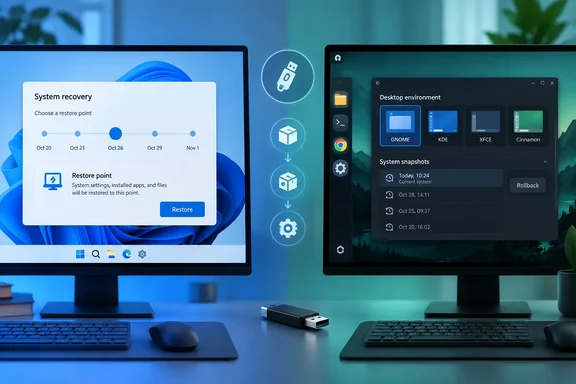
How-To Geek's Arol Wright argues that four Linux capabilities reflect design choices Windows hasn't matched in the same way: a central package manager, native snapshot rollback, swappable desktop environments, and live USB boot. Each of these is a real difference in workflow. Each also has a Windows counterpart, and for one of them that counterpart is brand new. Here is how the four hold up.
1. Centralized package management
On Linux, one tool owns the software lifecycle. Wright cites APT on Debian and Ubuntu, DNF on Fedora and Pacman on Arch. Each pulls from distribution-maintained repositories, resolves dependencies, and handles installs, updates and removals. Debian's own reference documentation shows how deep this goes. Packages declare dependencies, and APT can use them to select compatible versions. Debian's reference also describes automatic downloads and upgrades through the unattended-upgrades package, which is mainly aimed at security updates on stable systems.
The Windows side is where the headline needs a footnote. Wright concedes that WinGet narrows the gap. Microsoft's documentation describes WinGet as a comprehensive package manager solution. Developers use the command-line tool to discover, install, upgrade, remove and configure a curated set of applications. Microsoft also documents that vendors submit manifests to the WinGet Community Repository, which are then validated automatically and sometimes reviewed manually. That is the catch. Coverage depends on what gets submitted, and plenty of Windows software still ships with its own installer and updater.
Microsoft has also added things Linux package managers don't ship by default:
- WinGet Configuration files use PowerShell Desired State Configuration with YAML to turn a manual machine setup into one repeatable command.
- Group Policy templates let IT admins allow or block specific package sources.
The fair summary is that Windows now has a package manager. It is not the single mandatory channel for everything on the machine, including the OS itself.
Linux isn't one tidy channel either. Flatpak's documentation describes its repositories as the primary mechanism for publishing Flatpak apps. GNOME Software and KDE Discover can browse them. A modern Linux desktop can therefore have native packages, Flatpaks and Snaps side by side, each updated through slightly different paths. Signed repositories help with provenance, but a signature says where software came from. It doesn't say the software is harmless.
Bottom line: Linux is more integrated and more consistent. Windows is no longer package-manager-free.
2. Snapshot rollback, and a big update
This is the section where the original piece is most out of date.
On the Linux side, the claims check out. Btrfs is a copy-on-write filesystem, and Fedora's wiki lists cheap, fast snapshot creation among its features. The openSUSE documentation shows what tight integration looks like:
- Snapper can undo changes made by zypper and YaST.
- It can roll back by booting from a snapshot.
- Installation snapshots are created in pairs when packages are installed.
- At the boot menu, you choose the option to start the bootloader from a read-only snapshot.
- If the result looks right, you run a rollback command to make it permanent.
Wright is careful about Fedora. Btrfs has been the default filesystem for Fedora desktop editions since Fedora 33, but that is the foundation. Users generally set up snapshot tooling themselves.
openSUSE's own documentation adds two caveats that apply to snapshots in general:
- The
/homedirectory is not included in the default snapshots, and it says they shouldn't be relied on as a backup of personal files. - Software under
/optand/usr/localis also excluded by default.
A snapshot is a rewind button, not a backup.
Now the Windows side. Wright says Windows has little or no safety net beyond System Restore, and that System Restore doesn't cover personal files. That is no longer the whole picture. Microsoft's Learn documentation describes point-in-time restore for Windows 11. It restores a PC to the exact state it was in earlier, using restore points captured through Volume Shadow Copy Service. Microsoft's IT Pro blog says the feature is generally available on Windows 11 client PCs on versions 24H2 and later. Redmondmag reported that availability spans Enterprise, Pro and Home editions.
Microsoft documents these details:
- Scope: Restore points include the OS, apps, settings and local files.
- Cadence: The default is roughly every 24 hours, configurable by administrators.
- Retention: Points age out after 72 hours, and sooner under storage pressure. If free space drops to 20 GB or below, the oldest are removed first.
- Defaults: It is on by default for Home and unmanaged Pro devices. It is off by default on enterprise-managed systems until Windows 11 version 26H2. Redmondmag reports the unmanaged-device default also depends on the OS volume being at least 200 GB, a condition I'm attributing to that report rather than to Microsoft's Learn page.
- Setup: Microsoft's support page says to go to Settings > System > Recovery, select Point-in-time restore, then View or edit. You then switch the toggle on.
- Restore: Restores start locally from the Windows Recovery Environment. Per Microsoft's documentation, you can reach it from Settings > Recovery > Advanced startup or after repeated boot failures. Then you enter the BitLocker recovery key, pick a restore point, acknowledge the risks, and select Restore.
There are clear differences from the Linux model:
- Window: The 72-hour window is short compared with snapshot sets you can keep for as long as disk space allows.
- Triggers: A Linux setup can take a snapshot before every package transaction. Windows takes them on a schedule.
- Interface: There is no boot-menu snapshot picker, so you go through WinRE.
- Portability: Microsoft says restore points can't be exported or mounted as independent images. Only the OS volume is restored on multi-volume devices.
- Storage: VSS storage is shared with other tools such as System Restore or non-Microsoft rollback software, so the points can compete for space.
- Side effects: Microsoft's notes say Recall is disabled after a restore and asks you to confirm your presence before re-enabling.
- Data risk: Any changes made after the restore point are lost. Cloud data such as OneDrive isn't affected.
Microsoft separates this from System Restore. It describes point-in-time restore as covering the full system state. System Restore covers system files and settings, with app and user-data coverage varying.
The original claim that Windows has "much, if any" of a safety net doesn't hold up here. A better statement is that Linux snapshots are more flexible and more tightly wired into updates, while Windows now offers a short-window, whole-system rewind. One caution: whether the feature is active on your PC depends on edition, management status and build. Check Settings > System > Recovery rather than assuming.
3. Swappable desktop environments
This is the most defensible of the four claims. On Linux, the panels, menus, window management and settings tools form a separate layer. GNOME, KDE Plasma, Xfce, Cinnamon and MATE are all complete desktops you can install alongside each other. A session selector at the login screen lets you pick one. Ubuntu's documentation shows the same pattern for installing another desktop, and for Sway, which you can select at login while keeping the regular Ubuntu desktop as another session. Tiling window managers such as i3 or Sway go further.
Windows lets you customize the Start menu, taskbar and File Explorer through third-party tools and alternative file managers. Those tools modify the existing shell, though. They don't swap in a different complete desktop through a supported login-screen choice. I found no documented, comparable mechanism in the research for this piece, so I'm treating Wright's claim as accurate while noting that it is a statement about supported, mainstream workflows.
Two caveats apply on the Linux side:
- Desktops can overlap in packages, settings and applications, and removal may need care.
- "Nothing changes" is a bit generous. Your files and account stay put, but theming, default apps and settings may behave differently between sessions.
4. Live USB
A live USB boots a complete desktop from a flash drive without touching the internal disk. Ubuntu's installation guide describes a Try Ubuntu option that previews the system without making changes to the PC. It also warns that writing the image erases the USB drive's existing contents.
The practical procedure is short:
- Back up anything on the USB drive.
- Write the distribution image with a tool such as Rufus, balenaEtcher or Ventoy.
- Restart and open your PC's boot menu. The key varies by manufacturer.
- Choose the USB device, then choose the try or live option.
- Test Wi-Fi, graphics, audio and the trackpad. Use it for file recovery or disk checks if Windows won't start.
A live session tells you what works, but it doesn't guarantee everything will. Wright's "a minute or two" figure is his estimate. Boot time depends on the drive and the hardware.
On the Windows side, Wright is right that nothing matches this as a routine, broadly available live desktop. Microsoft documents WinPE as a lightweight environment used by Windows Setup, the Windows Recovery Environment and other deployment and diagnostic tools. It is built for technicians, not for everyday browsing. Windows To Go once offered a full Windows workspace on an external drive. Microsoft removed it in Windows 10 version 2004 and later, and it was only ever an Enterprise and Education feature.
Scorecard
| Area | Linux strength | Windows counterpart | Honest verdict |
|---|---|---|---|
| Package management | One tool for OS, libraries and apps | WinGet, Microsoft Store | Gap narrowed, but WinGet depends on submitted packages |
| Snapshot rollback | Filesystem snapshots, boot-menu rollback on openSUSE | Point-in-time restore, System Restore | Linux more flexible; Windows now has a whole-system option |
| Desktop swapping | Install and pick complete desktops at login | Shell customization only | Linux's advantage is real |
| Live USB | Boot and use a full desktop from a stick | WinPE, WinRE, discontinued Windows To Go | Linux's advantage is real |
What this means for Windows users
- Check your safety net. Open Settings > System > Recovery and see whether point-in-time restore is available on your build. Make sure you can find your BitLocker recovery key before you need it.
- Keep real backups. Both snapshots and restore points live on the same disk as the data they protect.
- Use WinGet where it fits. It won't replace every installer, but it's handy for repeatable setups.
- Try a live USB. It is a cheap, low-risk way to test Linux on your own hardware. It leaves the internal drive alone, but remember the USB stick gets wiped.
The headline overreaches, but the underlying point stands. Linux treats flexibility and recoverability as structural features of the system, while Windows adds them in layers. Two of the four gaps are real, and the other two have been narrowing.
References
- These 4 powerful Linux features have no equivalent in Windows How-To Geek · 2026-10-04T12:00:14+00:00
- Point-in-time restore for Windows | Microsoft Learn learn.microsoft.com
- Chapter 2. Debian package management debian.org