

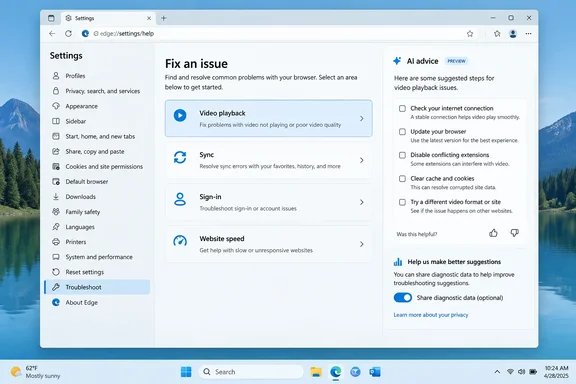
To be clear about what it does: it tells you what to try. It doesn't apply any fixes for you.
From blank Canary page to working Beta tool
This has been coming for a while. In June, Windows Report found a new "Fix an issue" option in Edge Canary near the bottom of the Settings sidebar, next to entries like "About Microsoft Edge" and "Send feedback." Clicking it opened a dedicated page at edge://settings/fixIssue. Back then, the page loaded, but it showed no diagnostic flow, checklist, or suggestions.
The Canary build also had a related setting under "Copilot and AI," in a section labeled "AI Enhancements." The toggle read "Use diagnostic data in 'Fix an issue' feature." It was off by default, and its description said: "When you use 'Fix an issue' in Edge settings, allow AI to analyze relevant diagnostic and settings data to identify and suggest solutions for browser problems."
Four months later, the page in Beta actually works. Some things are still unknown:
- Build number: Windows Report didn't give one.
- Rollout scope: We don't know whether every Beta user has it or only a test group.
- Stable channel: Nothing shows it has reached the Stable channel yet.
If you're on Stable and can't find it, that's expected.
Summary: The feature has gone from an empty Canary page in June to a working AI troubleshooter in Edge Beta. Rollout details aren't public.
How the flow works
Here's the process Windows Report described:
- Open Edge Settings and go to the Fix an issue page.
- Pick one of four preset problems, or type your own description:
- Fix videos that won't play
- Resolve sync issues
- Help me sign in
- Speed up a website
- Click Get Help.
- Allow Edge to use diagnostic and Edge Settings data when it asks.
- Read the result. It appears under "Solution for this issue" and is labeled "This is an AI-generated response."
A successful run gives you a list of suggested next steps. It doesn't change any settings by itself.
What it suggested in testing
Windows Report ran each preset and got a different answer every time. These results came from one tester's machine, so treat them as examples, not guaranteed results for you:
| Problem selected | Edge's AI response |
|---|---|
| Fix videos that won't play | No Edge setting change recommended. Update the Intel graphics driver from the device or motherboard maker, restart Edge, and try the video again |
| Resolve sync issues | Said the cause looked like a temporary Microsoft sync service outage. Try again later or check the Microsoft Edge status page |
| Speed up a website | No Edge setting change recommended. Check your internet connection speed and update Edge |
| Help me sign in | Try again later, or test sign-in in an InPrivate window to rule out extension or cache interference |
| Slow browser (typed by the tester) | Close unused tabs, disable unnecessary extensions, or restart Edge to free resources |
A few things stand out. Several answers looked beyond Edge's settings to graphics drivers, network speed, or a possible service outage, so this is more than a link to a support article. But the report doesn't say whether any suggestion actually fixed the problem. It also didn't confirm that the sync outage really happened. The AI's guess about the cause is a starting point, not a confirmed diagnosis.
Fair enough: "update your driver and restart" is the IT version of "have you tried turning it off and on again." It's still more useful than a blank page, and it's what a good help desk would tell you first.
Summary: The tool gives different, context-aware advice for each problem and often points outside Edge's settings. Nothing published so far shows how often it's right.
What Microsoft says about privacy and limits
Microsoft has a Responsible AI FAQ for "Fix an issue" on its support site. It fills in several things the hands-on test didn't cover:
- You start it, it doesn't watch you: Microsoft calls it a user-initiated troubleshooting experience for common problems such as performance, media playback, and sign-in. It says the tool isn't meant for background monitoring, continuous data collection, or diagnosing problems on its own.
- Data collection needs your consent: After you agree, Edge may collect optional diagnostic data and the Settings state that's relevant to your problem. Microsoft says collection only happens during that troubleshooting session and is used only to create guidance for that issue. If you decline, it says that optional data isn't collected.
- You can turn it off: Microsoft says this data collection can be disabled under Settings > Copilot and AI. That matches where the toggle showed up in Canary.
- Microsoft's own warnings: The FAQ says AI answers may sometimes be wrong or incomplete, not every problem can be diagnosed automatically, and you may still need to fix things manually or get more help. It recommends checking suggestions before acting on them.
- No access to work resources: Microsoft says the feature doesn't access or use work-related resources. Admins shouldn't think of it as an enterprise diagnostic tool.
Microsoft also says the feature was tested and reviewed before rollout to look for misleading guidance, misuse, and privacy risks. It hasn't published methods, results, or accuracy rates, so there's no number to quote yet.
Summary: On paper, the privacy design is reasonable: you start it, you consent, and it's limited to one session. Microsoft openly says the answers can be wrong.
What to do if the AI's suggestions don't help
The AI's own suggestions overlap with standard manual troubleshooting, so here are some basic checks you can do yourself:
- Update Edge first. Advice on Microsoft Q&A is to upgrade to the latest version by entering "edge://settings/help" in the address bar.
- Rule out extensions and cached data with an InPrivate window, as the AI suggested for sign-in problems.
- Check outside the browser: graphics drivers for video playback, and your connection speed for slow sites.
- Repair Edge if it's badly broken. One Microsoft Q&A answer describes going to Windows Settings > Apps > Installed apps, searching for "Edge", clicking the three dots on the right, and selecting "Modify".
Bottom line
"Fix an issue" is a quick, consent-based way to ask Edge for troubleshooting advice. It's built into Settings, so you don't have to search a support site.
Critics will say it often just restates the basics: restart, update, check your connection. Supporters will point out that the basics fix a lot of problems, and an assistant that looks at your actual Settings state might notice a misconfiguration you missed. Both have a point. Until it reaches Stable, and someone measures how accurate it is, treat it as a helpful first step that can't fix anything by itself.
If you're testing Edge Beta, try it on a real problem and share your results in the Edge and browser forums, especially any cases where it was clearly wrong. Those reports will matter more than anything a demo shows.
References
- Here’s how Microsoft Edge’s built-in AI tool fixes browser problems Windows Report · 2026-10-07T06:30:30+00:00
- Responsible AI FAQ for "Fix an issue" in Settings | Microsoft Support support.microsoft.com
- Microsoft Edge tests AI-powered browser troubleshooting with new “Fix an issue” feature windowsreport.com