

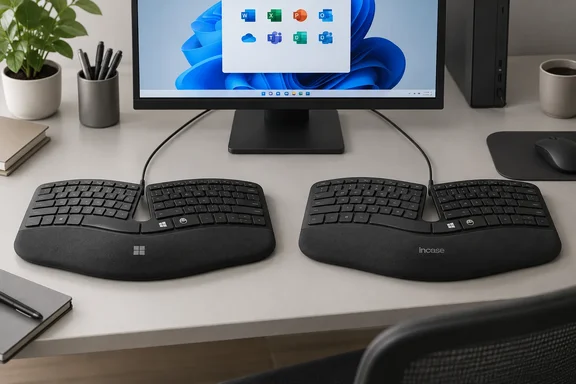
The Microsoft Ergonomic Keyboard's USB setup needs no software
Microsoft's setup instructions are about as simple as a peripheral gets. You plug the USB cable into any USB port on the PC and wait. Windows shows a notification when the keyboard is ready. The page lists no driver download, installer, or pairing step, which fits a wired keyboard with no battery or radio.
Microsoft describes the hardware as a USB keyboard with a split design and a naturally arched shape. It says the design is meant to help protect against wrist strain, improve typing form and increase typing speed, and that the cushioned palm rest is there for comfort during long sessions. Those are Microsoft's design goals. The page offers no clinical data or measured speed gains. The split, the arch and the palm rest are real physical features, but how much they help will differ from person to person.
The keyboard has been around for a while. According to Wikipedia's history of Microsoft's ergonomic line, the oldest is the Microsoft Natural Keyboard, released in 1994, the company's first computer keyboard. The newest models are the Sculpt Ergonomic Keyboard (2013), the Surface Ergonomic Keyboard (2016), and the Microsoft Ergonomic Keyboard (2019). A 2019 keyboard getting an updated support page in late 2025 is maintenance, not a product launch, and this article treats it that way.
Microsoft's page doesn't name the connector type. Incase, which now makes a keyboard to the same design (more on that below), lists "Wired. Open USB-A port required." for its version. If you have a USB-C-only laptop, plan on an adapter or a dock for the Incase model. We couldn't confirm that the original Microsoft-branded unit uses the same connector, but a USB-A plug on a wired keyboard from this period would not be unusual.
The Windows 10 and 11 requirement only covers two keys
The page's one requirement is narrow. It says you need a PC running Windows 11 or Windows 10 to use the Office key or the Emoji key. It does not say ordinary typing is limited to Windows. The special keys are the part tied to the operating system. The page says nothing about how they behave on other platforms, so don't expect them to work anywhere else.
Microsoft's own documentation differs slightly on the minimum version. The Surface accessories copy of the page just says Windows 10 or Windows 11. Another copy on Microsoft's support domain is more specific: "To use the Office key or the Emoji key on this keyboard, you'll need a PC that's running Windows 10 Version 1903 or later." Microsoft's separate "Using the Office Key" article agrees, saying the Office key requires the Windows 10 May 2019 Update, version 1903, or newer.
In practice, the 1903 floor only matters if you're keeping a very old Windows 10 installation around for compatibility. Any Windows 11 PC and any reasonably current Windows 10 PC is well past it. If a machine's Office key does nothing, though, checking the Windows version is the first test the documentation supports.
The Office key is a full Microsoft 365 launcher
The keyboard page gives one example, Office key + W to open Word, and points elsewhere for the rest. The full behavior, from Microsoft's "Using the Office Key" support article, is worth having in one place.
Pressing the Office key on its own opens the Office app if it's installed. If it isn't, Office.com opens in your default browser. So the key does something useful even on a PC without desktop Microsoft 365 apps. Combined with a letter, it launches specific destinations, and pressing the same combination again does different things depending on the target:
| Shortcut | First press | Press again |
|---|---|---|
| Office key + W | Opens Word | Opens a new Word window |
| Office key + P | Opens PowerPoint | Opens a new PowerPoint window |
| Office key + X | Opens Excel | Opens a new Excel window |
| Office key + O | Opens Outlook | Activates your existing Outlook window in the Inbox |
| Office key + T | Opens Microsoft Teams | Activates your existing Teams window |
| Office key + D | Opens OneDrive in File Explorer | Reuses the existing File Explorer window if the OneDrive root is still selected; otherwise opens a new one |
| Office key + N | Opens OneNote | Opens a new OneNote window |
| Office key + L | Opens LinkedIn in your default browser | Opens LinkedIn in an additional tab |
| Office key + Y | Opens Viva Engage | Opens Viva Engage in an additional tab |
The "press again" column shows the key doesn't work the same way for every app. For Word, Excel, PowerPoint and OneNote, a second press gives you a new window. For Outlook and Teams, it brings back the window you already have, which is usually what you want for mail and chat. The browser-based destinations open another tab.
Microsoft documents what the key launches. It doesn't promise that each destination is installed, signed in, or allowed on a given PC. On a managed work machine where Teams or Viva Engage isn't deployed or is blocked, don't expect those shortcuts to get around the restriction.
The Emoji key has a Windows fallback
The Emoji key does what it sounds like. You press it and pick an emoji, which Microsoft compares to adding emoji on a phone. The keyboard page doesn't say what the picker looks like or whether it differs between Windows 10 and Windows 11.
Windows has its own route to the same panel, and it works on any keyboard. Microsoft's "Windows keyboard tips and tricks" page, which covers both Windows 11 and Windows 10, says that pressing Windows key + period (.) while typing opens the emoji keyboard. You can then pick an emoji with the mouse or keep typing to search. On Windows 11 the same panel also has GIFs, kaomoji and a Symbols section with punctuation and accented characters. If the Emoji key isn't responding, or you're typing on a laptop keyboard without one, that shortcut gets you to the same place. It's general Windows guidance, not a fix for any particular Ergonomic Keyboard fault.
For typing behavior in general, Microsoft sends users to Start > Settings > Time & language > Typing. The keyboard page doesn't list what's on that screen, and it will vary with your Windows version and configuration. It's still the documented place to look first when you want to change how Windows handles input from the keyboard.
Mouse and Keyboard Center support differs between Microsoft and Incase keyboards
This is where the documentation and the store shelf don't match. Microsoft's page ends by recommending the Microsoft Mouse and Keyboard Center, an app it says helps you get the most from Microsoft keyboards and mice and personalize how you work. The other copy of the page is more concrete, telling users to customize hot keys for easy access to media controls and your favorite apps by using the Microsoft Mouse and Keyboard Center. The app is optional in both versions. Neither page makes it a condition for basic typing or for the Office and Emoji keys.
The catch is who makes the keyboard now. Wikipedia's history records that in January 2024, Microsoft announced that it would license the design and manufacturing of the Microsoft Ergonomic Keyboard and Sculpt Ergonomic Keyboard to Incase, as part of an effort to focus more on its Surface-branded accessories. These products will be branded under the Incase name, but as designed by Microsoft.
Incase's product page for its "Ergonomic Keyboard, Designed by Microsoft" is clear about software: "This device is not compatible with the Microsoft Mouse and Keyboard Center or Microsoft Accessory Center utilities." Incase includes the same notice on its Sculpt Ergonomic Keyboard listing. So Microsoft's tip about installing Mouse and Keyboard Center to customize hot keys applies to the Microsoft-branded keyboard. For the Incase-built version, the manufacturer says it doesn't apply.
The Incase version keeps a similar layout. Incase lists dedicated short-cuts to Microsoft 365, Expressive Key, search, media controls and three quick-access keys to activate your first three Taskbar applications, along with a 5??-foot USB cable and an integrated number pad. The "Expressive Key" appears to be Incase's name for the emoji function, though Incase doesn't spell that out. What you lose on the Incase model is the documented way to remap those keys with Microsoft's utility.
Incase doesn't mention the Office key's Windows 10 version 1903 requirement or any other operating-system condition for its shortcut keys, so that's still an open question for the Incase-made keyboard.
Windows 10 support ended, but the keyboard still lists it
Microsoft's keyboard page still lists Windows 10 as a supported platform for the Office and Emoji keys. That's a statement about the keyboard, not the operating system. Microsoft's Windows lifecycle page says Windows 10 reached end of support on October 14, 2025. Since then, Microsoft no longer provides technical assistance, feature updates or security updates for it, though Windows 10 PCs keep working.
For readers still on Windows 10, Microsoft points to its Consumer Extended Security Updates (ESU) program, which it says can keep a Windows 10 device protected until October 12, 2027. IT professionals have a separate ESU program. Microsoft's lifecycle page also says it will keep shipping security updates for Microsoft 365 apps on Windows 10 until October 10, 2028, even though support for those apps on Windows 10 ended with the OS. That's relevant here because the Office key's main job is launching those apps.
The keyboard will keep working on a Windows 10 PC. Whether that PC should stay on Windows 10 is a separate decision, and the keyboard page's compatibility line doesn't answer it.
What this means for you
First, find out which keyboard you have. The Microsoft-branded Ergonomic Keyboard and the Incase "Designed by Microsoft" model look alike and are set up the same way, but only the Microsoft-branded unit is documented as working with Mouse and Keyboard Center. If you just want to type and use the Office and Emoji keys, neither version needs any extra software. If remapping hot keys matters to you, check the branding on the box or the keyboard before you buy.
- Plug the Microsoft Ergonomic Keyboard into a USB port and wait for the Windows notification. Microsoft documents no driver or app as required for basic use.
- The Office and Emoji keys need Windows 10 or Windows 11. Microsoft's more specific documentation puts the floor at Windows 10 version 1903, so check the Windows version first if those keys do nothing.
- Pressing the Office key alone opens the Office app, or Office.com if the app isn't installed. The letter combinations cover Word, Excel, PowerPoint, Outlook, Teams, OneDrive, OneNote, LinkedIn and Viva Engage.
- Windows key + period (.) opens the same Windows emoji panel on any keyboard, which is useful if the Emoji key isn't cooperating.
- Don't install Mouse and Keyboard Center expecting it to customize an Incase-made Ergonomic Keyboard, because Incase says that model isn't compatible with the utility.
- Keyboard compatibility with Windows 10 doesn't make Windows 10 supported. Microsoft ended support on October 14, 2025, and consumer ESU coverage runs to October 12, 2027.
The Microsoft Ergonomic Keyboard is still one of the few wired split keyboards you can plug in and use right away, and Microsoft's instructions are correct as far as they go. The gap is the Microsoft-to-Incase handoff. Microsoft's support page still recommends Mouse and Keyboard Center, while the company now building the keyboard says its version won't work with that app. Until Microsoft's documentation reflects the Incase model, the branding on the keyboard tells you which software and support you can expect, and on a Windows 10 PC the October 2027 ESU cutoff matters more than anything on the keyboard page.
References
- Use Microsoft Ergonomic Keyboard | Microsoft Support Microsoft Support · 2025-11-26T00:00:00+00:00
- Ergonomic Keyboard Designed by Microsoft - Incase.com incase.com