

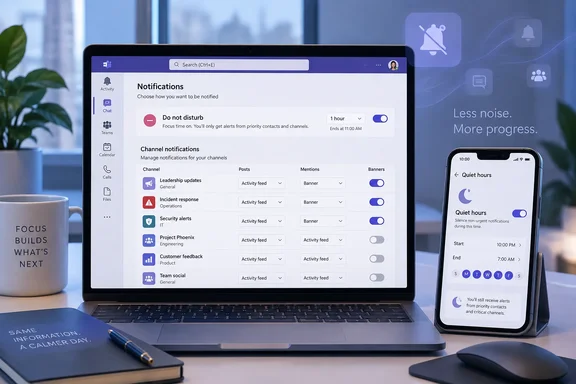
For Windows users and Microsoft 365 administrators, the usable goal is a notification model with three layers: direct requests surface quickly, a limited number of operational channels can interrupt, and routine channel traffic waits in Activity until the user deliberately reviews it. The mistake is treating every unread post as an alert-worthy event.
Start with a quiet default in Chats and channels
In the current Teams client, the central control is under Settings > Notifications and activity > Chats and channels. This is where users can choose whether various chat and channel events appear as an Activity item, an Activity item plus a desktop banner, or not at all. The names and individual options can vary somewhat between desktop, web, mobile, and channel layouts, so organizations should avoid distributing screenshots from older Teams builds as if every employee will see identical controls.
TheWinCentral guide recommends moving broad general updates away from “Banner and feed,” and that remains sound advice. A desktop banner should indicate something that either needs a rapid response or changes the user’s next action. Ordinary replies, broad channel announcements, reactions, and posts in low-priority project areas generally do not meet that standard.
There is a practical reason to leave most non-critical activity in the Activity feed rather than disabling it outright. Turning a category off makes it easy to miss work that still needs review; routing it to Activity preserves a record without creating a sequence of Windows toast notifications that repeatedly breaks concentration. Microsoft says the Activity feed retains notification items for 30 days, giving users a finite but useful review window rather than an endless archive.
Sound deserves its own decision. Users frequently associate Teams overload with banners, when the repeated chime is often the more disruptive element. Teams offers sound settings for notification types, including an option focused on urgent messages and priority contacts. A quieter configuration can retain a sound for calls and genuinely urgent communication while removing audio from routine messages.
Use channel notifications for the exceptions, not the baseline
Channel-level notification settings are the more important control for people who belong to many teams. Hovering over a channel and choosing More options > Channel notifications lets a user decide whether all new messages or posts should produce an Activity item, an Activity item and banner, or no alert. In channels using Teams’ Threads layout, the same menu can also expose choices for including replies and following new threads.
This is where the “two or three critical channels” recommendation has real value. An on-call operations channel, an incident bridge, a change-control channel, or a project channel supporting a deadline may justify banners. A general department channel, social channel, knowledge-sharing area, or a project in its maintenance phase normally should not.
The key operational choice is whether replies merit an alert. If a channel uses threads and a user follows every new thread, Teams can make that channel easier to revisit without necessarily generating an Activity notification for each reply. That is useful for work that must be tracked but does not require immediate interruption. It also means users should not assume that “followed” and “alerting” are synonymous; Teams treats them as separate behaviors.
Teams administrators should frame this as an adoption and incident-response issue rather than a personal productivity preference. A channel used for production incidents needs a clear notification expectation, but creating banners for every post conditions staff to ignore them. Teams owners should identify one or two channels where immediate attention is expected, state that expectation in the channel description or operating procedure, and keep operational urgency out of broad announcement channels.
Mentions need a social rule as well as a setting
Microsoft Teams distinguishes direct mentions of a person from mentions of a channel or team. That distinction matters because a person mention generally signals ownership: someone is being asked to answer, approve, investigate, or make a decision. A channel or team mention reaches a much broader audience and can easily become a substitute for writing a clear request.
TheWinCentral guide advises routing channel mentions to Activity and disabling team mentions unless a role requires them. That can be a sensible starting point, especially in large organizations where broad mentions are common. But a blanket policy can create a new failure mode: staff may lose the one warning mechanism that a security, service desk, or facilities team relies on for time-sensitive notices. The appropriate setting depends on whether the team has disciplined mention practices, not on the size of the team alone.
A better internal convention is simple:
- A direct
@namemention should identify a person who owns a concrete next step. - An
@channelmention should be reserved for information that members of that channel need to see promptly. - An
@teammention should be exceptional and limited to events that affect the full team, such as an outage, a required action, or a material schedule change.
Users should also make a distinction between notifications and triage. Microsoft’s current Teams experience includes Quick views at the top of the chat and channel list, including Unread, @Mentions, and Followed threads. TheWinCentral article describes filtering the Activity feed for mentions, which remains useful where that filter is available, but Quick views provide a more direct way to isolate the conversations that deserve a response without browsing every notification category.
For managers, this shifts the conversation away from “keep notifications on so you do not miss anything.” Teams already offers a way to review mentions and unread work. The question is whether a particular event deserves to interrupt a meeting, a troubleshooting session, or focused work at the instant it arrives.
Do Not Disturb should be scheduled, not improvised
Do Not Disturb is the strongest desktop-side control because it suppresses Teams notifications while a user is presenting, investigating an incident, writing, or doing other concentrated work. Teams also allows a status duration, so a user can set Do Not Disturb for a specific period rather than forgetting to restore availability at the end of a focus block.
That duration control is more important than it looks. A permanent or forgotten Do Not Disturb status merely transfers the problem from distraction to delayed response. A 30-, 60-, or 90-minute block gives users protected time while setting a predictable point at which Teams resumes normal behavior.
Priority access is the exception mechanism described in TheWinCentral’s guide. Where Manage priority access is available in a user’s Teams client, selected contacts can still reach that user while Do Not Disturb is active. Microsoft’s current notification documentation continues to refer to alerts from priority contacts, but organizations should verify the option in their own tenant and client before making it part of a standard procedure; Teams feature placement has changed repeatedly between classic Teams, the new client, and mobile versions.
Priority access should be deliberately small. A direct manager, on-call lead, incident commander, or backup engineer may qualify. Adding a dozen people recreates the interruption stream that Do Not Disturb was meant to stop, while adding nobody may be unsuitable for staff with emergency responsibilities.
Mobile quiet hours close the after-hours gap
Desktop settings alone do not solve the problem if Teams is allowed to wake a phone throughout the evening. Microsoft’s mobile Teams documentation calls the scheduling feature Block during quiet hours. From the mobile app’s profile menu, users can open Notifications, choose the Block notifications section, and configure specific hours or all-day quiet periods.
TheWinCentral article refers to “During quiet hours,” but Microsoft’s current wording is “Block during quiet hours.” The practical result is the same: Teams suppresses sound and push notifications during the schedule, while messages and activity remain visible when the app is opened. Quiet hours use the device’s local time, so the schedule adjusts when a traveler’s phone changes time zones.
Users can also choose to synchronize that quiet-time schedule across Teams and Outlook mobile when signed into the same account. That is useful for employees trying to establish an actual off-hours boundary, but it should be enabled knowingly: the setting affects both mobile apps, not Teams alone.
The remaining action for most Teams users is straightforward: move routine channel activity to Activity, enable banners only for the channels that truly carry operational urgency, use mentions as a responsibility signal rather than a broadcast tool, and set a finite Do Not Disturb period when concentration matters. A Teams notification policy works when an interruption means something again.
References
- Cut the Noise: How to Manage Channel Notifications, Mentions, and Priorities in Microsoft Teams thewincentral.com · 2026-09-18T09:40:18+00:00