

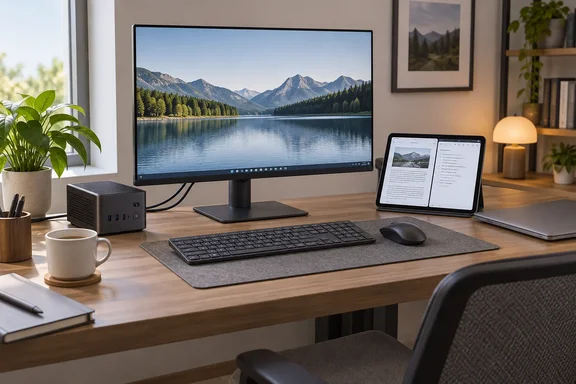
White describes a familiar desk-first routine: connect an external keyboard, mouse, and monitor, then use the laptop as though it were a desktop. For someone who rarely needs the built-in screen or battery, a compact Windows PC plus a separate device for lighter mobile tasks deserves consideration.
The catch? A computer that is easy to transport is not necessarily a computer you can use anywhere. Before trading one laptop for two devices, that distinction matters more than the size of the box.
The strongest argument is about workflow, not benchmarks
White’s account is a personal preference, not a controlled hardware comparison. She dislikes her older, underpowered laptop and its integrated input devices, prefers desktop-style computing, and acknowledges that her alternative works best when moving between locations and then staying put.
That is a reasonable case for changing form factors. It is not evidence that a mini PC will outperform a newer laptop.
Microsoft’s Windows 11 device-selection guidance supports the underlying distinction: desktops suit people who mostly work in one place, while laptops suit those who want fewer accessories and one computer that moves between locations. Its laptop advantage is straightforward: the screen, keyboard, trackpad, camera, and battery are already there.
Our analysis: if your laptop never leaves its dock, its portability may be an underused feature. But occasional mobility can still be valuable. The relevant question is not “How often do I unplug it?” It is “When I do, could a tablet handle everything I need?”
Count the whole setup before declaring a bargain
White argues that removing the built-in display and battery lets buyers direct more of their budget toward the computer itself. That is a purchasing rationale, not a demonstrated saving: her article supplies no matched configurations, benchmark results, or complete accessory bill.
For a fair comparison, make two lists:
- Laptop setup: computer, charger, and any peripherals you would buy anyway.
- Mini-PC setup: computer, display, keyboard, mouse, power supply, necessary cables, and the tablet or portable monitor.
- Shared equipment: accessories you already own and can reliably use at each destination.
Do not count an existing monitor as a new expense—but do not treat a tablet you still need to purchase as free.
Likewise, compare exact hardware rather than promising that the mini-PC category automatically brings better cooling, networking, ports, or performance. White herself acknowledges that mini PCs can use mobile-class processors and that graphics capabilities vary.
The practical conclusion: this arrangement is most compelling when the desk equipment and tablet are already owned. Without actual prices and configurations, neither “cheaper” nor “faster” is established.
Upgradeability is worth checking, not assuming
There is concrete support for White’s interest in replaceable memory and storage. MSI’s Cubi NUC 1M specifications list two DDR5 SO-DIMM slots and support for up to 64GB of memory. That is a specific example of expansion options buyers can look for—not a guarantee attached to every miniature desktop.
MSI also documents access to two M.2 SSD positions, using 2280 and 2242 form factors, plus a 2.5-inch drive option by removing the cover. Those different SSD sizes illustrate why “has M.2 storage” is not a complete upgrade specification.
Before buying, check the manufacturer’s documentation for:
- Whether memory is socketed or soldered.
- Total slots versus currently occupied slots.
- Supported memory capacity.
- SSD dimensions and interface.
- Case-access instructions.
Treat upgradeability as a feature to verify on the exact model, rather than a reward automatically earned by buying a smaller PC.
A tablet is not automatically a Windows monitor
The most important technical gap in the argument concerns the tablet’s role.
There are two different arrangements:
- Independent companion: the tablet handles reading, browsing, notes, and other tasks on its own.
- Mini-PC display: the tablet receives the Windows computer’s screen through a supported connection method.
The first does not establish the second. White does not identify a tablet model, display application, connection path, or tested compatibility.
Microsoft documents wireless casting from Windows 11 to an external display that supports Miracast. For an already configured PC and compatible receiver, turn on the display, press Windows + K, select it, and follow any onscreen prompts. This documentation does not establish that an arbitrary tablet can receive that connection.
Once compatible displays are connected, Windows + P provides the projection choices: PC screen only, Duplicate, Extend, and Second screen only. These controls manage displays; they do not make unsupported hardware compatible.
Before relying on a tablet as the mini PC’s only screen, verify the complete connection method. A portable monitor remains a separate alternative, not interchangeable evidence that the tablet solution works.
Two devices can be sensible—without making laptops obsolete
Microsoft’s guidance positions Windows 11 tablets and 2-in-1s for activities such as note-taking, PDF markup, reading, and browsing. It favors laptops for extended typing, heavy multitasking, and a simpler all-in-one arrangement. That guidance concerns Windows devices specifically, not every tablet operating system.
For White’s desk-first routine, separating those roles makes sense: the mini PC is the workstation, and the tablet covers lighter use elsewhere.
For a reader who needs the same desktop applications in unfamiliar locations, the calculation changes. Carrying a small computer is only half the job; making it usable is the other half.
The verdict: buy around your routine, not a form-factor manifesto. A mini PC plus tablet can be a thoughtful laptop alternative. It becomes the superior option only when the complete setup—not just the little box—fits your work.
References
- Laptops don't make sense anymore: Why a mini PC and tablet are the superior option - How-To Geek How-To Geek · 2026-10-04T11:30:14+00:00
- Desktop, laptop, tablet: Which is right for you? | Microsoft Windows microsoft.com
- Screen mirroring and projecting to your PC or wireless display | Microsoft Support support.microsoft.com