

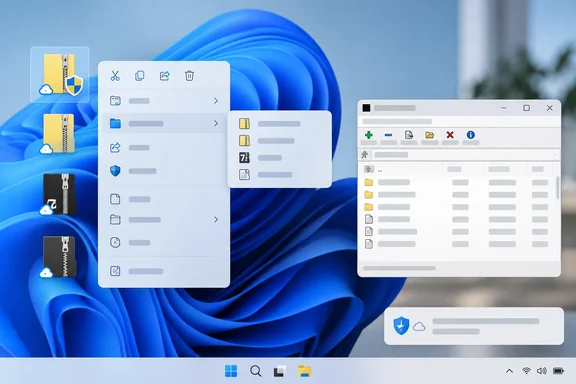
What the author did and why
The author says 7-Zip had become invisible, "part of Windows" in their head, with an old toolbar that never prompted a replacement. NanaZip changed that by keeping what they relied on and trimming the dated Windows-integration edges. They report extracting ZIP and 7z archives, opening RAR files, creating a password-protected archive and using the right-click menu out of habit. They say there was essentially no learning curve. That is a subjective account. It is plausible for a fork, though, because the core engine comes from 7-Zip.
Where NanaZip stands today
- Current stable release: The project's GitHub releases page lists NanaZip 7.0, version 2609.2 (7.0.1843.0) as the latest build, released on 17 September. Its notes describe a fix for wrong-password handling on ZIP archives, plus translation and dependency updates.
- Rolling release model: Starting with NanaZip 7.0, NanaZip follows a rolling release model. The scheme is YYMM.N. "2609.2" means the second release of September 2026. Preview and stable builds share the same codebase.
- 7-Zip base: The earlier 2609.1 build synchronized the 7-Zip mainline implementations to 26.03, except the NanaZip File Manager. That exception matters. It is not accurate to say every NanaZip component is identical to 7-Zip 26.03.
- Where the base came from: 7-Zip 26.03 was released on 4 September 2026, according to the project's SourceForge announcement.
The security angle: Mark-of-the-Web and CVE-2026-58052
The 7-Zip 26.03 notes say CVE-2026-58052 involved 7-Zip failing to preserve the Mark-of-the-Web when extracting a crafted archive. NanaZip's releases page says it fixed that same CVE from the 6.5 Update and 7.0 Preview builds numbered 1767.0 (July 2026), before the 7.0 stable line. Anyone on an older NanaZip or 7-Zip build should update.
Mark-of-the-Web is the flag Windows uses to remember that a file came from the internet. SmartScreen and Office Protected View depend on it. The MakeUseOf author notes that NanaZip preserves it by default on extraction, and the project documentation agrees. Preserving the flag helps Windows apply its usual warnings. It does not mean the extracted files are safe.
One claim from the MakeUseOf piece is left out here. It says NanaZip's release builds enable several Windows exploit mitigations. I could not corroborate that in the project material I reviewed, so I'm not repeating it as fact.
Why it feels more at home on Windows
The project lists these Windows-focused features:
- Dark mode across its GUI components.
- Mica on the main window.
- Per-monitor DPI awareness.
- Modernized message boxes and folder browsers.
- MSIX packaging.
- Explorer context-menu integration.
- Smart Extraction.
- An option to open the destination folder after extraction.
The author's favorite is the Windows 11 context menu. They say NanaZip's commands can sit in the modern right-click menu, so you don't have to click "Show more options" first. That is the stated purpose of the integration. How the menu looks on any given PC can still vary.
The author also describes Smart Extraction in detail. Their account is that single-root archives extract directly, while archives with loose files at the root go into a new folder. I couldn't confirm that exact behavior in the retrieved project documentation. Treat it as the author's observation and check it in the app before depending on it.
It is not Windows 11-only
Despite the headline, the project says the modern app supports Windows 10 version 2004 (build 19041) or later, and Windows Server 2022 or later. It runs on x64 and ARM64. Windows 10 users can use it too.
Installing and setting it up
The developers recommend the Microsoft Store. Official MSIX packages are also on GitHub for PCs without Store access. The author's setup steps were:
- Install NanaZip from the Store or from the official MSIX package.
- Open NanaZip and go to its settings.
- Choose the archive formats you want it to handle.
- When prompted, go to Windows' Default Apps page and assign NanaZip to those formats. Windows controls file associations, so the app can't silently take over every format.
- If NanaZip's commands don't show in the right-click menu, restart File Explorer.
Project notes add that if the entry is missing, you should restart all File Explorer processes from Task Manager. They also say drive context menus appear only on Windows 11 22H2 or later because of how MSIX works.
If you download a package from GitHub, compare its SHA-256 hash against the value on the release page. For the 7.0.1843.0 stable MSIX bundle, that value is f5b013afff37eca32ed7e318cb7d7d1b7a1e11f9765e4c2e9afafcde15eb085d.
What it adds beyond plain 7-Zip
NanaZip pulls in features from 7-Zip ZS and 7-Zip NSIS. Per the project, that brings Brotli, LZ4, Lizard and Zstandard support, among others. It also adds read-only handling for Electron ASAR archives and .NET single-file bundles. Support differs by codec. Some are decode-only, and the .NET bundle support can't extract the compressed files inside the bundle. Don't assume every listed format can be both read and created.
The author also says Windows 11 can now open ZIP, RAR, 7z and TAR on its own. I didn't verify that against current Microsoft documentation. Even if it holds, the author's point stands. If you need encryption, fine compression control or unusual formats, a dedicated archiver still makes sense.
The trade-offs
The packaged and portable editions are not equivalent.
- MSIX version: The project says it can't be used in Windows Safe Mode, because of Desktop Bridge file-system virtualization. It also redirects some AppData file operations. On Windows 10, operations in the AppData folder are redirected. On Windows 11, operations outside Local, LocalLow and Roaming are.
- Portable build: It has no Explorer context menu, no file associations and no 7-Zip execution alias. The project positions it for debugging, testing, development and environments such as Server Core, Windows PE and Windows RE.
For a rescue USB stick, you may therefore want 7-Zip or another truly portable tool. For a daily-use Windows desktop, the packaged edition gives you the integration.
Should you switch?
- Switch if: you use archives often, want Windows 11 context-menu integration and a modern look, and like the 7-Zip workflow.
- Hold off if: you rely on Safe Mode, need a fully portable setup, or run scripts that expect 7-Zip's behavior.
- Either way: update. The Mark-of-the-Web flaw was fixed in both projects in 2026, and an older build is the real risk.
The MakeUseOf piece is an enthusiastic first-person take. The project's own documentation backs most of the features it names. The same documentation also spells out limits that the enthusiasm glosses over.
References
- I replaced 7-Zip with the version that actually looks like it belongs on Windows 11 MakeUseOf · 2026-10-07T20:00:14+00:00
- github.com github.com
- 7-Zip / Discussion / Open Discussion: 7-Zip 26.03 sourceforge.net