

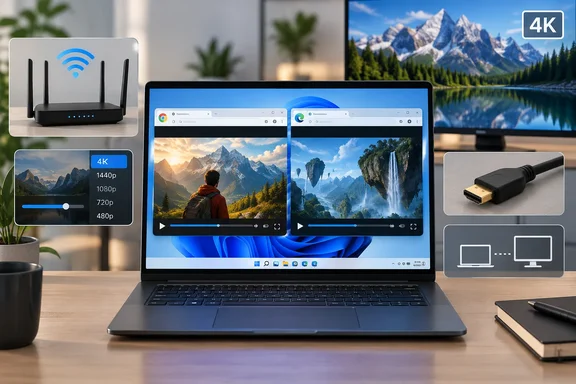
That's the useful takeaway from a new troubleshooting guide from Online Tech Tips, checked here against Netflix's Help Center and recent reporting. Most of the guide holds up. The main exceptions are a few specific numbers and shortcuts that Netflix does not publish itself, and those are flagged below.
Netflix picks your video quality without telling you which limit it hit
Netflix's help guidance lays out a sequence of checks: the quality label on the title, your plan, your connection, every device and cable between the stream and the screen, and your profile's playback setting. Netflix suggests changing one thing at a time and checking the result before moving on. That habit is the most useful part of the process, because many of these limits look the same on screen. A soft 1080p picture on a 4K TV could be the plan, the HDMI cable, a soundbar in the middle, or a profile setting someone changed two years ago.
Netflix streams adaptively. It adjusts quality to your connection and can start a show at a lower resolution before stepping up. So a soft first few seconds is normal. Online Tech Tips suggests waiting about 30 seconds, but Netflix doesn't publish a set time. If the picture never sharpens, or keeps swinging up and down during a show, treat that as a real symptom, not the normal start-up ramp.
Check the title before you blame your hardware. Netflix says most titles, but not all, are available in HD or 4K. The details page shows the quality available on the device you're using. A title that exists in 4K can show only HD if your current device can't play it in 4K. Netflix also labels resolution (HD, 4K) separately from high dynamic range (HDR, HDR10+, Dolby Vision), and the HDR label may not show on some devices even when they support HDR.
Title badges, plan tier and a stats overlay show your actual resolution
You have three ways to see what you're actually getting. The title badge tells you what's available on that device. The membership section at netflix.com/account shows your plan. On a computer, many people use a hidden playback stats overlay: press Ctrl + Alt + Shift + D on Windows, or Control + Option + Shift + D on a Mac, during playback. The overlay includes the resolution being played, such as 1920x1080 or 3840x2160. It isn't an official Netflix feature and Netflix doesn't document it, so treat it as a handy check, not the final word.
Your plan sets the top limit. Online Tech Tips lists Standard with ads and Standard at 1080p, and Premium at 4K with HDR. Netflix's full plan table for every region isn't included here. Several outlets covering the Chrome change describe Premium as the plan needed for Ultra HD. One tech site gives the US price as $26.99 per month and is the only tier that supports 4K Ultra HD streaming (pricing as of March 2026, confirm the current rate on the Netflix pricing page, as prices may change). Prices and plans differ by country, so check your own account page before you upgrade.
On many smart TVs and streaming players, Netflix also has a built-in network test under Get Help > Check your Network. That tests from the TV itself, which beats running a speed test on a laptop in another room.
The profile playback setting is the cheapest fix to check
This is the most commonly missed cause. Netflix sets playback data use separately for each profile, so one profile can look sharp while another on the same account looks soft. To change it, open your account page in a browser, select Profiles, pick the profile, and open Playback settings. Netflix lists these options:
| Setting | What Netflix says it does |
|---|---|
| Low | Basic quality, up to about 0.3 GB per hour |
| Medium | Standard quality, up to about 0.7 GB per hour |
| High | Up to about 1 GB/hour in SD, 3 GB/hour in HD, 7 GB/hour in 4K |
| Auto | Adjusts to your connection |
Netflix recommends High or Auto for 1080p and 4K. High only removes the profile's cap. It can't go beyond what your plan, the title, your device or your network allows. Netflix notes that a fixed setting can hold a set bitrate on a variable network, but if High causes buffering or freezing, switch back to Auto. If a TV or phone still looks soft after the change, Online Tech Tips suggests signing out and back in on that device, or closing and reopening the app, so it picks up the new setting.
Mobile data is a separate setting. The Netflix phone app has its own Cellular Data Usage menu with four choices: Automatic, Wi-Fi Only, Save Data (roughly six hours per GB), and Maximum Data. Netflix says Maximum Data gives the best quality the device and title allow, can use 1 GB every 20 minutes or more, and is recommended only on unlimited data plans. Netflix documents the path as My Netflix > profile name > App Settings > Video Playback > Cellular Data Usage. Downloads also have their own quality setting, separate from both.
Netflix recommends 15 Mbps for 4K, and Wi-Fi is often the weak link
Netflix recommends an internet connection of at least 15 Mbps for Ultra HD. Its speed table also lists 3 Mbps or higher for 720p and 5 Mbps or higher for 1080p. These are recommended stable speeds, not a promise. A single good speed test won't guarantee 4K if the connection dips or someone else in the house is streaming or gaming at the same time.
To test on a phone, tablet or computer, Netflix points to Fast.com, its own speed test. Run it on the device you watch on, or as close to it as you can. If quality looks fine late at night but falls apart in the evening, that points to network congestion, not your settings. The standard fixes all make the path from router to screen shorter or more reliable: restart the router, move it out of a cabinet, use Ethernet to the TV or streaming box if you can, or add mesh Wi-Fi to cover dead spots. If your speed tests keep coming in well below what you pay for, call your internet provider. Netflix support can't fix that.
Chrome 117 joins Edge for Netflix 4K on Windows 11, but Edge and the app still lead on HDR
This is the change that matters most on Windows. For years, the standard advice was that Chrome couldn't play Netflix in 4K and you had to use Edge. Netflix has quietly updated its supported browser requirements. The company now lists Google Chrome 117 or later as supporting Ultra HD (2160p) on Windows. Previously, Chrome was limited to lower playback resolutions. Windows Report spotted the change in late July 2026, and FlatpanelsHD, 9to5Google and Android Authority followed in early August. FlatpanelsHD notes that 4K is only supported in Chrome on Windows 11, not on macOS or other operating systems.
Netflix's current browser table for Windows shows:
| Windows browser or app | Netflix-listed maximum |
|---|---|
| Edge 118 or later | Up to 2160p (4K) |
| Chrome 117 or later | Up to 2160p (4K) |
| Netflix app from the Microsoft Store | Up to 4K |
| Firefox 129 or later | Up to 1080p |
| Opera 92 or later | Up to 1080p |
The browser version is only a minimum. Windows Report points out that updating Chrome alone won't unlock 4K streaming. Users must run the latest version of Windows 11, subscribe to a Netflix plan that includes Ultra HD, and maintain an internet connection of at least 15 Mbps. Netflix says supported systems include NVIDIA GeForce GTX 1050 or newer, AMD Radeon RX 400 series or newer, or compatible Intel Core and AMD Ryzen processors. The monitor must support 4K at 60Hz with an HDCP 2.2 connection. Netflix's general browser requirements cover both Windows 10 and Windows 11, but its Ultra HD requirements specify Windows 11.
The HEVC Video Extensions come with a caveat. Netflix says some Windows 11 devices lack the HEVC codec and may need the extension from the Microsoft Store, and some PCs also need Microsoft's HEVC Video Extensions installed. That means some PCs, not all of them. The Store may charge a small fee for it, so Online Tech Tips sensibly suggests buying it only if 4K still won't play after every other check passes.
HDR is where the browsers still differ. WindowsForum's earlier coverage found that Netflix's Windows support page still names only Edge and the Netflix app as ways to get 4K with HDR. Chrome's new ceiling is 4K; Netflix does not list HDR capability next to Chrome, and it says Dolby Atmos on Windows is available through Edge or the Netflix app. If you have an HDR monitor and want HDR or Atmos, Edge or the Netflix app is still the better choice. Chrome is a real option if you just want 4K resolution.
To confirm your Chrome version, type chrome://settings/help into Chrome's address bar to see the version and initiate an update check. For Windows itself, go to Settings > Windows Update > Check for updates. Then play a title with a 4K Ultra HD badge and look for 3840x2160 in the stats overlay.
HDCP 2.2, Widevine L1 and Safari: the limits on TVs, Android and Macs
On a TV, the weakest device in the chain sets the quality. Netflix says every device involved in 4K or HDR playback must support it: the TV, the streaming device, and any soundbar or AV receiver in between. It specifies a Premium High Speed or Ultra High Speed HDMI cable, and an HDMI port that supports HDCP 2.2 or later. HDCP is the copy-protection handshake between devices. The right port is often HDMI 1, but not always, so check the labels or the TV manual. If any part fails, Netflix drops to the best quality that part can handle. The fastest test is to plug the streaming device straight into the TV, bypassing the receiver. If 4K appears, the receiver or its cable is the problem.
Macs have different browser limits. Netflix lists Safari 14 or later up to 4K, Chrome, Firefox and Opera up to 1080p, and Edge up to 720p. Android Authority notes that Chrome's upgrade doesn't extend to macOS, where Chrome remains limited to 1080p and Safari is still required for 4K Netflix streaming. 4K in Safari also needs macOS 11 or later and compatible hardware and display. Online Tech Tips specifies a Mac with Apple silicon or a T2 chip.
On Android, HD depends on hardware security certification. Netflix requires Widevine L1 for HD. Devices that only report Widevine L3 are limited to SD, however fast the connection. To check, open the Netflix app and go to My Netflix > menu > App Settings > Diagnostics > Playback Specification. If you see L1 but still can't get HD, Netflix says to update the app and contact support if that doesn't fix it. Netflix notes that modified Android systems can report L3, but that isn't the only possible cause.
Netflix error codes that often show up alongside quality drops
Quality usually drops without any message, but a few error codes often appear alongside it. Netflix's Help Center confirms these meanings:
- NW-2-5 usually means the device took too long to connect to Netflix, which points to a problem with the device or home network. Check your connection and restart the device and router.
- UI-800-3 with no extra digits means stored device data needs refreshing, or a network problem stopped Netflix from opening. Restarting and signing out are the usual device-specific steps. Codes with extra digits can mean something else, so search the full code.
- M7353-5101 means a browser extension is interfering. Netflix suggests updating Chrome and turning off extensions to test, and a private window is a quick way to try playback without them.
- M7111-1331-5059, "You seem to be using an unblocker or proxy," means Netflix detected a VPN or proxy. Turn it off and reload.
What this means for you
Start with the free, reversible checks, and upgrade your plan, cable or streaming stick only after you've found which limit is actually active. For most people, the profile playback setting and the Wi-Fi connection will explain a soft picture before hardware comes into it. Windows users who stayed in Edge only for Netflix can now use Chrome for 4K, as long as they don't need HDR and their PC meets Netflix's Windows 11 requirements.
- Check the title's badge on the device you're watching on first, because a title without a 4K badge there won't play in 4K however you change your settings.
- Set every profile's Playback settings to Auto or High, and check again whenever someone adds a new profile.
- Compare a Fast.com result from the viewing device against Netflix's recommended 3, 5 and 15 Mbps for 720p, 1080p and 4K.
- On Windows 11, use Edge 118 or later, Chrome 117 or later, or the Netflix app for 4K, and choose Edge or the app if you want HDR or Dolby Atmos.
- Buy the HEVC Video Extensions only if 4K still fails after the plan, display, HDCP 2.2 connection and graphics hardware all check out.
- On a TV setup, connect the streaming device directly to the TV's HDCP 2.2 port with a Premium High Speed or Ultra High Speed HDMI cable to rule out the receiver.
If you're on Premium, meet every requirement and still can't get HD or 4K, contact Netflix support with your device model, browser version, speed test result and any error codes. For now, the Windows browser question has a clear answer in Netflix's own documentation: Chrome and Edge both reach 4K on qualifying Windows 11 PCs. Netflix hasn't documented exactly when it enabled the change, so check its browser table again before your next hardware upgrade.
References
- How to Fix Netflix Poor Video Quality on Any Device (2026 Guide) - Online Tech Tips Online Tech Tips · 2026-09-25T05:26:07+00:00
- How to get the best video quality | Netflix Help Center help.netflix.com
- Chrome just caught up with Edge for Netflix 4K streaming on Windows 11 windowsreport.com