

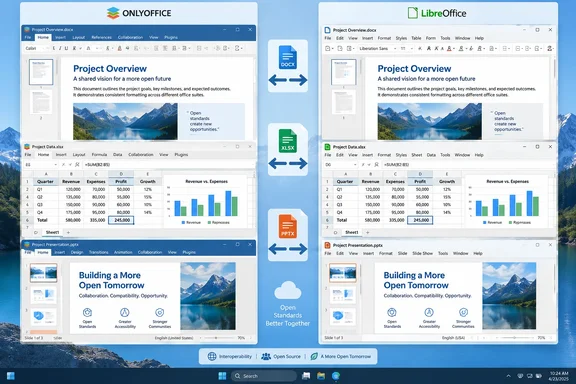
That recommendation has limits. The account is a personal workflow comparison, not a controlled benchmark establishing that ONLYOFFICE handles every Word document, Excel workbook, or PowerPoint presentation better than LibreOffice. Nevertheless, official documentation from both projects supports a practical evaluation—and reveals several reasons to keep more than one office suite available.
ONLYOFFICE makes Microsoft-file exchange the starting point
The MakeUseOf writer’s complaint about LibreOffice is familiar in shape: a document opens, its contents are present, but the user still needs to check whether a table moved or a page break changed. The reported improvement with ONLYOFFICE is less time spent worrying about that exchange workflow. Incoming files arrive in Microsoft formats, receive relatively small edits, and leave in the same formats.
According to the writer’s Windows test, ONLYOFFICE’s start screen foregrounds documents, spreadsheets, and presentations, with a new document starting as DOCX. Its ribbon-style controls, including Home, Insert, and Layout, also felt familiar to someone accustomed to Microsoft Office. These are useful usability observations, although a familiar toolbar does not establish equivalent document handling.
ONLYOFFICE’s own Desktop Editors documentation confirms the underlying capabilities: it can create, view, and edit DOCX, XLSX, and PPTX, alongside OpenDocument formats including ODT, ODS, and ODP. It also confirms that multiple files can occupy tabs within one window, with separate windows available as an alternative. The application is available for Windows, macOS, and Linux.
A separate MakeUseOf account published on May 21 similarly describes ONLYOFFICE as a convenient way to exchange DOCX files with Word users. That provides another reported experience, but it is still coverage from the same publication, not independent laboratory confirmation of superior compatibility.
The defensible conclusion is therefore narrower than “ONLYOFFICE is better.” Its default workflow suits a user whose documents mostly come from Microsoft Office. That can be a meaningful advantage even when another suite has more attractive features elsewhere.
It also changes what counts as a successful evaluation. Someone who writes exclusively for themselves may care most about editing tools and preferred formats. Someone returning a revised contract, budget, or slide deck needs to care about what the other person receives.
LibreOffice’s DOCX support is real, but support has several layers
LibreOffice is not excluded from Microsoft-file workflows. Its official help explicitly says recent versions can load and save DOCX, XLSX, and PPTX. Writer, Calc, and Impress can therefore participate in the same basic open-edit-save cycle.
The distinction described in the MakeUseOf comparison is the suites’ starting point: LibreOffice’s established native formats are OpenDocument, while ONLYOFFICE’s everyday workflow emphasizes Office Open XML, usually shortened to OOXML. DOCX, XLSX, and PPTX belong to that Microsoft Office file-format family. This helps explain the appeal of ONLYOFFICE’s defaults, but it does not prove that one application can reproduce every feature another application writes into a file.
Claims that DOCX “doesn’t need a translator anymore” oversimplify the problem. A matching filename extension establishes the file family, not identical interpretation of every layout instruction, spreadsheet operation, or presentation object. The September MakeUseOf account itself acknowledges possible differences involving fonts, formulas, visual effects, macros, and less common Office features.
LibreOffice’s documentation is particularly useful because it identifies concrete conversion risks rather than merely warning that compatibility may vary. For Word documents, it names revision marks, embedded OLE objects, certain controls and form fields, tables, frames, and multi-column formatting. OLE objects are embedded objects whose behavior can depend on another application; their presence makes a document a more demanding test than plain paragraphs.
For PowerPoint files, LibreOffice lists grouped objects, master background graphics, spacing, and certain multimedia effects among potential trouble spots. For Excel, it names pivot tables, conditional formatting, newer chart types, and some functions and formulas. These are documented areas to inspect, not evidence that every file containing one of those features will fail.
Nor does LibreOffice’s published limitations list establish that ONLYOFFICE handles all those features correctly. The practical value is that it identifies where a comparison should concentrate. A suite that opens a simple letter successfully has not yet demonstrated that it can safely return a tracked legal revision or preserve a complex financial workbook.
Excel compatibility needs a calculation check, not just a screenshot
One of the strongest reasons to look beyond appearance comes directly from LibreOffice’s conversion documentation. It describes a difference between Calc and Excel in the treatment of Boolean values—logical values such as TRUE—inside formulas.
In the documented example, cells A1 and A2 both contain TRUE:
| Formula operation | Calc result in LibreOffice’s example | Excel result in LibreOffice’s example |
|---|---|---|
Adding the two cells with =A1+A2 | 2 | 2 |
| Summing the cell references with SUM | 2 | 0 |
LibreOffice gives the SUM formulas as =SUM(A1;A2) in Calc and =SUM(A1,A2) in Excel. The important point is the documented result difference, not the punctuation used to separate arguments. Two applications can display the same inputs while evaluating a particular operation differently.
This example does not demonstrate a corresponding defect or advantage in ONLYOFFICE. There is no supplied test showing how ONLYOFFICE 9.4.0 handles this workbook. It demonstrates why an evaluation based only on whether cells, colors, and charts look correct is incomplete.
For a spreadsheet migration, a useful check therefore has two parts. First, confirm that the workbook’s layout and formatting survive. Then verify the important results after making the kinds of edits the workbook normally receives. A budget that looks identical but produces a different total has failed the more consequential part of the test.
Automation requires a separate decision. The MakeUseOf account reports that ONLYOFFICE macros use JavaScript, whereas existing Microsoft Office automation commonly uses VBA, or Visual Basic for Applications. The account does not provide a working conversion example, so users should not interpret “can be rewritten” as a promise of automatic or inexpensive migration.
LibreOffice also documents a qualified position: it cannot generally run Visual Basic scripts, but it can run some Excel Visual Basic scripts when the relevant support is enabled. That is not a reason to enable unfamiliar macros. It is a reason to separate ordinary spreadsheet editing from automation compatibility, and to keep an established working environment for files whose operation depends on code until a replacement has been specifically validated.
ONLYOFFICE’s offline desktop app does not require a cloud commitment
For users considering ONLYOFFICE because it is open source, the licensing and local-file claims have firmer support than the comparative compatibility claim. ONLYOFFICE’s documentation identifies Desktop Editors as distributed under GNU AGPL v3 and says the application can work with documents stored on the computer without a constant internet connection.
That preserves an important boundary: opening a local document does not require connecting the editor to a cloud service. The same documentation treats cloud connections as additional integrations that enable connected capabilities. Choosing the desktop editor is therefore a separate decision from choosing where to store documents or how to collaborate.
However, local editing and connected collaboration are not interchangeable modes with an identical feature set. ONLYOFFICE documents collaborative editing, commenting, and built-in chat in connection with cloud integration. It also explicitly identifies Mail Merge in the Document Editor as an online-only feature available through the desktop interface after connecting to the cloud.
Mail merge combines a document template with records, such as names and addresses, to generate personalized output. If that is part of an existing office workflow, the distinction matters more than whether ordinary letters open cleanly. A user expecting every task to remain offline should account for that documented boundary before switching.
The interface also offers a small but useful degree of workflow control. ONLYOFFICE’s getting-started instructions describe choosing whether files open in their own tabs or windows through the application’s Settings section, then applying the change. That is a preference worth adjusting during a trial, but it belongs in the usability column of the evaluation, separate from whether files survive exchange intact.
For an administrator, these distinctions prevent an overly broad deployment conclusion. A successful local-file pilot can establish that an editor suits local-file work. It does not, by itself, establish that the same deployment replaces a team’s connected editing, document-generation, or automation arrangements.
Test ONLYOFFICE without making it your Windows default
The sensible first action is a side-by-side trial, not uninstalling LibreOffice or redirecting every Office document to a new application. ONLYOFFICE’s Windows installation documentation makes that approach possible, and it contains one consequential detail: in the documented EXE installer, Associate all is the default file-association option.
The installer also offers “Do not associate” and “Associate selected.” Choosing “Do not associate” for an initial trial avoids deliberately replacing existing associations as part of setup. You can then open test files from inside ONLYOFFICE rather than making a double-click in File Explorer part of the experiment.
The following is a conservative evaluation procedure derived from the documented local-file controls and the compatibility risks above. It is a recommendation for testing, not a claim that WindowsForum has carried out the comparison.
- Preserve the originals before editing. Create working copies of representative files and leave the originals unchanged. Choose documents you actually exchange, including files with the formatting or calculations that make your work demanding.
- Install ONLYOFFICE Desktop Editors with “Do not associate” selected if the documented EXE installer presents that choice. The vendor notes that installation may require administrator or extended user permissions. On a managed computer, obtain authorization rather than treating a personal software preference as permission to change the workstation.
- Open the application and use “Open local file,” then “Browse,” to select a working copy. ONLYOFFICE documents these controls explicitly. This tests the local workflow without introducing a cloud connection.
- Make a representative edit rather than merely opening the file. Change the kind of content you normally change, then save the working copy under a distinct name in the required file format. The desktop documentation confirms that saving lets you choose a location, filename, and format.
- Inspect the saved result in the receiving application where possible. If the recipient uses Word, Excel, or PowerPoint, reopen it there or ask the recipient to validate the working copy. This checks the complete exchange rather than only ONLYOFFICE’s view of the document.
- Keep the original application available for files that fail. A successful trial with routine correspondence need not justify moving automation-heavy workbooks or elaborate presentations at the same time.
The comparison should have explicit acceptance criteria. “It opens” is too weak, but an exhaustive inspection of every feature in every office suite is unnecessary. Concentrate on the properties your work must preserve.
| File type | What deserves particular attention | What a successful trial should establish |
|---|---|---|
| DOCX | Page breaks, table positions, images, comments, revision marks, and fonts. | The recipient can read and continue editing the document without repairing its layout or review information. |
| XLSX | Key formula results, charts, conditional formatting, and any automation the workflow uses. | Important outputs remain correct after normal edits, and required automation has been validated separately. |
| PPTX | Text placement, grouped objects, spacing, backgrounds, and effects used by the presentation. | Slides retain the intended arrangement and behave acceptably in the recipient’s presentation workflow. |
Where a check fails, preserve the failing working copy for comparison and return to the untouched original in the established editor. That provides a safer fallback than repeatedly saving the same important file through different applications while trying to repair it.
This trial also avoids overvaluing the reported version number. The MakeUseOf writer identifies version 9.4.0, but that establishes the reviewer’s stated test environment, not the newest available build or a reason to seek that specific release. Record the version you evaluate so that a later update can be distinguished from a change in the documents themselves.
Choose ONLYOFFICE by the documents that must come back intact
Try ONLYOFFICE first if routine Microsoft-file exchange is your main source of friction, and postpone a broader switch until representative files have passed a return trip through the recipient’s application. Keep LibreOffice as the default where OpenDocument files, existing extensions, or established Writer and Calc workflows already meet the requirement.
The useful decision is narrower than replacing an entire suite. You might adopt ONLYOFFICE for incoming DOCX files while retaining LibreOffice for existing work and Microsoft Office access for compatibility-critical documents. That is a workflow choice, not a failure to select a winner.
- ONLYOFFICE is worth evaluating when most incoming and outgoing files are DOCX, XLSX, or PPTX and local, open-source editing is a priority.
- LibreOffice already supports those Microsoft formats, so a switch should earn its place through better results with your files rather than format-support claims alone.
- Preserve originals and avoid changing Windows file associations during the initial trial.
- Check spreadsheet calculations and automation separately from visual formatting; a clean-looking workbook is not sufficient evidence of correct operation.
- Verify cloud-dependent requirements such as ONLYOFFICE’s documented Mail Merge workflow before assuming every desktop task can remain offline.
- Retain an established editor for documents that require exact rendering, unvalidated macros, or features that fail the exchange test.
ONLYOFFICE’s strongest case is the convenience of an editor whose normal workflow matches the Microsoft files arriving in the inbox. The next decision should be based on a saved document coming back intact—its layout, calculations, and required behavior preserved—not on the ease of opening it the first time.
References
- I stopped using LibreOffice because this open-source suite handles Microsoft files so much better MakeUseOf · 2026-09-22T13:00:15+00:00
- About Converting Microsoft Office Documents help.libreoffice.org
- Installing Desktop Editors on Windows on your computer helpcenter.onlyoffice.com