

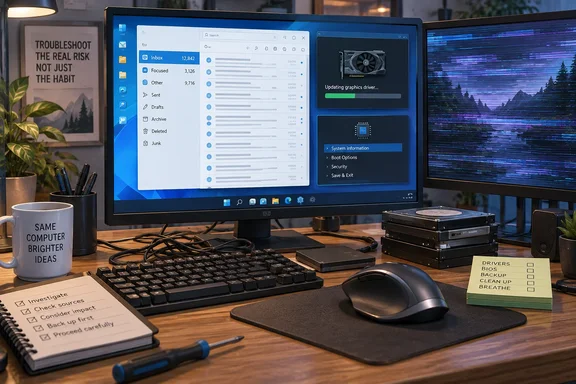
Jon Martindale's Eight PC Habits Fall Into Three Groups
Martindale opens by saying he has been a tech journalist for 20 years and has written many how-to guides that he doesn't always follow himself. The list is honest. It is also a set of anecdotes from one person's main work and gaming PC. None of it comes from a test, and the symptoms he describes haven't been diagnosed.
Sorting the list by consequence makes it more useful than reading it in order:
| Habit | What Martindale reports | Practical weight |
|---|---|---|
| Outdated graphics drivers and BIOS | Graphics drivers last updated early 2024, BIOS last flashed late 2023, found while chasing system locks | Can matter when troubleshooting |
| Unresolved PC faults | Intermittent half-responsive apps after boot, a flickering second monitor, slow startup | Can matter when troubleshooting |
| Rebooting only when the PC crawls | Weeks of sleep without a restart, then slow network, stuttering video, laggy tabs | Maintenance habit |
| 38,000 unread emails | Scans for important mail and ignores the counter | Has a documented Outlook fix |
| New drive per Windows reinstall | Old drives kept, including a 500GB Samsung 850 EVO, several labelled "Local Disk" | Organisation trade-off |
| Wired phone transfers | USB-C-to-A cable, USB 3.0 at best | Convenience vs. speed |
| 2,400 DPI mouse | Fingertip grip, small desk area, no switching for FPS games | Personal preference |
| Desktop folders | Many project folders, no shortcuts | Mostly how it looks |
Martindale sorts them much the same way himself. He calls the drive-buying habit closer to a "privileged humblebrag" than a mistake, and says the desktop clutter is mainly an aesthetic issue.
Stale BIOS and Graphics Drivers Can Hide Real Faults
The driver and BIOS confession carries the most weight because of how he found out. He had been getting what he calls "weird system locks." His suspects were a misconfigured webcam driver, his second monitor, or a faulty HDMI cable. To rule out software, he updated his graphics drivers and found they hadn't been updated since early 2024. He then went to flash the BIOS as another possible fix and found the last flash was in late 2023.
His conclusion is balanced. He writes that updating isn't something you have to do, but it's a good idea because an outdated BIOS or outdated drivers can cause problems. That's as far as his evidence goes. He doesn't say whether the updates fixed the lockups, so this is not a before-and-after result. It does show why stale firmware and drivers get in the way of troubleshooting: when a machine locks up, every outdated component becomes a suspect you have to rule out before you can look at the hardware he actually suspected.
There's no universal update schedule in the piece, and his experience doesn't justify one. The lesson is about process. If you're chasing an intermittent fault on a Windows PC, bring drivers and firmware up to date early so they're off the list of suspects. Know that a BIOS flash is a firmware change with its own risks, and follow your motherboard vendor's procedure for your specific board. Those procedures differ between boards, and none is documented here.
Unfixed PC Faults and Rare Reboots Muddy the Evidence
Two more habits feed into each other. Martindale ends most workdays by minimising windows, switching to a new virtual desktop, and putting the PC to sleep without saving tabs or shutting down. After several weeks without a real restart, he says network performance "drops off a cliff," videos stutter, and browser tabs lag. That's when he reboots.
He also lists faults he has chosen to live with. Sometimes apps load only partly after boot and stay half-responsive; he's "pretty sure" his webcam is involved but hasn't confirmed it. His second monitor sometimes flickers with white bands until he unplugs it and plugs it back in. And for a PC with a Ryzen 9 7950X3D and a PCIe 4 SSD, he calls startup "awfully sluggish." His own advice to readers is not to let problems pile up like this.
All of these are his observations. None of them is a diagnosis. His account doesn't show that infrequent reboots caused the network slowdown, or that the webcam, monitor, SSD or CPU is behind any of the other symptoms. There's a practical point underneath, though, and this part is our inference rather than his: a PC that goes weeks without restarting and carries several unrelated faults is hard to troubleshoot. When a new problem appears, you can't easily tell whether it's new, one of the old faults, or just the result of weeks of uptime. Restarting before symptoms appear, and fixing faults one at a time, gives you a clean baseline to compare against.
Outlook's Focused Inbox and Rules Answer the 38,000-Email Problem
The inbox confession is the one with a ready-made fix. Martindale says that when friends see his screen, the tech-savvy ones tell him he should set up some filters. He agrees they're right and admits the backlog is distracting and impractical. He copes by scanning quickly for anything important and ignoring the counter. He doesn't say which email provider or app he uses, so what follows applies only to Outlook with a supported account.
Microsoft's first built-in option is Focused Inbox. According to Microsoft's support documentation, the feature separates your inbox into two tabs—Focused and Other. Your most important email messages are on the Focused tab while the rest remain easily accessible—but out of the way—on the Other tab. To decide what goes where, the system takes into account emails and contacts with whom you interact, and filters out noisy sources like automatically generated or bulk email.
Account type decides whether you can use it. In Outlook for Windows, Focused Inbox is available only for Microsoft 365, Exchange, and Outlook.com accounts. Shared mailboxes are left out: Office Watch notes that Shared Mailboxes do NOT have Focused Inbox, and Microsoft says the feature won't work on them by design.
Turning on Focused Inbox in each Outlook version
- In new Outlook for Windows, Microsoft says to select View > View Settings. In Mail > Layout, select the account you want to apply the settings to. To turn it on - Select the option Sort messages into Focused and Other. Then click Save.
- In classic Outlook, select the View tab. Select Show Focused Inbox.
- In Outlook.com or Outlook on the web, go to Settings > Mail > Layout. In the Focused Inbox section, to turn on, select the option to Sort messages into Focused and Other.
If it worked, the Focused and Other tabs will appear at the top of your mailbox. You'll be informed about email flowing to Other, and you can switch between tabs any time to take a quick look. If you don't see the tabs, Microsoft says you might have a Clutter folder instead.
The sorting improves if you train it. Right-click a message on either tab and choose Move to move just that message, or Always Move to send all future mail from that sender to the tab you pick. Office Watch, which says the feature was poor at sorting when it launched but has improved, still advises that you'll still need to train it at first. Focused Inbox is a triage aid, and it can get things wrong, so check the Other tab now and then.
Rules for the backlog you already have
Outlook rules are the more literal answer to "set up some filters." In Microsoft's documentation, a rule needs a name, a condition and an action, and can move, flag, reprioritise or delete incoming messages. In new Outlook for Windows, the quickest way is to right-click a message, choose Rules > Create rule, and pick a destination folder. New rules apply to incoming mail by default, but new Outlook lets you run a rule on existing messages from Settings > Mail > Rules. Classic Outlook offers a "Run this new rule now on messages already in the current folder" checkbox, plus Run Rules Now under File > Manage Rules & Alerts. With a 38,000-message backlog, that option to run rules on existing mail is what makes rules useful.
There are limits. Microsoft says new Outlook doesn't currently support rules for third-party accounts such as Gmail, Yahoo and iCloud, so those filters have to be set up with the email provider. Some client-side rules created in classic Outlook won't work in new Outlook and have to be recreated. Outlook.com currently applies new rules only to messages that arrive after you create them, and points users to Archive, Move to and Sweep for cleaning up existing mail.
New Drives, 2,400 DPI and Desktop Folders Are Trade-offs, Not Failures
The rest of the list is about workflow, and Martindale makes a fair case for most of it.
His reinstall habit comes from caution. He worries Windows could delete something he needs, or that he'll forget to back something up. So instead of reinstalling on the same drive, or backing up and formatting, he buys a new drive and keeps the old one as extra storage. The benefit is a clean drive for new games and apps with the old data untouched. The cost is what he calls a "Frankenstein's monster of drive letters": he still has the 500GB Samsung 850 EVO from three installs ago, several drives are named "Local Disk," and finding the right one takes a few tries. Buying a new drive isn't required to reinstall Windows. A proper backup does the same job for less money. If you already have a mix of drives like his, giving each volume a distinct name fixes most of the confusion (that's our suggestion, not his).
The phone-transfer habit is a speed-versus-convenience choice. He knows there are apps, network sharing and cloud storage options, but he uses a USB-C-to-A cable that he describes as USB 3.0 at best. Big transfers take a while, but the cable is tied to his desk, always within reach, and good enough for him. Nothing in his account makes wired transfers unsafe or wrong. If it's slow, that costs you time and nothing else.
The mouse setting is the clearest case of personal preference. He runs about 2,400 DPI for everything and contrasts that with pro PC gamers, whom he says often use 800 to 1,200 DPI and large mouse pads. His fingertip grip and small desk space favour a sensitivity that covers real screen distance with little hand movement. He rarely plays fast shooters, where he agrees lower DPI would help accuracy, and doesn't change the setting when he does. DPI alone doesn't describe how sensitive a mouse feels in a game, so the pro figures are a loose comparison, not a target.
The desktop folders are mostly about looks. He has no shortcuts there, just too many folders from past projects. He sees little practical difference between keeping a folder on the desktop and deeper in a drive, but admits it doesn't look professional. His account doesn't mention any performance cost.
What This Means for You
Start with the habits that affect troubleshooting, and leave the preferences alone unless they actually bother you. If your PC has intermittent lockups, flicker or slow boots, Martindale's experience suggests clearing out the variables you control before you chase hardware. If email is your problem and you use Outlook with a supported account, Microsoft's tools handle most of it.
- Before troubleshooting an intermittent fault, update your graphics drivers and check your BIOS version, and follow your board vendor's instructions for any firmware flash.
- Restart on a schedule instead of waiting for stuttering video or slow tabs, so each new symptom can be compared against a clean baseline.
- Deal with PC faults one at a time and write down what changed. Several unexplained problems at once make each one harder to pin down.
- Turn on Focused Inbox if you use a Microsoft 365, Exchange or Outlook.com account in Outlook for Windows, and check the Other tab regularly, because the sorting can be wrong.
- Use Outlook rules to clear an existing backlog, but set up filtering for Gmail, Yahoo or iCloud accounts with those providers, because new Outlook doesn't run rules for them.
- Keep your high-DPI mouse, charging cable and desktop folders if they work for you. None of them is shown to hurt performance.
Martindale ends by promising to do better and suggesting he may revisit the list in a year to see which habits he has actually dropped. For readers, the useful part doesn't depend on that follow-up. Outdated drivers and firmware and a pile of unfixed faults are what make the next PC problem hard to diagnose. The overflowing inbox has a documented fix in Outlook today. The rest is personal choice.
References
- I’m a PC expert, but I still can’t break these 8 bad habits - PCWorld PCWorld · 2025-04-15T10:30:00+00:00
- Manage email messages by using rules in Outlook | Microsoft Support support.microsoft.com
- Focused Inbox for Outlook | Microsoft Support support.microsoft.com